

Contents
Getting started - Plugixa Car Wash
This page takes you from installing the plugin to seeing your first test booking on the bay schedule. It needs no payment account. Plan on fifteen to twenty minutes, most of it spent typing in your own packages.
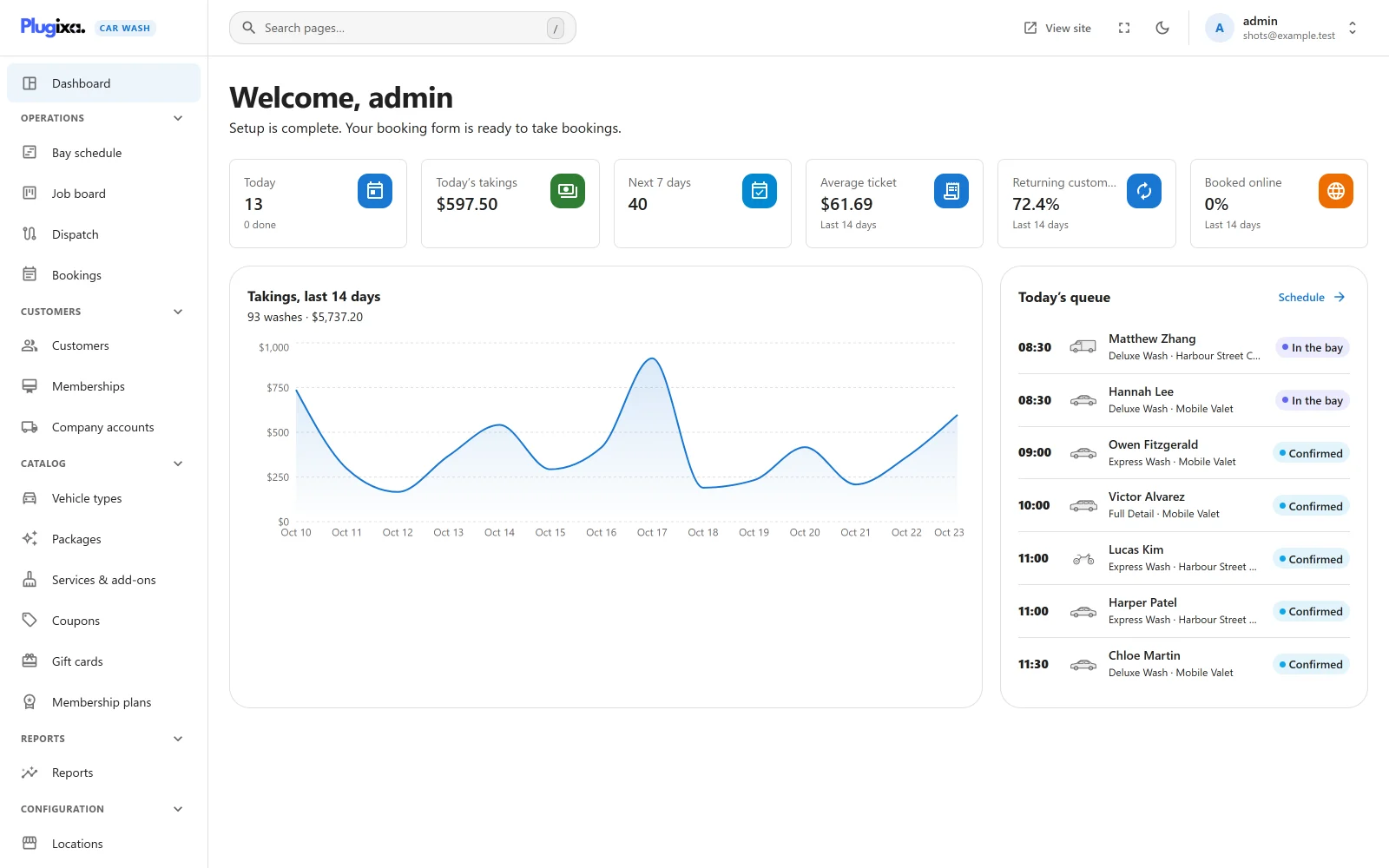
Activation creates no example content. The dashboard shows a checklist of the five things the booking form needs, and this page walks through them in the same order.
Install
From a ZIP
- In wp-admin, go to Plugins -> Add New -> Upload Plugin.
- Choose the plugin ZIP and click Install Now.
- Activate.
By hand
Upload the plugixa-car-wash folder to /wp-content/plugins/,
then activate it from Plugins.
Requirements
- WordPress 6.5 or higher
- PHP 8.2 or higher
The plugin uses Freemius for licensing and updates. After activation it asks whether you want to share diagnostic data. Skip leaves the plugin fully working and sends nothing identifiable. See Privacy and uninstall.
What activation does
- Creates the plugin’s own database tables.
- Gives the Administrator role the plugin’s seven capabilities. No other role gets access. See Roles and permissions.
- Stores the default settings, among them: currency
USD, online bookings confirmed at once, customers may cancel online up to 24 hours before, Pay at the wash as the only payment method, and emails to customers and to you switched on. - Schedules a job every five minutes that releases online bookings whose payment was not completed in time.
Activation creates no location, no vehicle type, no package, no booking form and no page. Nothing is seeded, so nothing has to be deleted before you start.
Where the menu is
Open Plugixa Car Wash in the WordPress admin menu. It opens a single application with its own sidebar, and every screen lives inside it.
| Sidebar group | Screens |
|---|---|
| (top) | Dashboard |
| Operations | Bay schedule, Job board, Bookings, and with Pro PRO Dispatch |
| Customers | Customers, and with Pro PRO Memberships and Company accounts |
| Catalog | Vehicle types, Packages, Services & add-ons, Coupons, and with Pro PRO Gift cards and Membership plans |
| Reports PRO | Reports |
| Configuration | Locations, Bays & teams, Booking forms, Settings, App manager, and with Pro PRO Roles, Permissions and Webhooks |
The search box at the top jumps to any screen. A module switched off in the App manager disappears from the sidebar. See Dashboard.
Step 1: Check the basics
Open Settings.
- Choose your Currency, the Symbol position and the Currency decimals.
- Under Date and time, choose the Date format.
- Under Email notifications, check Send booking alerts to. Empty means the site’s admin email. Business name in emails falls back to the site title.
- Click Save.
Every option is described in Settings.
Step 2: Add your location
Open Configuration -> Locations and click Create.
- Give it a name and an address. Leave the service type on On site for a wash customers drive to.
- Set its Opening hours. A new location opens 08:00 to 18:00 Monday to Saturday and is closed on Sunday. Add a second period on a day for a lunch break.
- Check the Booking rules. By default start times are offered every 30 minutes (Time slot length), no sooner than 60 minutes from now (Minimum notice), up to 30 days ahead (Booking window), with no Buffer after each wash.
The Mobile service type sends a team to the customer’s address, and the booking form then asks for that address. Taking those bookings online needs Mobile service PRO. See Locations.
Step 3: Add your bays
Open Configuration -> Bays & teams and add one bay per car you can wash at the same time. Each bay takes one car at a time, so two bays means two bookings can share a start time. A location with no bay offers no times at all.
A bay can be limited to some vehicle types, for example a tall bay for vans. See Bays and teams.
Step 4: Add vehicle types
Open Catalog -> Vehicle types and add what your customers drive, such as Car, SUV and Van, each with an icon. Extra fee is added to every package for that vehicle, and Time multiplier makes every wash longer or shorter for it.
Vehicle types are optional. With none, the form skips the vehicle step and every customer gets the same price. See Vehicle types.
Step 5: Create your packages
- Open Catalog -> Services & add-ons and add the pieces of work you do, such as a hand wash, interior vacuum or tyre shine. Mark the ones you sell on top of a package as add-ons.
- Open Catalog -> Packages and create each wash you sell with a price, a duration and the services it includes.
- Where a package costs more or takes longer for a vehicle, set that vehicle’s price and duration on the package, or mark it as not available for that vehicle.
See Packages and Services and add-ons.
Step 6: Create a booking form and place it
-
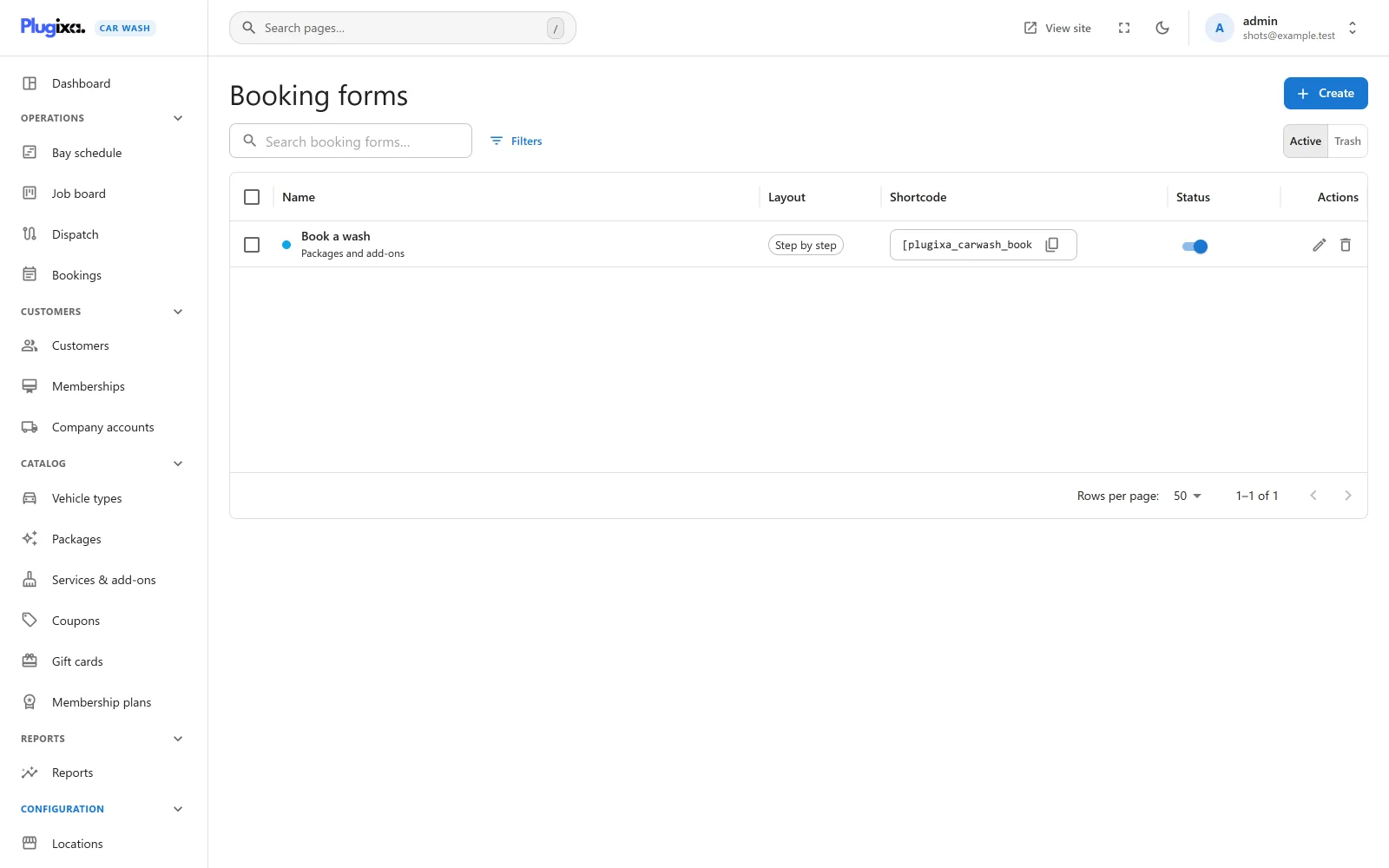
Open Configuration -> Booking forms and click Create.
-
Give it a name (only staff see it). The defaults are fine for a first form: Step by step, packages and add-ons, every location, vehicle type and package that is published.
-
Save, then copy the shortcode from the list. It names the form by its number:
[plugixa_carwash_booking form="1"] -
Create a page, for example “Book a wash”, and paste the shortcode. In the block editor you can use the Car wash booking form block instead and pick the form from a list.
-
Publish the page.
The shortcode needs its form number. Without it, visitors see nothing. See
Shortcodes and block
and Booking forms.
Step 7: Add the account page
Optional, and worth two minutes. Create a page, for example “My bookings”, with:
[plugixa_carwash_account book_url="/book-a-wash/"]
Customers sign in there with a link sent by email and see, cancel and keep track
of their washes. book_url adds a Book a wash button that leads to your
booking page. See
Customer account.
Step 8: Take a test booking
- Open the booking page in a private window, so you see it as a visitor.
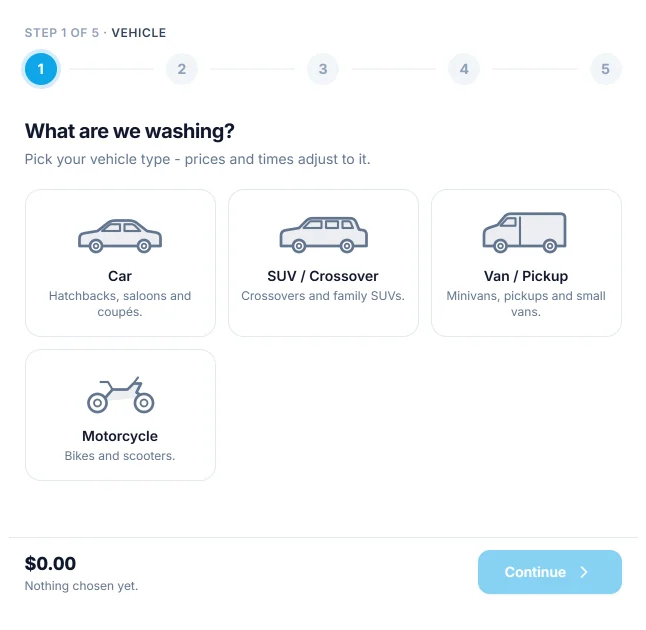
- Pick a vehicle, a package and any extras.
- Pick a day and a time, fill in your details and click Book now.
- Note the reference on the confirmation. It looks like
CW2026-0001.
Each step is described in Booking form.
Step 9: See it in the app
Open Operations -> Bay schedule. The test booking sits on the bay it was given, with the status Confirmed.
- Drag it to another time or bay to move it. The new time is checked again.
- If you switched off Confirm online bookings automatically in Settings -> Bookings, new bookings arrive as Pending and wait for you to confirm them.
- When the customer pays at the wash, record the payment on the booking. See Payments.
Two emails were sent for the booking: one to the customer and one to you. If neither arrived, see Troubleshooting.
Staff without wp-admin
Staff who should not see the WordPress dashboard can use the same app on a page of your site. Put this on a page and keep the page private or out of your menus:
[plugixa_carwash_app]
Only signed-in users who may open the app see it. Everyone else gets a sign-in link. See Shortcodes and block.
What to do next
| To | Read |
|---|---|
| Offer discount codes | Coupons |
| Let customers pay by bank transfer | Payments |
| Change what the emails say and who gets them | Emails |
| Run the day from a tablet at the bay | Job board |
| See what Pro adds | Free vs Pro |