

Contents
Bays and teams - Plugixa Car Wash
A bay or team is something that can work on one vehicle at a time. Bays and teams are your capacity: a location with three wash bays can take three cars at the same moment, and never a fourth.
| Kind | Used by | What it is |
|---|---|---|
| Wash bay | Locations of type On site and On site and mobile | A place at the location where a car is washed. |
| Mobile team | Locations of type Mobile | A van and its crew that drive to the customer. |
Each one belongs to exactly one location. A location takes no online bookings until it has at least one published bay or team of the kind its service type uses.
Open the list from Plugixa Car Wash, then Bays & teams in the Configuration group of the app’s sidebar, right after Locations.
The list
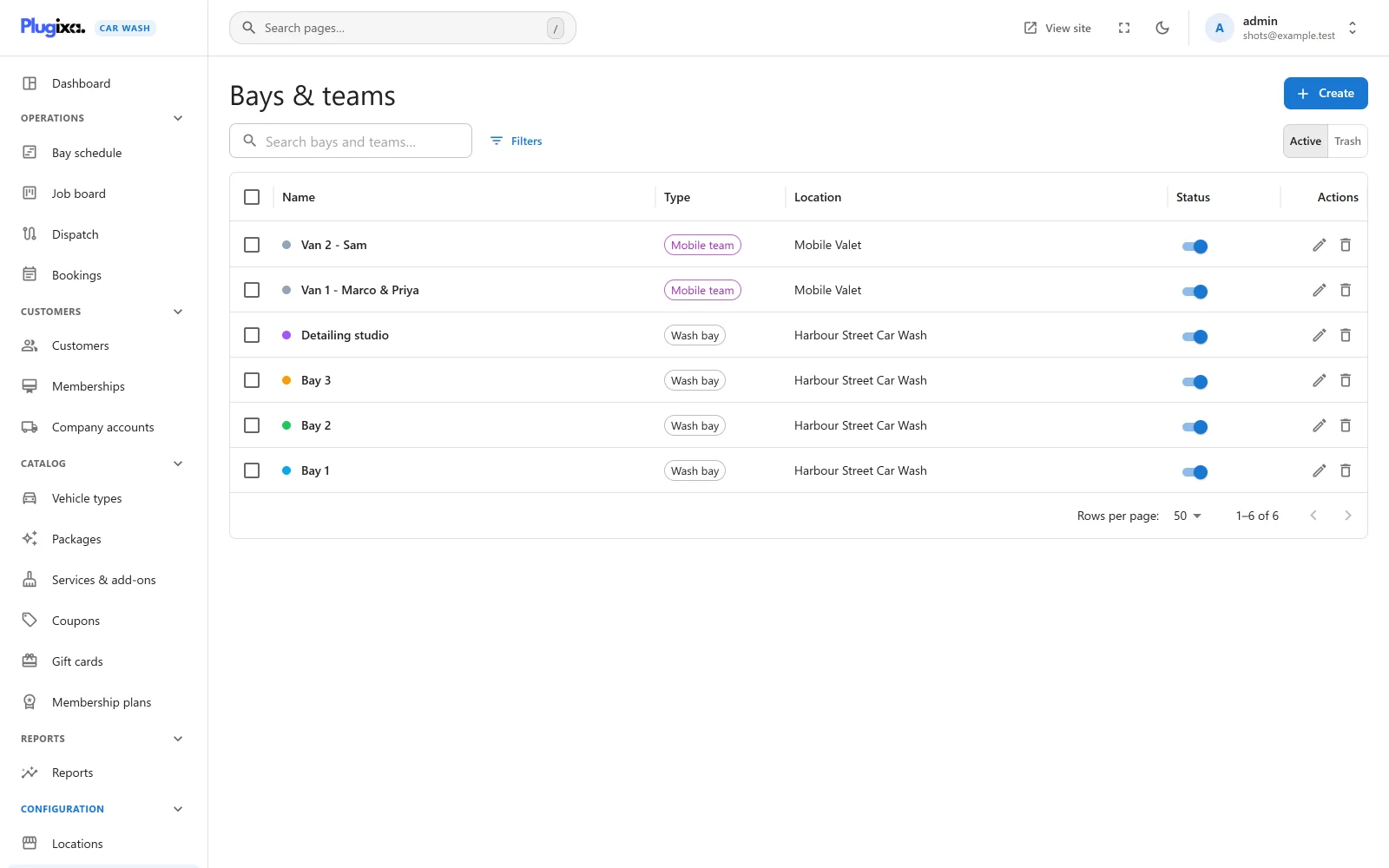
| Column | What it shows |
|---|---|
| Name | The bay’s colour as a dot, then its name. |
| Type | Wash bay or Mobile team. |
| Location | The location it belongs to. |
| Status | A switch between Published and Unpublished. |
The search box reads “Search bays and teams…”. Filters narrows the list by Location, Type and Status. Export CSV downloads the list. Tick rows to publish, unpublish or trash several at once.
An empty list reads “No bays or teams yet” with the hint “Each wash bay or mobile team can take one car at a time. Add one per bay so customers can never be double-booked.”
Adding a bay or team
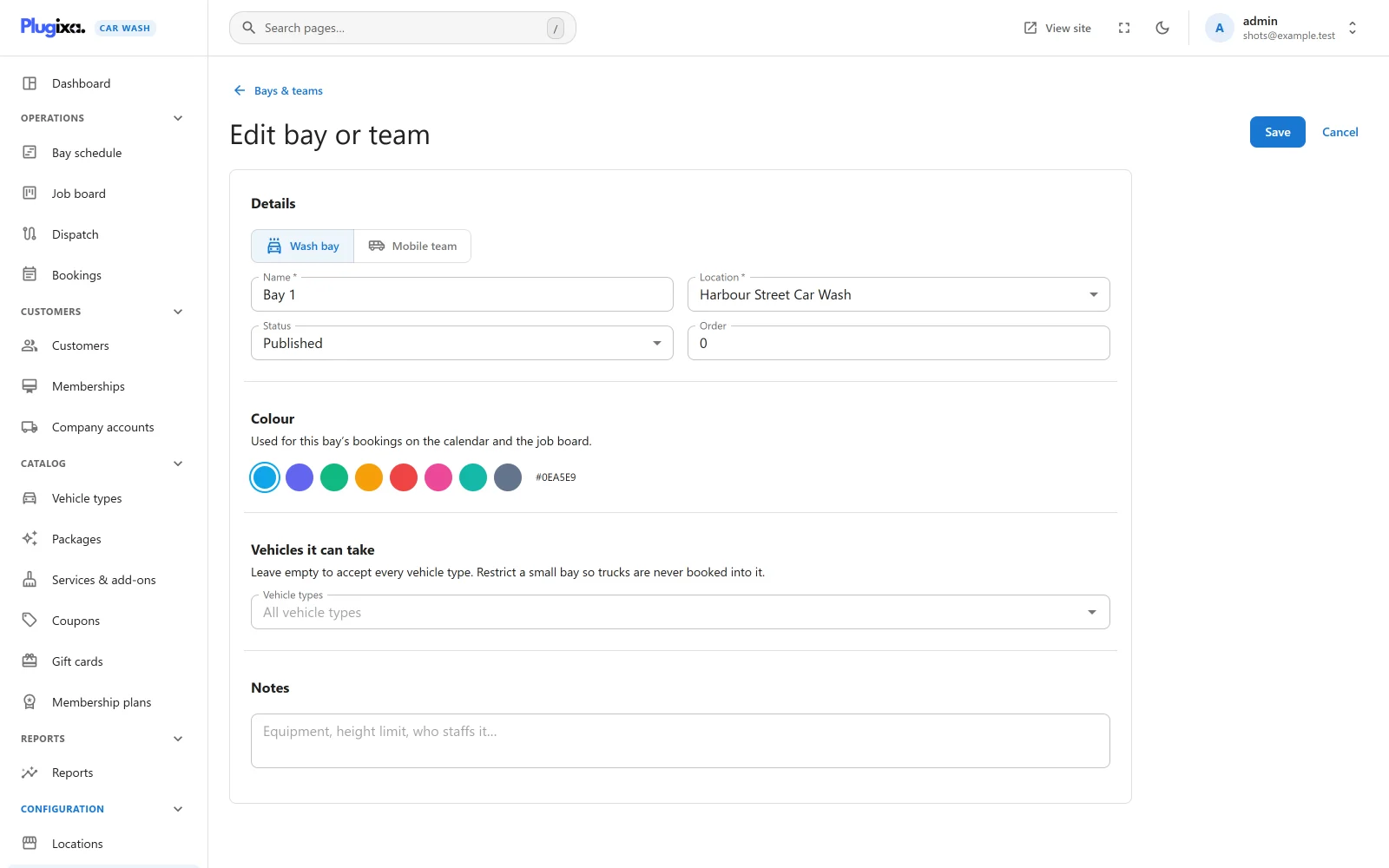
Click Create.
Details
| Field | Default | Notes |
|---|---|---|
| Type | Wash bay | Two buttons: Wash bay and Mobile team. |
| Name | Empty | Required, up to 190 characters. Placeholder “e.g. Bay 1” for a bay, “e.g. Van North” for a team. “A name is required.” |
| Location | None | Required. “Choose a location.” If no location exists yet the field says “Add a location first, under Configuration, Locations.” A location that does not exist is refused with “Choose a location for this bay or team.” |
| Status | Published | Published or Unpublished. Only published bays and teams are given bookings. |
| Order | 0 | 0 to 100,000. Lower numbers come first, which also decides which free bay a booking gets. See below. |
Colour
“Used for this bay’s bookings on the calendar and the job board.”
Eight swatches, with the chosen code written beside them. New bays start on
#0EA5E9. The colour marks the bay’s bookings on the
schedule and the
job board.
Vehicles it can take
“Leave empty to accept every vehicle type. Restrict a small bay so trucks are never booked into it.”
Pick one or more vehicle types. With the field empty, the bay takes every vehicle, including bookings made without a vehicle type. With types picked, it takes only those.
Notes
Free text for your staff, such as the equipment, a height limit or who staffs it.
How a bay is chosen
Customers never pick a bay. The plugin works out the free ones for the time they want and gives the booking one of them.
For an online booking at a location:
- The pool. The location’s published bays (or, for a Mobile location, its published mobile teams), in Order, keeping only those whose Vehicles it can take is empty or includes the customer’s vehicle.
- The window. From the start time to the end of the job, plus the location’s Buffer after each wash. The job’s length is the package and add-ons for that vehicle; see Vehicle types.
- The free ones. A bay is free when none of its bookings overlaps the window. A booking that frees the bay at 10:00 and one that takes it at 10:00 do not overlap.
- The choice. The first free bay in Order gets the booking.
A start time is offered on the booking form while at least one bay in the pool is free. If the pool is empty, because the location has no bay that takes this vehicle, no time is offered at all.
Which bookings hold a bay
A booking keeps its bay while its status is Pending, Confirmed, In the bay or Done, and while it is Awaiting payment for an online payment, until that hold expires. Cancelled and No-show bookings free the bay. See Bookings.
Checked twice
The free times the form shows are worked out when the customer looks. When the booking is saved, the plugin takes a lock on the location, reads the bookings again and repeats the check. If the last bay went in the meantime, the customer sees “Sorry, that time was just taken. Please choose another.” and is taken back to the times, with everything else they entered kept.
Staff choosing a bay
Staff creating or moving a booking in the admin can name a bay. The bay only has to be free and at the same location; Vehicles it can take does not apply, so staff can knowingly put a van in a small bay. A bay at another location is refused with “That bay is not at this location.” and a taken one with “That bay is already booked at this time.”
Developers can change which free bay is picked with the
plugixa_carwash_pick_resource filter. It may only choose among the free bays.
See Hooks.
Status, trash and restore
An Unpublished bay is left out of the pool: it gets no new bookings, and the bookings it already has stay on it.
Deleting a bay moves it to the trash. A bay that open bookings still use (Awaiting payment, Pending, Confirmed or In the bay) cannot be trashed: “1 upcoming booking still depends on this. Cancel or move it first.” A location cannot be trashed while it still has bays or teams. Switch the list to Trash to Restore a bay or Delete permanently.
What is stored
| Table | Holds |
|---|---|
{prefix}plugixa_carwash_resources |
One row per bay or team, with its location, type, colour, the vehicle types it takes and its notes. |