

Contents
Booking forms - Plugixa Car Wash
A booking form is what customers see on your site. Each form decides how the booking is laid out, what it sells, which locations, vehicles and packages it offers, which details it asks for, and what colour it is. You can have as many forms as you like: one for the whole business, or one per location, per page or per campaign.
A form is placed on a page with its shortcode or with the block. See Shortcodes and block.
Open the list from Plugixa Car Wash, then Booking forms in the Configuration group of the app’s sidebar.
The list
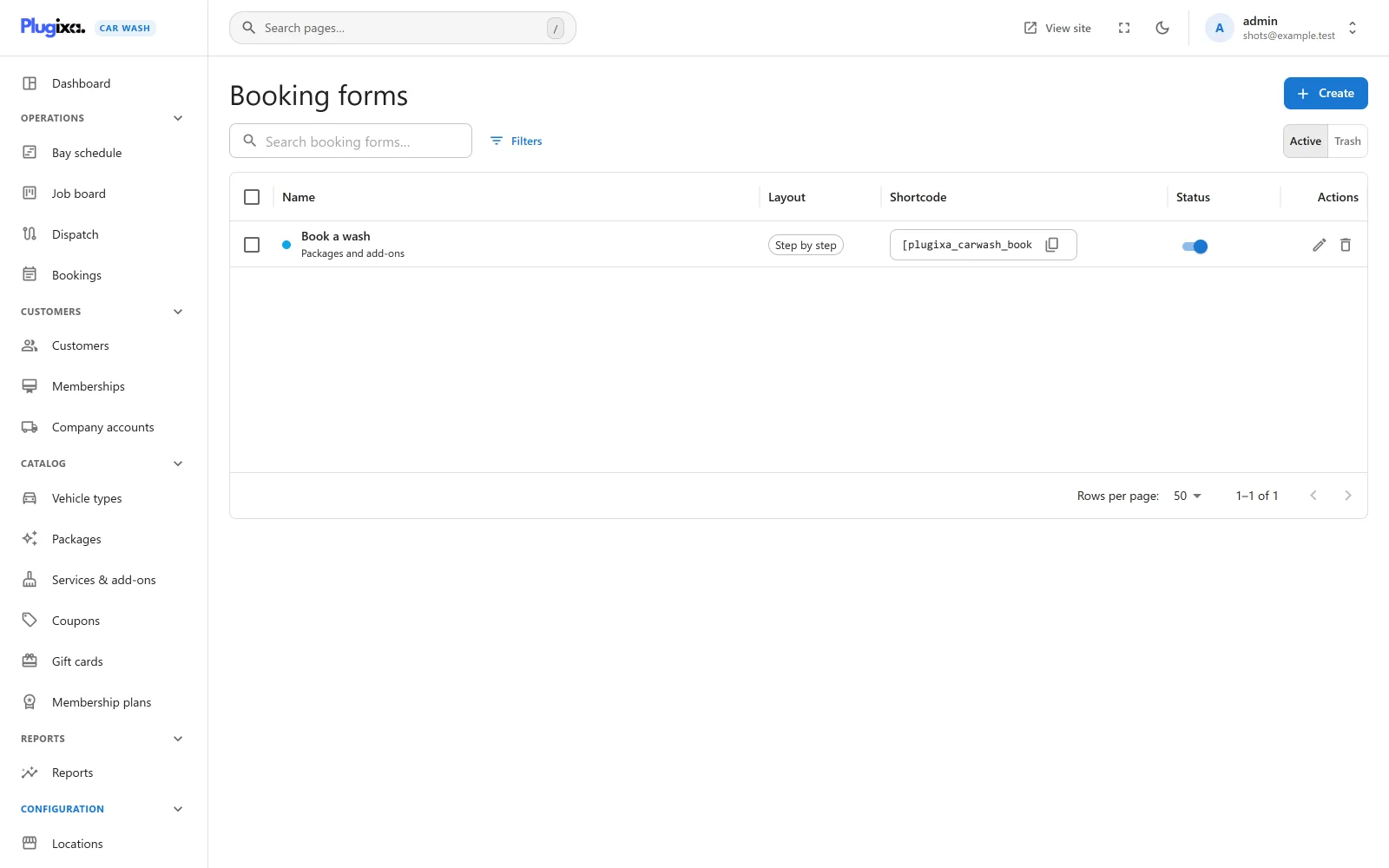
| Column | What it shows |
|---|---|
| Name | The form’s accent colour as a dot, the name, and what customers choose underneath: Packages and add-ons, Packages or Individual services. |
| Layout | Step by step or One page. |
| Shortcode | The form’s shortcode, with a copy button. |
| Status | A switch between Published and Unpublished. |
The search box reads “Search booking forms…”. Filters narrows the list by Layout and Status. An empty list reads “No booking forms yet” with the hint “A booking form is what customers see on your site. Create one, then paste its shortcode on any page.”
Adding a form
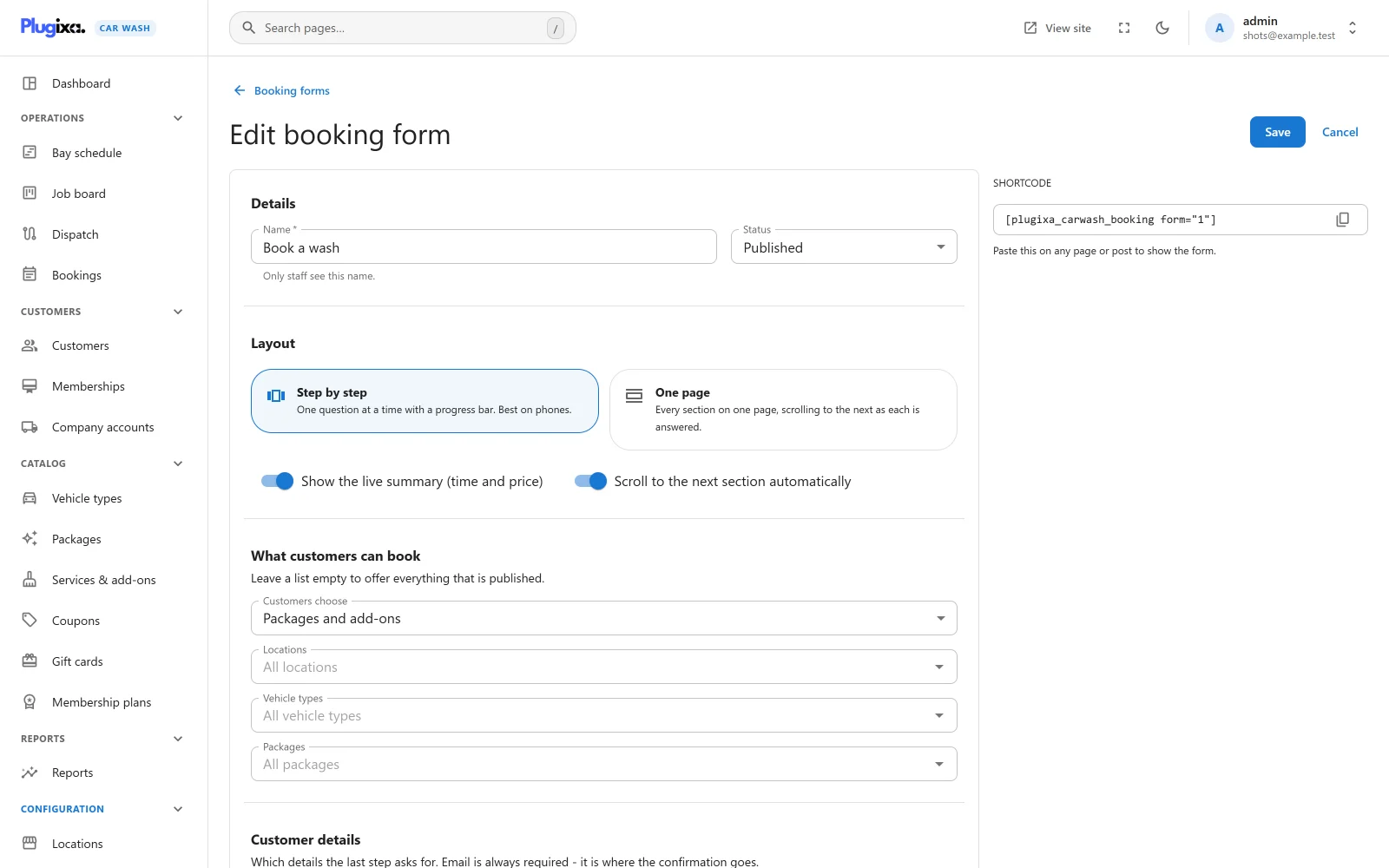
Click Create. After the first save, the Shortcode appears on the right of the form with a copy button: “Paste this on any page or post to show the form.”
Details
| Field | Default | Notes |
|---|---|---|
| Name | Empty | Required, up to 190 characters. “Only staff see this name.” |
| Status | Published | Published or Unpublished. An unpublished form shows nothing to visitors. |
Layout
| Choice | What the customer gets |
|---|---|
| Step by step (the default) | “One question at a time with a progress bar. Best on phones.” Each step has Back and Continue, and the step numbers at the top let the customer jump back to a step they have already reached. |
| One page | “Every section on one page, scrolling to the next as each is answered.” A section appears once the one above it is answered. |
The steps, in order, are Vehicle, Package, Extras (or Services), Date & time and Details. A step is left out when there is nothing to ask:
| Step | Shown when |
|---|---|
| Vehicle | The form offers two or more published vehicle types. With one, it is chosen for the customer. |
| Package | The form sells packages and at least one is published. With one, it is chosen for the customer. |
| Extras | The form sells packages and add-ons, and the chosen package has at least one add-on to offer. |
| Services | The form sells individual services. |
| Date & time | Always. |
| Details | Always. The last step, with payment and the promo code. |
Two switches under the layout:
| Switch | Default | Effect |
|---|---|---|
| Show the live summary (time and price) | On | A summary of the booking: the vehicle, each line with its price, the duration, the date and time, the tax and the total. On a wide screen it sits in a column on the right; on a narrow one it is a bar along the bottom with the total, the duration and the Continue button. The prices come from the server once the choice settles, with tax and any discount. |
| Scroll to the next section automatically | On | Step by step: picking a vehicle moves on to the next step by itself. One page: each newly revealed section is scrolled into view. |
What customers can book
“Leave a list empty to offer everything that is published.”
| Field | Default | Notes |
|---|---|---|
| Customers choose | Packages and add-ons | Packages and add-ons: a package, then optional add-ons. Packages: a package only, no extras step. Individual services: no package; the customer picks one or more from every published service. |
| Locations | All locations | Pick some to offer only those. With more than one, the customer chooses on the date step. |
| Vehicle types | All vehicle types | Pick some to offer only those. |
| Packages | All packages | Pick some to offer only those. Not used when customers choose individual services. |
These limits are enforced on the server too. A booking request for a location, vehicle, package or add-on that this form does not offer is refused, with “Choose a location.”, “Choose your vehicle type.”, “Choose a package.”, “This form does not offer add-ons.” or “One of the chosen extras is not available with this package.”
How packages, add-ons and services are priced for each vehicle is explained in Packages and Services and add-ons.
Customer details
Which details the last step asks for. Email is always asked for and always required, because the confirmation is sent there.
Each field has a Shown and a Required tick. Ticking Required also shows the field; unticking Shown also makes it optional.
| Field | Shown by default | Required by default | Longest answer kept |
|---|---|---|---|
| First name | Yes | Yes | 100 |
| Last name | Yes | Yes | 100 |
| Always | Always | 190 | |
| Phone | Yes | Yes | 50 |
| Company | No | No | 190 |
| Vehicle make and model | Yes | No | 120 |
| Licence plate | No | No | 30 |
| Address (for mobile washes) | No | No | 255 |
| Message | Yes | No | no limit |
Email cannot be unticked. On the form an optional field is marked “(optional)”, and the message field reads “Anything we should know?”.
The rules are checked on the server: an address that is not an email is refused with a message asking for a valid email address, and an empty required field with “Please fill in every required field.” Longer answers are cut to the lengths above.
At a Mobile location, the address the customer entered on the date step is carried into the Address field so they are not asked twice. A customer signed in to their customer account has their name, email and phone filled in.
The vehicle make and the licence plate are remembered on the customer’s record with the vehicle type.
Agreements
“Checkboxes shown before the booking is sent, e.g. accepting your terms. You can use links.”
Click Add agreement to add a row:
| Field | Default | Notes |
|---|---|---|
| Text | Empty | The checkbox’s label. HTML links are allowed, such as I accept the <a href="/terms">terms and conditions</a>. Other markup is cleaned to what a post may contain. An empty text stops the save with “Each agreement needs some text, or remove it.” |
| Required | On | A required agreement must be ticked before Book now can be pressed. |
The bin icon removes a row. The server refuses a booking whose required agreement is not ticked with “Please accept the required terms to book.” Each booking stores the text of every agreement as it read at the time, and whether the customer ticked it, so rewording your terms later does not change what an earlier customer agreed to.
Look and confirmation
| Field | Default | Notes |
|---|---|---|
| Accent colour | #0EA5E9 |
A colour picker. Colours the buttons, the progress bar, the selected cards and the ticks. Text on the colour turns dark or light by itself to stay readable. A package with its own colour keeps it on its card. |
| Confirmation message | Empty | Shown after a booking is made, under “You’re booked in!” or “Booking received”. Empty, the form says “A confirmation is on its way to” the customer’s email, or, for a booking that waits for you to confirm it, “We will confirm your booking shortly. A summary is on its way to” their email. |
The shortcode
[plugixa_carwash_booking form="1"]
The number is the form’s ID. Without it, [plugixa_carwash_booking] shows the
first published form by name. A form that does not exist or is not published
shows nothing to visitors; a signed-in user who can edit posts sees “Plugixa
Car Wash: this booking form does not exist or is not published. Check the form
number in the shortcode.” Several forms can sit on one page.
Status, trash and restore
An Unpublished form renders nothing and refuses bookings with “This booking form is not available.” Deleting a form moves it to the trash; a form that open bookings were made on cannot be trashed until they are done, cancelled or moved. Switch the list to Trash to Restore it or Delete permanently.
Changing a form affects new bookings only.
What is stored
| Table | Holds |
|---|---|
{prefix}plugixa_carwash_booking_forms |
One row per form, with its layout, what it sells, its narrowing lists, its customer fields and agreements, its colour and its message. |