

Contents
Booking form - Plugixa Car Wash
The booking form is what customers use to book a wash. You place it on a page
with the [plugixa_carwash_booking form="1"]
shortcode
or the Car wash booking form block. This page describes what the customer
sees, in the order they see it.
Each form is configured in Booking forms: which locations, vehicle types and packages it offers, which details it asks for, its accent colour and its layout. The form draws inside a shadow root, so your theme’s styles for buttons, inputs and headings do not change it.
The steps
| Step | Label | Heading on the screen | Shown when |
|---|---|---|---|
| 1 | Vehicle | “What are we washing?” | The form offers more than one vehicle type |
| 2 | Package | “Choose your wash” | The form sells packages and at least one is offered |
| 3 | Extras | “Add some extras?” | The form sells packages and add-ons, and the chosen package offers at least one add-on |
| 4 | Date & time | “Pick a time” | Always |
| 5 | Details | “Your details” | Always |
Steps that have nothing to ask are left out, and the numbers close up. With a single vehicle type it is chosen for the customer and the form starts on Package. A form set to sell Individual services has no Package step, and its third step is called Services (“Choose your services”): the customer must pick at least one. A form set to sell Packages alone has no extras step.
A progress bar runs across the top with one numbered circle per step. A step already reached can be clicked to go back to it; a step not reached yet cannot be skipped to. Every step except the first has a Back button, and Continue stays greyed out until the step is answered.
Step 1: Vehicle
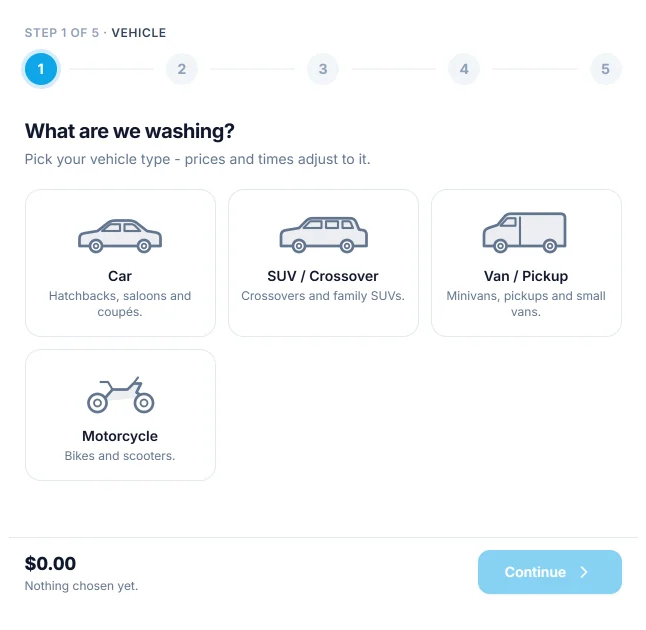
One card per vehicle type, with its icon or photo, its name and its description. The hint under the heading tells the customer that prices and times follow the vehicle they pick.
In the Step by step layout, picking a card moves on to the next step by itself when the form’s Scroll to the next section automatically option is on, which it is by default.
Step 2: Package
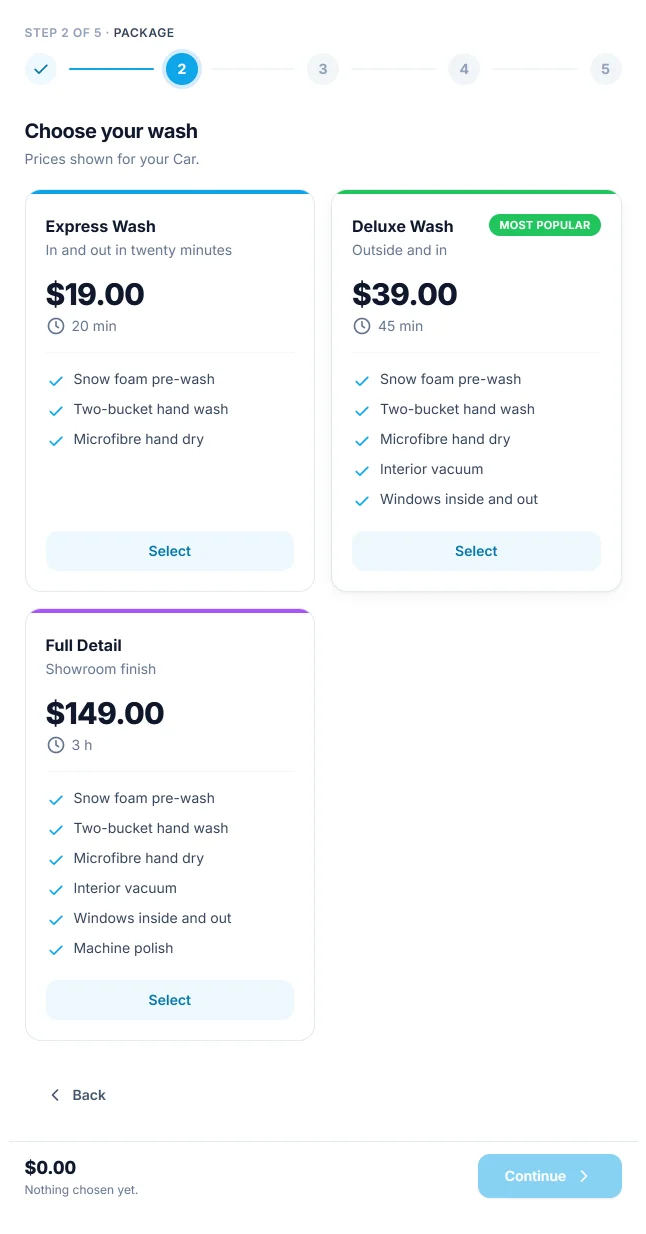
One card per package, showing:
- the package’s colour as a strip along the top, its name and its tagline
- a badge, such as “Most popular”, when the package has one
- the price and the duration for the chosen vehicle. The line under the heading says so: “Prices shown for your Car.”
- the services the package includes, as a checklist
- a Select button, which reads Selected once chosen
A package that is marked as not available for the chosen vehicle stays on the page, greyed out, with “Not available for this vehicle”. Changing the vehicle later clears a package that the new vehicle cannot have.
Step 3: Extras
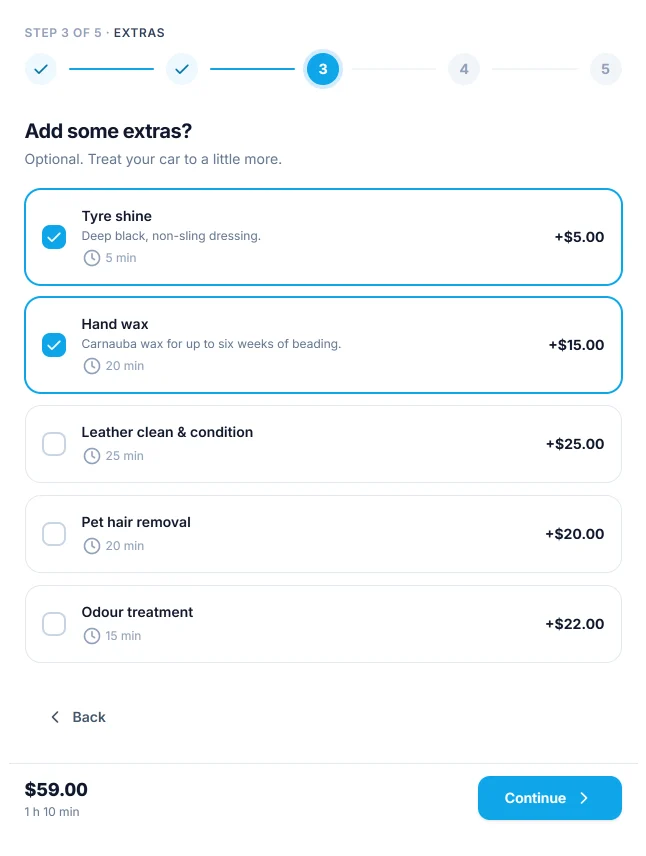
A list of add-ons, each with its description, its extra time and its price for the chosen vehicle, shown as “+$5.00”. The customer ticks as many as they like, or none.
The list holds the add-ons the chosen package offers. A package that names no add-ons offers all of them. An add-on not available for the chosen vehicle is not listed. Choosing another package drops ticked add-ons that the new package does not offer.
Step 4: Date & time
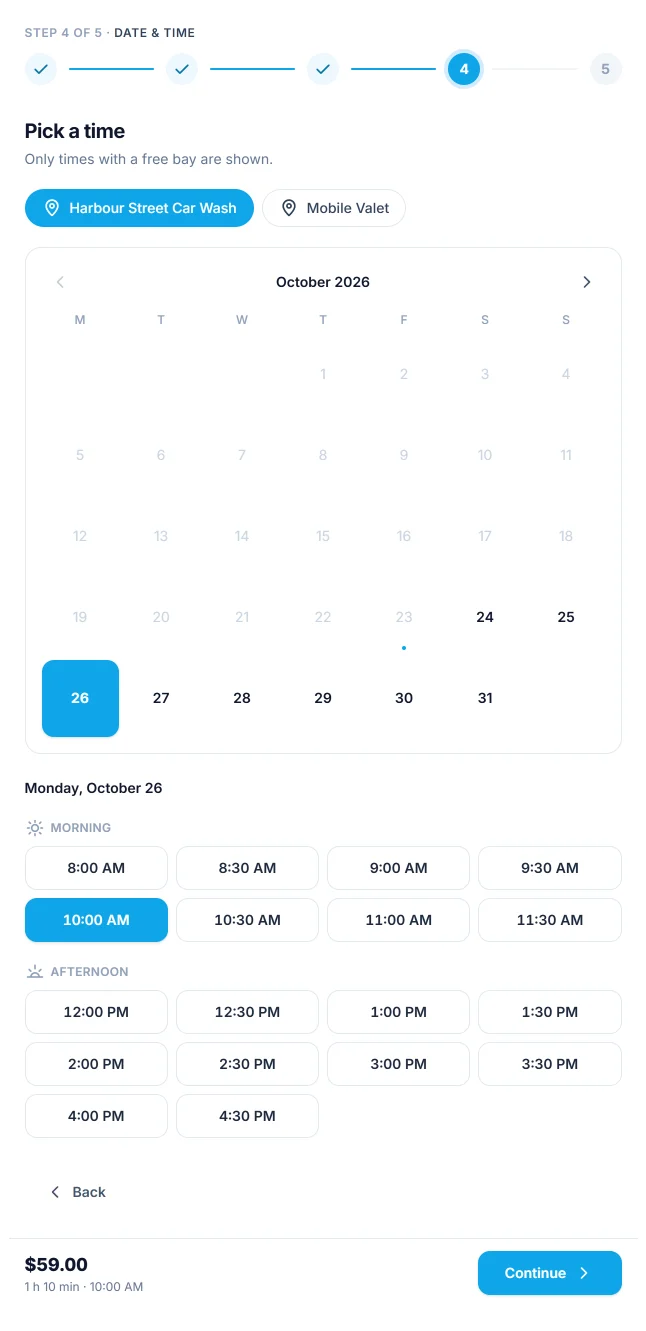
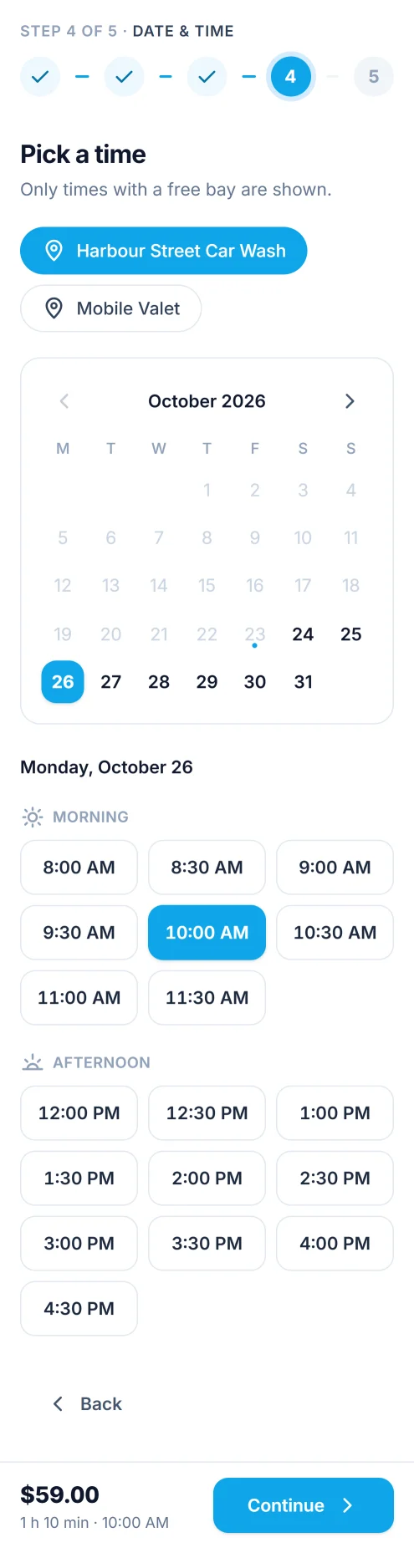
The heading’s hint reads “Only times with a free bay are shown.”
Choosing a location
When the form offers more than one location, they appear as buttons above the calendar and the first one is selected. Choosing another clears the chosen day and time. With a single location its name and address are printed instead.
The calendar
A month calendar, starting the week on the day set in WordPress under Settings -> General -> Week starts on (Monday when it is not set), with today marked with a dot. A day can be picked only when at least one start time is free on it. Days before today, closed days, closures and days past the location’s Booking window are greyed out. The arrows move between months, up to the month the booking window ends in.
The times
After a day is picked, its free start times appear under it, grouped as Morning (before 12:00), Afternoon (12:00 to 17:00) and Evening (from 17:00). Empty groups are left out. Times follow the site’s time format, so a site set to a 12-hour clock shows “10:00 AM”.
| Rule | Where it is set | Default |
|---|---|---|
| Start times are offered every so many minutes from the opening of each period | Time slot length on the location | 30 minutes |
| The whole wash must end before the period closes | Opening hours on the location | 08:00 to 18:00, Monday to Saturday |
| Nothing sooner than this from now | Minimum notice on the location | 60 minutes |
| Nothing further ahead than this | Booking window on the location | 30 days |
| A bay stays blocked this long after each wash | Buffer after each wash on the location | 0 minutes |
| At least one bay that accepts the vehicle must be free for the whole wash and buffer | Bays and teams | - |
The length of the wash is the package plus the chosen add-ons, for the chosen vehicle, so a 3-hour detail is offered at fewer times than a 20-minute wash. Times are read in the location’s time zone.
Changing the vehicle, the package, an add-on or the day clears the chosen time, because the new choice may no longer fit.
| Message | When |
|---|---|
| “Choose a day to see the free times.” | No day is picked yet. |
| “This day is fully booked. Please choose another.” | The picked day has no free time left. |
A mobile location
When the chosen location sends a team to the customer, the step first asks “Where should we come?” with a Check button, and shows “Enter your address to see when we can come.” in place of the calendar. The address is required: a booking without one is refused with “Enter the address we should come to.”
In the free edition any address is accepted. Once it is entered the calendar appears, the drive costs nothing and takes no time on the team’s calendar. With Mobile service PRO, checking the address also works out the distance and the travel fee, and an address outside your area is refused before the calendar appears.
Step 5: Details
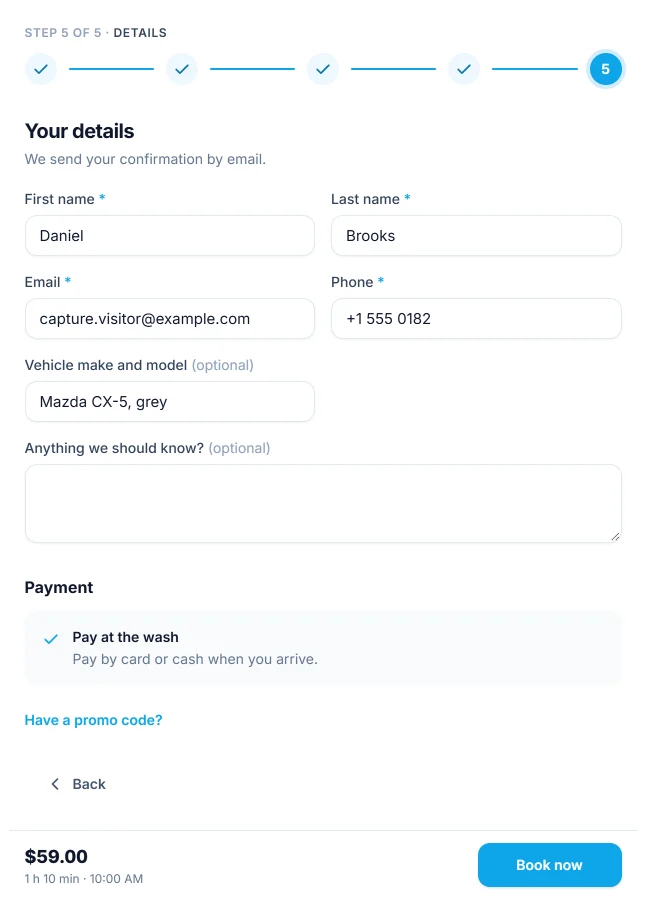
The hint reads “We send your confirmation by email.” Which fields appear, and which are required, is set on the booking form.
| Field | By default |
|---|---|
| First name | Shown, required |
| Last name | Shown, required |
| Always shown and required: the confirmation goes there | |
| Phone | Shown, required |
| Company | Hidden |
| Vehicle make and model | Shown, optional |
| Licence plate | Hidden |
| Address | Hidden |
| Anything we should know? | Shown, optional |
A required field is marked with an asterisk, an optional one with “(optional)”. Under the fields come the form’s agreements, as checkboxes. A required agreement must be ticked before Book now can be clicked.
A customer who is signed in to the account page in the same browser finds their name, email and phone already filled in, and the booking is added to their account.
Payment
Under the details, the Payment section shows the ways to pay that are switched on in Settings -> Payments.
| What the customer sees | When |
|---|---|
| One box with the method’s name and description, such as “Pay at the wash: Pay by card or cash when you arrive.” | Only one method is on. There is nothing to choose. |
| One card per method, to pick from | More than one method is on. |
| “Nothing to pay” | The total to pay is zero, for example after a 100% coupon. No method is asked for. |
Bank transfer shows the instructions you typed in Settings as its description. With Pro, Stripe PRO adds a card payment marked Secure, and the main button then reads Continue to payment. See Payments.
Promo code
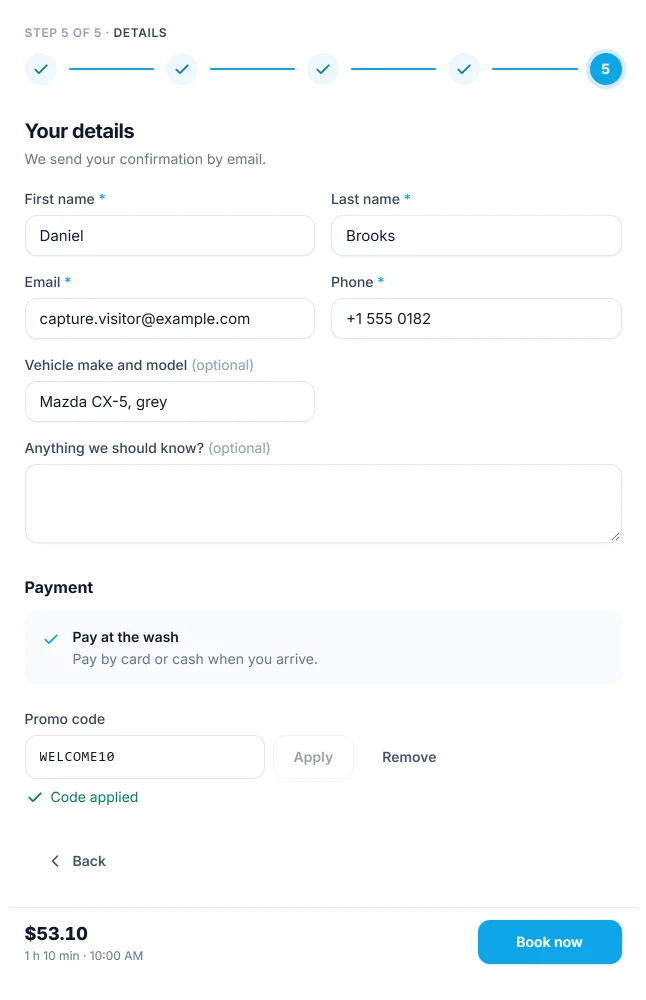
Have a promo code? opens a Promo code field with Apply. The link appears only while at least one coupon is published, so customers are not invited to hunt for a code that does not exist. With Pro, a usable gift card PRO code goes in the same field.
The code is turned into capitals as it is typed. After Apply the field answers “Code applied” and the total drops, or gives the reason the code was refused:
| Message | Why |
|---|---|
| “That code is not valid.” | No coupon has this code. |
| “That code is not active yet.” | Its start date has not come. |
| “That code has expired.” | Its end date has passed. |
| “That code has been used up.” | It reached its usage limit. |
| “That code does not apply to this package.” | The coupon is limited to other packages. |
| “Your booking is below the minimum for that code.” | The total is under the coupon’s minimum. |
Remove takes the code off. See Coupons.
Booking
The customer clicks Book now. The server prices the booking again, checks the time is still offered, takes the location’s lock, picks a free bay and saves.
| Message | When |
|---|---|
| “Sorry, that time was just taken. Please choose another.” | Someone booked the last bay while the customer was typing. The form goes back to Date & time with everything else kept. |
| “That time cannot be booked. Please choose one of the times shown.” | The time is no longer offered, for example because the minimum notice has passed. The form also goes back to Date & time. |
| “Please fill in every required field.” | A required field is empty. The field is outlined in red. |
| “Please accept the required terms to book.” | A required agreement is not ticked. |
| “Too many requests. Please wait a little while and try again.” | More than 10 bookings from the same address within an hour. |
The live summary
The Your booking card shows what has been chosen so far: the vehicle, one line per package, add-on, coupon and fee with its price, then the day, time and location, the duration and the total. When the location’s prices include tax it shows “Includes tax” with the amount; when tax is added on top, a Tax line.
Until the server has answered, the card adds up the prices on the cards. A moment after each change it asks the server for the real quote, with tax and any discount, and shows that instead. The price the customer is charged is always the server’s.
On a wide form the card sits in a column beside the steps and stays in view while the page scrolls. A form can switch it off with Show the live summary.
On a phone
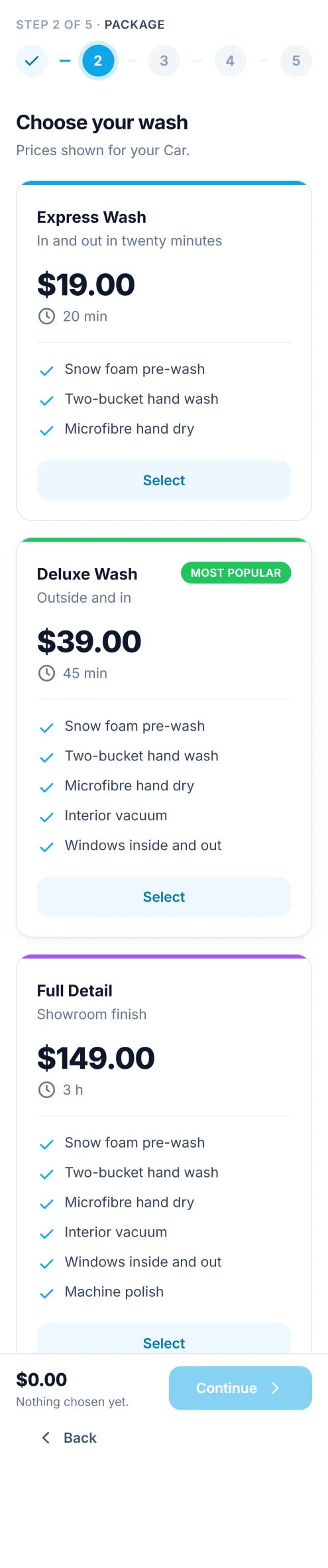
The form adapts to the width it is given, not to the screen, so a narrow theme column gets the phone layout on a desktop too.
- The step names in the progress bar are replaced by a line such as “Step 2 of 5 · Package”.
- Cards stack in one or two columns, and start times sit three to a row.
- The summary column gives way to a bar fixed to the bottom of the form, with the total, the duration and the chosen time on the left and the step’s main button on the right.
The one page layout
A form whose Layout is One page shows the same sections without the progress bar, one under the other. Each section appears once the one above it is answered, and the page scrolls to it when Scroll to the next section automatically is on. There are no Continue or Back buttons: the customer can change any earlier answer in place, and the Book now button appears under the last section once everything is filled in. The summary works as in the step by step layout.
The confirmation
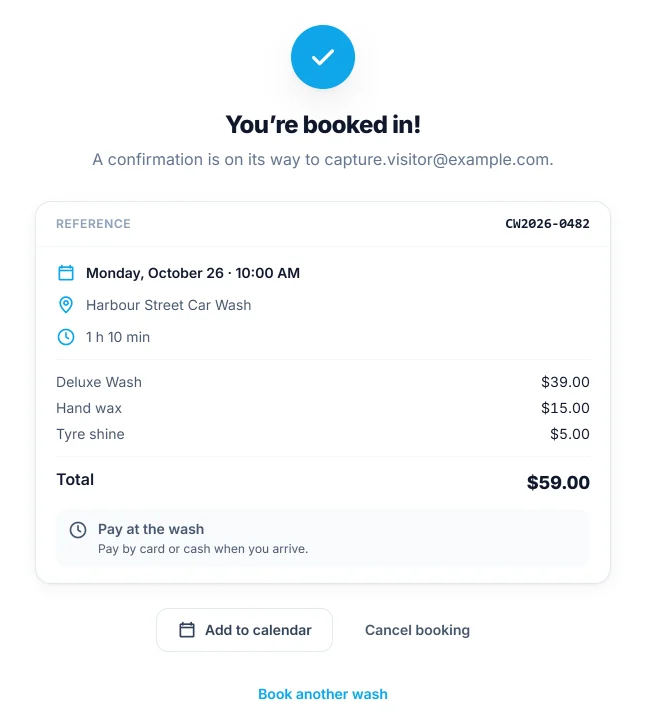
After booking, the form is replaced by the confirmation.
| Heading | When |
|---|---|
| “You’re booked in!” | The booking is confirmed, which is the default. |
| “Booking received” | Confirm online bookings automatically is off and the booking waits as Pending. |
| “Confirming your payment…” | The customer has just come back from paying online and the payment has not been confirmed yet. The page looks again every few seconds. |
| “Booking cancelled” | The booking has been cancelled. |
Under the heading, a line says where the confirmation email went. A form’s own Confirmation message replaces that line.
The card shows the reference, such as CW2026-0480, the date and time, the
location, the duration, the price lines and the total. When part has already
been paid it shows Already paid and To pay. The last box says how the
booking will be paid, with the method’s description, or “Nothing to pay”.
| Button | What it does |
|---|---|
| Add to calendar | Downloads a calendar file (CW2026-0480.ics) for the booking. It is made in the browser and opens in any calendar app. |
| Cancel booking | Asks “Cancel this booking? Your slot will be given to someone else.” with Keep it and Yes, cancel. Shown while the booking is awaiting payment, pending or confirmed. |
| Book another wash | Clears the form for a new booking. The details already typed are kept. |
Cancelling online is allowed until the cut-off set in Settings -> Bookings -> Online cancellation up to, 24 hours before the appointment by default. Closer to the time, Yes, cancel answers “Bookings can be cancelled online up to 24 hours before. Please call us instead.” A cancelled booking frees its bay at once.
The page address gains ?pcw_booking= and a private code, so reloading the page
shows the booking rather than an empty form. The confirmation email has a
View or cancel your booking button that opens this same view later.
When the form cannot load
| What the visitor sees | Why |
|---|---|
| “This booking form is not available.” | The form was unpublished or deleted after the page was built. |
| Nothing at all | The shortcode names a form that does not exist or is unpublished, or has no form number while no form is published at all. Without a number the first published form, by name, is shown. An editor sees a note explaining it. |
| “Online booking needs JavaScript. Please enable it, or call us to book.” | JavaScript is off in the browser. |
| “We could not reach the booking system. Check your connection and try again.” | The site’s REST API did not answer. See Troubleshooting. |
What to do next
- Configure what a form offers in Booking forms.
- Give customers a place to find their bookings with the Customer account.
- Take card payments with Stripe PRO.