

Contents
Bookings - Plugixa Car Wash
A booking is one vehicle, one package or set of services, at one location, in one bay or mobile team, at one start time. Customers make bookings with the booking form on your site. You can also take one yourself for a customer who phones or walks in.
Open the list from Bookings in the Operations group of the app’s sidebar.
The list
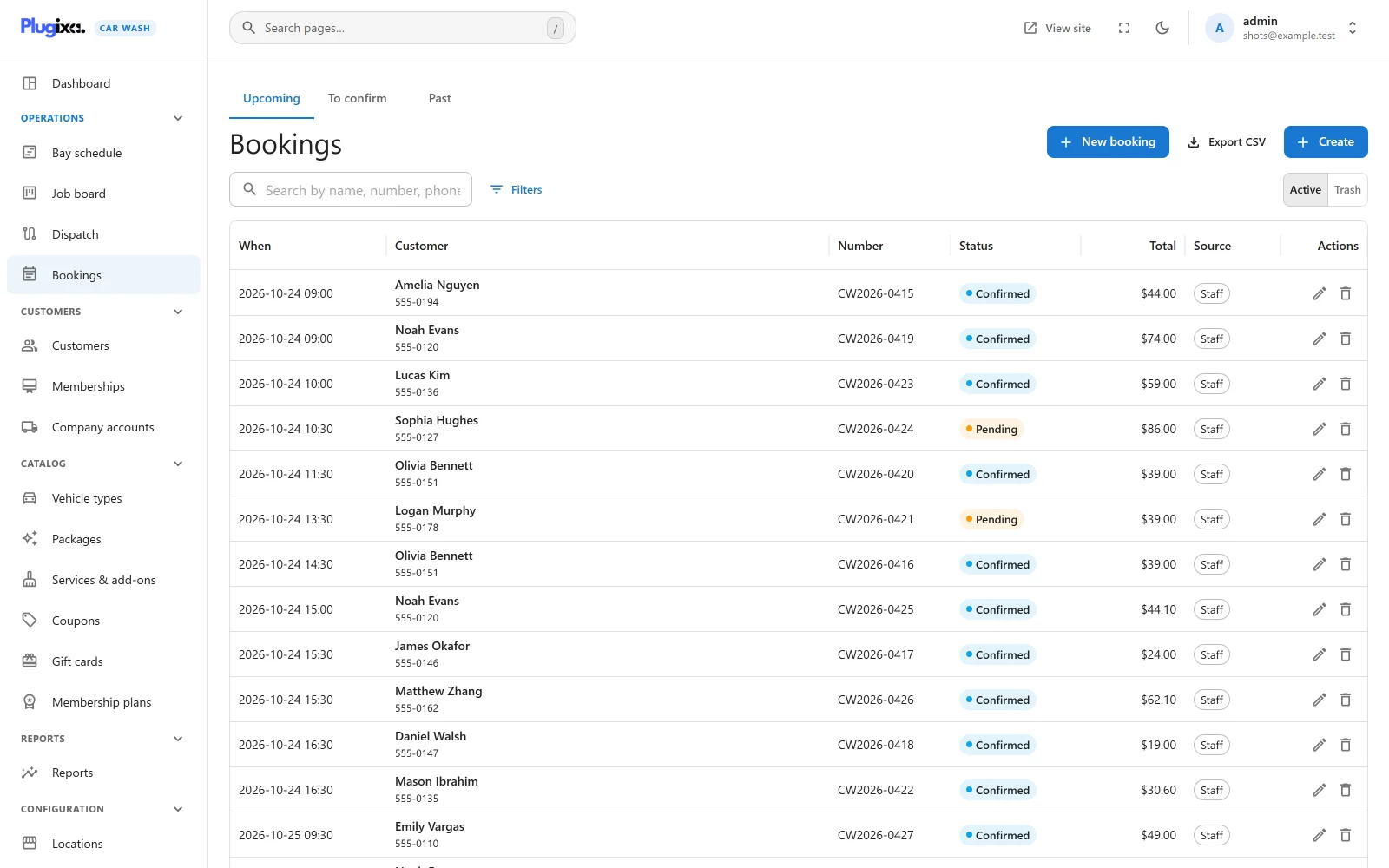
Tabs
| Tab | Shows | Order |
|---|---|---|
| Upcoming | Bookings whose appointment is from now on, whatever their status | Soonest first |
| To confirm | Bookings in Pending, past or future, waiting for someone to confirm them | Soonest first |
| Past | Bookings whose appointment has passed, whatever their status | Most recent first |
Upcoming and Past include cancelled bookings and no-shows. Use the filters to narrow them.
A booking only lands in To confirm when Confirm online bookings automatically is off in Settings -> Bookings, or when staff save a booking as Pending. See Settings.
Columns
| Column | What it shows |
|---|---|
| When | The appointment date and time, on the site’s clock. |
| Customer | The customer’s name, or the email when there is no name. Under it, the phone number, or the email when there is no phone. |
| Number | The booking reference. See The reference number. |
| Status | The booking status, as a coloured chip. |
| Total | What the booking costs. |
| Source | Online for a booking made on your site, Staff for one taken in the app. |
| Actions | The pencil opens the booking. The bin moves it to the trash. |
The list shows 25 bookings to a page. The page size can be changed to 10, 50 or 100 at the foot of the list.
Search
The search box matches the reference, the first and last name, the email, the phone number and the licence plate. Its hint reads “Search by name, number, phone or plate…”.
Filters
Filters opens a panel at the side. Click Add a field, choose what to filter by, set the comparison, and click Apply. Reset empties the panel, and the chips above the list show what is in force, with Clear all.
| Field | Kind |
|---|---|
| Appointment | A date. Opens on “between”, with From and To. |
| Status | One or more statuses. |
| Location | One or more locations. |
| Bay or team | One or more bays or mobile teams. |
| Payment | Unpaid, paid, partly paid or refunded. |
| Created | A date: when the booking was made. |
| Modified | A date: when it was last changed. |
Dates are compared on the site’s own calendar, so a booking at 23:30 on the 31st is found on the 31st. Filters work inside the tab you are on.
Export CSV
Export CSV saves the list you are looking at as a spreadsheet file, for example bookings-2026-10-25.csv. It is shown to users who hold the plugixa_carwash_export capability, and only while the Export app is switched on in the App Manager.
- The file matches the screen. The tab you are on, the search, the filters, the sort and the columns you have showing are all sent with the request, and the rows are read through the same list the screen uses.
- The columns are When, Customer, Email, Phone, Number, Status, Total, Currency and Source, less any you have hidden. The Customer column on screen becomes three in the file: name, email and phone.
- Times are written on the site’s own clock, as the list shows them.
- One file holds at most 10,000 rows.
- The file opens in Excel with accents intact. A cell that begins with
=,+,-or@gets an apostrophe in front of it, so a spreadsheet reads it as text and never as a formula.
If the file cannot be made the list says “The export could not be produced.”
Trash
The Active and Trash switch at the right of the toolbar changes between live bookings and trashed ones. The bin on a row moves the booking to the trash straight away, without asking first.
- A trashed booking stops holding its bay at once. Its time becomes free on the booking form and on the Bay schedule, and it is left out of the Dashboard.
- A booking that is In the bay cannot be trashed. Finish or cancel the wash first.
- Trashing sends no email. To tell the customer, cancel the booking instead.
In the Trash view each row has two actions:
- Restore brings the booking back. If its bay has been booked by somebody else since, it is refused: “This booking cannot be restored: its bay has been booked by someone else since. Move that booking first.” A cancelled or no-show booking held no bay, so it always comes back.
- Delete permanently removes the booking for good, without asking first, with everything that belongs to it. A booking with any payment or refund recorded against it is refused: “This booking has payments recorded against it, so it is kept. It stays in the trash.”
There is no selecting of several bookings at once. Bookings are trashed, restored and deleted one at a time.
Taking a booking at the desk
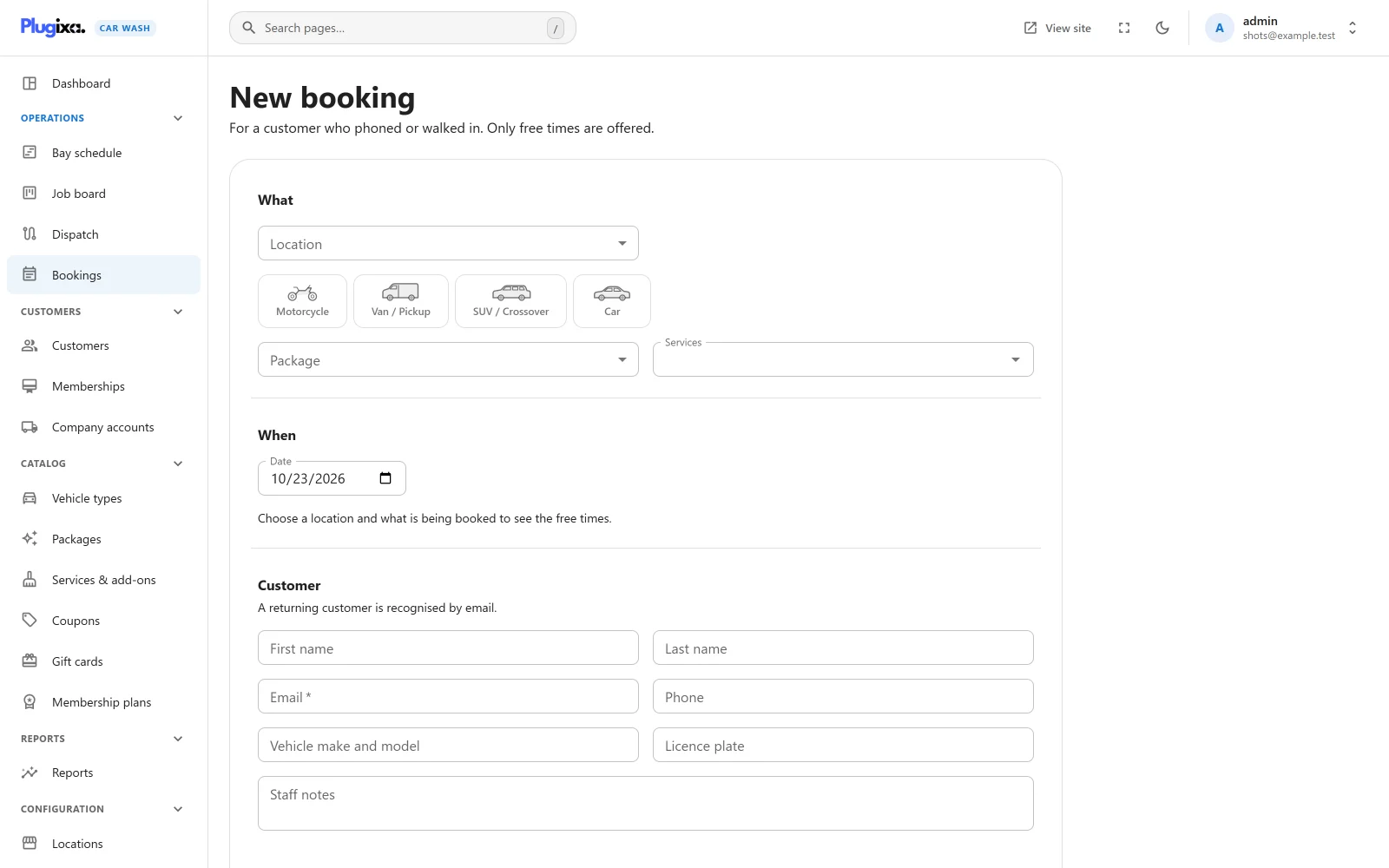
Click New booking on the list, on the Bay schedule or on the Job board. The Create button on the list opens the same form. Its hint reads “For a customer who phoned or walked in. Only free times are offered.”
From the schedule or the board, the form opens with that day and location already chosen.
What
| Field | Notes |
|---|---|
| Location | Shown only when you have more than one location. With one, it is used without asking. |
| Vehicle type | One button per vehicle type, with its icon. |
| Package | Any package. Choose No package, services only to sell services on their own. |
| Services | Extra services, as a multiple choice. With a package chosen the label reads Add-ons offered. |
Staff are not limited by what a booking form offers. Every package and service can be sold at the desk, at the same prices the form uses.
When
Pick a Date, which starts on today, then one of the start times listed. The line above the times says how long the wash takes, for example “Takes 1 h 10 min”.
The times are worked out by the same rules as the booking form: the location’s opening hours and closed dates, its Minimum notice, and a free bay that takes the vehicle type for the whole wash plus the location’s buffer. Times that are taken are shown struck through and cannot be picked, so you can tell a caller “10:00 is gone, but 10:30 is free”. A day with nothing left says “Closed, or no time left that day.”
Until a location and something to book are chosen, it reads “Choose a location and what is being booked to see the free times.”
For a Mobile location an Address field comes first: “Where the team should go. The times offered allow for the drive.” It is required, and changing it clears the chosen time. With Mobile service PRO the address is checked and the drive is counted in the times offered.
Customer
| Field | Notes |
|---|---|
| First name, Last name | Optional. |
| Required. “A returning customer is recognised by email.” | |
| Phone | Optional. |
| Vehicle make and model | Optional. |
| Licence plate | Optional. |
| Staff notes | Seen only by staff. |
The email is required because the customer record, the confirmation email and the booking’s history all hang on it. A walk-in who will not give an email cannot be booked through this form.
Status, and saving
Choose Confirmed (the default) or Pending at the foot of the form, then click Create booking. The button is enabled once there is a location, a package or a service, a time and an email.
On save:
- The location is locked and the time is checked again. If another booking took it a moment ago, nothing is saved and the form says “Sorry, that time was just taken. Please choose another.”
- A free bay that takes this vehicle type is chosen for the booking.
- The customer is found by email, or created. See Customers.
- The booking is priced, gets its reference, and opens on its own screen.
- The customer gets the booking email, if customer emails are on. A booking taken by staff carries no “View or cancel your booking” link, and no alert is sent to you. See Emails.
A booking taken at the desk is never held for payment, whatever payment methods are on. Its payment status starts as Not paid yet. Record the money on the booking when it is taken. See Payments.
With Pro, a customer found by email gets the prices their membership PRO gives them, at the desk as online.
The booking screen
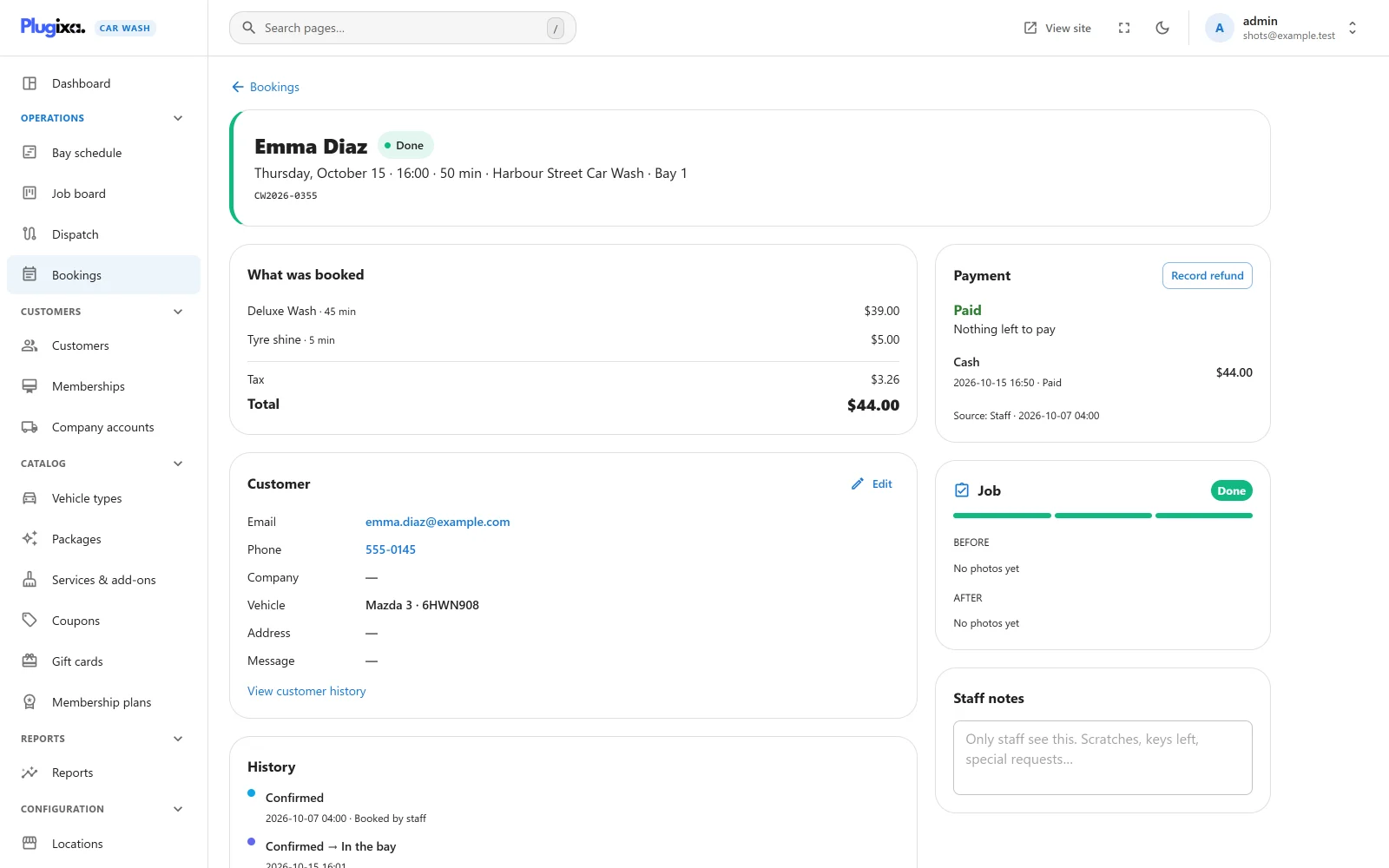
Click a booking anywhere in the app to open it.
The header
The header shows the customer’s name (or email) with the status chip, then the day, start time, length, location and bay, for example “Thursday, October 15 · 16:00 · 50 min · Harbour Street Car Wash · Bay 1”. The reference is under it. The coloured edge on the left is the status.
The action buttons sit at the right of the header. See below.
Panels
| Panel | What it holds |
|---|---|
| What was booked | The package and each service, with its length and price, then Tax when there is any, and the Total. |
| Customer | Email (opens your mail program), Phone (starts a call), Company, Vehicle (make and model, and plate), Address and Message. View customer history opens the customer. |
| History | Every status change, with the time and a note: “Booked online”, “Booked by staff”, “Moved from 2026-10-27 10:30”, “Cancelled by the customer”, “Payment was not completed in time”, “Paid online”. |
| Payment (at the side) | What has been paid and what is still owed, each payment, and Record payment. See Payments. |
| Job PRO (at the side) | The job’s progress, its checklist and before and after photos. See Dispatch. |
| Company account PRO (at the side) | Whether the booking is charged to a company. See Company accounts. |
| Staff notes (at the side) | A note only staff see: “Scratches, keys left, special requests…”. A Save button appears once you change it. |
| Agreements (at the side) | The terms the customer was asked to accept on the booking form, each with a tick or a cross, in the words they read at the time. Shown only when the form had agreements. |
Correcting the customer’s details
Edit on the Customer panel opens “Correct the details on this booking”: first and last name, email, phone, company, vehicle make and model, licence plate and address. The email must be a valid address.
This corrects the booking only. The customer record keeps its own details. To change those, open the customer.
The time, the bay, what was booked and the price cannot be edited. The time and bay change with Move. What was booked is fixed; to sell something else, cancel the booking and take a new one.
Moving a booking to another time
Move opens “Move this booking”. Pick a date and one of the free times, worked out for the same vehicle, package and services, with the booking itself left out so it does not block its own time. Then click Move to 10:30 (or whichever time you chose).
The booking stays at its location. A free bay is chosen for it at the new time, which may not be the bay it had. To put it in a particular bay, drag it on the Bay schedule.
The price does not change. If the start time changed, the customer gets the New time email.
Move is offered while the booking is Awaiting payment, Pending or Confirmed. Once the wash has started it cannot be moved.
Moving a booking through its statuses
The buttons in the header offer the moves the booking’s status allows:
| Current status | Buttons |
|---|---|
| Awaiting payment | Move, Cancel, Confirm |
| Pending | Move, Cancel, Confirm |
| Confirmed | Move, Cancel, No-show, Start wash, Mark done |
| In the bay | Cancel, Mark done |
| Done | None |
| Cancelled | None |
| No-show | Confirm |
A button acts at once, without asking first. Cancel does not refund anything; record a refund separately.
If a change is refused, for example because someone else changed the booking a moment ago, the reason is shown above the panels.
Statuses
| Status | Key | What it means | Holds the bay | How a booking gets there |
|---|---|---|---|---|
| Awaiting payment | hold |
Held while the customer pays online. | Until the time to pay runs out | An online booking paid by an online method, with Pro Stripe PRO. |
| Pending | pending |
Waiting for someone to confirm it. | Yes | An online booking when Confirm online bookings automatically is off, or a staff booking saved as Pending. |
| Confirmed | confirmed |
Booked and expected. | Yes | An online booking by default, a staff booking by default, Confirm, or a held booking once paid in full. |
| In the bay | in_progress |
The car is being washed. | Yes | Start wash. |
| Done | completed |
Finished. | Yes, as a record of the time it took | Mark done. |
| Cancelled | cancelled |
Called off. | No | Cancel, the customer cancelling, or a held booking whose time to pay ran out. |
| No-show | no_show |
The customer did not come. | No | No-show. |
The moves allowed
Every status change, from any screen, follows these rules:
| From | May move to |
|---|---|
| Awaiting payment | Pending, Confirmed, Cancelled |
| Pending | Confirmed, Cancelled |
| Confirmed | In the bay, Done, Cancelled, No-show |
| In the bay | Done, Cancelled |
| Done | Nothing. It is final. |
| Cancelled | Nothing. It is final. |
| No-show | Confirmed |
Any other change is refused with a message such as “A booking that is completed cannot be marked a no-show.”
No-show can be undone because marking the wrong car is an easy mistake at a busy desk. Confirm puts it back as Confirmed. A no-show gave up its bay, so check the Bay schedule before you reinstate one: the bay may have gone to a walk-in in the meantime.
A cancelled booking cannot be brought back. Take a new booking instead.
What a status change does
| Change | What follows |
|---|---|
| To Confirmed, from Pending or Awaiting payment | The Confirmed email to the customer. |
| To Cancelled | The Booking cancelled email to the customer. The bay is free again. Any online checkout still open is closed. With Pro, a gift card or membership wash used on it is given back and a company account charge is taken off. |
| To No-show | The bay is free again. Any online checkout still open is closed. No email. |
| To Done | With Pro, loyalty points are earned. |
See Emails for the emails. With Pro, Webhooks PRO and Reminders and SMS PRO also react to status changes.
Customers cancelling their own booking
The “View or cancel your booking” link in a customer’s email, and the customer account, let a customer cancel up to the number of hours set in Settings -> Bookings -> Online cancellation up to, 24 by default. After that they are told “Bookings can be cancelled online up to 24 hours before. Please call us instead.” Set it to 0 to allow cancelling until the appointment starts.
Payment status
Each booking also has a payment status, separate from its status: Not paid yet, Partly paid, Paid or Refunded. It is worked out from the payments recorded on the booking and is never chosen by hand. See Payments.
The reference number
Each booking gets a reference when it is made: CW, the year, a hyphen, and the booking’s number padded to four digits. The booking with number 355 made in 2026 is CW2026-0355.
- The year is the site’s year on the day the booking was made, not the year of the appointment.
- The number is the booking’s own id in the database. It does not restart in January, and it has gaps, for example where a customer lost a time to someone faster.
- After booking 9,999 the number simply grows a fifth digit.
- The reference is the same in the app, in emails, on the customer’s confirmation and in the customer account.
Search the list for a reference to find the booking.
Who can do what
Access is by WordPress capability. Activation gives all of them to the Administrator role and to no other role.
| Capability | What it allows on bookings |
|---|---|
plugixa_carwash_view |
See the list, a booking, the schedule, the job board and the dashboard. |
plugixa_carwash_create |
New booking and Create. |
plugixa_carwash_edit |
The status buttons, Move, dragging on the schedule and the board, correcting details, staff notes, and recording payments. |
plugixa_carwash_delete |
Trash, Restore and Delete permanently. |
plugixa_carwash_export |
Export CSV. |
A user who holds any one of these can open the app. To give them to other staff, see Roles and permissions.
What is stored
A booking keeps its own copy of the customer’s name, email, phone, company, vehicle, plate and address, as they were when it was made or last corrected. It stays readable as it was booked whatever later happens to the customer record. See Privacy and uninstall.