

Contents
Reader Tools: Scale, Convert Units, Cook Mode - Plugixa Recipe
Reader Tools turn a recipe page into something a cook can use at the stove. Readers can scale the amounts, switch units, copy the shopping list, start a timer from a step, and follow the method one step at a time with the screen kept on.
The tools come with the free plugin and are on by default. Switch them on or off under Apps > Reader Tools.
Everything runs in the visitor’s browser. The tools make no request to your server and use no security token, so they keep working on pages served from a page cache, however old the cached copy is.
Scale the servings and switch units
Above the ingredient list, readers get three sets of buttons:
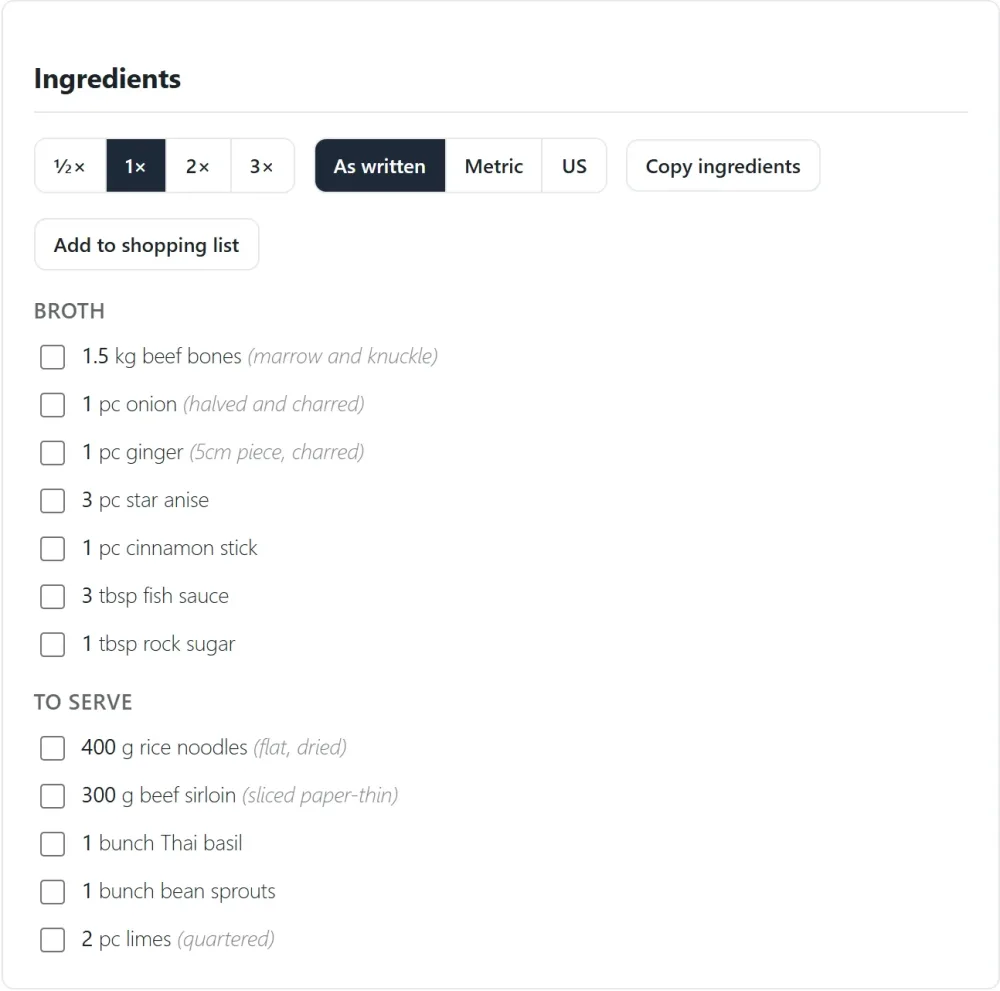
| Tool | What it does |
|---|---|
| ½× 1× 2× 3× | Rescales every amount on the page: half, as written, double or triple |
| As written / Metric / US | Shows the amounts in the units you entered, in metric units, or in US units |
| Copy ingredients | Copies the list, with the amounts as shown, to the clipboard |
| Add to shopping list | Adds the ingredients as shown, minus the ones the reader ticked, to their shopping list |
Here is the same recipe doubled and switched to US units: 1.5 kg of beef bones becomes 6 1/2 lb, and 400 g of rice noodles becomes 1 3/4 lb.
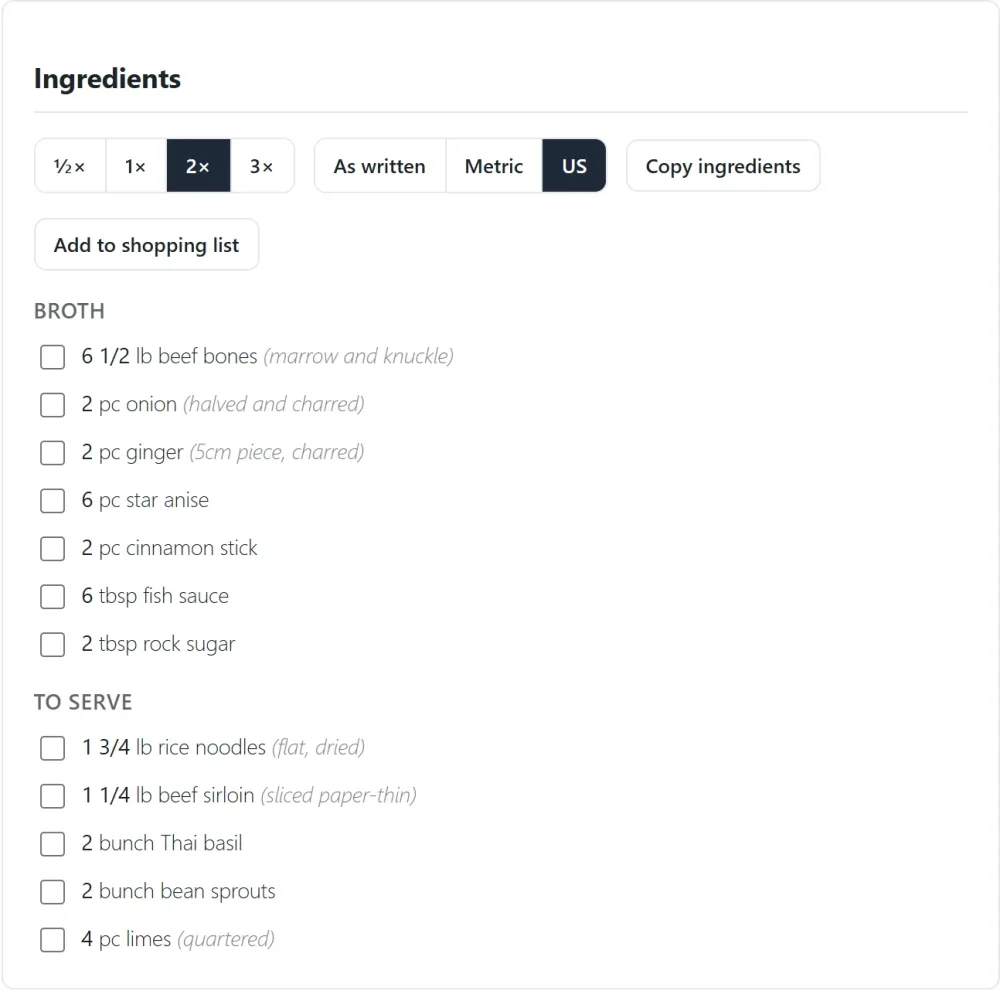
Readers can also tick an ingredient off as they gather it. A ticked ingredient is left out when they press Add to shopping list.
Write the amounts for the servings set in the recipe editor’s Time & servings section. The scale buttons multiply from there. Count units such as piece, pinch or clove are scaled but never converted.
Step timers
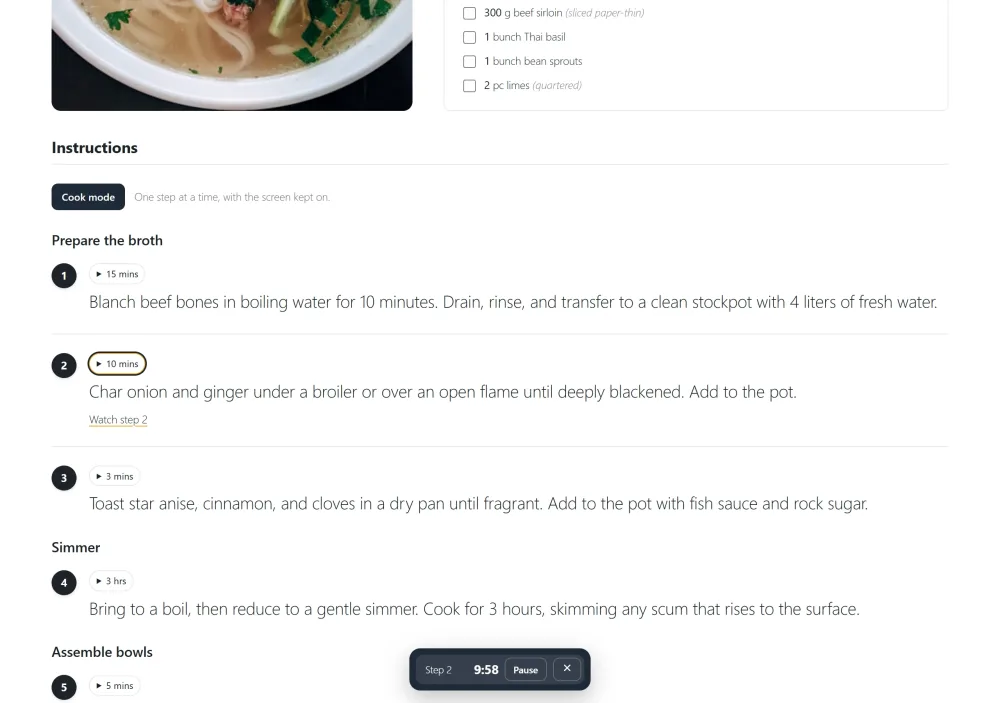
Every step with a timer in the recipe editor shows its time as a button. Pressing it starts a countdown in a small dock at the bottom of the window. The dock can hold several timers at once, and each one can be paused or closed.
Cook mode
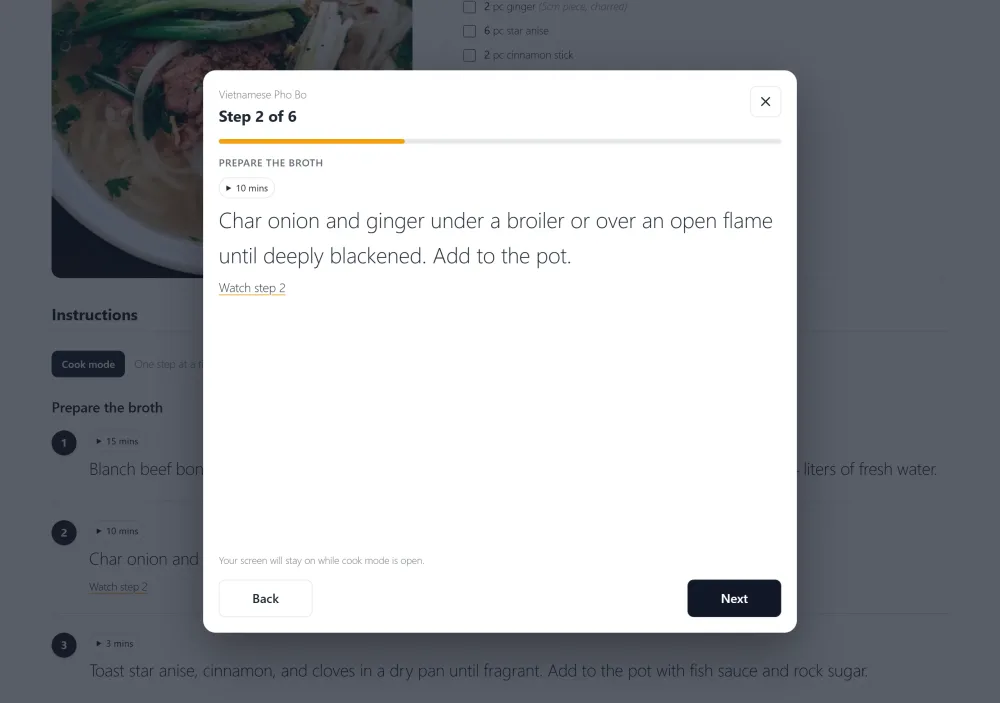
Cook mode opens the method one step at a time, in large type, with Back and Next buttons and a progress bar. While it is open, the browser is asked to keep the screen on, so a phone propped against the flour jar does not go dark mid-step. A step’s timer and video link are in cook mode too.
My notes and the Pin button
Under the recipe, My notes gives each reader a private notes box for their own changes (“less fish sauce next time”). The notes are kept in the reader’s browser and are never sent to your site.

The recipe’s main photo carries a Pin button for saving the recipe to Pinterest. It is a plain link: nothing is loaded from Pinterest until the reader clicks it.
Printing what the reader chose
Print recipe opens the print page, which keeps the scale and the units the reader picked on the recipe page. Before printing, the reader can leave out the images, the notes or the nutrition label. The print page shows everything the recipe page shows: equipment, notes, tips, source, rest time, yield, course, and each step’s title, time and photo.
Related pages
- Recipe Editor: where amounts, units and step timers are entered
- Ingredients: fractions, units and groups
- Visitor Account Pages: the shopping list that Add to shopping list fills
- Add a Recipe Inside a Post or Page: Reader Tools work on embedded recipes too