

Contents
On this page
Frontend Submission - Plugixa Recipe
[plugixa_recipe_form] lets your visitors submit their own recipes directly from the frontend. Submitted recipes land in the admin with status = pending (configurable) for moderation.
Pro feature. The submission form, with My recipes and member edits, is part of Plugixa Recipe Pro since version 1.4.0. On a site that runs the free plugin, the data stays in your database and comes back as it was when Pro is active. See Free vs Pro.
The form needs the Recipe Submissions app (Apps > Recipe Submissions). While the app is off, or on a site that runs the free plugin, the shortcode prints nothing for visitors. Whoever may switch apps on sees a short note in its place, with a link to Apps.
The shortcode
[plugixa_recipe_form]
[plugixa_recipe_form style="modal"]
| Attribute | Default | Description |
|---|---|---|
style |
inline |
inline shows the form in the page; modal opens it in a pop-up |
Login, the status of new recipes and the success message are set under Settings > Submission form; the moderation email and the upload size under Settings > Notifications & uploads. See Configuring the form.
What the form looks like
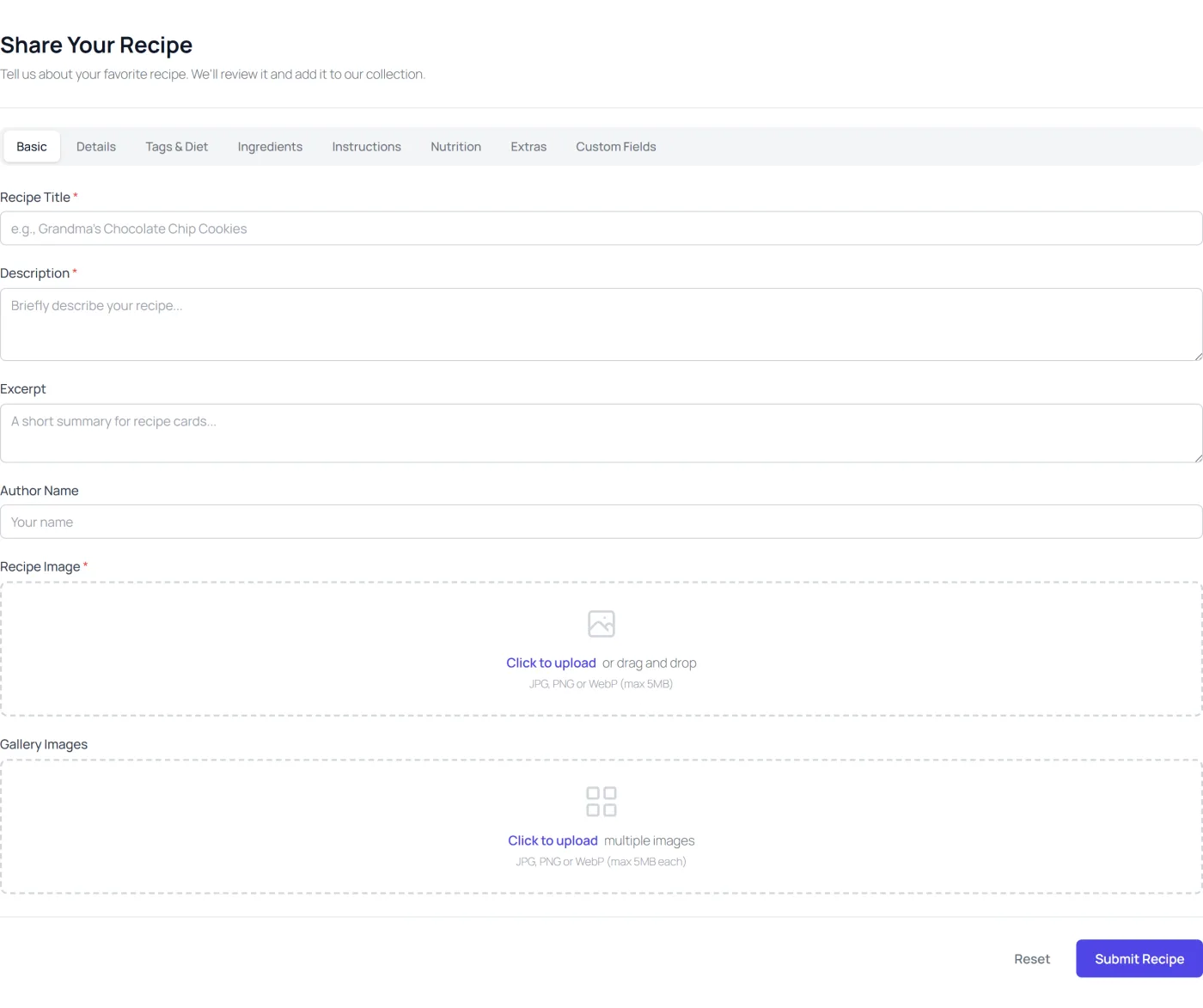
The form is split into tabs: Basic, Details, Tags & Diet, Ingredients, Instructions, Nutrition, Extras and, in Pro, Custom Fields. Visitors move through them with Back and Next, and send the recipe with Submit Recipe.
Choosing the fields
Since version 1.4.1 you choose which fields the form shows and which a visitor must fill in, under Settings > Submission form > Form fields. Each field is Required, Optional or Hidden. The form, its own checks in the browser and the server all follow the same list: a visitor cannot send the recipe with a required field empty, and whatever a request sends for a hidden field is ignored. A tab whose fields are all hidden is left out of the form.
| Field | Tab | Default | Can be |
|---|---|---|---|
| Recipe Title | Basic | Required | Always required |
| Description | Basic | Required | Required, Optional, Hidden |
| Excerpt | Basic | Optional | Required, Optional, Hidden |
| Author Name | Basic | Optional | Required, Optional, Hidden |
| Recipe Image | Basic | Required | Required, Optional, Hidden |
| Gallery Images | Basic | Optional | Optional, Hidden |
| Categories | Details | Required | Required, Optional, Hidden |
| Cuisine | Details | Optional | Required, Optional, Hidden |
| Course | Details | Optional | Required, Optional, Hidden |
| Difficulty | Details | Required | Required, Optional, Hidden |
| Cost | Details | Optional | Required, Optional, Hidden |
| Season | Details | Optional | Optional, Hidden |
| Servings | Details | Required | Required, Optional, Hidden |
| Prep Time | Details | Required | Required, Optional, Hidden |
| Cook Time | Details | Required | Required, Optional, Hidden |
| Rest Time | Details | Optional | Required, Optional, Hidden |
| Dietary Information | Tags & Diet | Optional | Optional, Hidden |
| Tags | Tags & Diet | Optional | Required, Optional, Hidden |
| Equipment | Tags & Diet | Optional | Required, Optional, Hidden |
| Ingredients | Ingredients | Required | Always required |
| Instructions | Instructions | Required | Always required |
| Nutrition | Nutrition | Optional | Optional, Hidden |
| Video URL | Extras | Optional | Required, Optional, Hidden |
| Notes | Extras | Optional | Required, Optional, Hidden |
| Tips | Extras | Optional | Required, Optional, Hidden |
| Source | Extras | Optional | Required, Optional, Hidden |
The defaults are how the form behaved before 1.4.1, and Reset to defaults puts every field back to them. Recipe Title, Ingredients and Instructions are always required: a recipe cannot exist without them. Gallery Images, Season, Dietary Information and Nutrition can be optional or hidden, but not required.
- The recipe editor keeps its own rules. Some fields are still needed by the admin recipe editor before it saves a recipe. If you make one of them optional or hidden on the form, a moderator fills it in before saving the submitted recipe. The settings screen lists which ones.
- Nothing is guessed. An optional difficulty or servings left empty is stored empty.
- Member edits keep hidden fields. When a member edits a recipe they sent, the fields that are hidden keep what a moderator entered.
- The author is filled in. A signed-in member finds their display name already in Author Name.
Ingredients and steps
Since version 1.2.0, the form’s lists work like the admin recipe editor:
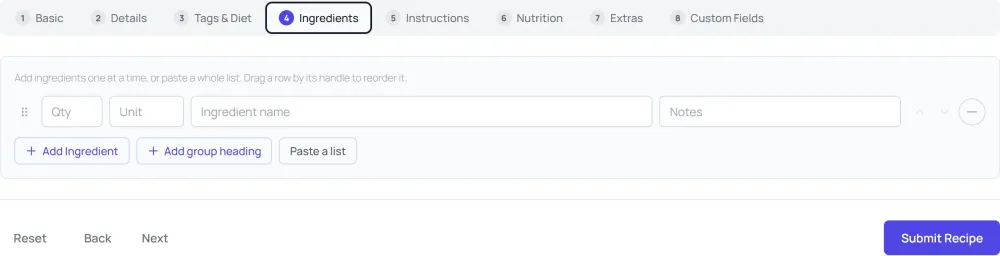
- Reorder: drag a row by its handle, or use the arrows.
- Group: Add group heading inserts a heading such as “For the sauce”.
- Paste a list: paste a whole ingredient list or method, one item per line. A line ending with a colon becomes a heading.
- Units are suggested from your own units list.
- Each step can have a timer and a photo.
The form keeps a draft in the visitor’s browser, so a visitor who closes the tab by mistake finds their recipe still there.
Photos and upload limits
The recipe image and gallery accept JPG, PNG or WebP. The form states the size limit your server really applies: the Max Upload Size setting, capped by your PHP upload limit. A photo that is not an image, or is over the limit, is refused with the reason, instead of the recipe being stored without it.
Configuring the form
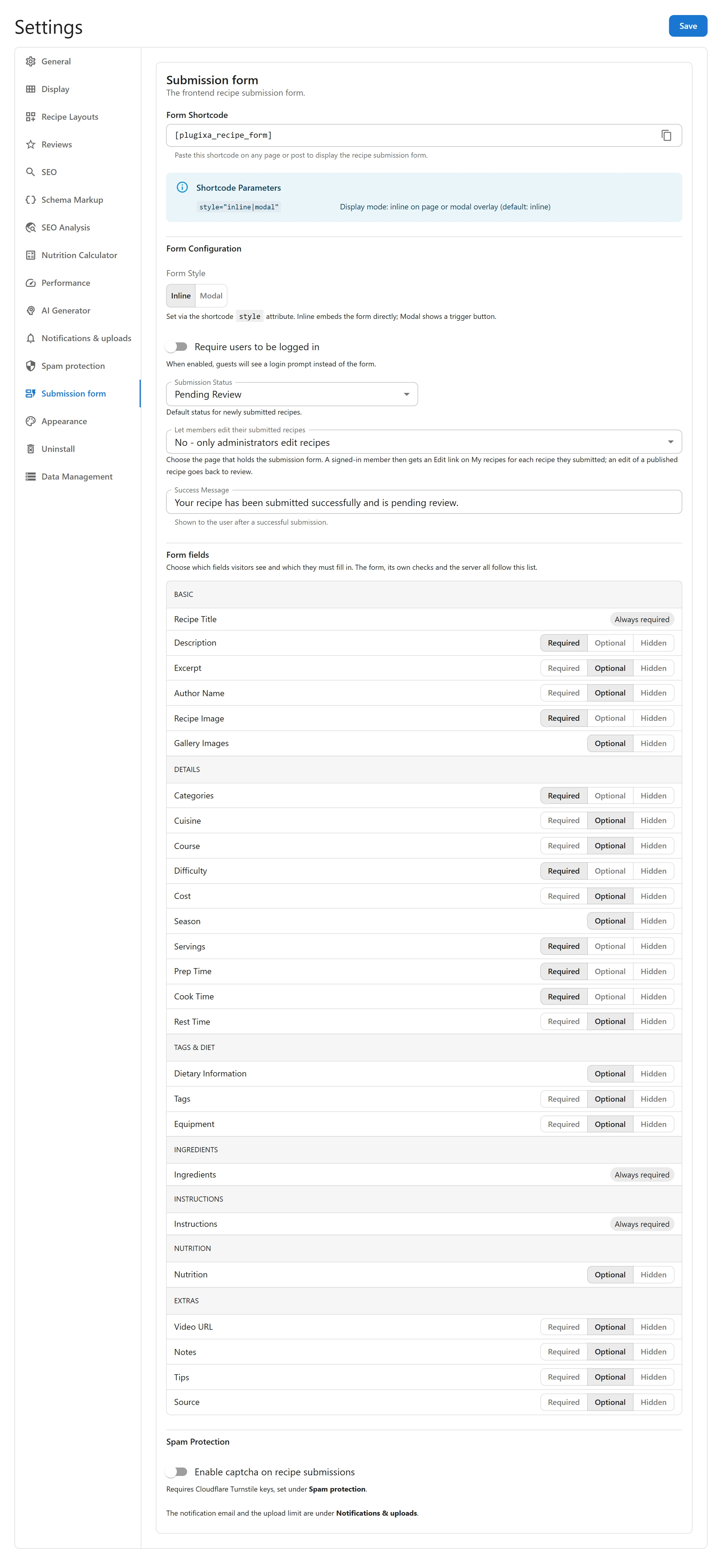
Go to Settings > Submission form:
| Setting | What it does |
|---|---|
| Require users to be logged in | Guests see a login prompt instead of the form |
| Form fields | Which fields the form shows and which a visitor must fill in: see Choosing the fields |
| Submission Status | The status a new recipe gets, usually Pending Review |
| Let members edit their submitted recipes | The page that holds the form. A logged-in member then gets an Edit link on My recipes for each recipe they sent; an edit of a published recipe goes back to review |
| Success Message | What a visitor sees after sending a recipe |
| Enable captcha on recipe submissions | Adds Cloudflare Turnstile to the form (keys under Settings > Spam protection) |
The moderation email and the largest photo a visitor may upload are under Settings > Notifications & uploads, which is part of the free plugin because reviews use them too:

| Setting | What it does |
|---|---|
| Email me when something arrives for moderation | Emails the Notification recipients (or the site admin email) when a recipe arrives |
| Max upload size (MB) | The largest photo a visitor can send |
Moderation
Submitted recipes appear in the recipe list with status pending. Filter by status to see only submissions, open one in the editor, then publish it or leave it unpublished.
Publishing a recipe needs the WordPress publish capability (Authors and above by default). A logged-in visitor can follow their submissions on the My recipes tab of their account page.
Spam protection
- Honeypot field: a hidden input that bots fill in and people never see.
- Cloudflare Turnstile (optional): enable it in the settings and enter your own site and secret keys.
- Hourly limit: a cap on submissions per IP address per hour. A form refused for a typing mistake does not count against it.
Email notifications
With notifications on, the recipients you list receive an email for each new submission, with the recipe’s title and author. To send something else as well, hook plugixa_recipe_frontend_submission_saved and send your own mail from there.
Accessibility
The form uses semantic HTML with proper labels, ARIA attributes, and a focus-visible outline for keyboard users. Error messages are announced via aria-live="polite".
Quick Links
Share