

Contents
On this page
Roles & Permissions - Plugixa Recipe
Roles & permissions PRO let a site with several people decide who may do what in the recipe app: a contributor who writes recipes but never publishes, an editor who moderates reviews, a helper who only looks after categories. They are two apps in Plugixa Recipe Pro since version 1.4.0:
- User roles: which WordPress roles reach the recipe app, and with which abilities.
- Permissions: for each kind of content, whether a role’s people may work on every record, only their own, or none.
Switch them on in Plugixa Recipe > Apps. Administrators are never limited by either.
User roles
Go to Plugixa Recipe > User roles. The screen lists your WordPress roles. Tick what each one may do in the recipe app, and put people in a role on the WordPress Users screen.
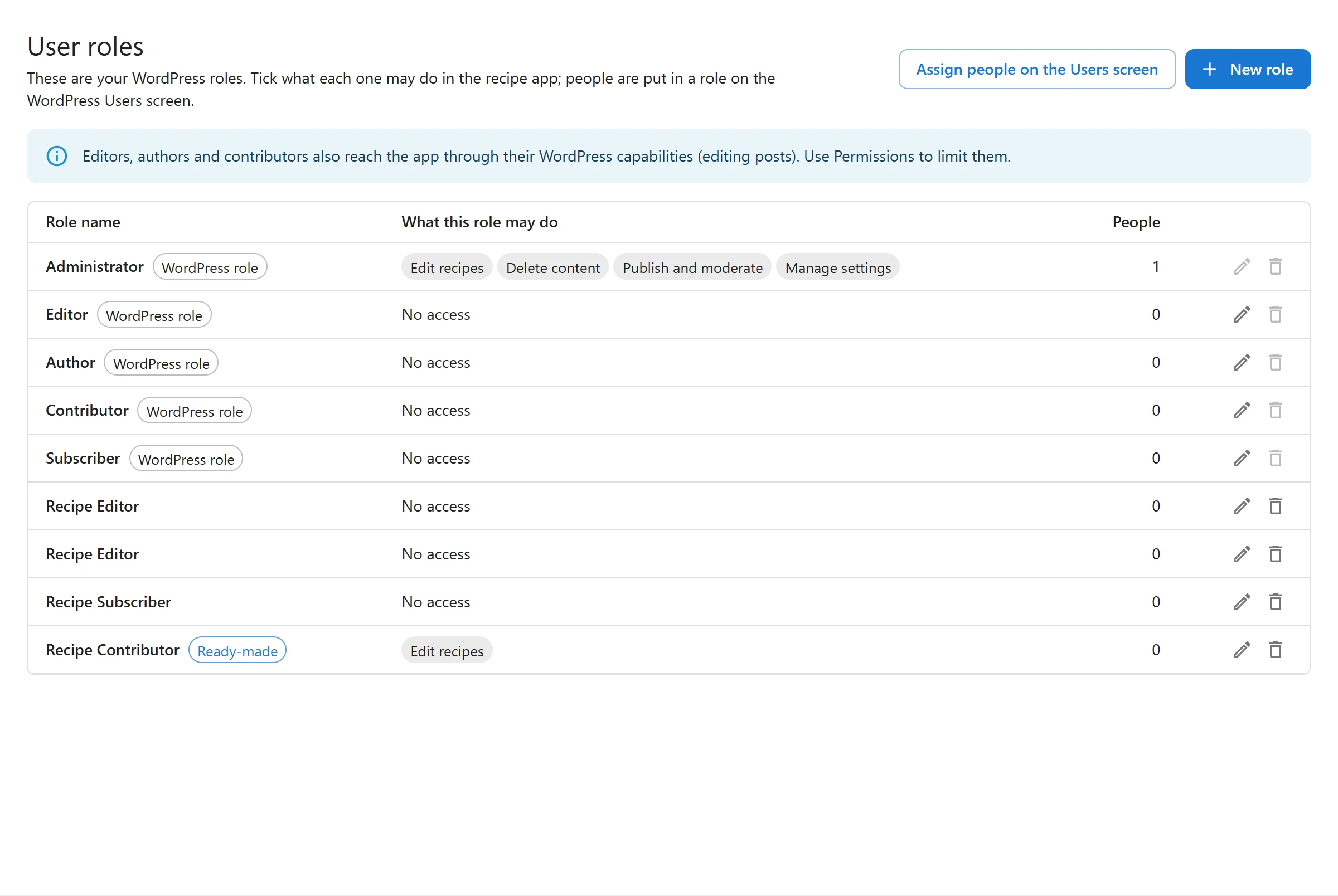
- Recipe Contributor is ready-made: a role for people who write recipes for you.
- New role creates another WordPress role and lets you choose its abilities.
- Editors, authors and contributors also reach the app through their WordPress capabilities (editing posts). Use Permissions to limit them.
Permissions
Go to Plugixa Recipe > Permissions and press New permission role.
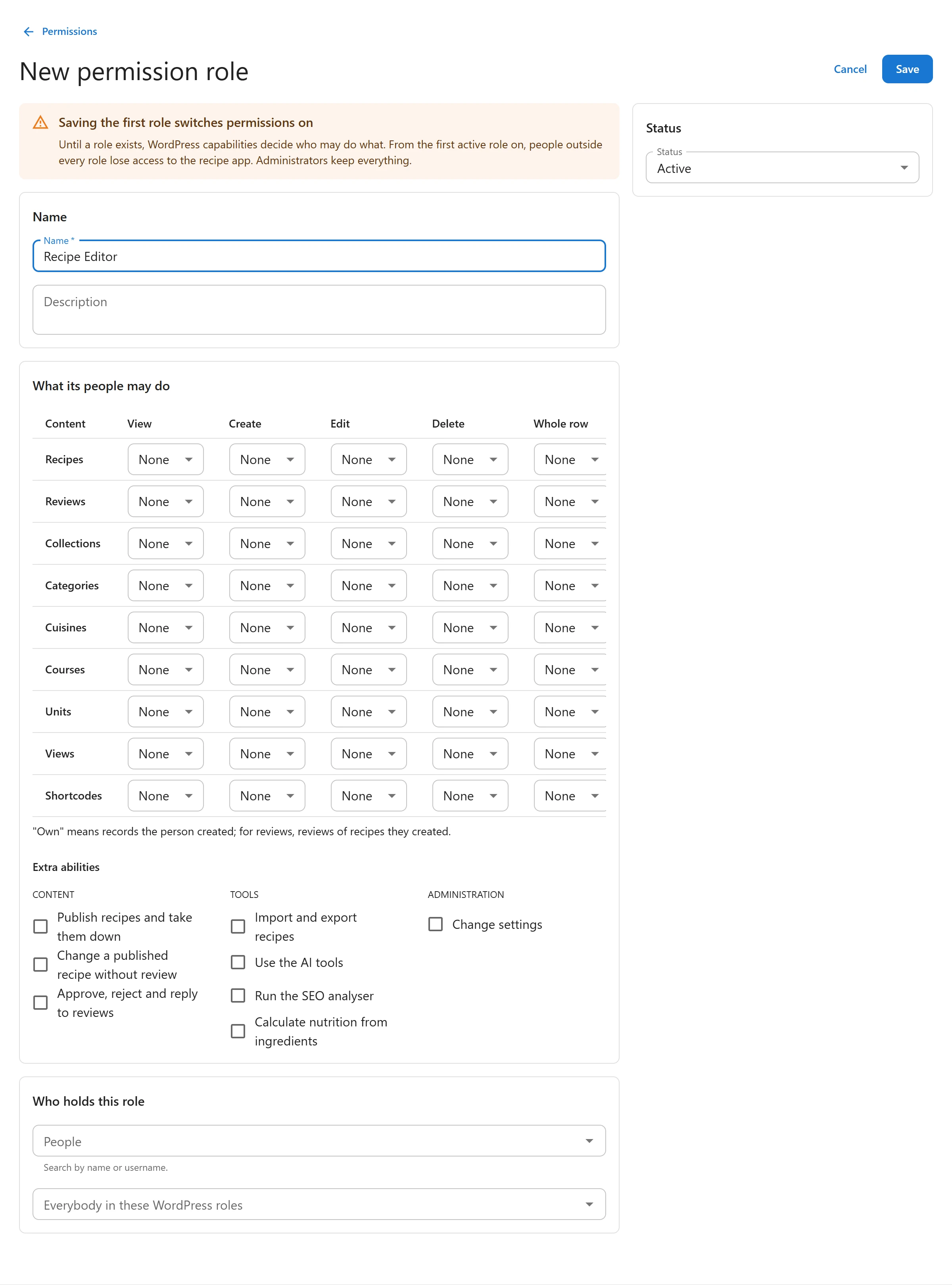
- Name the role, for example “Recipe Editor”.
- In What its people may do, choose for each kind of content and each action:
- All: every record.
- Own: only the records the person created. For reviews, the reviews of recipes they created.
- None. Whole row sets the four actions of a row at once.
- Tick the Extra abilities the role needs: publish recipes and take them down, change a published recipe without review, approve, reject and reply to reviews, import and export, use the AI tools, run the SEO analyser, calculate nutrition, change settings.
- In Who holds this role, add People by name or username, or Everybody in these WordPress roles.
- Leave Status on Active and Save.
Saving the first role switches permissions on
Until a permission role exists, WordPress capabilities decide who may do what, exactly as in the free plugin. From the first active permission role on, people outside every active role lose access to the recipe app. Administrators keep everything.
Before you save the first one, the screen lists the people who reach the app today and hold no role yet, so nobody is locked out by surprise.
What a role changes
- Lists only show what a person may see: with Own, a contributor’s recipe list holds their own recipes.
- A role without “change a published recipe without review” sends an edited published recipe back to review.
Members edit their own submissions
With the Recipe Submissions app on, a logged-in visitor can edit a recipe they sent through the submission form. In Settings > Submission form, choose the page that holds the form under Let members edit their submitted recipes. An Edit link then appears beside each recipe on their My recipes tab. The edited recipe goes back to review.
Related pages
- Free vs Pro: everything Pro adds
- Recipes Management: the recipe list and its statuses
- Frontend Submission: recipes sent by your visitors
Quick Links
Share