

Contents
Elementor - Plugixa Team
Where this appears: the Elementor editor, in the widget panel, once Pro is installed and Elementor is active.
Step 1: find the widget
Open the Elements panel and search for Plugixa. The widget appears under its own category as well as in General.
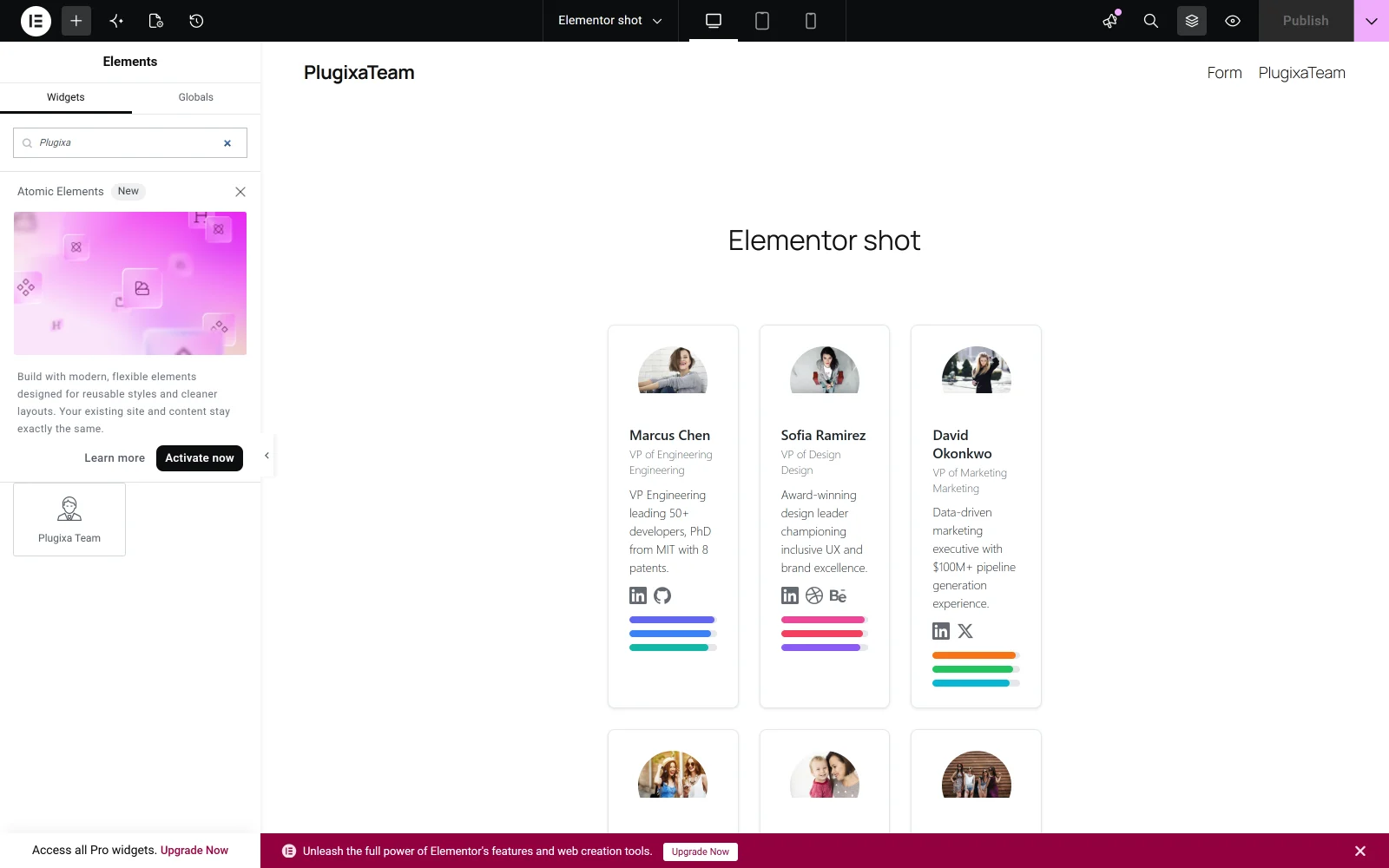
Step 2: drag it onto the page and set it up
Drag the widget into a container. Its settings open on the left under Edit Plugixa Team, with the usual Content, Style and Advanced tabs.
Config Source is the first choice. Point it at a view and the widget renders that saved design; the other options narrow what it shows - a group, a limit, an ordering, featured members only.
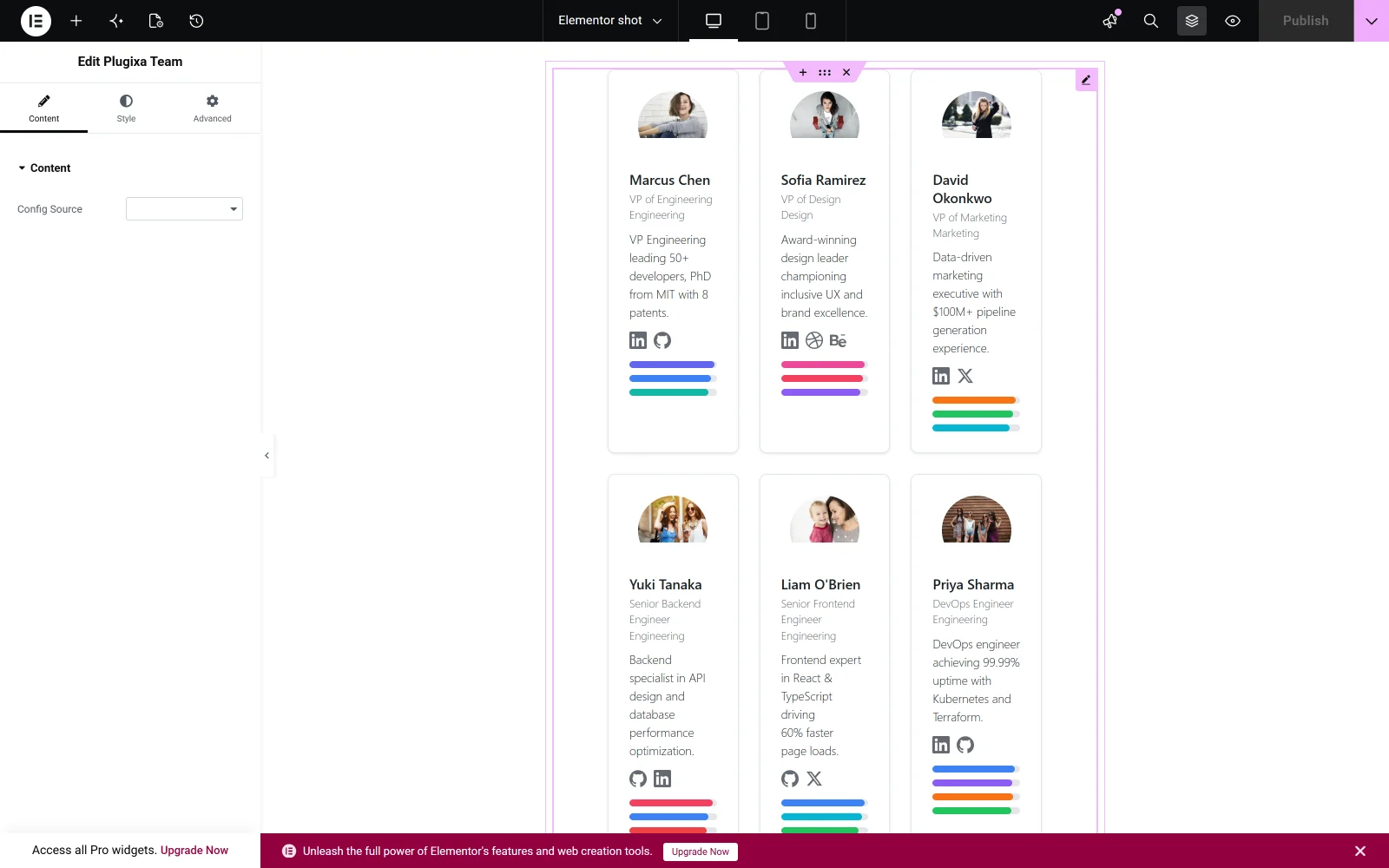
The widget selects a VIEW, where the Gutenberg block selects a shortcode. Both end up rendering a view in the end; they just start from different ends of the same chain.
The preview here is accurate
Unlike the block editor, Elementor’s canvas loads the plugin’s frontend styles, so what you see while editing is what the page will look like. That makes it the easier of the two to design against.
What it deliberately does not do
It does not move the design into Elementor. Layout, colours, typography and spacing stay on the view, so the same team looks the same whether a page was built in Elementor or in the block editor. Elementor decides where the team sits; the view decides how it looks.
Troubleshooting
| What you see | Why | What to do |
|---|---|---|
| No widget in the panel | Elementor was activated after Pro | Reload the editor |
| The widget renders empty | Every member is a draft, or no view is chosen | Publish members, set Config Source |
| Styles differ from the live page | A theme or another plugin overrides them | Compare with the front end |