

Contents
On this page
Bundles - Plugixa POS for WooCommerce
A bundle (or kit) is a product sold at its own price whose stock is its components’ stock. A “Gift box” made of 1 candle and 2 soaps: selling one box takes one candle and two soaps out of stock.
A bundle is a plain WooCommerce simple product with a list of components. It sells in your online shop like any product, with its price, tax class and images, and its components leave stock whether it was sold at the register or online.
Create a bundle
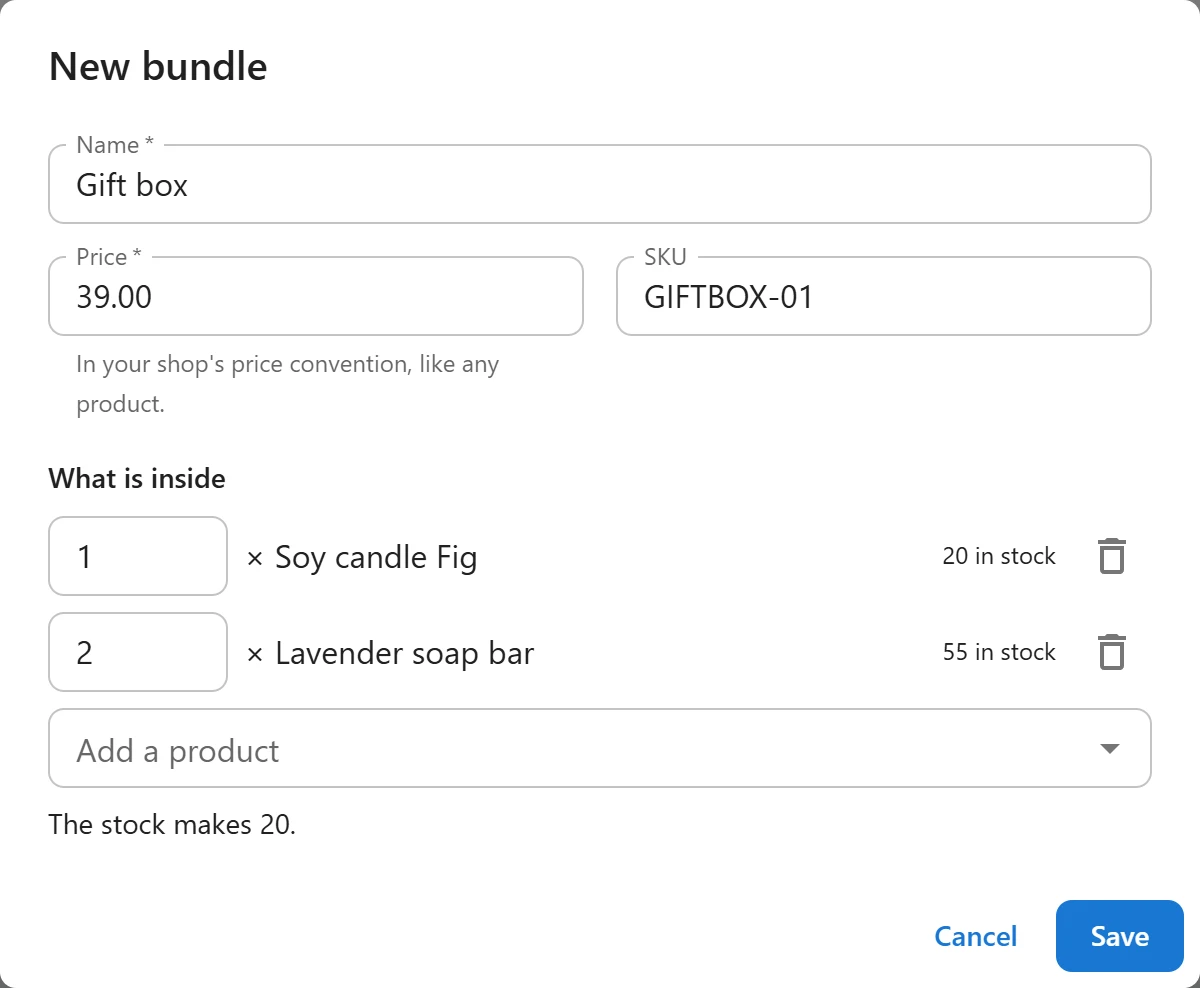
- Open Plugixa POS > Bundles (in the Store group) and click New bundle.
- Type the Name and the Price (“In your shop’s price convention, like any product.”), and a SKU if you use them.
- Under What is inside, use Add a product to add each component (search by name, SKU or barcode), and set the quantity of each, from 1 to 999. Each component shows its stock, or “stock not tracked”.
- Under the components, “The stock makes” tells you how many bundles the current stock allows.
- Click Save.
Saving creates a new published simple product, with Manage stock switched off (the bundle has no stock of its own). Edit it in WooCommerce afterwards to add images, a description or a category.
The rules:
- A bundle has from 1 to 50 components.
- A component is a simple product or a product variation. It cannot be a bundle itself.
- Adding the same product twice adds up its quantities on one row.
Stock
- How many can be sold. The number of bundles the components allow: for each component with tracked stock, its stock divided by the quantity per bundle, the smallest of these. Components without tracked stock do not limit it. If no component is tracked, the bundle is never out of stock.
- At the register the bundle shows that number like any stocked product (“out of stock”, the quantity left), counted in the register’s store when you use multi-store.
- In the online shop the bundle’s stock status follows its components, and a cart cannot hold more bundles than the stock allows: “Only 2 of “Gift box” can be made from the stock we have. Please lower the quantity.”
- When a bundle is sold, its components are taken out of stock (at the register, from the register’s store; online orders, from the home store). The order line gets an Includes note listing them, and an order note shows each component’s stock before and after.
- Refunds and cancellations put back exactly what that sale took, even if the bundle was changed since. A refund puts components back only when it restocks the items.
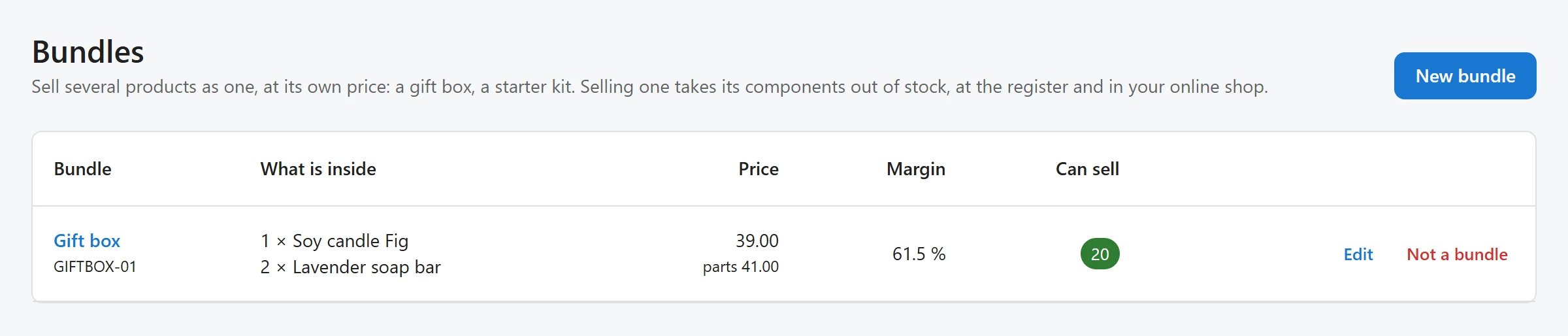
The Bundles list
| Column | What it shows |
|---|---|
| Bundle | The name, SKU, and the product status if it is not published |
| What is inside | Each component with its quantity. A deleted product shows as “deleted product”. |
| Price | The bundle’s price, and under it “parts” with the value of its components at their own prices |
| Margin | The margin on the components’ cost, when every component has a cost |
| Can sell | How many the stock allows, in green, or red at 0 |
The cost of a bundle without a cost of its own is the sum of its components’ costs. If one component has no known cost, the bundle’s cost is unknown. See Purchasing for product costs.
A bundle that manages its own stock
If Manage stock is switched on for the product in WooCommerce, the list shows a warning: “WooCommerce manages this product’s own stock, so it is sold as a normal product. Switch “Manage stock” off on the product to sell it as a bundle.” This prevents the stock from being taken out twice.
Stop selling it as a bundle
Click Not a bundle and confirm. The product stays in your shop as a normal product; selling it no longer takes its components out of stock.
Who can do what
The Bundles screen needs the permission to manage settings. Bundles sell at the register like any product.
Quick Links
Share