

Contents
On this page
Receipts - Plugixa POS for WooCommerce
When a sale is complete, the Sale complete window offers every way to hand over the receipt: print it, email it or send it by WhatsApp. Later, the Orders screen reprints it.
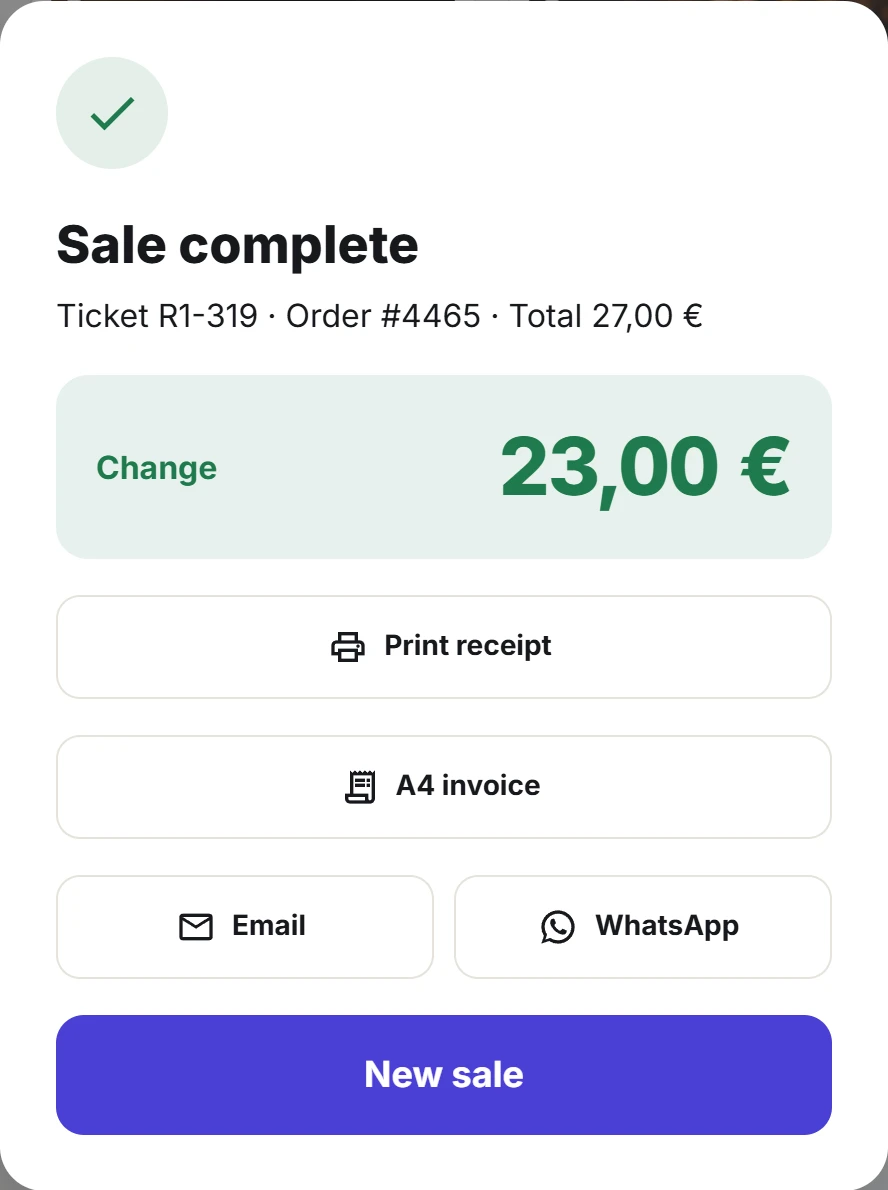
The Sale complete window
Under Sale complete you find:
- The ticket number (the register code and the sale’s number, such as
R1-128), the WooCommerce order number and the total. - Change, in large print, when the customer paid cash and is owed some.
- Print receipt.
- A4 invoice (Pro), to issue an invoice for the sale. See Invoices.
- Email and WhatsApp.
- New sale, which closes the window. The cart is already empty and ready.
Print a receipt
Click Print receipt. The browser’s print dialog opens with the receipt, laid out for an 80 mm receipt roll. Choose your receipt printer and print.
To skip the click, turn on Print the receipt automatically after each sale in Plugixa POS > Settings. The print dialog then opens as soon as each sale is complete. See Settings.
What the receipt shows
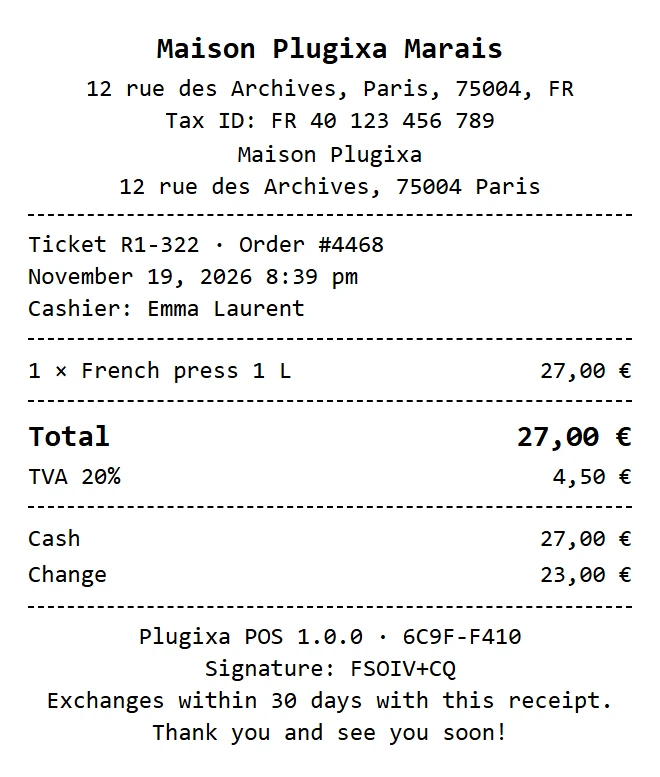
From top to bottom:
| Part | What it contains |
|---|---|
| Store | The store name, address, phone and Tax ID, from Plugixa POS > Store & registers. |
| Header text | Your text from Settings, for example opening hours. Empty by default. |
| Sale | Ticket with the register code and number, the order number, the date and time, the Cashier, and the Customer when there is one. |
| Lines | Quantity, name and price of each line, its options, its Note: when it has one, and a Discount row under a discounted line. |
| Totals | Discount (with the coupon codes), Total, and the tax of each rate. |
| Payments | Each payment method and amount, and the Change. |
| Fiscal mark | Plugixa POS with its version, and a short code taken from the sale’s fiscal journal entry, such as 3F9A-07C2. |
| Footer text | Your text from Settings. Thank you for your visit! by default. |
Change the header and footer under Plugixa POS > Settings > Receipt, and the store details under Store & registers.
With Pro, you can redesign the receipt PRO (logo, your own text, barcodes, 58 mm paper) in Receipt templates, and each till can print straight to a thermal receipt printer over USB, serial, Bluetooth or the network, and open the cash drawer, from the Receipt printer button in the top bar.
Email a receipt
- On the Sale complete window, click Email.
- Check the Customer email. It is filled in from the customer on the sale; type one if there is none.
- Click Send.
The register shows Receipt sent. Your site sends WooCommerce’s own Customer invoice / Order details email to that address, with your WooCommerce email design. An order note records Receipt emailed from the register to and the address.
The same receipt can be emailed up to 5 times within an hour. After that, the register says This receipt was already sent several times. Try again later. If your site cannot send email, the register says The email could not be sent. Check the site’s email settings.
The Email button needs the sale to be saved on your site. With Pro offline mode PRO, a sale still waiting to sync cannot be emailed yet.
Send WooCommerce’s emails automatically
To email every customer without a click, turn on Email the WooCommerce order and refund emails to the customer in Settings. WooCommerce’s order and refund emails then go to every customer attached to a sale who has an email address. The shop itself is never emailed about a register sale.
Send a receipt by WhatsApp
- On the Sale complete window, click WhatsApp.
- Check the Phone with country code, for example
+33 6 12 34 56 78. It is filled in from the customer on the sale. - Click Open.
WhatsApp opens (the app, or WhatsApp Web) in a new tab with a chat to that number and the receipt ready as a text message. The cashier presses Send in WhatsApp. If the number is missing or too short, WhatsApp lets you pick the contact instead.
The message holds the shop name, the ticket and order numbers, the date, each line with its quantity and price, the discount, the total, the payments, the change and Thank you for your visit!.
Your server sends nothing: the cashier’s browser opens https://wa.me with the number and the
text, and nothing leaves until the cashier presses Send in WhatsApp. If the WhatsApp
button is not used, WhatsApp is never contacted.
Reprint a receipt
A reprint is never a second original. Each reprint is a numbered duplicate, recorded in the register’s fiscal journal.
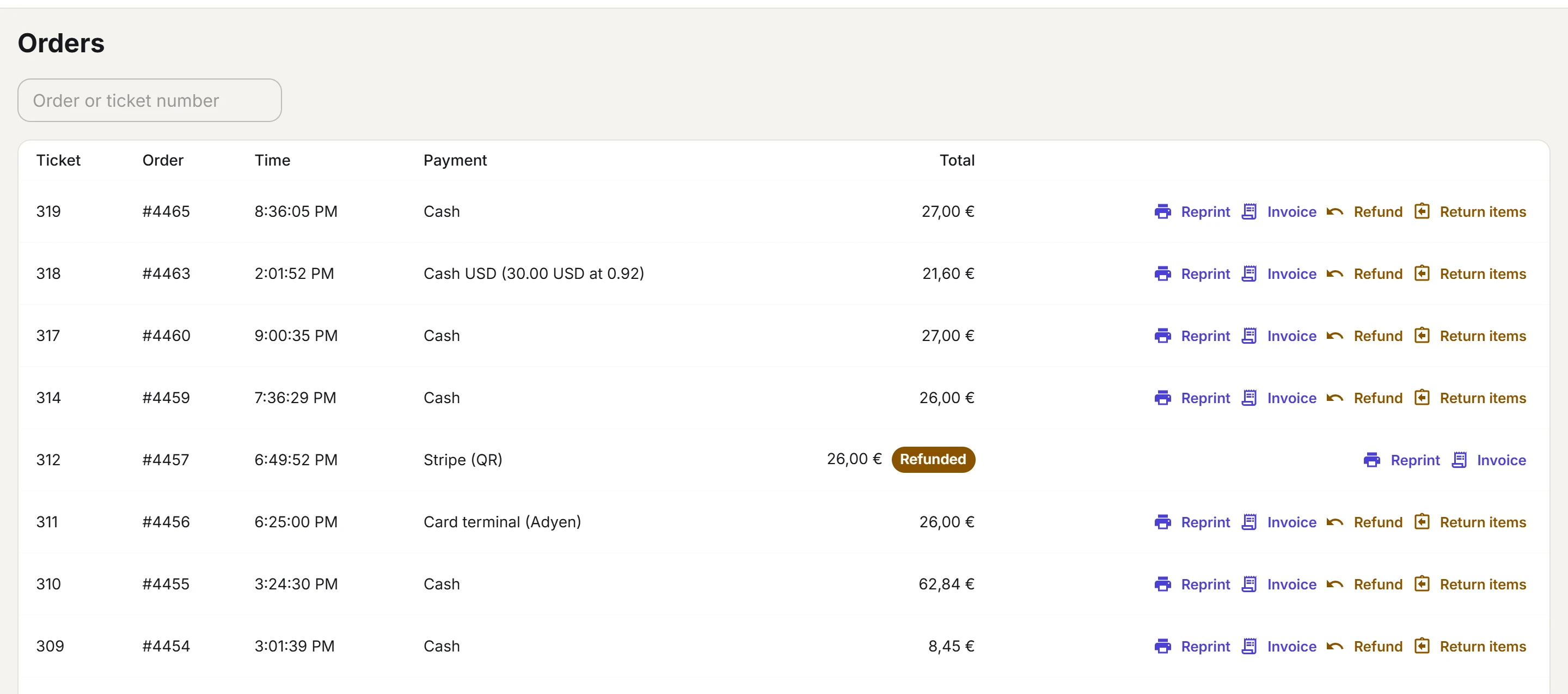
- In the top bar, click Orders. The list shows the sales of the current cash session, newest first.
- To find an older one of this session, type its order or ticket number in the search box.
- Click Reprint on the sale.
The receipt prints with Duplicate No. 1 at the top, then Duplicate No. 2 for the next reprint of the same sale, and so on. The fiscal journal keeps one duplicate entry per reprint. See Fiscal journal.
Quick Links
Share