

Contents
On this page
Stock adjustments - Plugixa POS for WooCommerce
A stock adjustment is a stock change that is not a sale: a broken mug, a stolen scarf, a candle used in the shop, a box found in the back room, a shelf count. Each one is logged with its reason, who made it and what the units cost, so the screen can tell you what your losses are worth.
Open Plugixa POS > Stock adjustments. The screen needs the right to manage the POS settings.
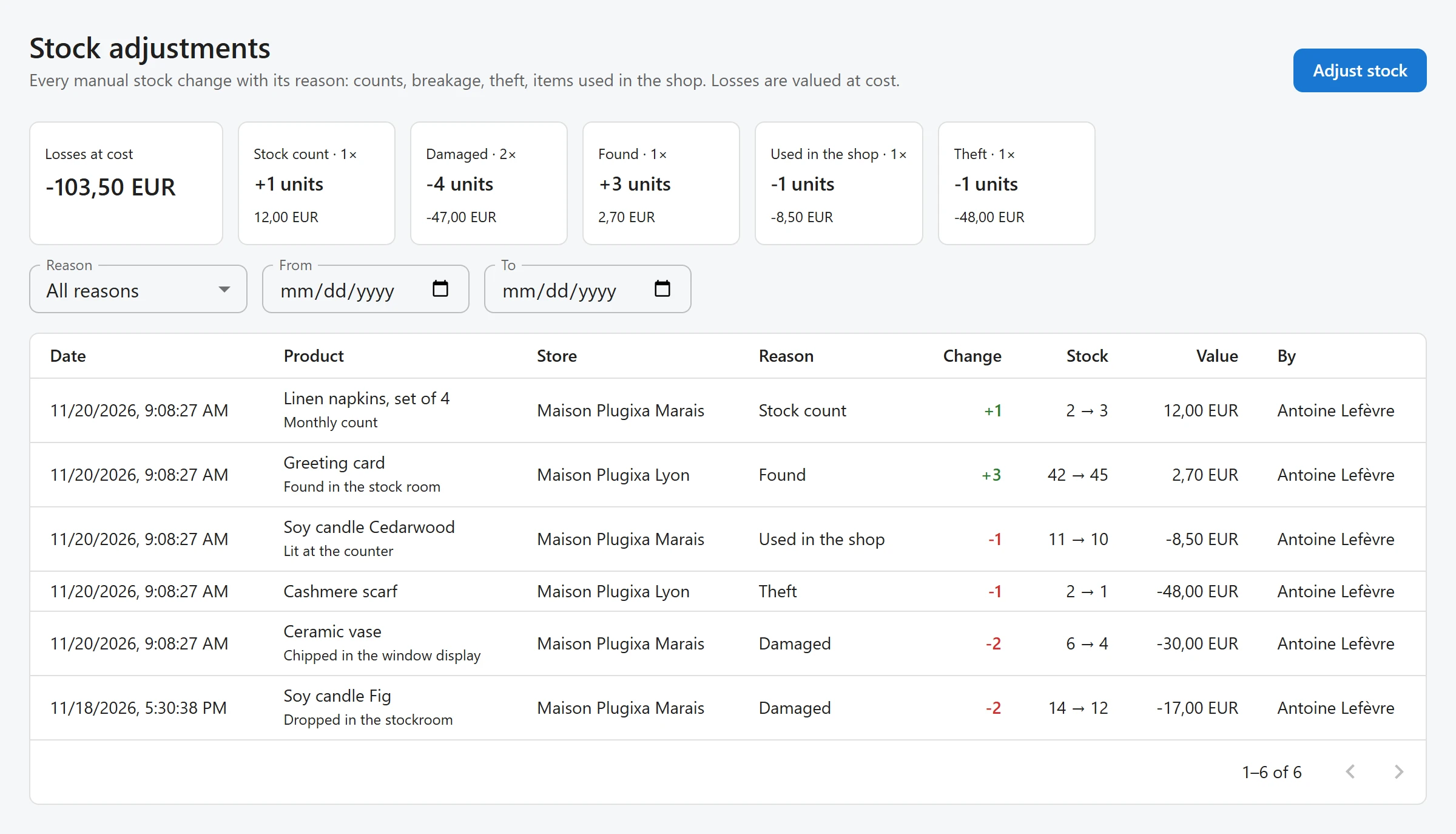
Adjust stock
- Click Adjust stock.
- Pick the product: type at least 2 letters of its name, SKU or barcode. Only products that track stock are offered. Once picked, the chip shows its stock in all stores.
- With more than one store, choose the Store.
- Choose the kind of change: Remove, Add or Count.
- Type the quantity, pick a Reason, and add a Note (optional) if you like.
- Click Save.
The stock changes at once, in the store and in WooCommerce’s total.
| Kind | Quantity field | Reasons offered |
|---|---|---|
| Remove | Units removed | Damaged, Expired, Theft, Lost, Used in the shop, Other |
| Add | Units added | Found, Received (no order), Other |
| Count | Quantity on the shelf | Stock count |
A count sets the stock to the number you type; Remove and Add change it by that number.
For goods that arrive from a supplier, use a purchase order instead: it also updates the product’s cost.
Where else adjustments come from
You do not have to open this screen for every change. These are logged here too:
- a quantity typed in Stock by store, as Stock count,
- a lot written off in Lots, as Expired,
- a new lot received as new stock, as Received (no order), with the note
Lot <number>.
The log
Every adjustment is a row, newest first:
| Column | What it shows |
|---|---|
| Date | When it was made. |
| Product | The product, with the note underneath. |
| Store | Shown when you have more than one store. |
| Reason | The reason picked. |
| Change | Units added (green) or removed (red). |
| Stock | The store’s quantity before and after. |
| Value | The change at the product’s cost on that day. Empty when the product had no cost. |
| By | Who made the change. |
Filter the log with Reason (All reasons by default), From and To. The log shows 50 rows per page.
What your losses are worth
The tiles above the log sum up the filtered period:
- Losses at cost: the value at cost of the reasons that took units out of stock in the period.
- One tile per reason: how many adjustments, the units, and their value at cost. Click a tile to filter the log on that reason; click it again to clear the filter.
The value uses the unit cost the product had when the adjustment was made. A product’s cost comes from Purchasing (each delivery) or from the Product costs screen. A product without a cost has no value, and the tiles leave it out.
Messages you may see
| Message | Why |
|---|---|
| “Turn on stock management for this product in WooCommerce first.” | The product does not track stock. |
| “A count cannot be below zero.” | A Count with a negative number. |
| “Enter how many units to add or remove.” | Add or Remove with 0. |
The Pro Webhooks can send each adjustment to another tool (event Stock adjusted).
Quick Links
Share