

Contents
On this page
Lots and expiry dates - Plugixa POS for WooCommerce
For food, cosmetics or anything with a batch number, Pro can track lots (batches) with their expiry date. Nobody at the till has to pick a lot: each sale takes its units from the lot that expires first, refuses expired stock, and records which lots it used. If a supplier recalls a lot, one search lists who bought it.
Open Plugixa POS > Lots & expiry. The header says: “Sales take the lot that expires first; expired stock is not sold. Find who bought a lot if it is recalled.” The screen has three tabs: Lots, Recall and Products. It needs the right to manage the POS settings.
A lot is bookkeeping on top of your stock. WooCommerce (and Stock by store) still hold the quantities; lots say which batch the units belong to.
1. Choose the products to track
- Open the Products tab.
- In Track lots and expiry dates for, search and pick the product. The picker offers simple products and variations that track stock.
| Column | What it shows |
|---|---|
| In lots | Units that belong to a lot. |
| Not in a lot | Stock that was never put in a lot. |
| Expired | Units in expired lots. |
| Next expiry | The nearest expiry date. |
Stop tracking turns lots off for a product.
2. Receive a lot
- On the Products tab, click Receive a lot on the product’s row.
- Type the Lot number and the Expiry date (leave the date empty for a lot with no date).
- Type the Units, and choose the Store when you have more than one.
- Choose what the units are with the switch:
- New stock: add these units: the units are added to the store’s stock. The change is
logged in Stock adjustments as Received
(no order) with the note
Lot <number>. - Stock already here: only label it with this lot: nothing is added. The units already on the shelf are labelled with this lot. You cannot label more units than are not yet in a lot.
- New stock: add these units: the units are added to the store’s stock. The change is
logged in Stock adjustments as Received
(no order) with the note
- Click Save.
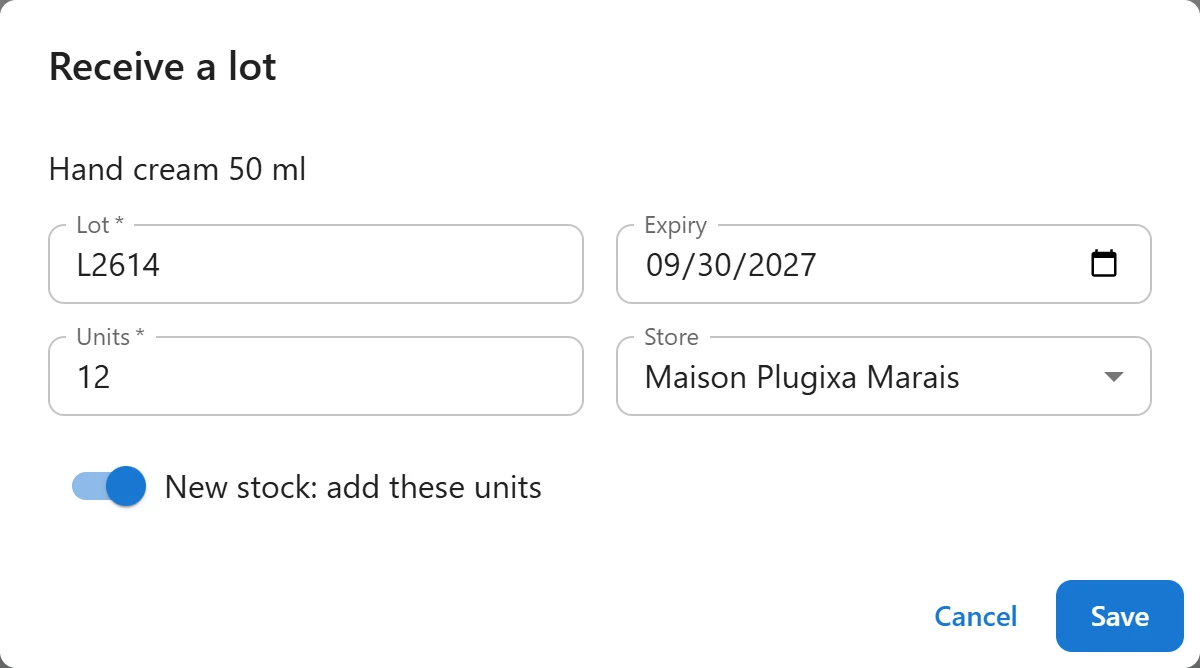
Receiving the same lot number again in the same store adds to that lot.
How sales use lots
| Situation | What happens |
|---|---|
| A sale at a register | The units come from the store’s lots, earliest expiry first, then lots with no date. |
| An online order | Same, from the home store’s lots. |
| Not enough stock in lots | The rest comes from stock not in a lot; the line records only the lot units. |
| Only expired lots could cover the sale | The register refuses: “Only … of … may be sold: the rest is lot …, expired on …. Write it off under Lots.” |
| A sale made offline | Never refused; its units come from what is left. |
On the receipt, the invoice and the WooCommerce order, the line shows the lots it used, for
example Lot: L23 (exp. 2026-12-01) ×2, L24 ×1. The fiscal journal line lists them too.
A refund that restocks the units puts them back in the lots they came from. A cancelled order puts all its units back.
3. Watch expiry dates
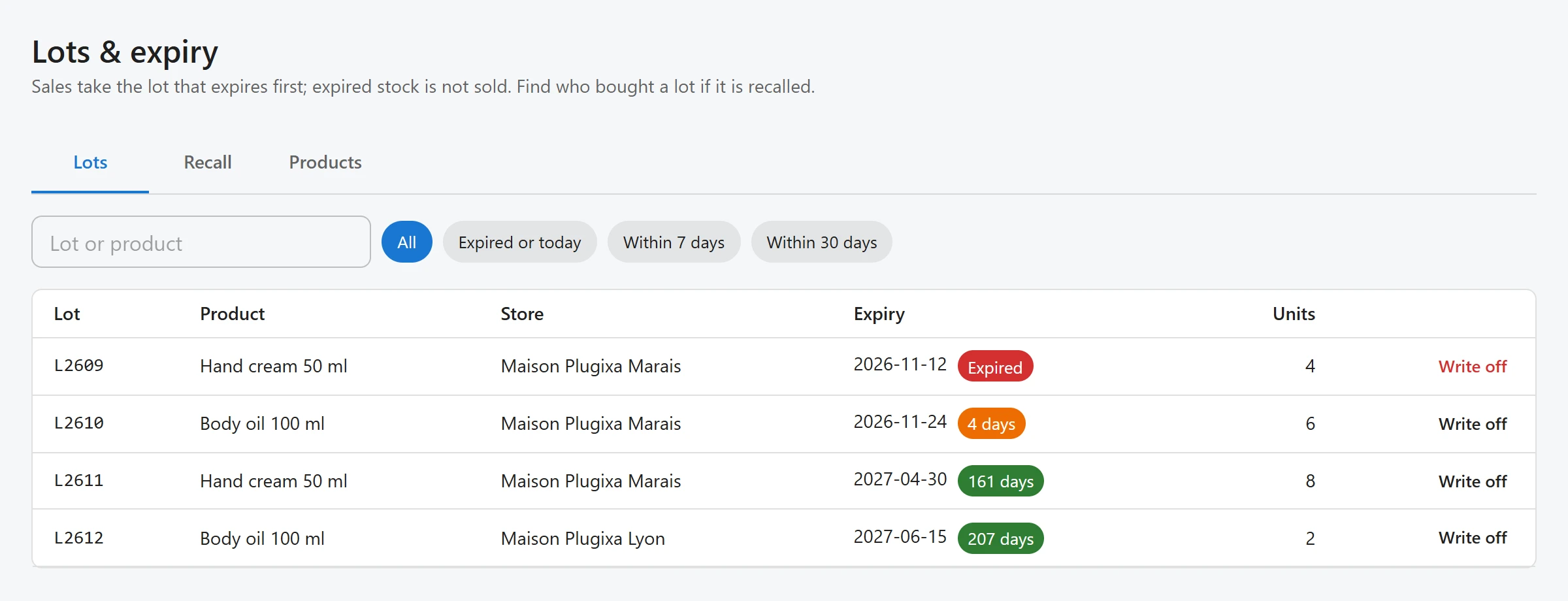
The Lots tab lists every lot with its Lot, Product, Store, Expiry and Units. A chip next to the date shows how close it is:
| Chip | Meaning |
|---|---|
| Expired (red) | The date has passed. These units cannot be sold. |
| … days (orange) | 7 days or fewer left. |
| … days (green) | More than 7 days left. |
| No date | The lot has no expiry date. |
Search by Lot or product, and filter with All, Expired or today, Within 7 days or Within 30 days.
4. Write off an expired lot
Expired lots are never sold; they wait for you to take them out of stock.
- On the Lots tab, click Write off on the lot.
- Confirm: “Take these units out of stock as expired? It is logged in Stock adjustments.”
The units leave the store’s stock and are logged in Stock adjustments with the reason Expired, valued at cost. Write off works on any lot with units left, so you can also use it for a damaged lot.
5. Recall a lot
- Open the Recall tab.
- Type the lot number and click Find the buyers.
The tab counts the units sold and the customers with an e-mail, then lists each sale: Date, Order, Product, Units, Store and Customer with their e-mail and phone. A sale without a known customer shows Walk-in (unknown). Units that were returned are not counted.
When nothing was sold from the lot, the tab says “No unit of this lot was sold.”
Quick Links
Share