

Contents
On this page
Purchasing - Plugixa POS for WooCommerce
Purchasing covers the goods you buy: who you buy from, what you ordered, what arrived and what it cost. Each delivery you receive goes straight into a store’s stock, and the product’s cost is kept up to date so Reports can show your margin.
Pro adds a Purchasing section to the menu with five screens: Purchase orders,
Reorder, Suppliers, Supplier returns and Product costs. They need the
plugixa_pos_purchase capability, which administrators and WooCommerce shop managers get.
All of it works on products that track stock in WooCommerce. A variable product is ordered by variation.
1. Add your suppliers
Open Purchasing > Suppliers and click Add a supplier.
| Field | Notes |
|---|---|
| Name | Required. |
| Contact person, Email, Phone | Printed on the purchase order with the address. |
| Address, Postcode, City, Country | |
| Tax ID | |
| Lead time (days) | 0 to 365. |
| Status | Active or Archived. |
| Note |
A supplier is never deleted: archive it instead, and its purchase orders keep it. Only active suppliers can receive a new order.
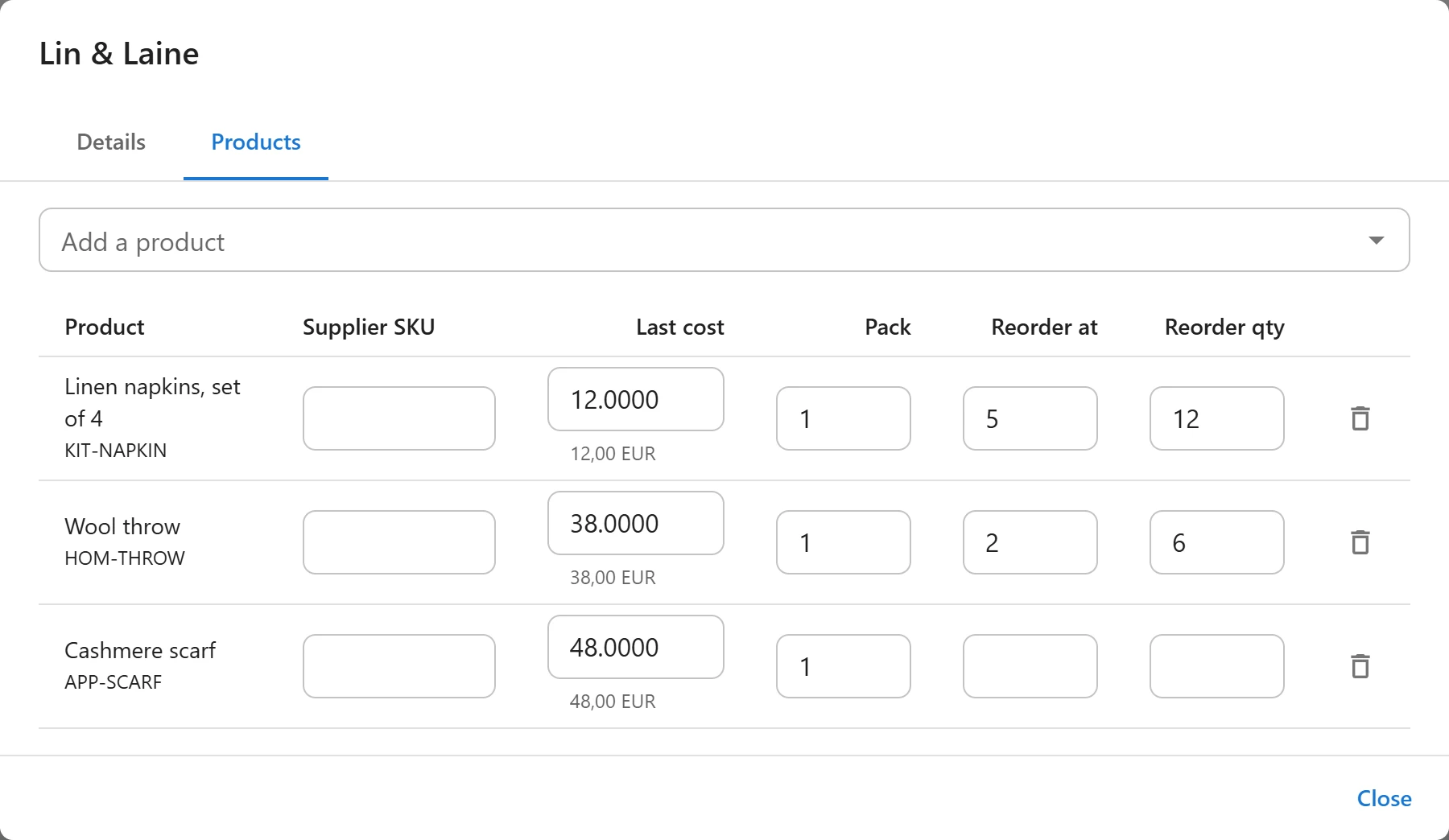
Once saved, open the supplier’s Products tab and add what they sell you. For each product:
| Column | What it is |
|---|---|
| Supplier SKU | The supplier’s own reference. |
| Last cost | The last price paid. Filled in by each delivery; you can type it too. |
| Pack | How many units the supplier sells together. Reorder rounds up to whole packs. |
| Reorder at | The reorder point: suggest an order when stock falls to this number. |
| Reorder qty | How many to order. Empty: just enough to get back above the point. |
2. Create a purchase order
Open Purchasing > Purchase orders and click New purchase order.
- Choose the Supplier and the store to Deliver to.
- Set the Expected date if you know it.
- Add the products with their Qty and Unit cost. A line without a cost takes the supplier’s last cost.
- Click Save draft, or Save and mark as ordered once you have sent it to the supplier.
Each order gets a number such as PO-000042, never reused. Print opens a printable A4 order
with your store, the supplier’s details, the lines and the total, to send or hand over.
| Status | What it means |
|---|---|
| Draft | Being prepared; you can still Edit it. |
| Ordered | Sent to the supplier. Nothing is in stock yet. |
| Partly received | Some goods arrived. |
| Received | Everything ordered arrived. |
| Closed | A partly received order the supplier will not complete. What arrived stays. |
| Cancelled | A draft or ordered PO dropped before anything arrived. |
Use Mark as ordered on a draft, Cancel order on a draft or ordered PO, and Close (no more deliveries) on a partly received one.
3. Receive goods
When a delivery arrives:
- Open the purchase order and click Receive goods.
- In Receive now, type how many of each product arrived. You cannot receive more than is still due: “More … than ordered: … still due.”
- If the supplier’s invoice shows another price, change the Invoice cost.
- Click Add to stock.
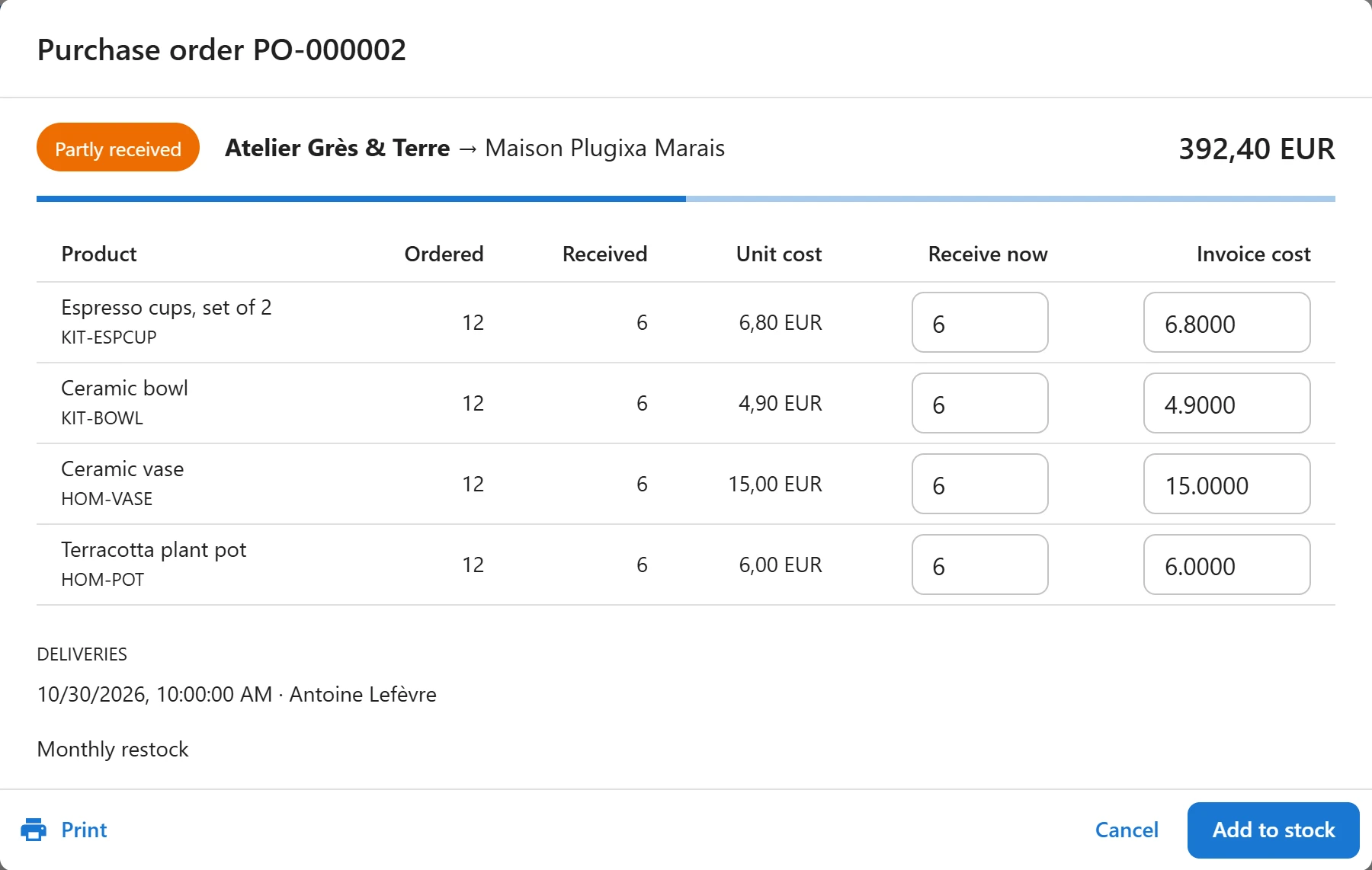
Each delivery is one goods receipt, listed under Deliveries with its date and who received it. The units go into the delivery store and into WooCommerce’s total at the same moment. The order becomes Partly received or Received. The cost paid becomes the supplier’s Last cost for the next order.
Two people receiving the same delivery at once cannot both add it: the second receipt waits for the first and sees what is left to receive.
4. Reorder
Purchasing > Reorder lists the products to order again for one Store. A product is due when its stock in that store plus what is already on order (draft, ordered or partly received orders) is at or below its reorder point.
The suggested quantity is the Reorder qty, or else enough to get back above the point, rounded up to whole packs. A product with a reorder rule at several suppliers is suggested once, from the cheapest one. Adjust the Order quantities and click Create a draft order for a supplier; the screen links to the new draft.
When nothing is due, the screen says “Nothing to reorder: every product with a reorder point has enough in stock or on order.”
5. Return goods to a supplier
Open Purchasing > Supplier returns and click New return.
- Choose the Supplier and the store the goods leave From store.
- Type a Reason, for example damaged, wrong item or overstock.
- Add the products with their Qty and Credit per unit. Left empty, the credit is the supplier’s last price, or else your cost.
- Click Save draft.
Open the return and click Send back when the goods leave: “Sending takes these goods out of the store’s stock.” The plugin first checks that the store has every line in stock. The list shows the Credit expected from the supplier. A draft can be dropped with Cancel return, and Print gives you a return note.
Returning goods does not change the product’s average cost.
6. Product costs
Each product keeps one unit cost for all stores: the weighted average of what its stock cost. When q units arrive at cost c on top of n units that cost a each, the new cost is (n x a + q x c) / (n + q). With no stock on hand, the new cost is simply c.
Purchasing > Product costs lists every product with In stock, Price, Unit cost and Margin. Type a cost for stock you already had before using purchasing, so its margin is known. Clear the field to remove a cost. Turn on Only products without a cost to see what is missing.
At each register sale, the cost of the day is copied onto the order line. Margins in reports are therefore fixed at the cost on the day of the sale, whatever later deliveries cost.
Quick Links
Share