

Contents
On this page
Multi-store - Plugixa POS for WooCommerce
With Pro, one WooCommerce site can run several shops. Each store has its own address, its own registers and its own staff list. Stock is counted per store, and a product can have a different price in each store.
In the free plugin you have one store, managed under Store & registers. Pro replaces that screen with Stores: open Plugixa POS > Stores in wp-admin. Only users who can manage the POS settings open this screen (administrators out of the box, see Staff access).
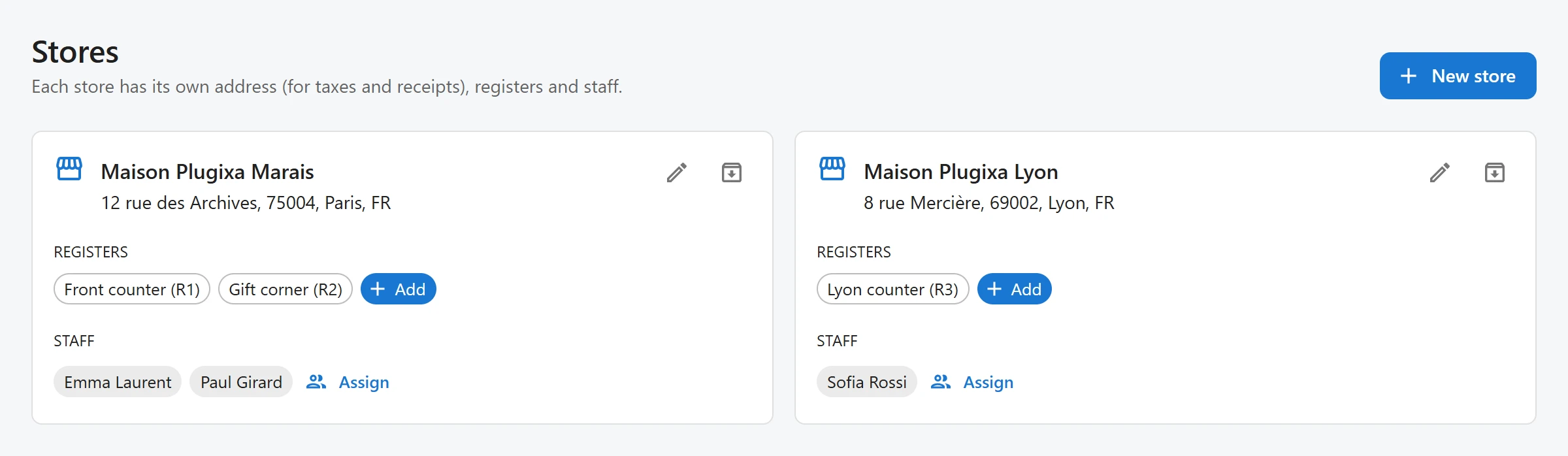
The Stores screen
Every store is a card. A card shows:
- the store name and its address,
- Registers: each register of the store, with its code in brackets, and an Add chip to create a new one,
- Staff: the people assigned to the store, or Everyone when nobody is assigned, and an Assign button.
The pencil icon edits the store. The archive icon archives it (see below). An archived store is shown faded, with an Archived chip.
Add a store
- Click New store at the top right.
- Fill in Store name (required), Address, Postcode, City and Country code (e.g. FR). The note under the country says “Taxes at this store use this address.”
- Click Save.
The new store is active at once. It has no register yet: add one from its card.
To change a store later, click its pencil icon. The edit form has the same fields plus Tax ID.
Add a register to a store
- On the store’s card, click the Add chip under Registers.
- Type the New register name, for example
Gift corner. - Click Add.
The register appears on the card with its code. Cashiers pick it when they open the register at
/pos. Registers themselves (renaming, archiving) are described in
Stores and registers.
Choose which staff work in a store
By default everyone who can sell may use every register of every store. To limit a person to some stores:
- On a store’s card, click Assign.
- Search for people by name and pick them in Staff.
- Click Save.
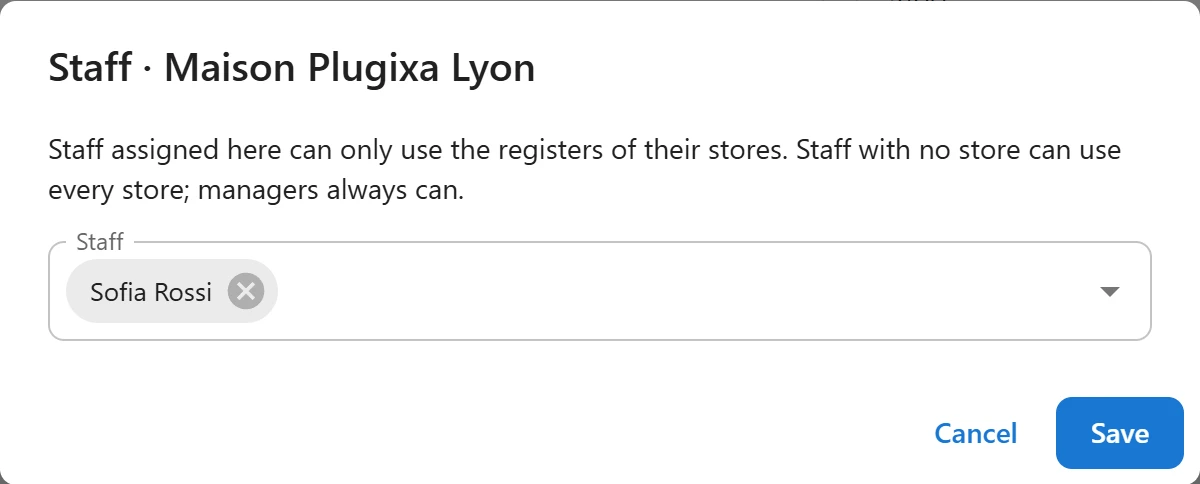
The rule, as the dialog says: “Staff assigned here can only use the registers of their stores. Staff with no store can use every store; managers always can.”
| Person | Registers they may use |
|---|---|
| Not assigned to any store | Every register of every store |
| Assigned to one or more stores | Only the registers of those stores |
| Can manage the POS settings | Every register, whatever the assignments |
Nobody is locked out when you upgrade from the free plugin: until you assign someone, they keep working everywhere.
Prices per store
A product can have its own regular and sale price in one store. You set these prices on Stock by store, with the Store prices button on the product’s row. A store without its own price uses the WooCommerce price. Store prices apply to the registers of that store only: your online shop keeps the WooCommerce price.
The home store
The first active store (the one with the lowest id) is the home store. It also holds the stock of the online shop: an online order, a stock edit in WooCommerce or an import changes the home store’s quantity. See Stock by store for the details.
Archive a store
Click the archive icon on the store’s card. The plugin refuses in two cases:
| Message | What to do |
|---|---|
| “Close the open registers of this store before archiving it.” | Close the cash session of every register of the store first. |
| “You need at least one active store.” | Keep one store active. |
The card of an archived store has no Add chip for registers. An archived store is left out of Stock by store, and transfers and purchase orders refuse it. To bring it back, click the restore icon on its card.
Archiving the home store makes the next active store the home store.
Registers refresh faster
With Pro, registers ask the server for stock and price changes every 10 seconds, instead of every 30 seconds in the free plugin, because several stores now share one catalog.
Related pages
- Stock by store: quantities and prices per store.
- Transfers: move stock between stores.
- Reports: sales by store.
Quick Links
Share