

Contents
On this page
Gift cards - Plugixa POS for WooCommerce
Gift cards are sold at the register like a product, and accepted there as a payment method. Each card has a code, a balance and a history that explains every change of that balance. The back office lists all cards, lets you correct a balance, disable a card, set an expiry date and print the card.
Gift cards work at the register only. The Gift card product is hidden from your online shop, and the online checkout does not accept gift card codes.
How a card works
- The Gift card product. The first time it is needed, the plugin creates a WooCommerce product called Gift card: virtual, untaxed, without stock, hidden from the online shop. If you delete it, it is created again.
- The code. “GC” followed by 12 letters and digits, printed as
GC-XXXX-XXXX-XXXX. Letters and digits that look alike (0 and O, 1 and I) are never used. The register accepts a code with or without dashes, in any case, typed or scanned. - The balance. A card holds what the customer actually paid for it, after any discount on the line. One card line can hold up to 100,000 in your currency.
- The history. Every change of balance is one row in the card’s history, written in the same step as the sale or refund that caused it.
Sell a gift card
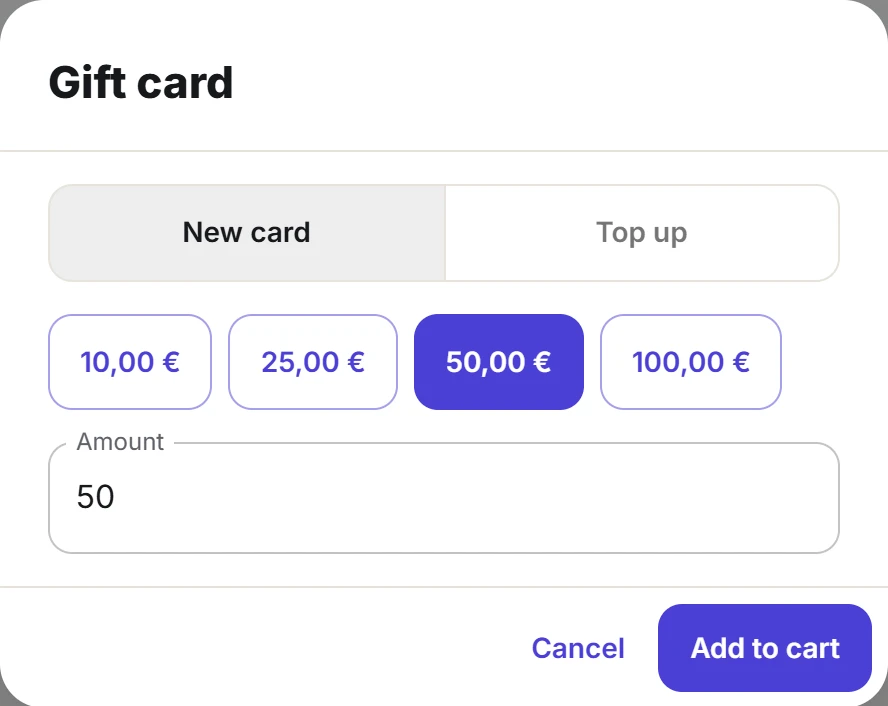
- On the register, find the Gift card product (search for “gift card”) and tap it.
- In the Gift card dialog, keep New card selected.
- Tap one of the preset amounts (10, 25, 50 or 100) or type an Amount.
- Tap Add to cart, then take the payment as usual.
The card is created when the sale is recorded. Its code is shown on the sale’s line as Gift card: GC-…, so it prints on the receipt. You can also print the card itself from the back office (see below).
Buying a gift card earns no loyalty points, and promotions never discount it.
Top up a card
- Tap the Gift card product and choose Top up.
- Type or scan the Gift card code and tap Find. The card’s balance (and its last day of use, if it has one) appears.
- Choose the amount and tap Add to cart.
Only an active card can be topped up. If cards expire in your shop, a top-up starts the validity period again from today. It never shortens a later date, and never gives a date to a card that has none.
Pay with a gift card
- On the payment screen, choose Gift card.
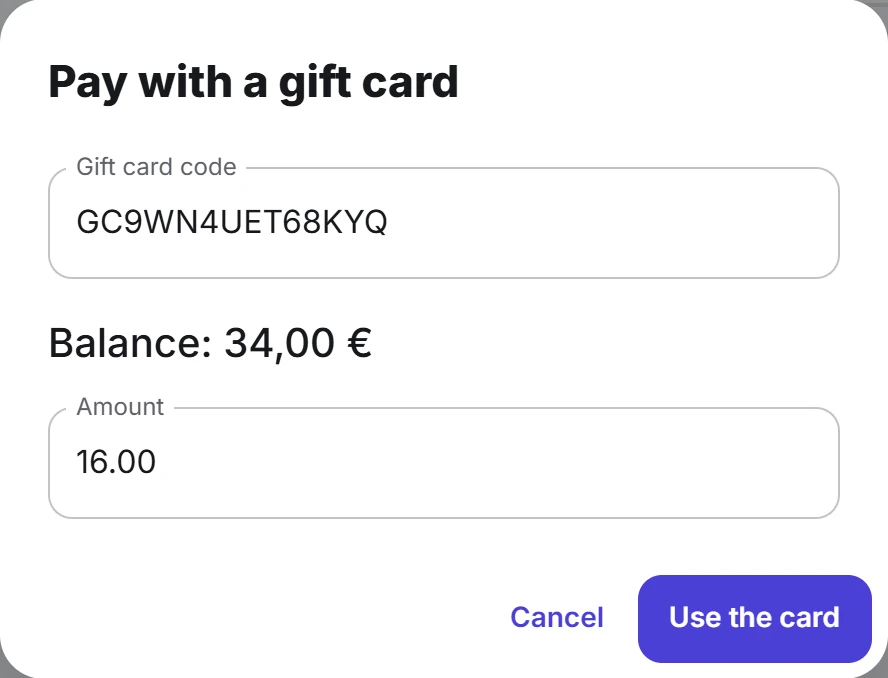
- Type or scan the Gift card code, then press Enter or tap Check the balance.
- The Amount is filled in with what is due, or with the card’s balance if that is less. Change it if the customer wants to keep some on the card.
- Tap Use the card. Pay any rest with another method.
The amount is taken off the card when the sale is recorded. If the card no longer holds enough at that moment, the whole sale is refused with “Not enough on this gift card” and the balance left. A disabled card shows “This gift card is disabled.”, an expired one “This gift card has expired.” and an empty one “This gift card is empty.”: none of them can be used.
Refunds
- Money paid by gift card goes back onto that card. When you refund a sale that was paid with a card, Gift card is offered as a way to pay back, and the money returns to the same card. It is offered only for sales paid by gift card.
- Refunding a gift card that was sold takes its value off the card again. If the card was already spent, the refund is refused: “This gift card has already been used: it cannot be refunded.”
See Refunds and Returns and exchanges.
Find and manage cards
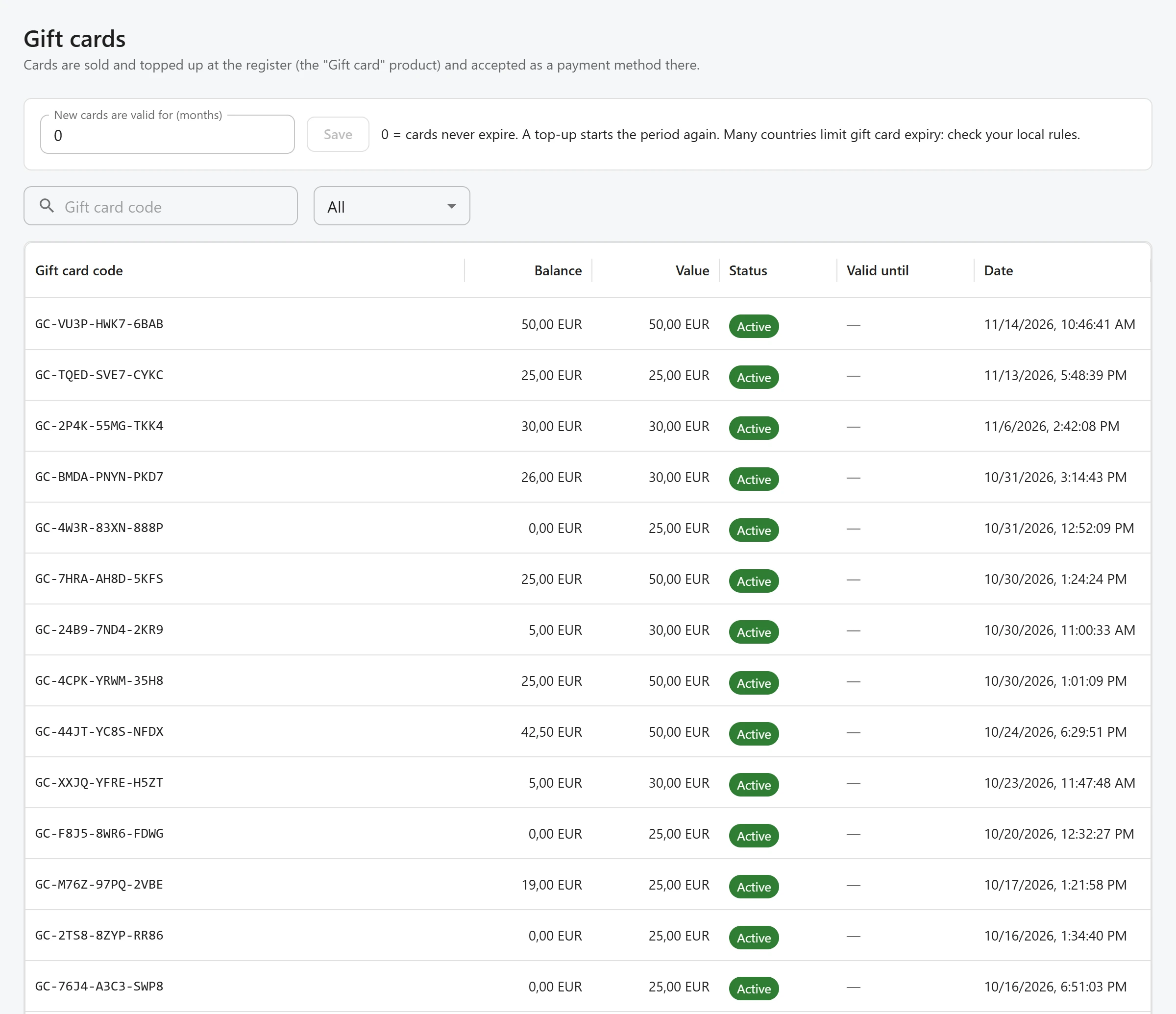
Open Plugixa POS > Gift cards (in the Sales group). The list shows each card’s Gift card code, Balance, Value (what it was issued with), Status, Valid until and Date. Search by code, or filter by Active and Disabled.
Click a card to open it. The top shows the balance, “of” the value it was issued with, its status and Sold on order with the order number.
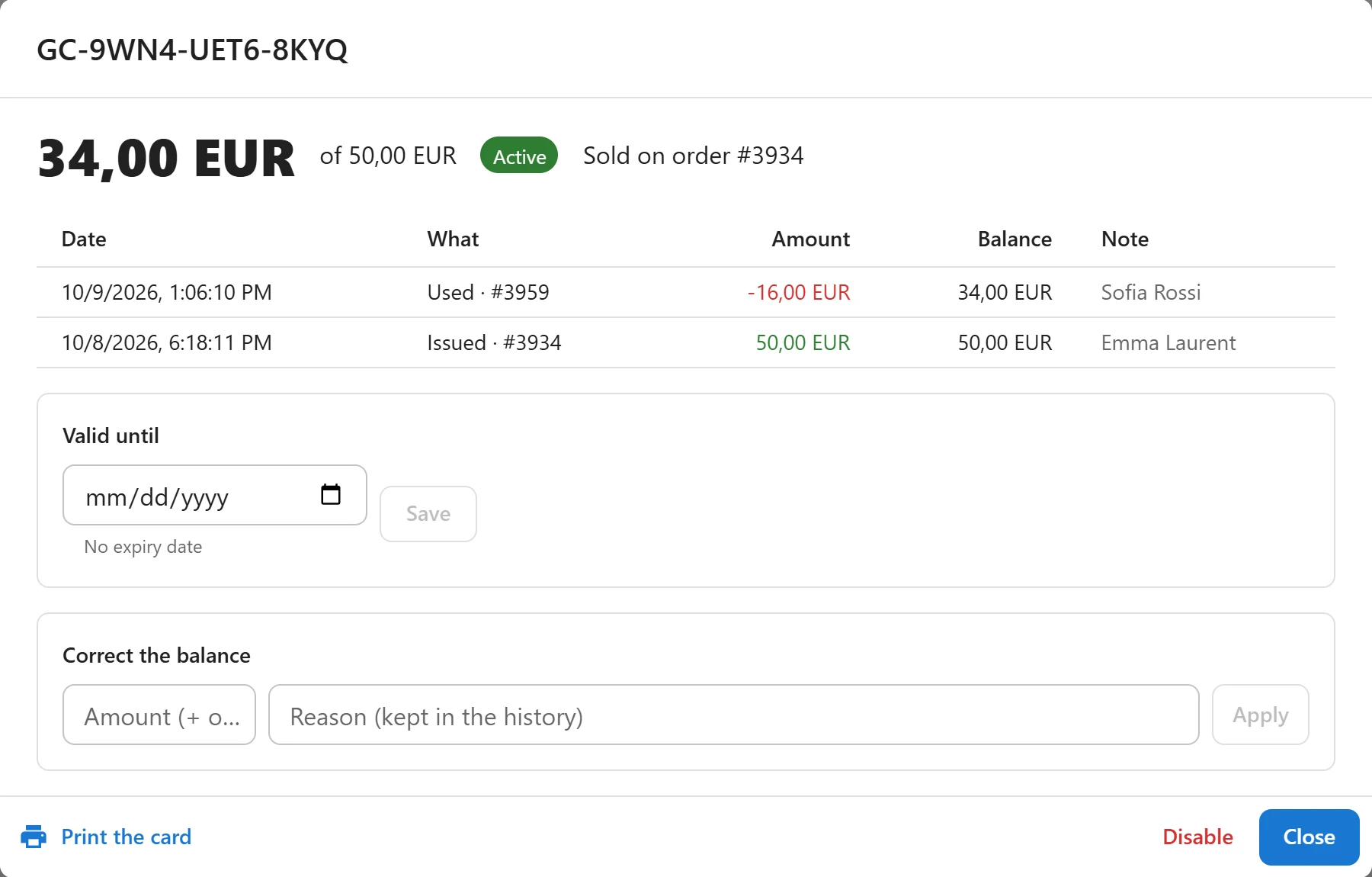
The history lists the last 200 changes, newest first:
| What | Meaning |
|---|---|
| Issued | The card was sold |
| Topped up | Money was added at the register |
| Used | The card paid (part of) a sale |
| Refunded onto the card | A refund paid money back onto the card |
| Card refunded | The card itself was refunded, its value taken off |
| Correction | A change made by hand in the back office |
From the card you can also:
- Correct the balance. Type an Amount (+ or -) and a Reason (kept in the history), then click Apply. Both fields are required. A correction cannot take the balance below zero, and it is recorded in the audit log.
- Set or remove the expiry date in Valid until, then click Save. Remove the expiry date makes the card valid with no end.
- Disable a card (lost, stolen) or Enable it again. A disabled card cannot pay or be topped up.
- Print the card: a card-sized page (85.6 x 54 mm) with the code in large print, the balance and a QR code the register’s scanner reads.
Expiry
By default cards never expire. To give new cards a validity, set New cards are valid for (months) at the top of the Gift cards screen (0 to 120) and click Save. 0 means cards never expire.
The setting applies to cards sold from then on, and to top-ups. Cards already sold keep their date (or no date): change one by hand from the card. An expired card can no longer pay.
Many countries limit or forbid gift card expiry. Check your local rules before you set one.
Who can do what
Selling, topping up and paying with a card is part of selling at the register. The Gift cards screen (list, corrections, expiry, status) needs the permission to manage settings. See Staff access.
Quick Links
Share