

Contents
On this page
Payments - Plugixa POS for WooCommerce
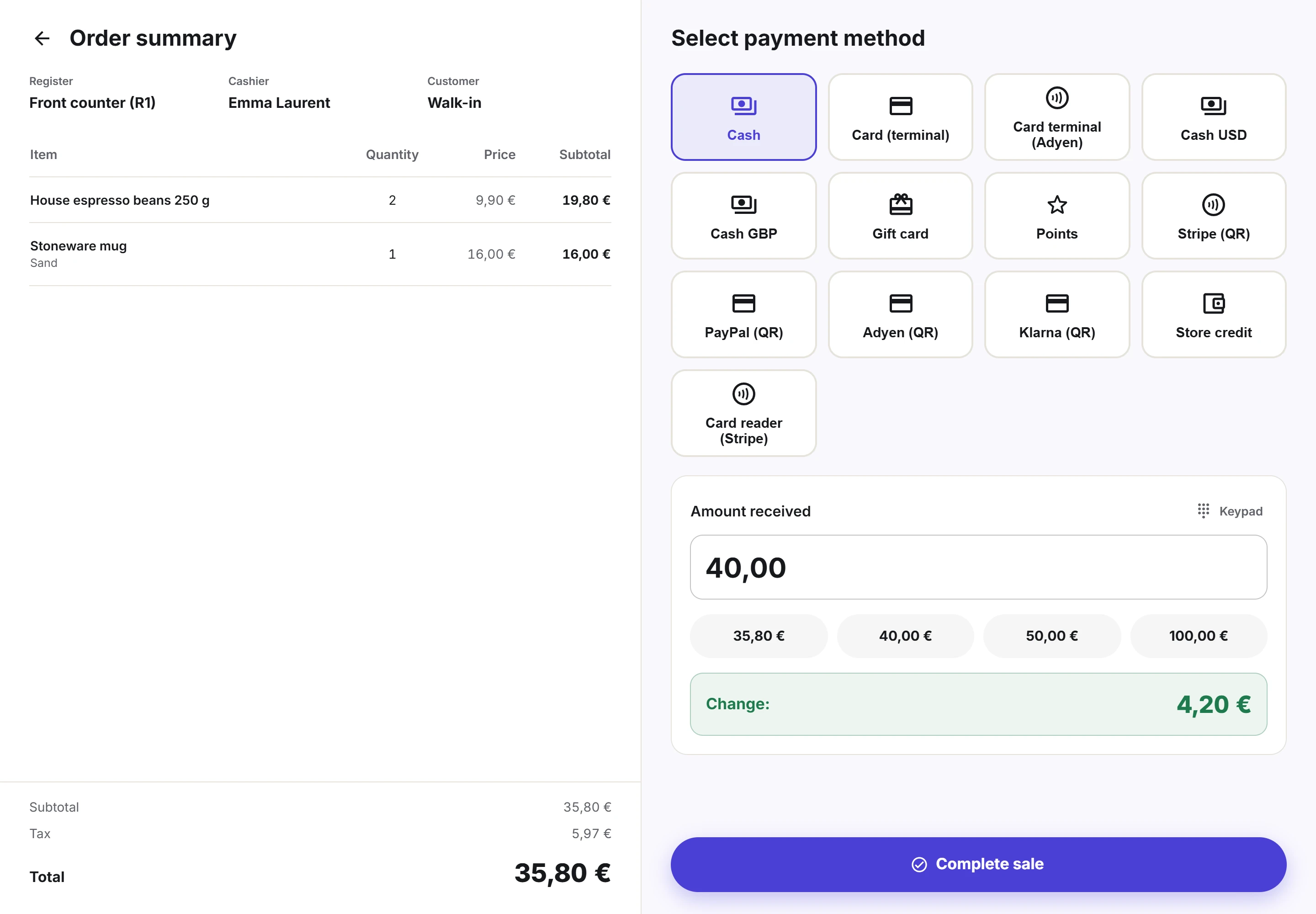
Pressing Pay (or F9) opens the payment screen over the whole register. The order is on the left, the payment on the right. This page explains the payment methods of the free plugin, split payments, and what happens when you click Complete sale.
The payment screen
The left half, Order summary, shows the Register, the Cashier, the Customer (Walk-in when there is none), every line with its quantity, price and subtotal, then the Subtotal, Discount, Tax and Total. The arrow at the top left goes Back to the cart without charging anything.
The right half, Select payment method, has:
- One large button per payment method. Cash is selected when the screen opens.
- Amount received, with what is still due shown in grey. Leave it empty to pay exactly what is due.
- Quick amounts: the exact amount due, then the next round notes above it, for example 23.50, 25.00, 30.00 and 40.00.
- Keypad, which shows a number pad for the amount. It is on by default on touch screens, where the system keyboard would cover the page, and each device remembers your choice.
- Complete sale, which stays greyed until the payments cover the total.
The payment methods
The free plugin has two payment methods:
| Method | What it is |
|---|---|
| Cash | Notes and coins into the drawer. The only method that can be more than the amount due: the difference is the change. |
| Card (terminal) | A card paid on a separate card terminal that is not connected to the register. You charge the card on the terminal, then record the payment here. |
Card (terminal) does not talk to your card terminal: the cashier types the amount into the terminal, waits for its approval, then completes the sale. A card payment can never be more than the amount due: A card payment cannot be more than the amount due.
With Pro, more methods appear on the payment screen PRO:
- Gift cards and store credit.
- Loyalty points.
- Card readers connected to the register: Stripe Terminal and Adyen Terminal.
- Cash in another currency: Foreign cash.
- A link the customer pays online: Pay links.
Pay in cash
- Press Pay. Cash is already selected.
- Type the amount the customer hands you, or click a quick amount. For the exact amount, leave the field empty.
- Read the Change box and give that amount back.
- Click Complete sale.
The change is shown again, in large print, on the Sale complete window, so you can still read it while you count the coins.
Pay by card on a terminal
- Charge the total on your card terminal and wait for its approval.
- On the register, press Pay and click Card (terminal).
- Leave the amount empty for the whole total.
- Click Complete sale.
Split a payment
A sale can be paid with several methods, for example 20.00 in cash and the rest by card.
- Press Pay and choose the first method, for example Cash.
- Type the part paid with it, for example
20. - Click Add another payment. The payment joins the list and Remaining shows what is left.
- Choose the next method, for example Card (terminal). Leave the amount empty for the rest.
- Click Complete sale.
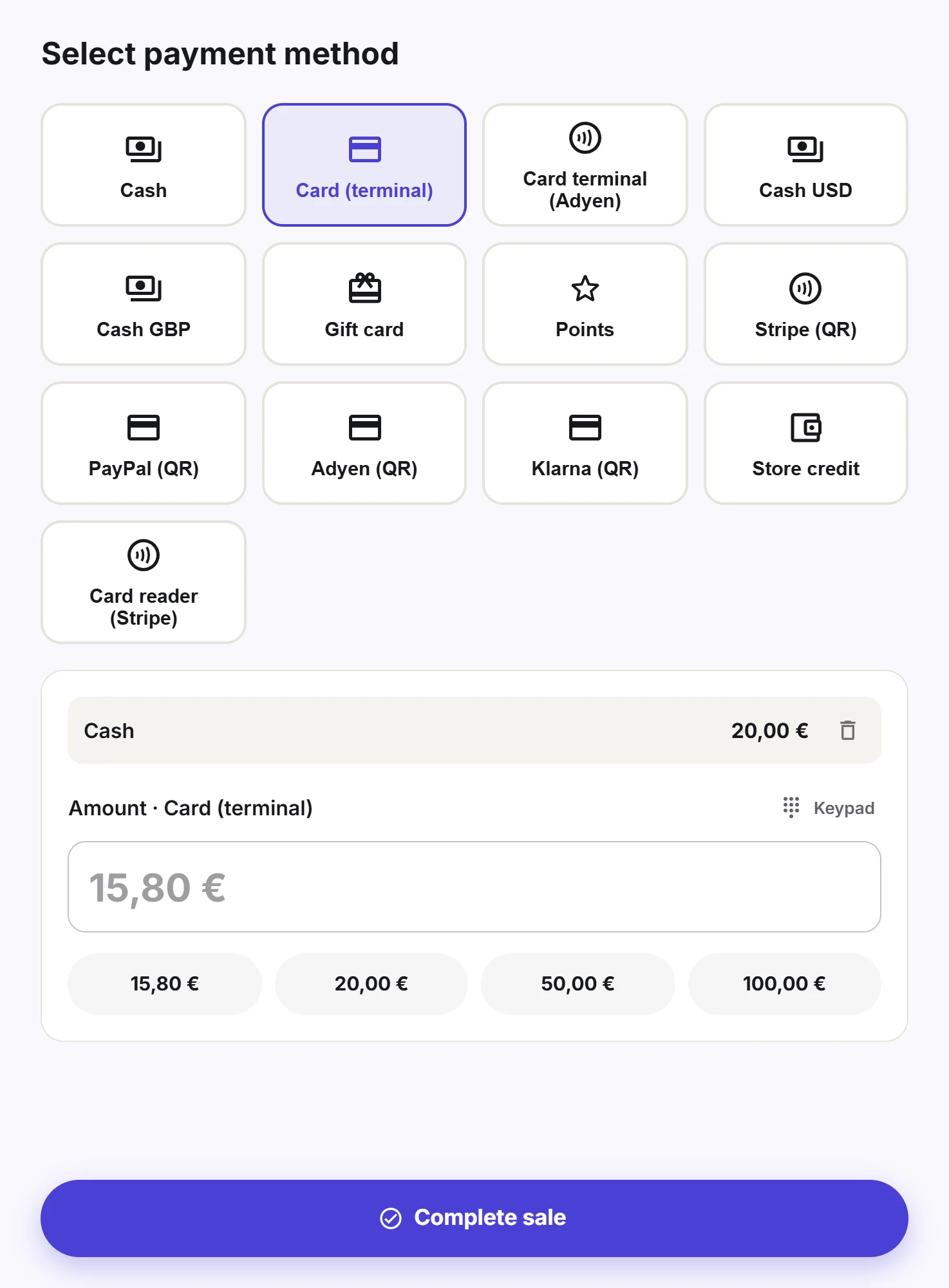
Add another payment appears when the amount typed is less than what is due. Click the bin icon of a payment in the list to take it off again. Only cash can make the total go over the amount due; the change is then given back in cash.
When you click Complete sale
The register sends the sale to your site, which checks it again before accepting it:
- The cash session of the register must be open: Open a cash session before selling.
- Every product must still be for sale, with enough stock when WooCommerce manages it: Not enough stock for and the product name.
- The total must be the one the cashier saw. If a price changed since the product was added, the sale is refused with Prices changed since the cart was built. Check the new total and pay again.
- The payments must cover the total: The payments do not cover the total.
When everything is right, the sale becomes a completed WooCommerce order, with the note Paid at the register., the stock goes down, the sale gets its ticket number and is written to the register’s fiscal journal. The Sale complete window opens: see Receipts.
If the connection drops
If the register cannot reach your site while saving, it says No connection. Press Complete again: the sale will not be charged twice. Each sale carries its own identifier, so pressing Complete sale again after a time-out never makes a second order: the site returns the one it already made.
To keep selling while the connection is down, Pro has an offline mode PRO. See Offline mode.
The register sells in your shop currency
The register always sells in your WooCommerce shop currency, set in WooCommerce > Settings > General. Prices, receipts, cash sessions and the fiscal journal all use it.
Some currency switcher plugins change the currency for each visitor. Plugixa POS sets the currency back to the shop currency for the register when the switcher is WooCommerce Multilingual & Multicurrency (WPML) or Aelia Currency Switcher. If another switcher still changes it, the sale is refused with The register sells in and the shop currency, but a currency switcher changed it to and the other currency. Ask the site administrator to turn the switcher off for the register.
To take cash in another currency at the counter, use Foreign cash PRO.
Quick Links
Share