

Contents
On this page
Product options - Plugixa POS for WooCommerce
Product options are choices the cashier makes when a product is added to the cart: an engraving, a gift wrap, a size, an extended warranty. Options come in groups. Each option can add to the product’s price, and a group can be required, allow one choice or several.
The chosen options are kept on the WooCommerce order line and printed on the receipt under the product, for example “Gift wrap: Kraft paper”.
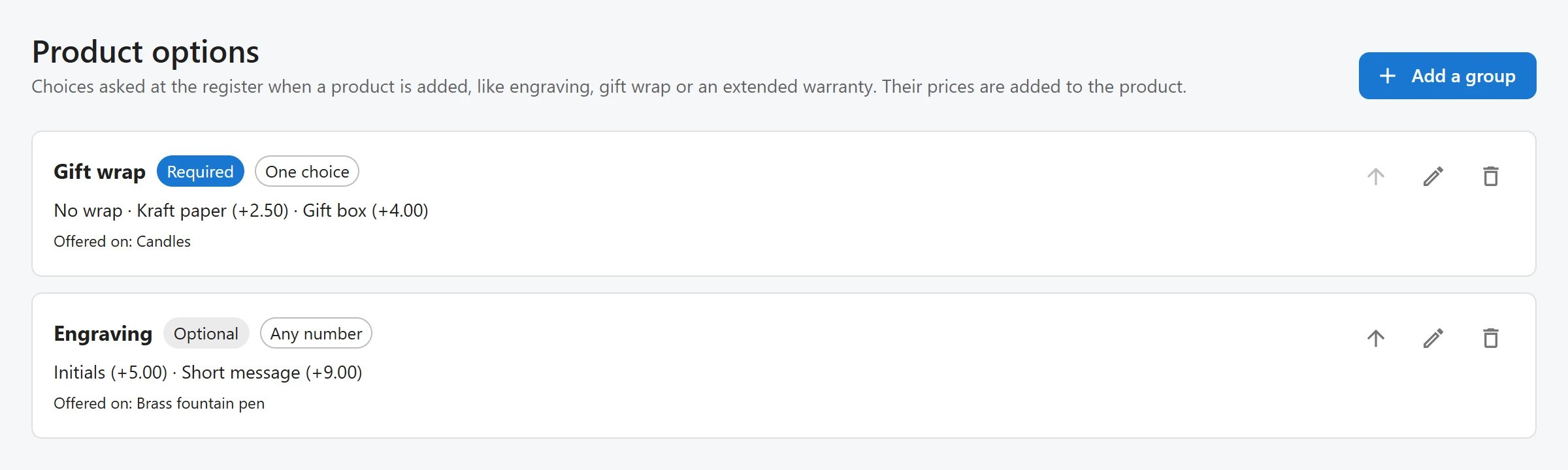
Create a group of options
- Open Plugixa POS > Product options (in the Store group) and click Add a group.
- Type the group’s Name, for example “Gift wrap”.
- Choose how the group is answered:
- A choice is required: the product cannot be added until an option of this group is chosen.
- Several choices allowed: the cashier can pick more than one option. Set At most (0 = any) to cap the number. Off, the group takes one choice.
- Under Options, type each Option and its Added price. Click Add an option for another line. A group holds up to 50 options.
- Choose where the group is offered: Categories, Products, or both. Type at least two letters of a product name to find it.
- Click Save.
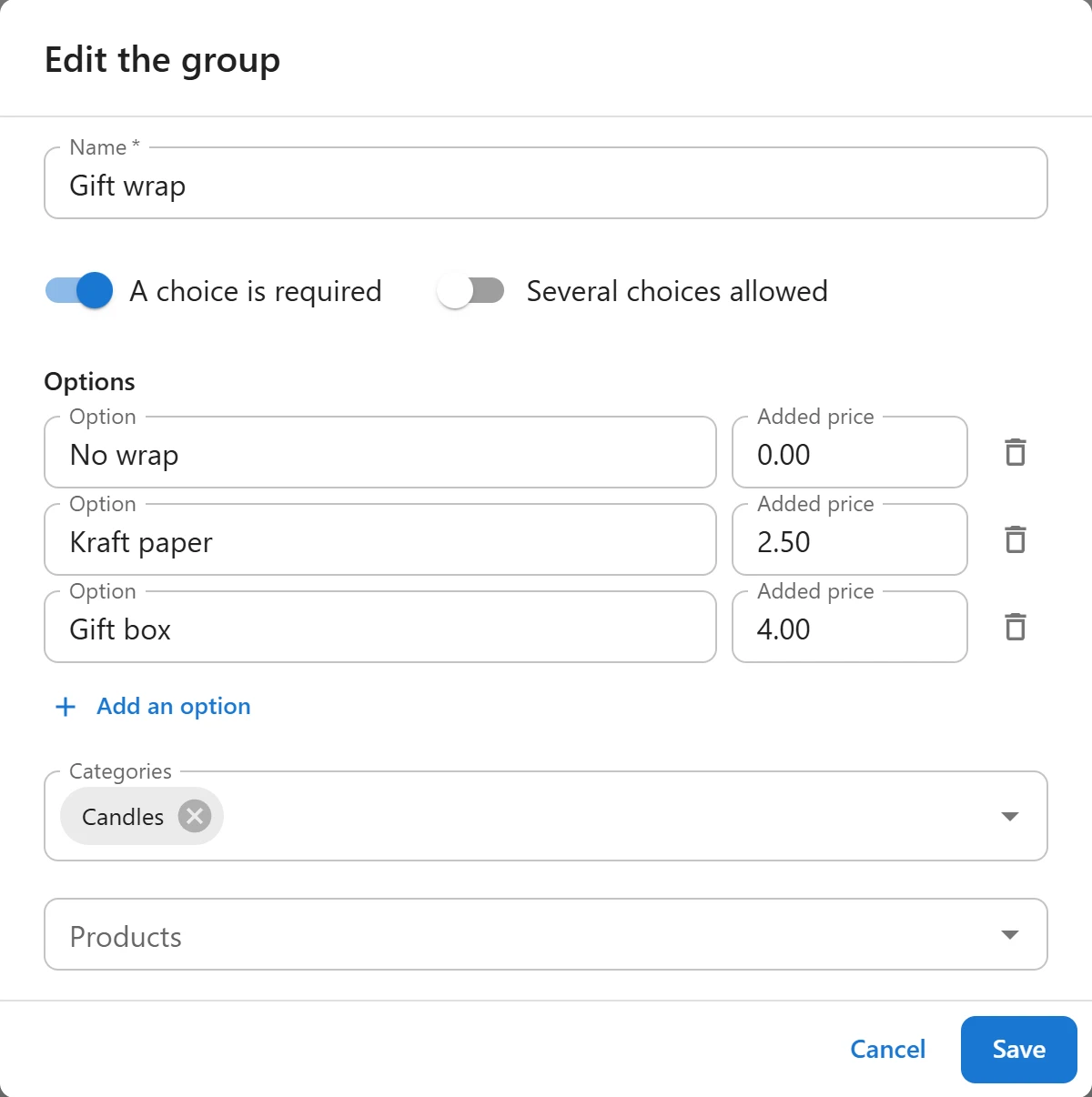
A group linked to a variable product applies to all its variations. A group with no options, or not linked to any product or category (“Not offered on any product yet.”), is never shown at the register.
The Added price is added to the product’s unit price, in the same convention as your product prices (with or without tax, as set in WooCommerce). It cannot be negative. Leave it at 0 for a free choice.
Order the groups
When a product has several groups, the register shows them in the order of this screen. Use Move up on a group to change it.
At the register
When the cashier adds a product that has option groups, a dialog opens with the product’s name and one row of buttons per group. Under each group name, a hint says Required, Up to a number, or Optional. An option with a price shows it, for example “+3.50”.
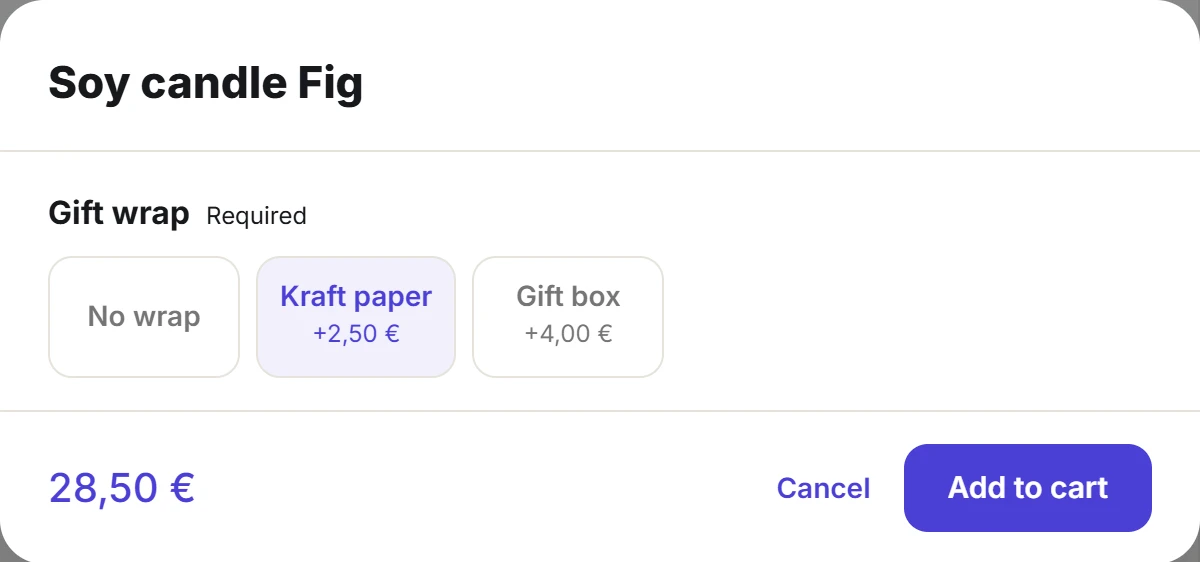
The price at the bottom of the dialog is the unit price with the chosen options. Add to cart stays disabled until every required group has a choice.
The register’s price is only shown for the cashier: when the sale is recorded, the server prices the options again from the saved groups and checks the rules. If a group was changed in the meantime and an option no longer exists, the sale is refused with “An option chosen for … is no longer available. Choose the options again.” Renaming an option keeps it the same option, so carts built before the change still work.
Edit or delete a group
Use the Edit button on a group to change it, or Delete to remove it. Deleting a group does not change past sales: their options stay on the order lines.
Who can do what
The Product options screen needs the permission to manage settings. Every cashier sees the options at the register.
Quick Links
Share