

Contents
On this page
Stock by store - Plugixa POS for WooCommerce
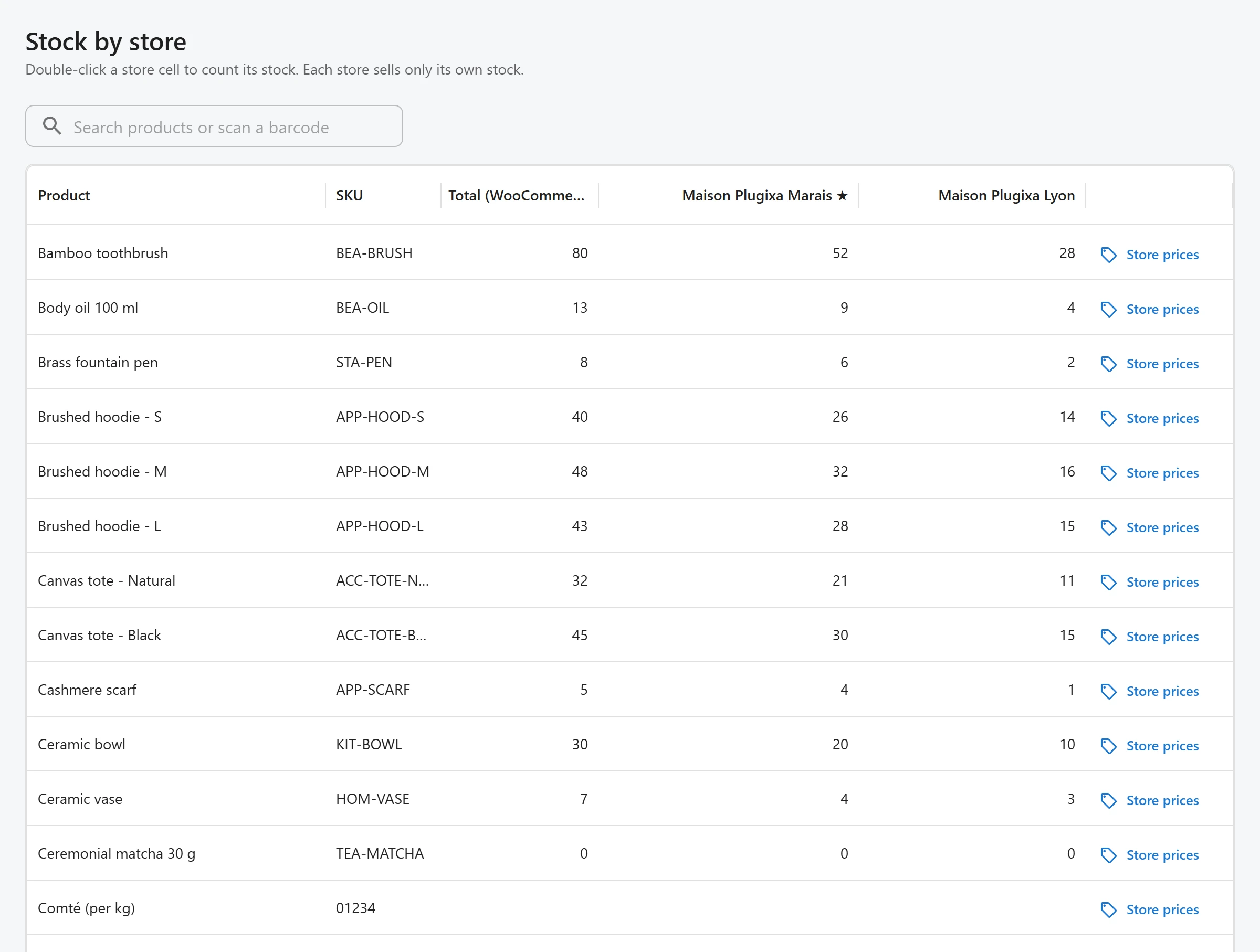
With several stores, each store sells only its own stock. Stock by store shows, for every product, the WooCommerce total and how many units each store holds. It is also where you set a price for one store.
Open Plugixa POS > Stock by store. The screen needs the right to manage the POS settings.
How store stock adds up
WooCommerce keeps one stock number per product. Pro splits it between your stores, and the stores always add up to the WooCommerce total:
| What happens | Effect |
|---|---|
| A sale at a register | The register’s store loses the units, and WooCommerce’s total goes down by the same amount. |
| A refund with restock at a register | The units go back to the refunding register’s store. |
| An online order, a stock edit in WooCommerce, an import | The difference goes to (or comes from) the home store. |
| A transfer between stores | One store goes down, the other goes up. In transit, the total goes down until the goods are received. |
The home store is the first active store. Its column header has a star, and hovering it shows “Home store: also holds the online stock.” A product that was never split between stores has all its stock in the home store.
At the register, the stock shown on a product card and the stock the sale checks are the stock of the register’s store, not the WooCommerce total.
The grid
| Column | What it shows |
|---|---|
| Product | The product name. A variable product shows one row per variation. |
| SKU | The product’s SKU. |
| Total (WooCommerce) | The stock number WooCommerce holds. |
| One column per store | The units in that store. |
| Store prices | Opens the price dialog. Reads Prices ✓ when the product has a price of its own in at least one store. |
Use Search products above the grid to find a product. The grid shows 25 rows per page; you can switch to 50 or 100.
Products that do not track stock in WooCommerce show empty store cells, and you cannot edit them.
Count a store’s stock
The header says it: “Double-click a store cell to count its stock. Each store sells only its own stock.”
- Double-click the cell of the product in the store you counted.
- Type the number of units on the shelf.
- Press Enter.
This is a stock count, not a move: WooCommerce’s total changes by the difference. To move units from one store to another without changing the total, make a transfer.
Each count that changes the number is logged in Stock adjustments with the reason Stock count, the quantity before and after, and who did it.
If the product does not track stock, the plugin answers “Turn on stock management for this product in WooCommerce first.”
Set a price for one store
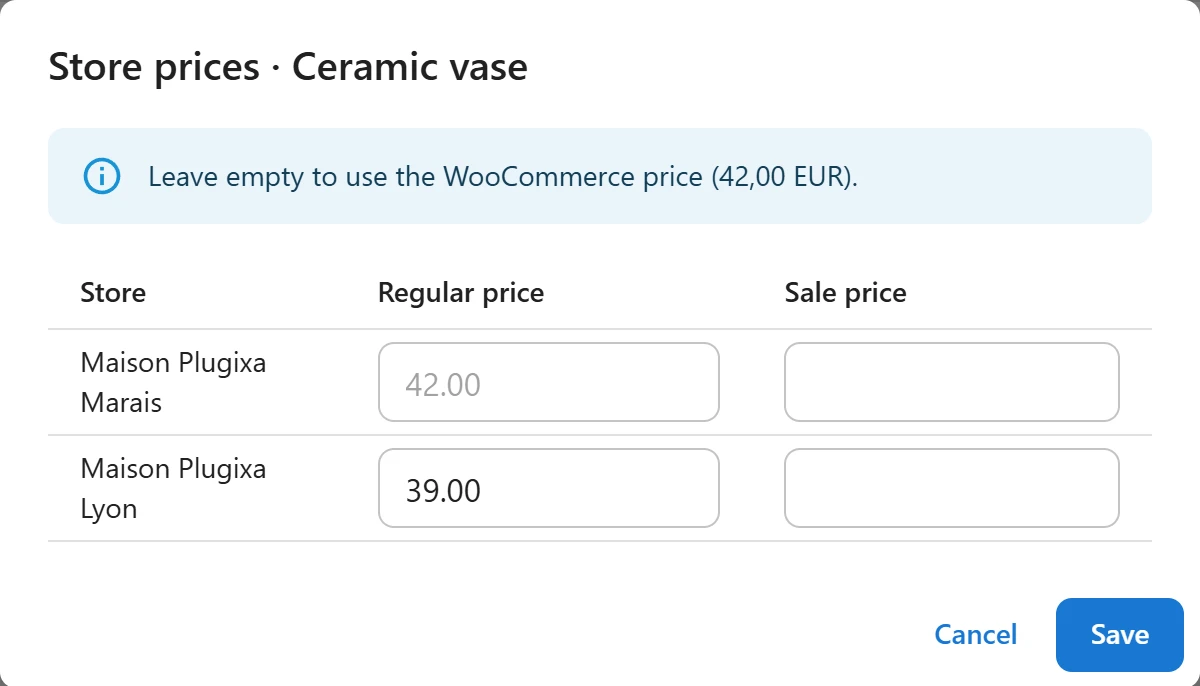
- Click Store prices on the product’s row.
- For each store, type a Regular price, a Sale price, or both. The note at the top says “Leave empty to use the WooCommerce price” and shows that price.
- Click Save.
| Fields filled in | Price at that store’s registers |
|---|---|
| Both empty | The WooCommerce price |
| Regular price only | That regular price |
| Sale price | The sale price |
Prices are numbers with a dot or a comma for decimals (12.50). Store prices are used by the
registers of that store only. The online shop and the other stores keep their own price.
Related pages
- Multi-store: add stores and registers.
- Stock adjustments: damage, theft and other changes with a reason.
- Lots and Serial numbers.
Quick Links
Share