

Contents
On this page
Invoices - Plugixa POS for WooCommerce
A business customer often needs a proper invoice rather than a till receipt. Invoices are a Pro feature: Plugixa POS Pro makes an A4 invoice for any paid register sale, as a PDF, with the customer’s company details and the VAT per rate. When an invoiced sale is refunded, a credit note is made for the refund automatically.
Invoices are made on request: a sale has no invoice until someone asks for one.
Make an invoice
You can make the invoice at the register or in the back office.
- At the register: on the sale complete screen, choose A4 invoice, or open the register’s orders list and click Invoice on the sale. See Receipts.
- In the back office: open Plugixa POS > Orders and click Invoice on the sale’s row.
Both open the same A4 invoice dialog:
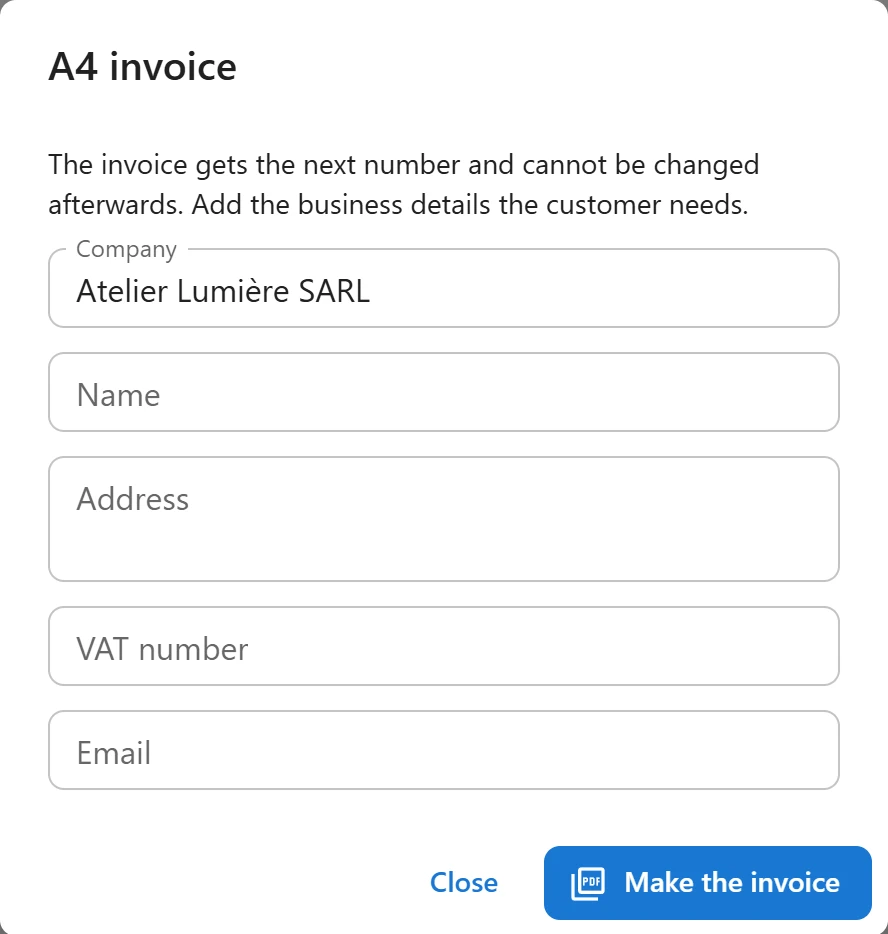
- Fill in what the customer needs: Company, Name, Address, VAT number and
Email. All are optional. A field left empty is taken from the order’s billing details
(and the VAT number from the customer’s
billing_vatuser meta, when there is one). - Click Make the invoice.
The invoice takes the next number and the PDF opens in a new tab. If your browser blocks the new tab, the PDF is downloaded instead.
Only a paid sale can be invoiced: a sale whose order is not Completed or Refunded is refused with Only a paid sale can be invoiced.
An invoice is made once
Asking again for a sale that already has an invoice does not make a second one. The dialog shows Invoice issued: with its number, the credit notes made since, and the note An invoice never changes once issued. A refund makes a credit note. Click a document to open its PDF.
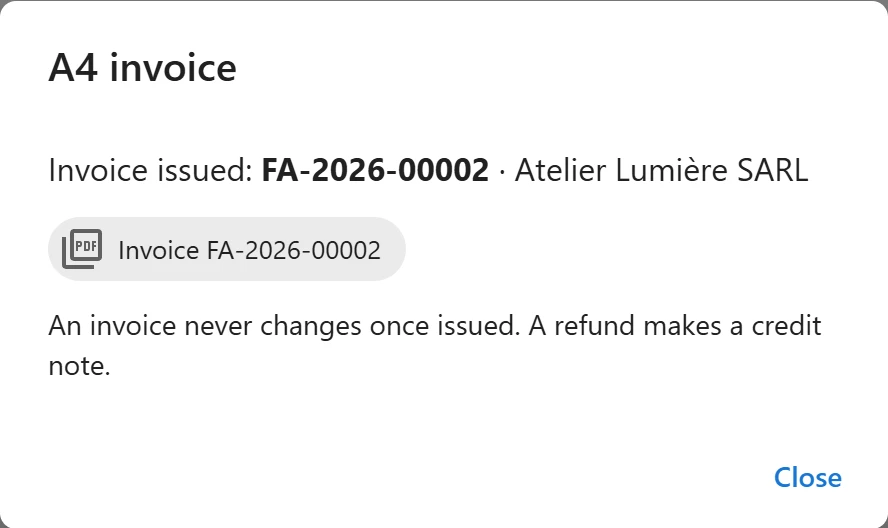
The invoice’s content is fixed when it is issued. Changing the invoice settings, the store details or the order later does not change an invoice already made.
Credit notes
When a sale that has an invoice is refunded, a credit note is made in the same step as the refund, with its own number and a reference to the invoice (For invoice). Its total is shown as Total credited incl. tax. If the credit note cannot be saved, the refund is undone too, so a refund of an invoiced sale never exists without its credit note.
If a sale was refunded before its invoice was made, the credit note is made together with the invoice.
Numbering
Invoices and credit notes each have their own sequence, which starts again at 1 each year:
| Document | Default format | Example |
|---|---|---|
| Invoice | INV-<year>-<number> |
INV-2026-00001 |
| Credit note | CN-<year>-<number> |
CN-2026-00001 |
The number is taken in the same database transaction that saves the document. If saving fails, the number is not used, so the sequence has no gaps. The year is the year the document is issued, in your WordPress time zone.
You can change the prefixes in Settings (letters and digits, up to 8 characters). A new prefix applies to the next document; the count carries on and does not start again at 1.
What the PDF shows
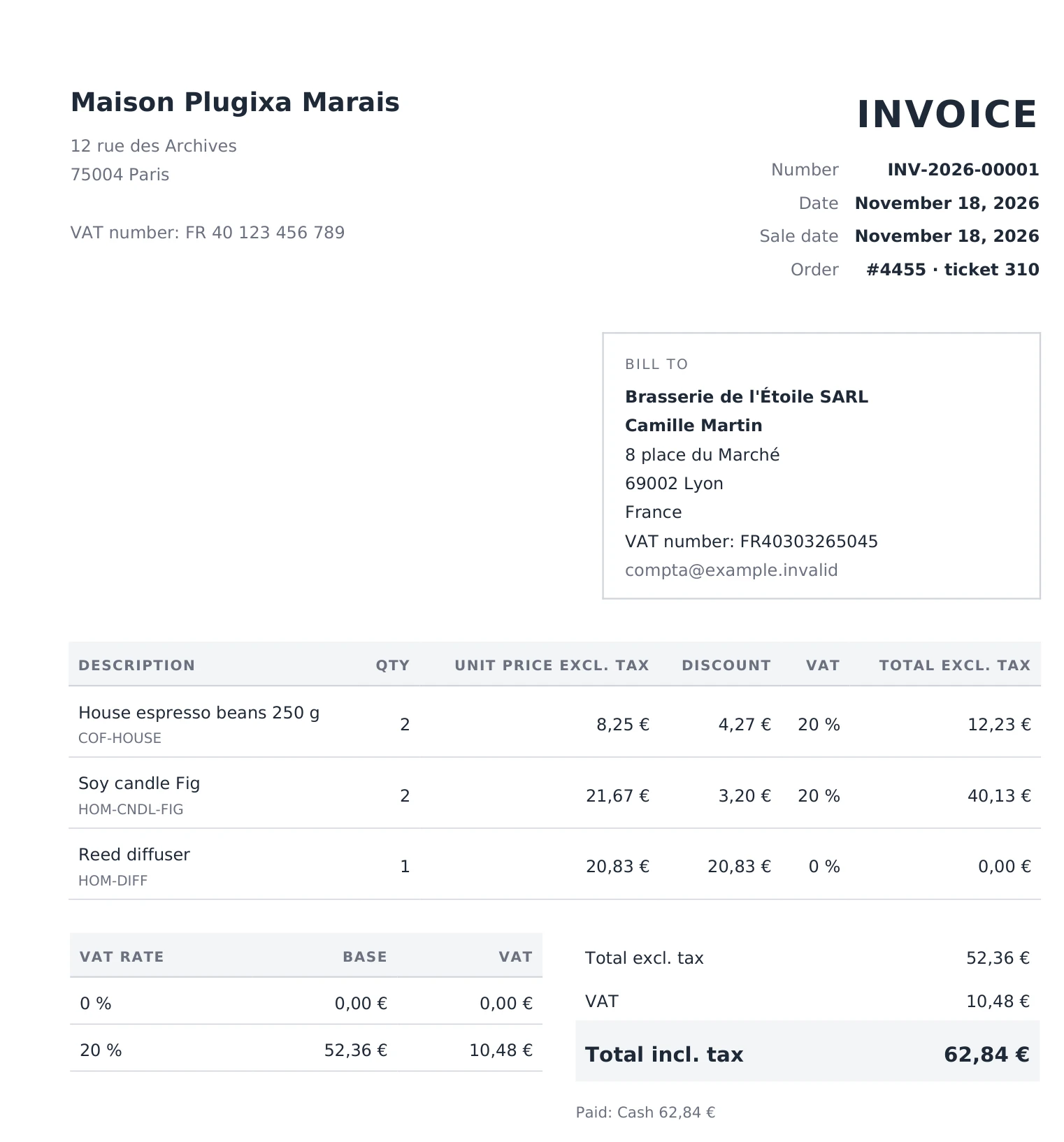
The built-in A4 layout has:
- the seller: the invoice details from Settings, and for every empty field the store of the sale (its name, address and tax ID and phone; the email falls back to the WooCommerce sender address);
- Number, Date, Sale date and Order (the order number and the ticket number);
- Bill to: the details typed in the dialog, or Walk-in customer when there are none;
- one row per item with Description, Qty, Unit price excl. tax, Discount, VAT (the rate) and Total excl. tax;
- a table of the VAT per rate (VAT rate, Base, VAT);
- Total excl. tax, VAT and Total incl. tax, then Paid with the payment methods;
- the legal text from Settings at the bottom.
A line made free by a discount keeps its VAT rate, at an amount of zero. The PDF uses the DejaVu Sans font shipped with the plugin.
Designing your own layout is Invoice designer PRO.
The Invoices screen
Open Plugixa POS > Invoices to see every invoice and credit note, newest first.
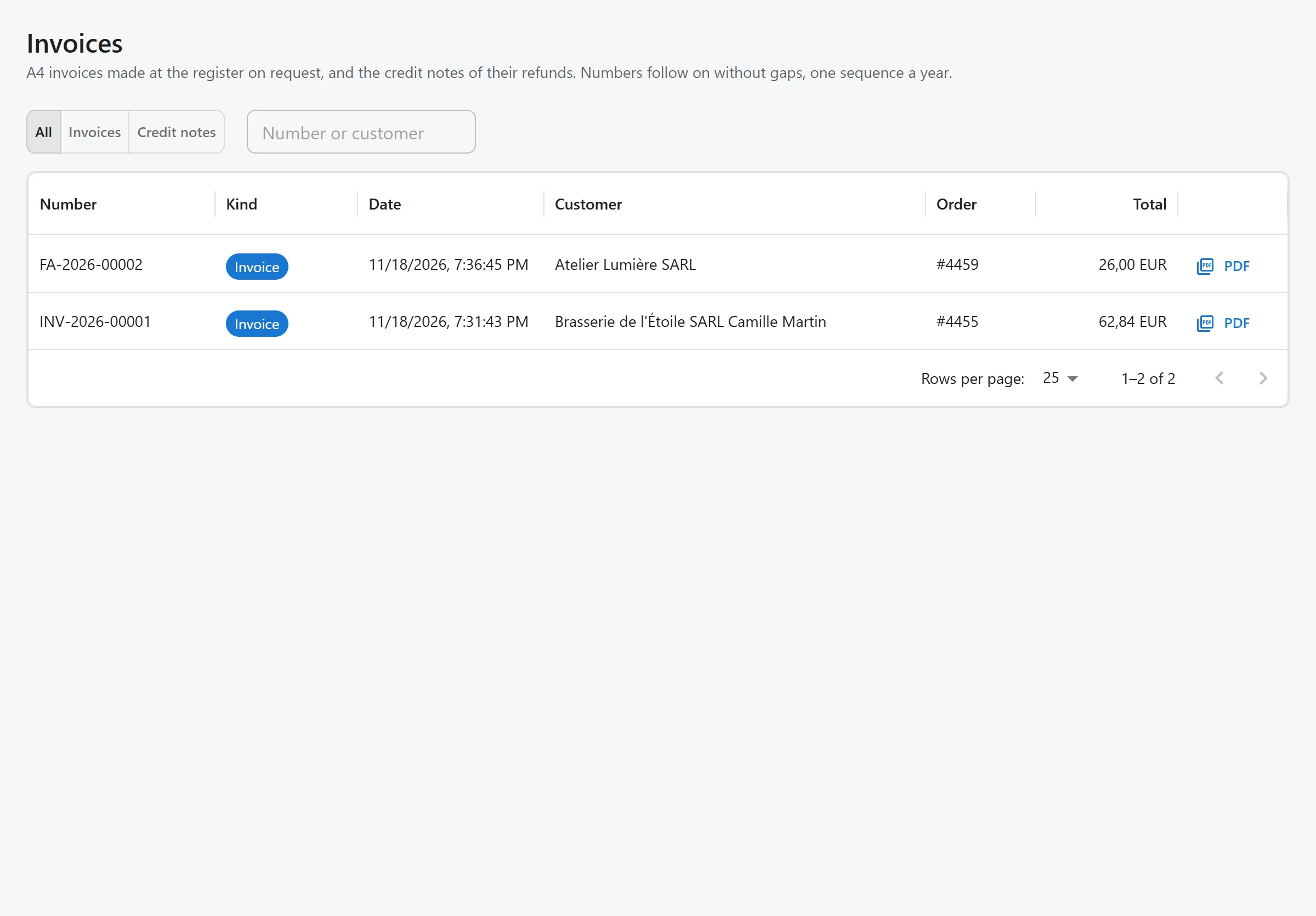
- All, Invoices and Credit notes filter by kind.
- The search field (Number or customer) finds a document by number or customer.
- The list shows Number, Kind, Date, Customer, Order and Total.
- PDF opens the document.
Invoice settings
The Invoices card of Settings holds the seller’s Legal name, Address, VAT number, Company number (e.g. SIREN, RCS, share capital), Email, Phone, the Legal text at the bottom (payment terms, late payment penalties, a VAT exemption mention) and the Invoice prefix and Credit note prefix. Under each prefix the screen shows what the next number will look like.
Who can make invoices
Making an invoice and opening a PDF need the sell permission. The Invoices list needs the view permission. A user can only invoice sales of registers they may use. See Staff access.
Quotes PRO are printed as A4 PDFs in the same layout.
Quick Links
Share