

Contents
On this page
Layaways - Plugixa POS for WooCommerce
A layaway puts goods aside for a customer against a deposit. The customer pays the rest later, in one or more payments, and takes the goods when everything is paid. The stock is reserved from the first deposit.
Behind the scenes a layaway is a real WooCommerce order, priced by the normal checkout (prices, taxes, discounts, promotions), held in the order status Layaway until it is paid in full.
Set the smallest deposit
Open Plugixa POS > Layaways (in the Sales group). At the top, Smallest layaway deposit (% of the total) sets the minimum first deposit, from 0 to 99. The default is 10. Click Save.
Start a layaway at the register
- Build the cart as for a normal sale.
- Choose the customer (Add customer, in the cart). A layaway is kept in the customer’s name: without one, the Layaway button is disabled.
- Tap Layaway under the cart total.
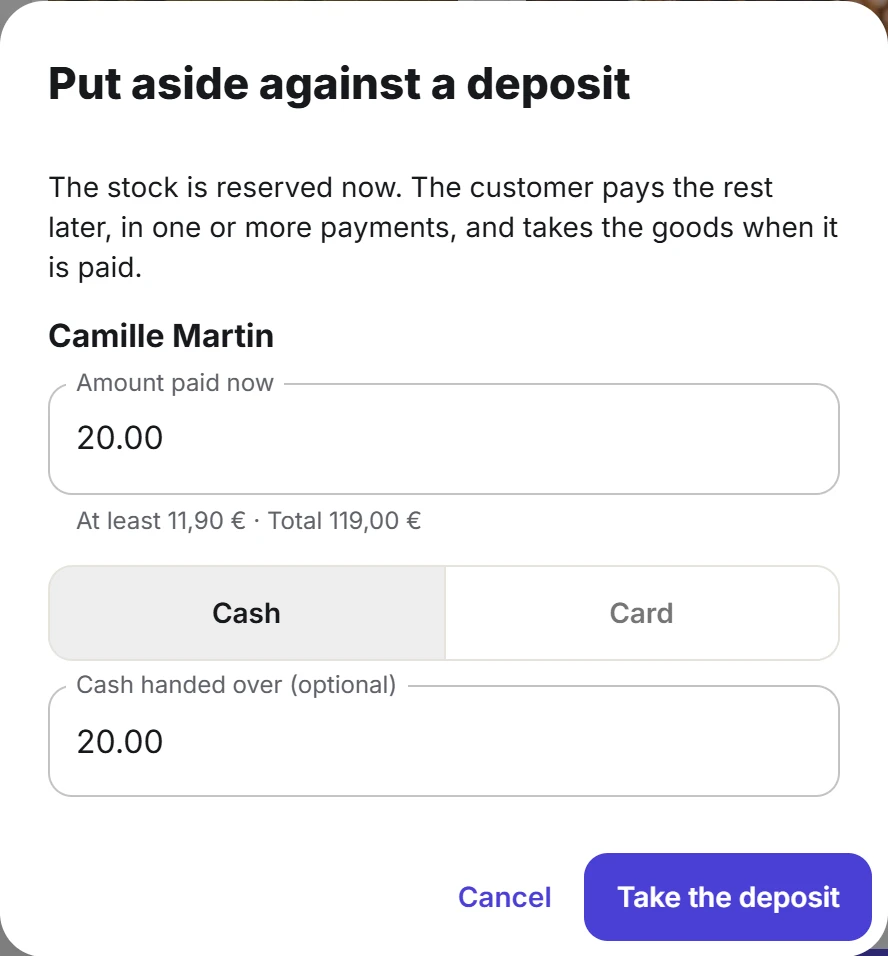
- Type the Amount paid now. It must be at least the smallest deposit and less than the total (a deposit that covers everything should be a normal sale).
- Choose Cash or Card. For cash you can type the Cash handed over (optional) to see the change.
- Tap Take the deposit.
The register confirms “Deposit taken. The goods are put aside.” with the Balance due. Tap Print receipt for the deposit receipt, then Done (empty the cart).
Deposits are paid in cash or with the card terminal only. A cart with a coupon that is not valid cannot be put on layaway.
Take a payment
- On the register, open Layaways from the top bar.
- The list shows the Open layaways by default, with Order, Customer, Total, Paid and Balance due. Search by order number or customer.
- Tap Take a payment on the layaway.
- Type the amount (up to the balance), choose Cash or Card, and confirm with Take a payment.
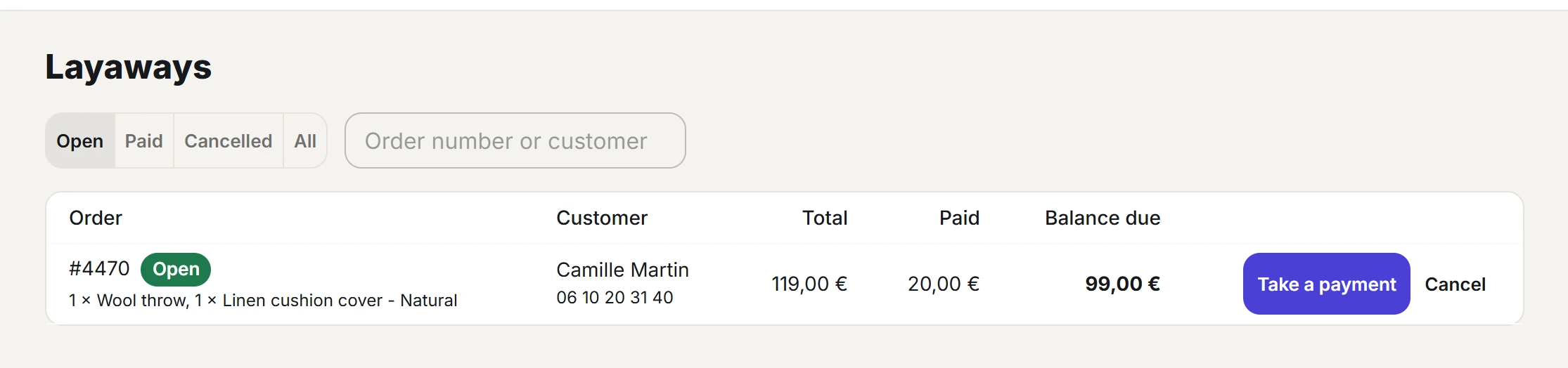
When the balance reaches zero, the register says “Paid in full: the sale is recorded. The customer can take the goods.” and the order becomes Completed. Each payment can be taken at any register you may use, inside an open cash session.
Cancel a layaway
- In Layaways, tap Cancel on the layaway. Only staff allowed to refund see it.
- The dialog shows Pay back to the customer with everything paid so far. Add a Reason if you like.
- Tap Cancel and refund, or Keep it to go back.
Every deposit is refunded the way it was paid, and the goods go back into the stock of the register’s store. The register reminds you: “Cancelled. Pay the deposits back to the customer; the goods are back in stock.” The order becomes Cancelled.
Receipts
Every payment prints a receipt titled “Layaway: deposit receipt”, listing each Deposit no. with its date, Paid so far and Balance due. The last payment prints “Layaway: paid in full”, and a cancellation “Layaway cancelled: deposits refunded”.
The fiscal record
Each payment is its own entry in the register’s fiscal journal, with its share of each VAT rate of the order. When the balance is paid, the sale entry is written with the full lines and taxes, paid by the deposits, so nothing is counted twice. A cancellation writes one entry that refunds all the deposits.
In the back office
Plugixa POS > Layaways lists the layaways of the registers you may use, with Order, Status, Date, Customer, Deposits received, Total, Paid and Balance due. Filter by Open, Paid, Cancelled or All, and search by order number or customer. Payments and cancellations are taken at the register, not here.
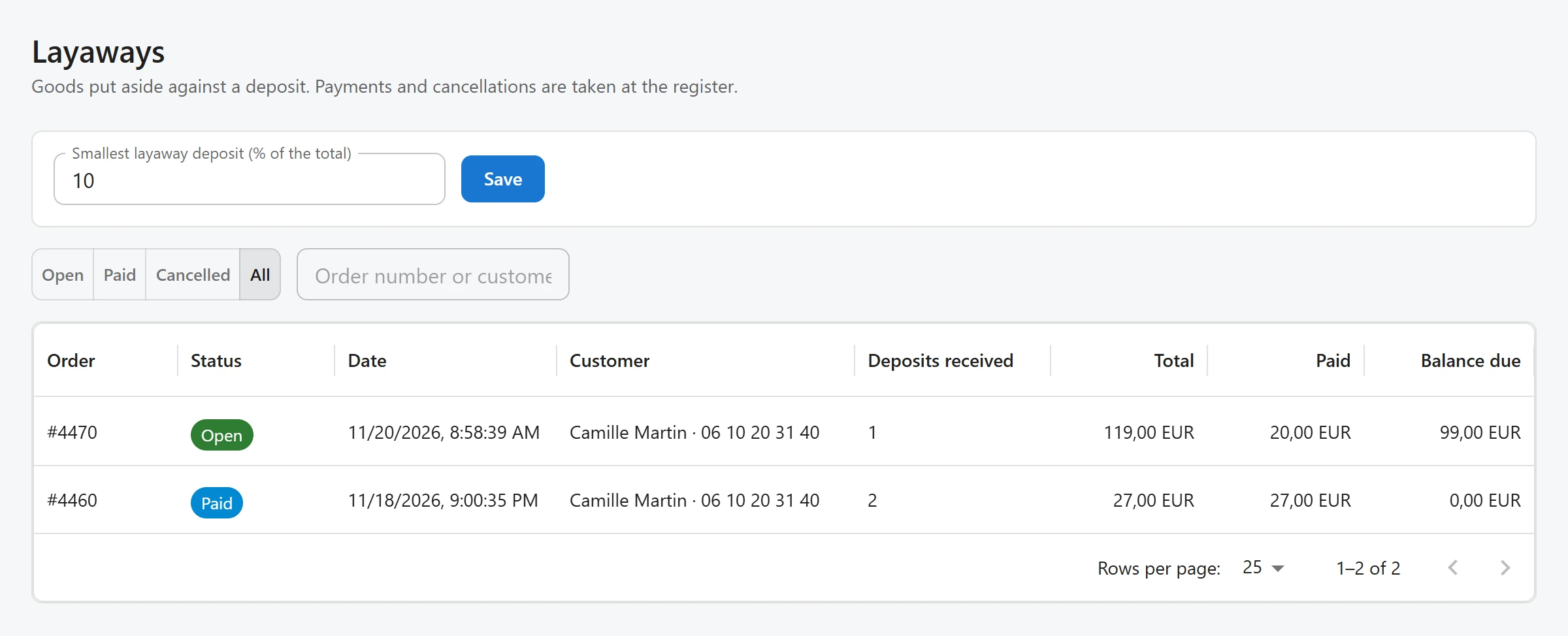
In WooCommerce > Orders, open layaways show with the Layaway status.
Who can do what
Starting a layaway and taking payments are part of selling. Cancelling needs the permission to refund. Staff see only the layaways started on registers they may use. See Staff access.
Quick Links
Share