

Contents
On this page
Promotions - Plugixa POS for WooCommerce
Promotions are discounts the register applies by itself: a sale on a category, a happy hour, a quantity break, buy X get Y, or money off a sale that reaches an amount. A promotion can be limited to some days, hours or dates, and to customer groups (WordPress roles), which is how you give wholesale prices.
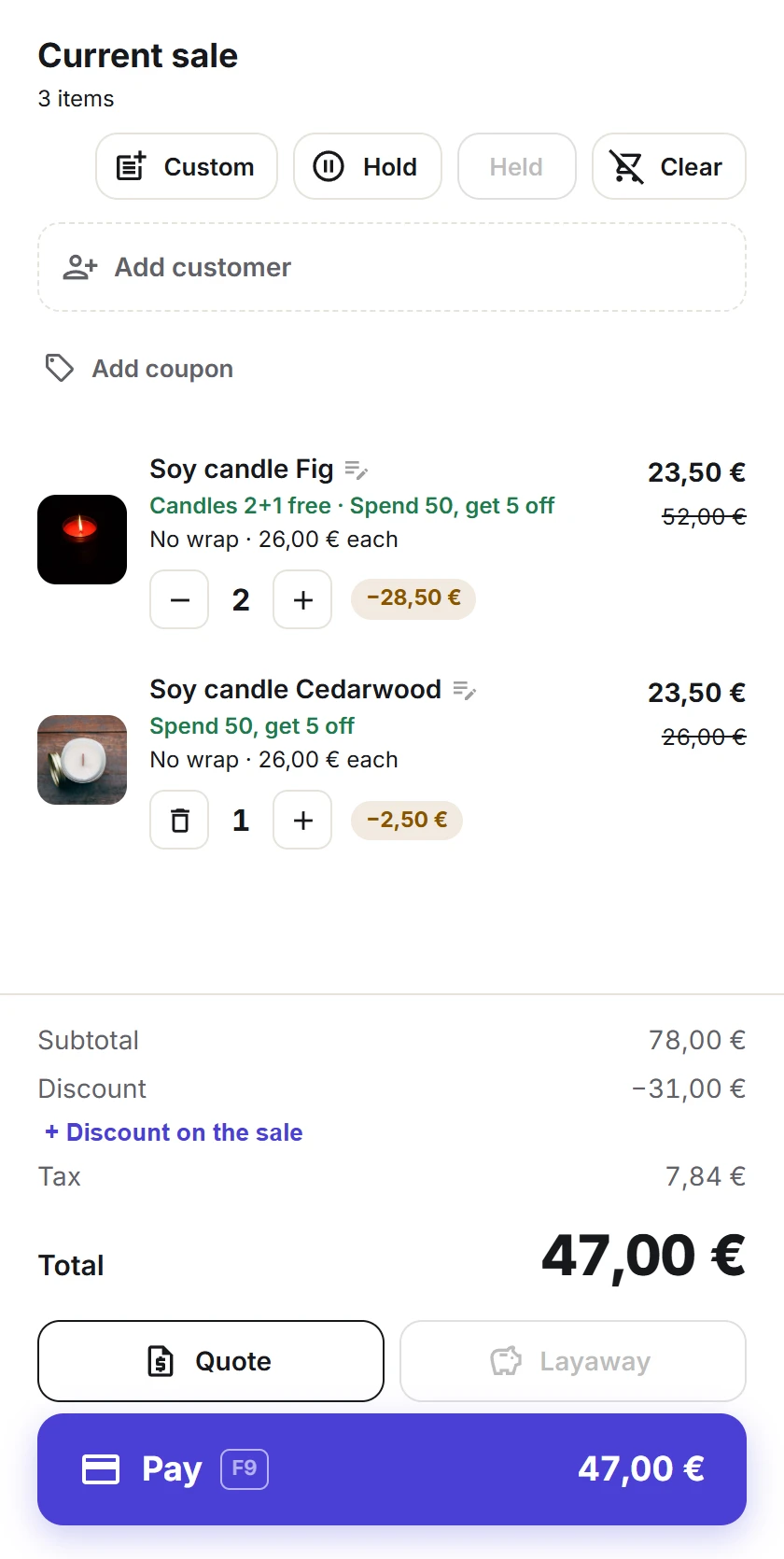
The cashier sees each promotion on the cart line it applies to, and the receipt prints it under the line with its name and amount, for example “Coffee happy hour -20%: -4.00”.
Create a promotion
- Open Plugixa POS > Promotions (in the Sales group) and click New promotion.
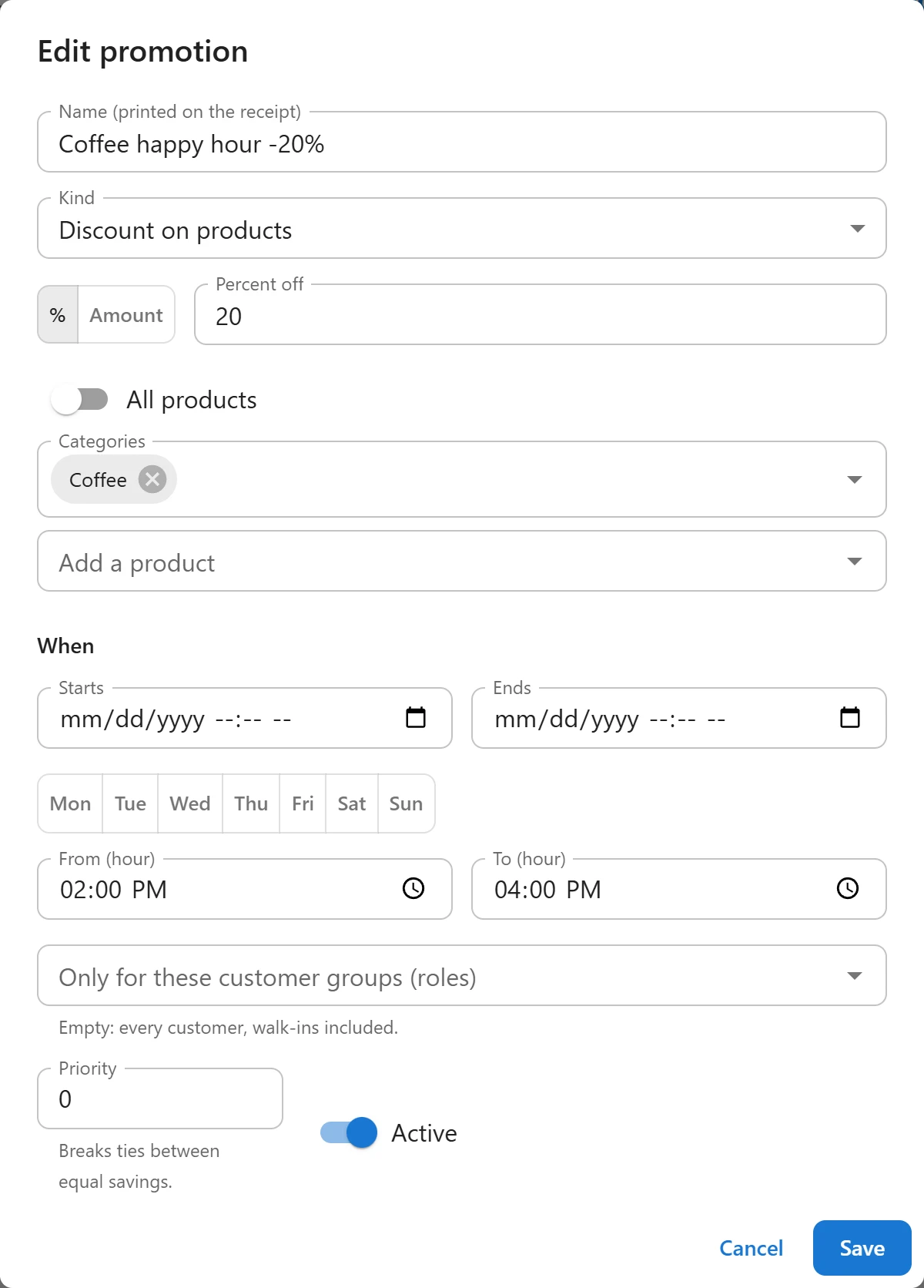
- Type a Name (printed on the receipt).
- Choose the Kind (see the table below) and fill in its fields.
- Choose what it applies to: All products, or some Categories and products (Add a product). A Spend X, get money off the sale promotion applies to the whole sale and has no product choice.
- Optionally limit it in time and to customer groups (see When it applies below).
- Leave Active on and click Save.
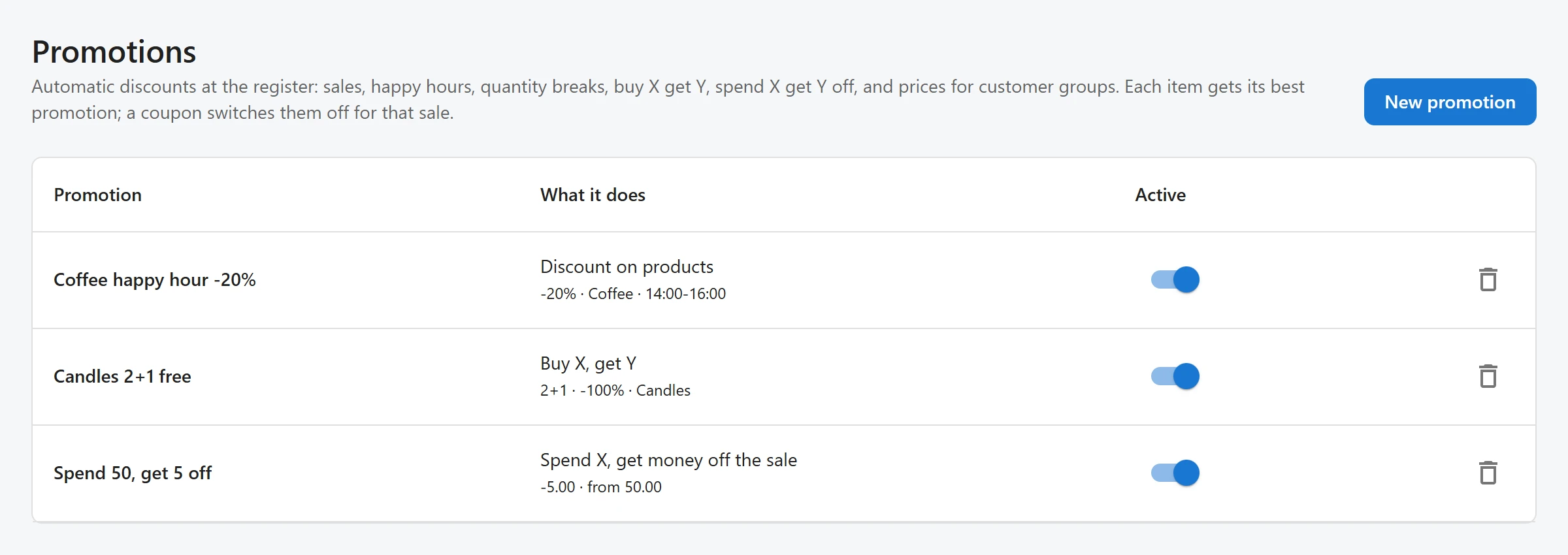
To edit a promotion, click its row. The Active switch in the list turns a promotion on or off without opening it; the bin icon deletes it.
The kinds of promotion
| Kind | Fields | What the customer gets |
|---|---|---|
| Discount on products | Percent off or Amount off each item | The discount on every matching item. |
| Quantity break (buy N or more) | From this many items (2 or more), and the discount | The discount on the matching items once the sale holds at least that many of them, all matching lines counted together. |
| Buy X, get Y | Buy, Get, and Discount on the Y items (%, 100 = free) | In every full group of X + Y matching items, the Y cheapest get the discount. A percentage only. |
| Spend X, get money off the sale | When the sale reaches, and Percent off or Amount off the sale | The discount on the whole sale once it reaches the amount, spread over its lines. |
Except for Buy X, get Y, choose % or Amount next to the value. A percentage goes from 1 to 100.
The demo shop has one of each common kind: “Coffee happy hour -20%” (20% off the Coffee category from 14:00 to 16:00), “Candles 2+1 free” (buy 2 candles, the third cheapest is free) and “Spend 50, get 5 off”.
When it applies
All these fields are optional. Left empty, the promotion applies at all times, to everyone.
| Field | What it does |
|---|---|
| Starts and Ends | A date and time. The promotion runs from the start until the end. |
| Days of the week (one button per day) | The days it runs on. None selected: every day. |
| From (hour) and To (hour) | A daily window, such as a happy hour. A window that crosses midnight (22:00 to 02:00) works. |
| Only for these customer groups (roles) | WordPress roles, such as a wholesale role. “Empty: every customer, walk-ins included.” With roles, the promotion applies only when the sale’s customer has one of them. |
Times are your shop’s time zone (WordPress settings), whatever the clock of the till.
How promotions combine
- Each line gets one item promotion: the one that saves the most. On equal savings, the higher Priority wins (“Breaks ties between equal savings”), then the older promotion.
- Then one sale promotion (Spend X), the best one the sale reaches, counted on what is left after the item promotions. Its amount is spread over the lines in proportion.
- The cashier’s own discount comes first. A promotion is counted on the line after the cashier’s line discount.
- A coupon switches promotions off. When a WooCommerce coupon is applied to the sale, no automatic promotion applies to it.
- Some lines are never discounted: custom items, gift cards and store credit sold, and lines sold from a quote (they already carry the quoted price).
What the register shows and what is charged
The register runs the same rules to show the promotions in the cart as items are added. When the sale is recorded, the server works them out again from the same rules and its answer is the one charged. The register receives the list of active promotions when it loads.
Who can do what
The Promotions screen needs the permission to manage settings. Promotions apply at the register for every cashier. See Staff access.
Quick Links
Share