

Contents
On this page
Offline mode - Plugixa POS for WooCommerce
With Pro, the register keeps selling when the connection to your site drops. Sales are saved on the device and sent to the site, in order, as soon as the connection is back. Nothing has to be switched on: offline mode is part of the Pro register.
What changes for the cashier is small: a chip in the top bar counts the sales waiting to sync, and the receipt says the sale is saved on the device.
Before you need it
The register can only work offline with what it already has. Do this while you are online:
- Open the register at
/poson each device at least once, signed in as each cashier who will use it. The device keeps the register page, its files, the register setup, the catalog with this store’s prices and stock, and the open cash session. They are kept per user, for up to seven days. - Open the cash session. See Cash sessions.
The register then opens even without a network, from the copy saved on the device. Online, everything refreshes as usual.
Selling offline
The top bar shows Offline when the browser has no connection. Sell as usual: scan, add customers and discounts, press Pay and take cash.
When the sale is complete, the receipt dialog says “Saved on this device. The ticket number is given when the sale syncs.” The receipt can be printed: it shows the lines, totals and payments, without a ticket number yet. In France, the ticket is final at once: see France and offline tickets below.
A sale is also saved on the device when the site does not answer (a server or gateway outage), and while other sales are still waiting, so that sales always reach the site in the order they were made. A sale the site refuses while you are online (stock, permissions, a wrong field) is not saved for later: it is shown at once, as without Pro.
Payments that need your site to reach a provider, such as a card reader, need the connection. Cash works offline.
Sales waiting to sync
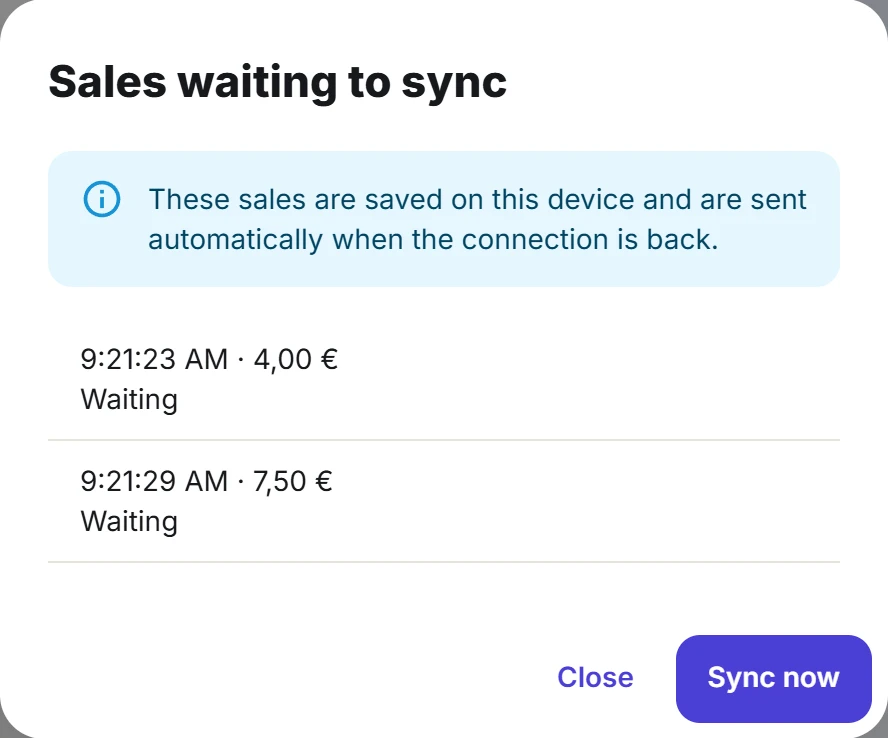
While sales wait, the top bar shows a chip such as 2 waiting to sync. Click it to open Sales waiting to sync: “These sales are saved on this device and are sent automatically when the connection is back.” Each line shows the time and total of a sale and Waiting.
The register sends them on its own when it starts, when the connection comes back and every 15 seconds. Each sale carries its own id, so a sale that reached the site just before the connection dropped is never recorded twice. The sales are stored in the browser’s own database, so they survive a reload or a crash.
If the site refuses a sale when it arrives, the sale stays in the list, in red, with the reason. It is never dropped. Fix the cause, then click Sync now to send it again.
Closing the register
The register cannot be closed while sales are still on the device: “Some sales have not reached the server yet. Sync them before closing the register.” Get the device back online and let the sales sync first.
How the site records an offline sale
The customer has paid and left with the goods, so an offline sale is recorded as it happened:
- Time: the order is dated when the sale was made, not when it arrived. This holds when the sale falls inside the register’s open session and is no more than seven days old.
- Stock: the sale is recorded even if the stock ran out in the meantime.
- Price: the price the register charged is kept when it is at or above the current price, when the product was edited after the sale (the register had the old price), or when the cashier may give discounts. Otherwise the current price applies, the payment no longer covers the total, and the sale is refused: it stays on the device as a failed sale instead of slipping through at a lower price.
- Product options: options that no longer exist are left out instead of refusing the sale.
Every difference the site lets through is written on the order, for a manager to check.
Needs attention
Open Plugixa POS > Needs attention (in the Sales group). It lists the offline sales that were recorded with a difference: “Sales made offline that were recorded with a difference: stock ran out or the price had changed.”

| Column | What it shows |
|---|---|
| Order | The order number, linked to the WooCommerce order. |
| Date | When the sale was made. |
| What to check | One line per difference. Stock: the product, how many were sold and how many were in stock. Price: the product, the price charged and the current price. |
| Total | The order total. |
The sale is already in the books. Check the shelf or the price, then:
- Click Mark as checked.
- Type a Note: “What you found or did. Kept in the audit log.”
- Click Mark as checked in the dialog.
The order leaves the list. Nothing is ever deleted: the differences stay on the order, and the note goes to the audit log with your name. “Nothing to check. Every offline sale matched the stock and prices.” means the list is empty.
The screen needs the right to manage cash sessions. A store manager sees the sales of the registers they may use. A user who may manage the settings sees every store.
France and offline tickets
When the France pack is on (see France (NF525)), each device that sells offline numbers and signs its own tickets, so the printed receipt is final.
- While online at start-up, the device enrols on its register: it makes its own signing key, which cannot be copied out of the browser, and sends the public part to the site.
- Offline, it numbers each ticket in its own series without gaps, for example
R1-D2-17(register R1, device D2, ticket 17), chains it to its previous ticket and signs it. - The receipt dialog shows the ticket number and “Final ticket, signed on this device. It is sent to the server when the connection is back.”
At sync, the site checks the signature and the chain and keeps the device’s record unchanged with the sale. It refuses a ticket that was changed after printing, has a bad signature, belongs to another sale, reuses a number, or comes from a device not enrolled on the register. A number that skips ahead (an earlier offline sale never arrived) is accepted and flagged on the order for a manager, because refusing it would lose a sale that really happened.
Install the register as an app
The Pro register can be installed like an app. Use your browser’s install option on the /pos
page (on Chrome, Install in the address bar or the menu; on iPhone or iPad, Add to Home
Screen in Safari’s share menu). It opens in its own window, without the browser’s bars, under
the name Register.
The app is the same register: it signs in, sells and syncs the same way.
On a phone
On a screen narrower than a small tablet, the Pro register switches to a phone layout: a bottom bar with Products, Cart and Orders, and the cart slides up from the bottom (View cart). On any device with a camera, the search box also has a camera button, Scan with the camera, to scan barcodes with it. The dialog stays open so you can scan several items in a row. See The register.
Related
Quick Links
Share