

Contents
On this page
Loyalty - Plugixa POS for WooCommerce
Loyalty points are earned on sales made for a customer and spent at the register as a payment method called Points. You choose how many points a sale earns and what points are worth. Every earn, spend and correction is kept in the customer’s history.
Set up the programme
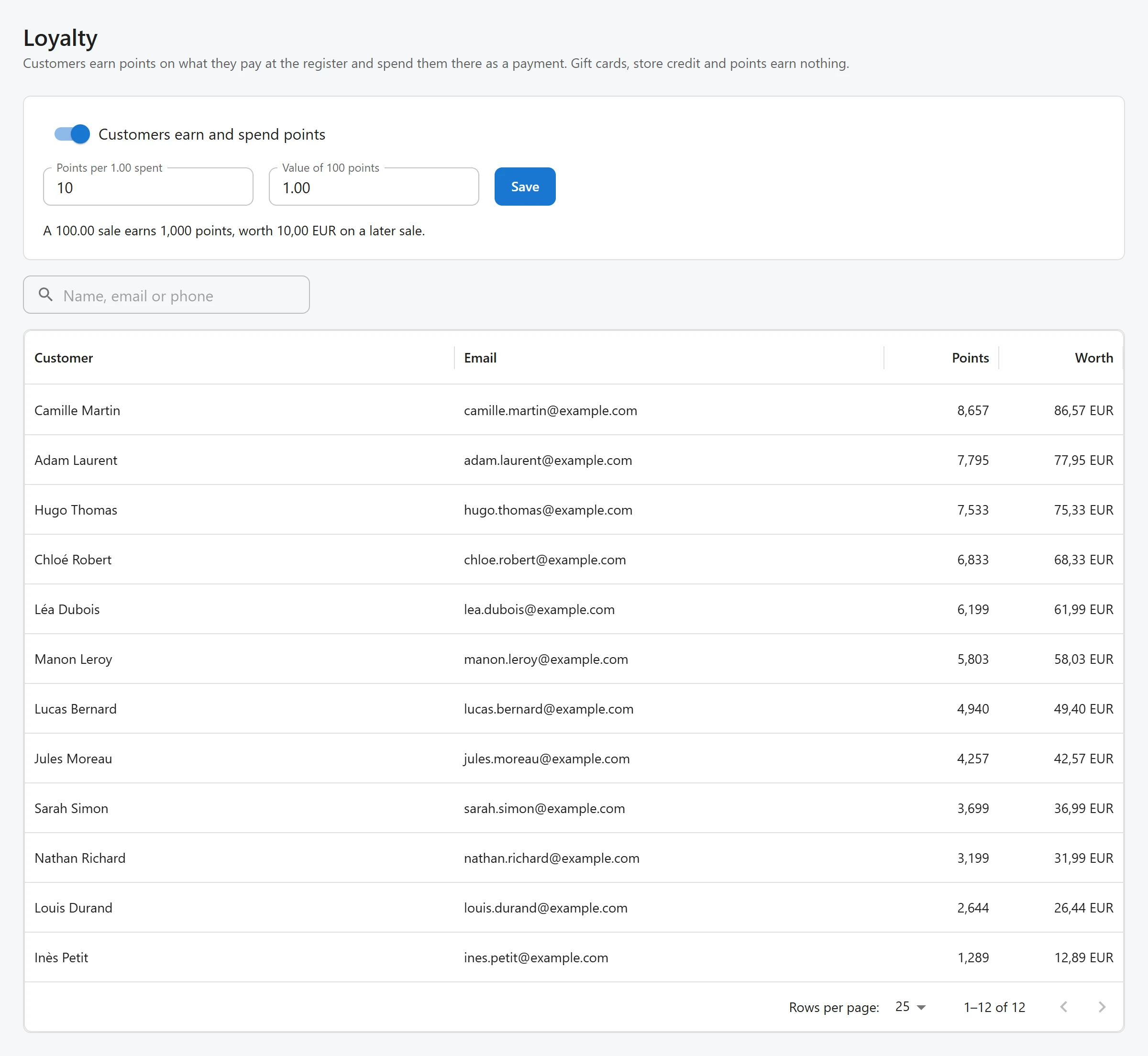
Open Plugixa POS > Loyalty (in the Sales group). The settings are at the top of the screen.
| Field | Default | What it does |
|---|---|---|
| Customers earn and spend points | On | Off: sales earn no points and Points is no longer offered as a payment method. Balances are kept. |
| Points per 1.00 spent | 1 | Points earned per whole unit of your currency paid. From 0 to 1000. |
| Value of 100 points | 1.00 | What 100 points are worth when spent. At least 0.01. |
Under the fields, a sentence shows the result with your values: “A 100.00 sale earns {points} points, worth {value} on a later sale.” Click Save.
How points are earned
A sale earns points only when a customer is chosen for it. The points are counted on the money the customer actually paid, in whole currency units, times Points per 1.00 spent.
Some money earns nothing:
- money paid with a gift card, store credit or points (it was earned on, or given, already);
- money spent on buying a gift card or store credit (the points come when the card or credit is spent on goods).
With the defaults, a sale of 45.80 paid in cash earns 45 points.
Pay with points
- Choose the customer for the sale (Add customer, in the cart).
- On the payment screen, choose Points.
- The dialog shows the customer’s points and what they are worth. The Amount is filled in with what is due, or with what the points are worth if that is less. Under it, you see how many points that amount uses.
- Tap Use the points. Pay any rest with another method.
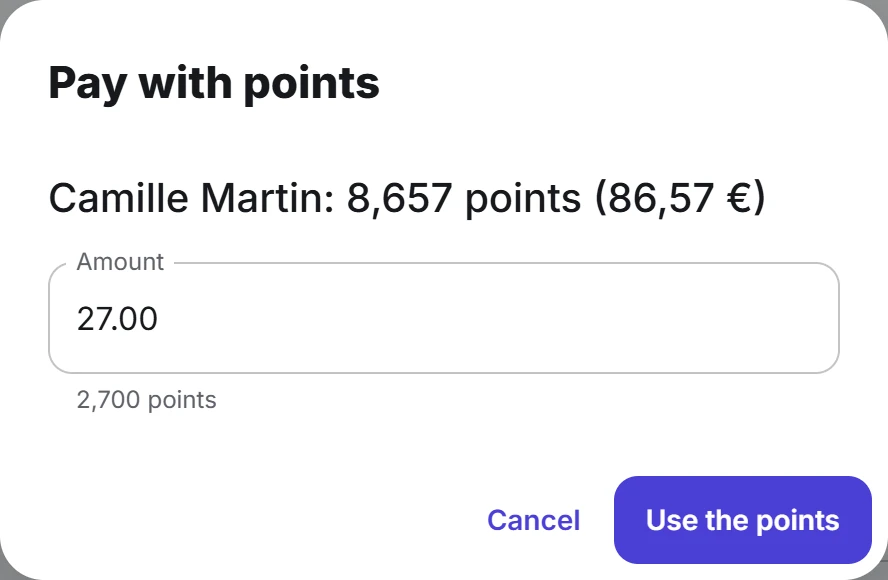
The amount is turned into points rounded up, so a fraction of a point is never given away. The points are taken when the sale is recorded; too few points refuses the sale with “Not enough loyalty points” and the points left. A customer whose points are worth less than the smallest amount sees “Not enough points to pay with yet.”
Refunds
- Points earned are taken back in proportion to what is refunded. A full refund takes back everything the sale earned. This can leave a customer below zero (otherwise buying, spending the points and returning the goods would keep them).
- Points spent come back when the part of the sale paid with points is refunded. Points is offered as a way to pay back only on a sale that was paid with points.
See and change a customer’s points
The list on the Loyalty screen shows customers with a points account, largest first, with Customer, Email, Points and Worth. Type in the search box to find any customer by user name, email or display name. Click a customer to open them.
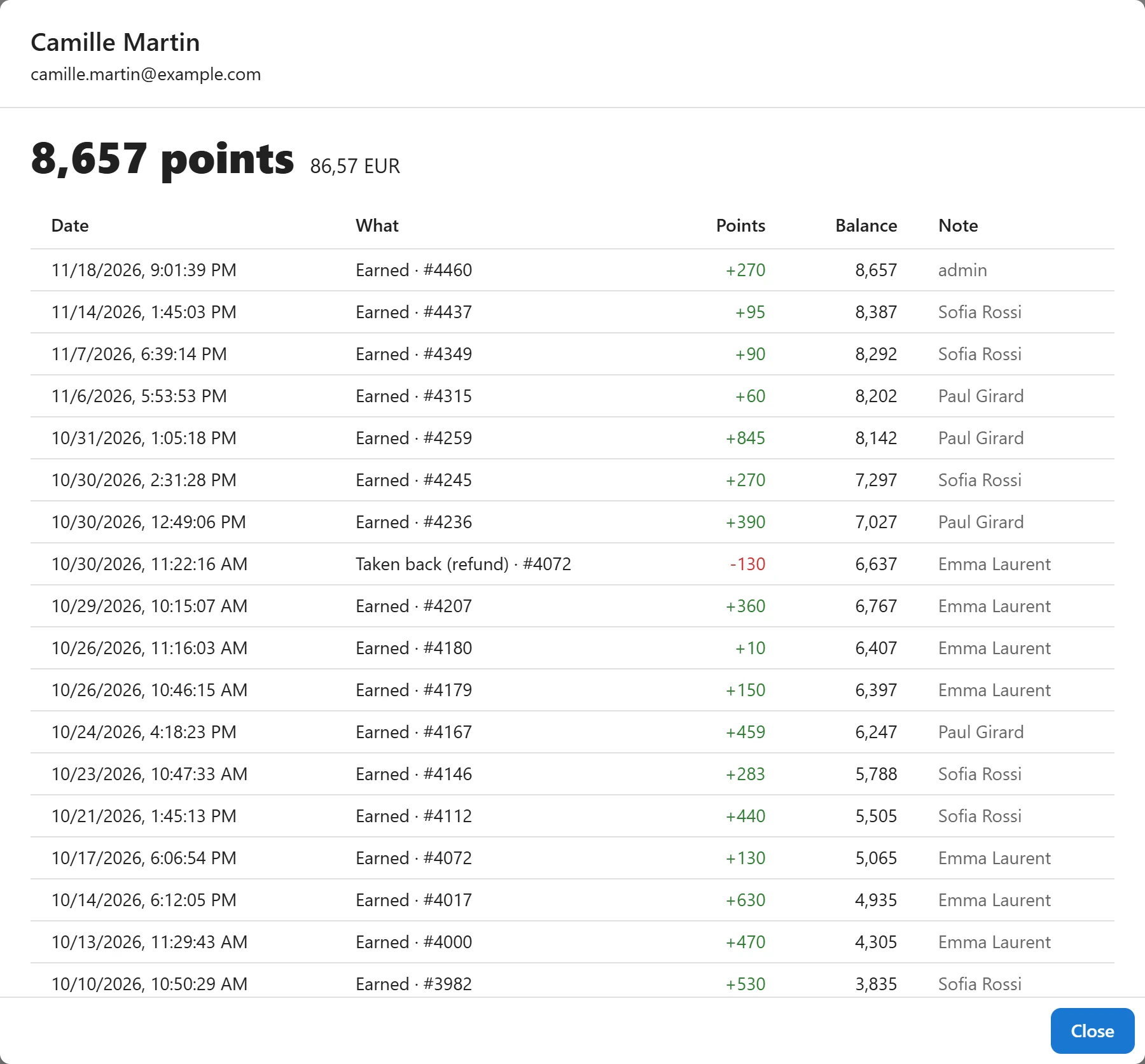
The history lists the last 200 movements:
| What | Meaning |
|---|---|
| Earned | Points from a sale |
| Spent | Points used to pay |
| Taken back (refund) | Earned points removed after a refund |
| Given back (refund) | Spent points returned after a refund |
| Added by hand | A change made in the back office |
To adjust, type Points (+ or -) and a Reason (kept in the history), then click Apply. A change by hand cannot take the balance below zero, and it is written to the audit log.
Who can do what
Paying with points is part of selling. The Loyalty screen and its settings need the permission to manage settings. See Staff access.
Quick Links
Share