

Contents
On this page
Orders - Plugixa POS for WooCommerce
Every sale made at the register is a real WooCommerce order. Stock goes down through WooCommerce, the order shows in WooCommerce > Orders and in WooCommerce Analytics, and your other WooCommerce plugins see it like any other order. The Orders screen of Plugixa POS lists only the register sales, with their ticket numbers.
The Orders screen
Open Plugixa POS > Orders. Register sales are listed newest first, 25, 50 or 100 per page.
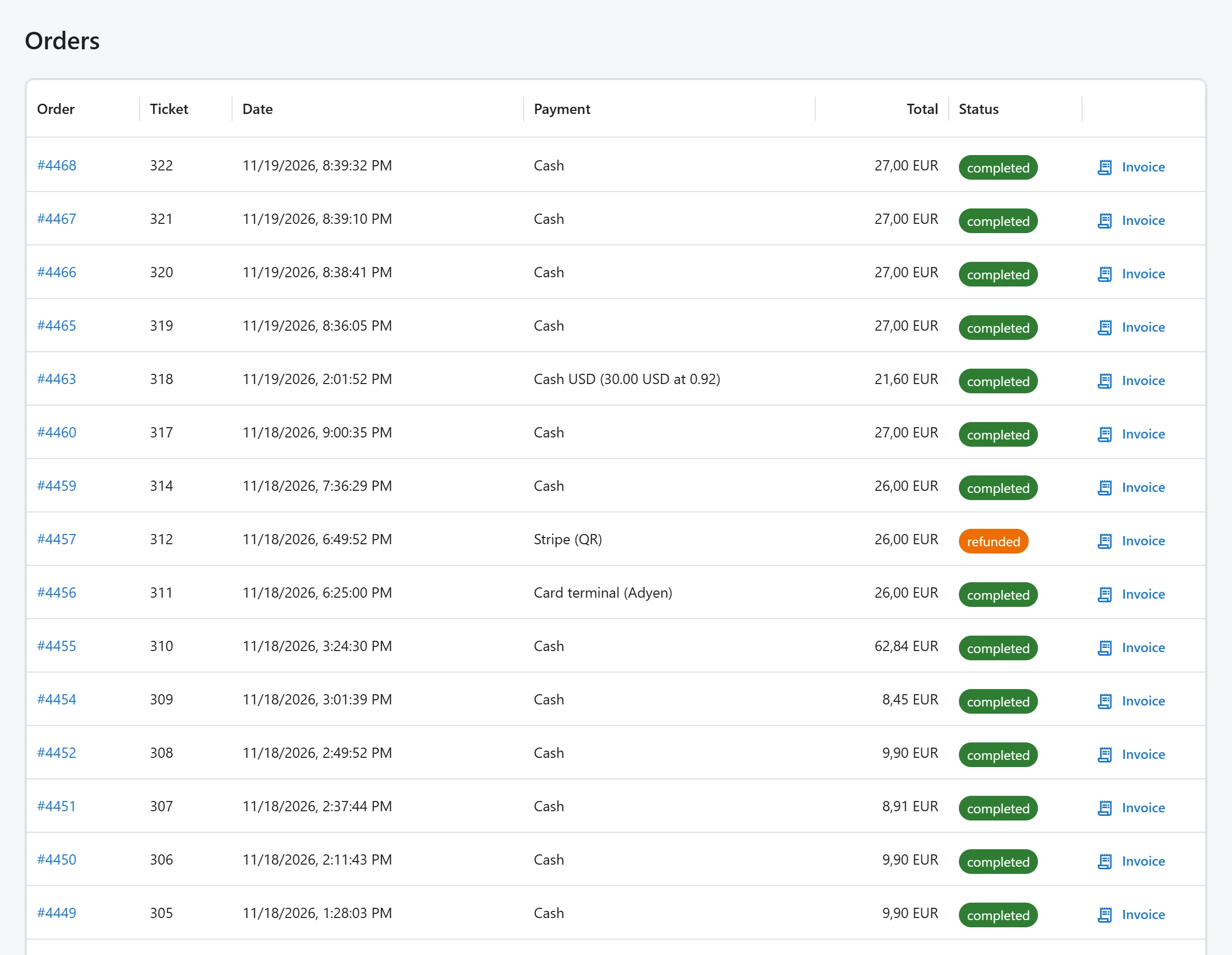
| Column | What it shows |
|---|---|
| Order | The WooCommerce order number. Click it to open the order in WooCommerce. |
| Ticket | The ticket number printed on the receipt. Each register numbers its own tickets, without gaps. |
| Date | When the sale was made. |
| Payment | The payment method, or the methods joined with + for a split payment, for example Cash + Card (terminal). |
| Total | The order total. |
| Status | The WooCommerce status: completed for a sale, refunded once fully refunded. |
With Pro, Invoice at the end of a row makes an A4 invoice for that sale, or shows the one already made. See Invoices PRO.
Refunds are made at the register, not here. See Refunds.
How a register sale looks in WooCommerce
When the cashier takes payment, the plugin creates the WooCommerce order and:
- sets its status to Completed with the order note Paid at the register., which is the moment WooCommerce reduces stock;
- sets the payment method to the one used, shown in the order header as Cash, Card (terminal) or Split payment (several methods);
- sets the order’s origin to WooCommerce’s own Point of Sale source, so the order screen and Analytics show where the sale came from;
- records the register, the store, the cash session, the cashier, the payments and the ticket number on the order.
These POS payment methods only appear on WooCommerce’s order screens. They are never offered at your online checkout, and they are not listed in WooCommerce > Settings > Payments.
Emails
WooCommerce does not email the shop about a register sale: the sale was rung up by your own staff. It does not email the customer either, unless you turn on Email the WooCommerce order and refund emails to the customer in Settings. Even then, only a customer attached to the sale with an email address receives them. The cashier can also send the receipt from the sale complete screen; see Receipts.
Why a POS order cannot be edited
Once a register sale is in the fiscal journal (which happens as part of the sale), its WooCommerce order is locked for everything the journal records:
- WooCommerce shows the order as not editable, so its items cannot be edited on the order screen;
- the totals, discounts, shipping, taxes, currency and customer cannot be changed, and lines cannot be added or changed;
- the order cannot be moved to the trash or deleted;
- its status can only be Completed or Refunded.
The lock applies on the WooCommerce order screen, through the WooCommerce REST API and to other plugins. A refused change stops with This register sale is in the fiscal journal and cannot be changed or deleted. Make a refund instead., and each refused attempt is written to the plugin’s audit log. The only way to undo a sale is a refund, which is itself recorded in the journal.
Orders created in your online shop are not affected.
High-Performance Order Storage (HPOS)
Plugixa POS declares itself compatible with WooCommerce High-Performance Order Storage. It reads and writes orders only through WooCommerce’s own order functions, so it works the same whether your shop stores orders in the HPOS tables or in the older posts tables, and the order lock covers both. It also declares compatibility with the block-based cart and checkout, because it adds nothing to your online checkout.
The plugin needs WooCommerce 9.6 or newer. With an older version, or without WooCommerce, an administrator sees Plugixa POS needs WooCommerce 9.6 or newer. Install and activate WooCommerce to start selling.
Currency
The register always sells in your shop’s base currency. If a currency switcher plugin changes the currency during a register sale, the sale is refused with a message asking the site admin to turn the switcher off for the register. See Troubleshooting.
Quick Links
Share