

Contents
On this page
Serial numbers - Plugixa POS for WooCommerce
For products such as watches or appliances, you may need to know which unit went to which customer. With serial numbers, the register asks for the number of each unit of a tracked product. The number is printed on the receipt and the invoice, stored on the WooCommerce order and in the fiscal journal, and you can look it up later.
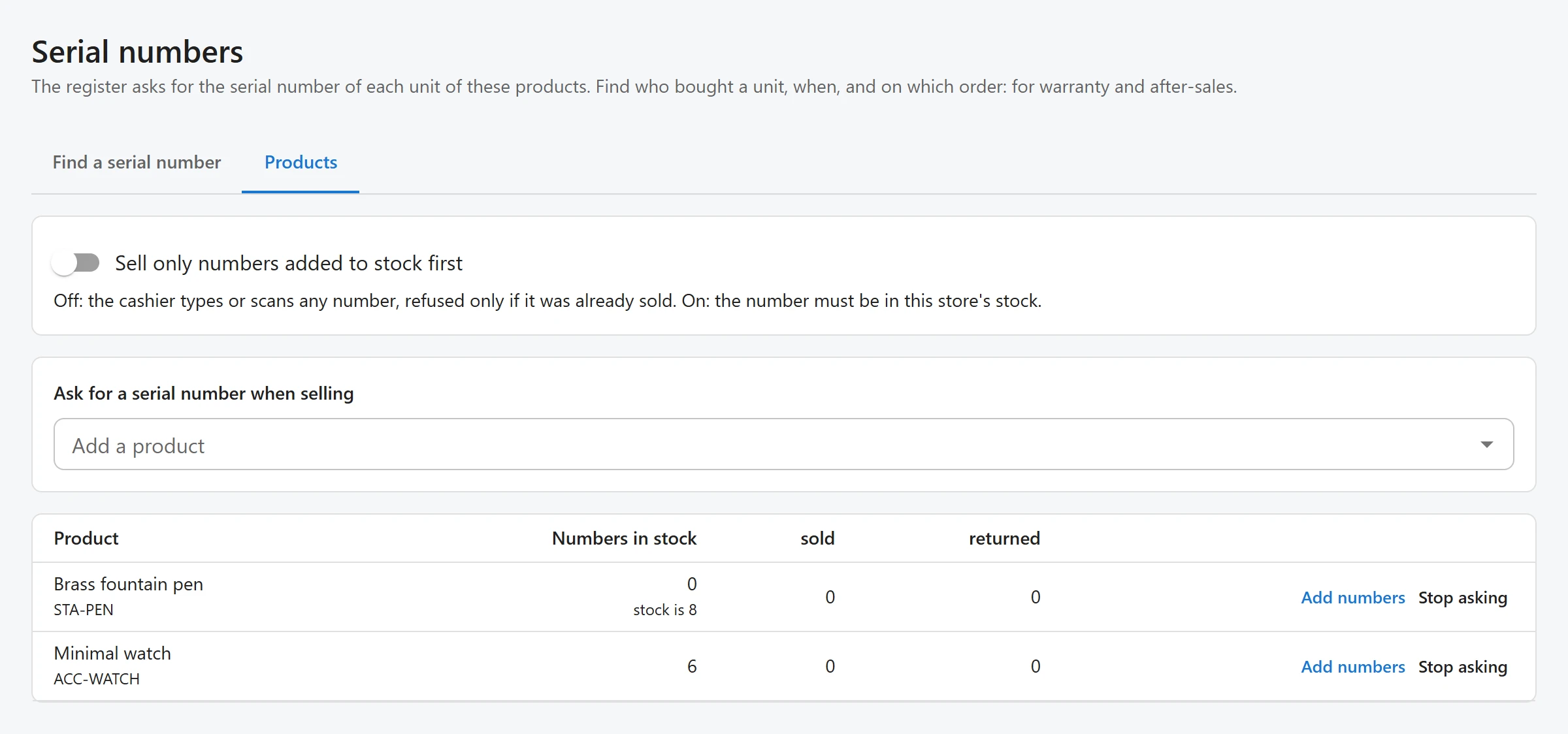
Open Plugixa POS > Serial numbers. The screen has two tabs: Find a serial number and Products. It needs the right to manage the POS settings.
Choose the products to track
- Open the Products tab.
- In Ask for a serial number when selling, search and pick the product.
The picker offers simple products and variations that track stock; type at least 2 letters of a name, SKU or barcode. The product appears in the table with Numbers in stock, sold and returned counts. Stop asking turns tracking off for a product.
Selling a tracked product
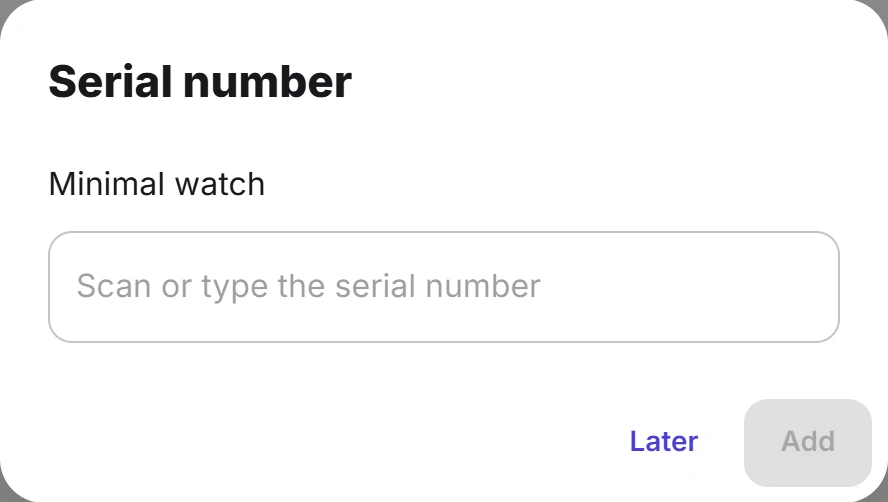
When a tracked product goes into the cart, the register opens a Serial number dialog: “Scan or type the serial number”. For a line of several units it asks for each one in turn (unit 1 / 3, 2 / 3…). Later closes the dialog; the line then shows Add S/N with the number still missing.
The cashier cannot take payment until every unit has its number: “Enter the serial number of each unit before paying.”
The register checks each number with the server before going on, and the sale checks again:
| Refused when | Message |
|---|---|
| The number is already in the cart | “This serial number is already in the cart.” |
| The number was already sold | “S/N … was already sold (order #…).” |
| Strict mode, and the number is not in stock | “S/N … is not in stock. Add it under Serial numbers first.” |
| Strict mode, and the number is in another store’s stock | “S/N … is in stock at another store.” |
Numbers ignore upper and lower case: ab12 scanned and AB12 typed are the same unit.
On the receipt, the invoice and the WooCommerce order, the line shows S/N: A12, A13.
Strict mode: sell only known numbers
On the Products tab, the switch Sell only numbers added to stock first chooses how strict the register is. It is off by default.
| Switch | What the cashier may enter |
|---|---|
| Off | Any number, refused only if it was already sold. |
| On | Only a number that is in this store’s stock. |
Add numbers to stock
For strict mode, or to know your numbers before they are sold:
- On the Products tab, click Add numbers on the product’s row.
- For a variable product, pick the variation.
- Scan or paste the numbers, one per line.
- Click Add.
The dialog tells you how many were added and lists the numbers already known, which are skipped.
Find a serial number
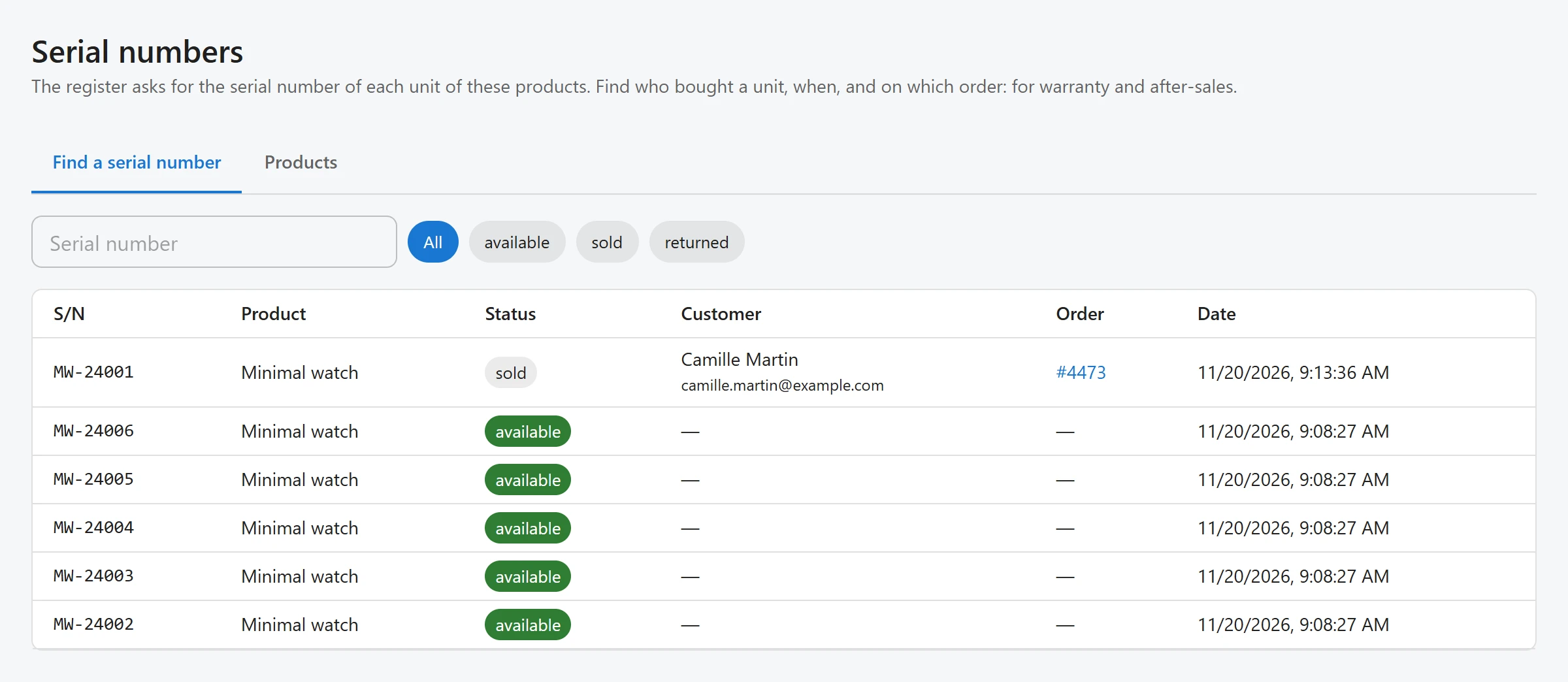
The Find a serial number tab searches the numbers. Type part of a number and filter by status (All, available, sold, returned).
| Column | What it shows |
|---|---|
| S/N | The serial number. |
| Product | The product. |
| Status | Available, sold or returned. |
| Customer | Who bought it, with their email, when known. |
| Order | The order it was sold on. |
| Date | The sale date, or the last change for a number not sold. |
Returns and cancellations
| What happens | The number becomes |
|---|---|
| A refund that puts the unit back in stock | Available again, with a note “Returned from order #…” |
| A refund without restocking | Returned (kept apart as a faulty unit), with the same note |
| The order is cancelled | Available again |
Offline sales
A sale made while the register was offline is never refused for its serial numbers: it has already happened at the till. If a number turns out to be already sold, or entered twice, the order gets a note and goes on the Needs attention list.
Quick Links
Share