

Contents
On this page
Keyboard shortcuts - Plugixa POS for WooCommerce
The register can be used entirely from the keyboard. The main actions sit on the function keys, which never type text: they work even while the cursor is in the search box, and a barcode scanner can never trigger them by mistake.
Press F1 at any time on the selling screen to see the list on screen. On a computer with a mouse, the keyboard icon at the right of the search box opens it too.
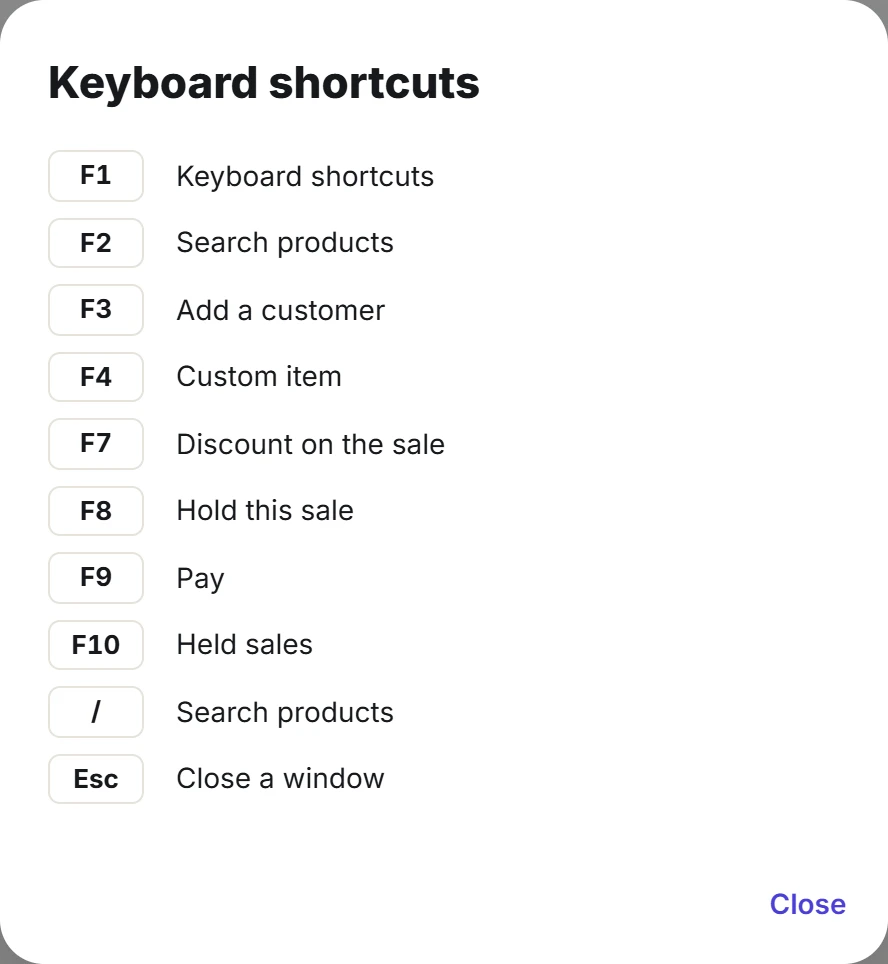
The shortcuts
| Key | Action | Works when |
|---|---|---|
| F1 | Keyboard shortcuts: shows this list | Always on the selling screen |
| F2 | Search products: puts the cursor in the search box | Always on the selling screen |
/ |
Search products, like F2 | The cursor is not in a text field |
| F3 | Add a customer: opens the customer search | No customer is on the sale yet |
| F4 | Custom item: opens the custom item window | You may give discounts |
| F7 | Discount on the sale: opens the sale discount window | You may give discounts, the cart has items, and no coupon is applied |
| F8 | Hold this sale | The cart has items |
| F9 | Pay: opens the payment screen | Pay is enabled: the cart has items, and any coupon has been checked |
| F10 | Held sales: opens the list | At least one sale is held |
| Esc | Close a window | A window or menu is open |
A shortcut that cannot run at that moment does nothing. For example, F9 on an empty cart is ignored. The rights behind F4 and F7 are explained in Staff access.
Shortcuts only run on the selling screen, not on the Orders screen.
While a window is open
When a window, menu or popup is open (the payment screen, a discount, the customer search), the function keys wait: the window’s own keys come first. Close it with Esc or its buttons, then use the shortcut.
Inside windows, Enter confirms where it makes sense:
- In a line’s window, Enter in the note field saves the note and the discount.
- In Discount on the sale and Custom item, Enter applies or adds.
- In the coupon field, Enter applies the code, and Esc closes the field.
Keys the browser no longer handles
On the selling screen, F1 to F4 and F7 to F10 do not do what the browser normally does with them, such as opening the browser’s help (F1) or its find bar (F3). Shortcuts with Ctrl, Alt, Shift or Cmd are left alone, so the browser’s own shortcuts still work.
F5 (reload), F11 (full screen) and F12 (developer tools) are not used by the register and keep their usual meaning. F11 is handy to give the register the whole screen.
Resizing the cart from the keyboard
The handle between the products and the cart can be reached with Tab. While it has focus:
| Key | Effect |
|---|---|
| Left arrow | Makes the cart wider, by 24 pixels |
| Right arrow | Makes the cart narrower, by 24 pixels |
| Home | Widest cart (640 pixels) |
| End | Narrowest cart (320 pixels) |
See The register.
Barcode scanners
A scanner types the code and presses Enter faster than any person. The register catches it anywhere on the selling screen, including in the search box, and adds the product. See Products and search.
On the payment screen
The payment screen opens with the cursor in Amount received, so you can type the amount straight away after F9. Use Tab to reach the method buttons, the quick amounts and Complete sale, and Enter or Space to press them.
Quick Links
Share