

Contents
On this page
Barcode labels - Plugixa POS for WooCommerce
Labels lets you print barcode labels for your products: on a sheet of sticky labels in an office printer, or on a roll in a label printer. The barcode holds exactly what the register’s scanner looks up, so a labelled product scans at the till straight away.
Open Plugixa POS > Labels. Printing goes through the browser’s print dialog: there is nothing to install.
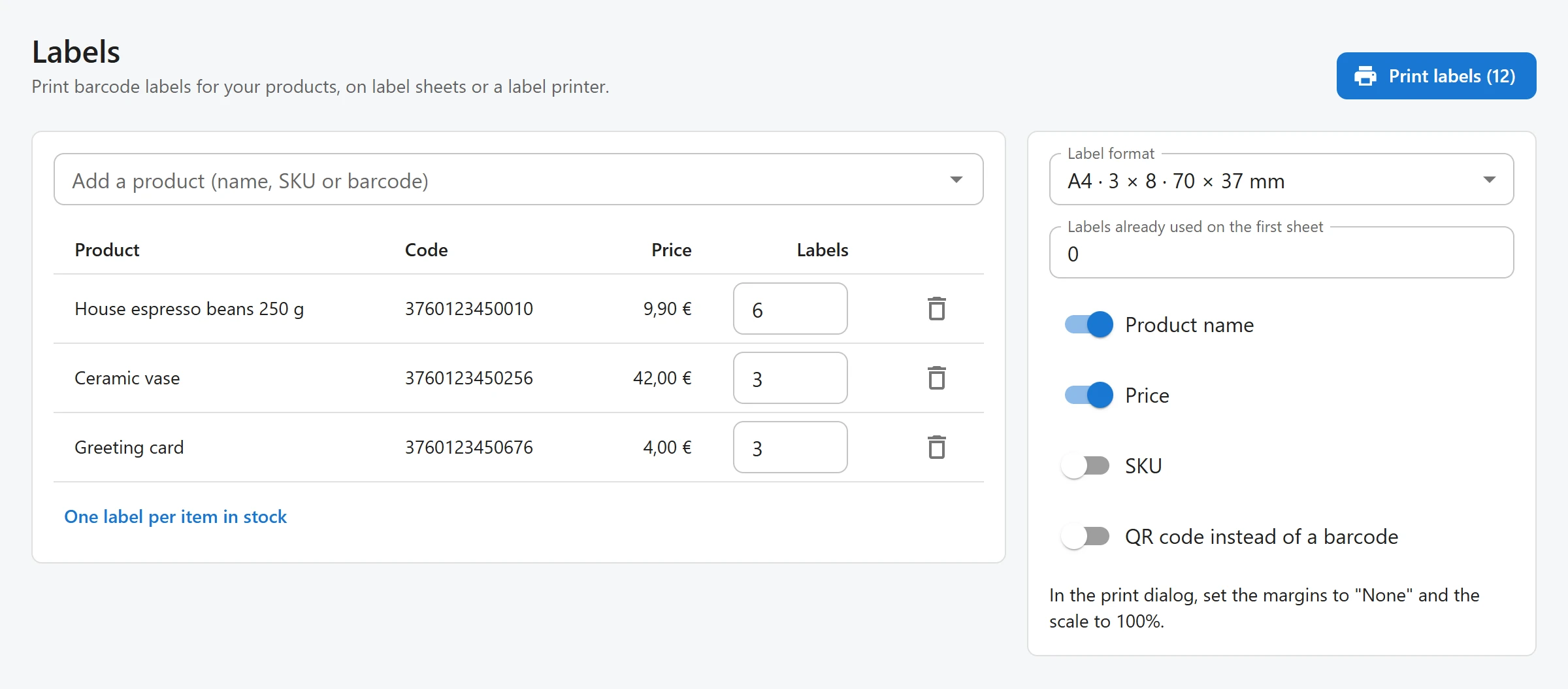
Print labels
- In Add a product (name, SKU or barcode), type at least 2 letters and pick a product. A variable product is listed by variation. Picking the same product again adds one label.
- Set the number of Labels for each product (up to 1000). One label per item in stock fills in each product’s stock quantity.
- On the right, choose the Label format and what to show on each label.
- Click Print labels. The button shows how many labels will print.
- In the print dialog, set the margins to None and the scale to 100%, as the screen reminds you.
What the barcode holds
| The product has | The label’s code |
|---|---|
| A barcode in WooCommerce (the GTIN, UPC, EAN or ISBN field) | That barcode |
| No barcode, but a SKU | The SKU |
| Neither | No barcode on the label |
A product with neither shows No barcode or SKU in the list, and the screen warns: “Some products have no barcode or SKU, so their labels will have no barcode. Add one in WooCommerce to scan them at the register.”
The barcode type is chosen for you:
| Code | Printed as |
|---|---|
| 13 digits with a valid check digit | EAN-13 |
| 8 digits with a valid check digit | EAN-8 |
| 12 digits with a valid check digit | UPC-A |
| Anything else (a SKU, letters) | Code 128 |
Turn on QR code instead of a barcode to print a QR code of the same value instead.
Label formats
| Format | Labels per page | Label size |
|---|---|---|
| A4 · 3 × 8 | 24 | 70 × 37 mm |
| A4 · 3 × 7 (L7160) | 21 | 63.5 × 38.1 mm |
| A4 · 4 × 10 | 40 | 48.5 × 25.4 mm |
| Letter · 3 × 10 (5160) | 30 | 2.63 × 1 in |
| Label printer | 1 | 50 × 25 mm |
| Label printer | 1 | 40 × 30 mm |
| Label printer | 1 | 58 × 40 mm |
The label printer formats print one label per page, sized to the label. Set the same paper size in your label printer’s driver.
Reuse a half-used sheet
With a sheet format, Labels already used on the first sheet skips that many positions, left to right and top to bottom, before the first label. Printing starts on the first free label of a sheet you already used.
What each label shows
| Switch | Default | Prints |
|---|---|---|
| Product name | On | The product name, on up to two lines. |
| Price | On | The price, in your WooCommerce number format and currency symbol. |
| SKU | Off | The SKU in small type under the barcode. |
| QR code instead of a barcode | Off | A QR code in place of the barcode. |
The price is the product’s WooCommerce price. Store prices set in Stock by store are not printed.
Weighed products
Labels that carry a price or a weight inside the barcode, printed by a shop scale, are a separate feature: see Scale.
Quick Links
Share