

Contents
On this page
Cash sessions - Plugixa POS for WooCommerce
A cash session is one shift of one register, from opening to closing. Nothing can be sold on a register until its session is open, and each register has at most one open session at a time. During the session the register keeps the running figures (the X-report); closing it writes the Z-report, which compares the money you count with the money that should be there.
Every figure in these reports is computed from the register’s fiscal journal, not from WooCommerce orders, so an order edited elsewhere cannot change a report.
Who can do what
| Action | Permission |
|---|---|
| Open the register, record cash in or out, close with a Z report | manage sessions (plugixa_pos_manage_sessions) |
| Read the X report at the register | sell (plugixa_pos_sell) |
| See the Cash sessions screen in the back office | view reports (plugixa_pos_view_reports) |
A cashier without manage sessions sees Ask a manager to open the register. on the opening screen, and the cash and closing entries of the register menu are greyed out. See Staff access.
Open the register
When the register at /pos has no open session, it shows Open the register with the
register’s name.
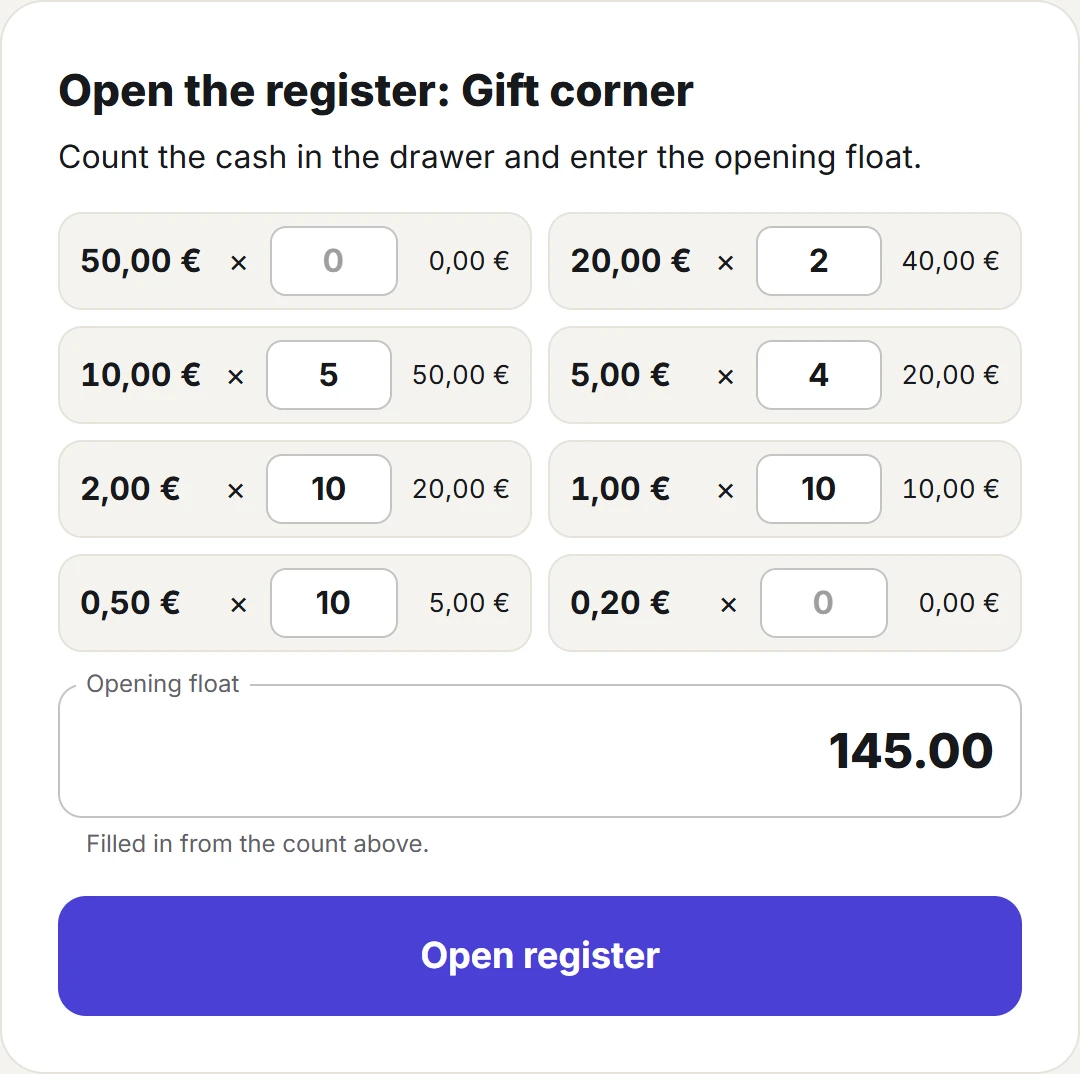
- Count the cash in the drawer. For a currency with two decimals (euro, dollar, pound…), the screen lists the notes and coins 50, 20, 10, 5, 2, 1, 0.50 and 0.20. Type how many of each you have; each line shows its total.
- The Opening float field fills in from the count (Filled in from the count above.). You can also skip the count and type the amount directly. It cannot be negative.
- Click Open register.
The opening and its float are written to the register’s journal. If someone else opened the same register a moment before, you see This register already has an open session. instead: only one session is ever opened.
Cash in and out
Use this for money that goes into or out of the drawer without a sale: change brought from the bank, a delivery paid in cash, a deposit taken to the bank.
- At the register, click the Register button (the clock and padlock icon) in the top bar.
- Choose Cash in / out.
- Pick Cash in or Cash out, type the Amount (more than zero) and a Reason.
- Click Save.
Each movement is written to the journal with its reason and the user who made it, and changes the cash the Z report expects.
X report: the figures so far
At the register, open the Register menu and choose X-report. It changes nothing and can be read as often as you like.
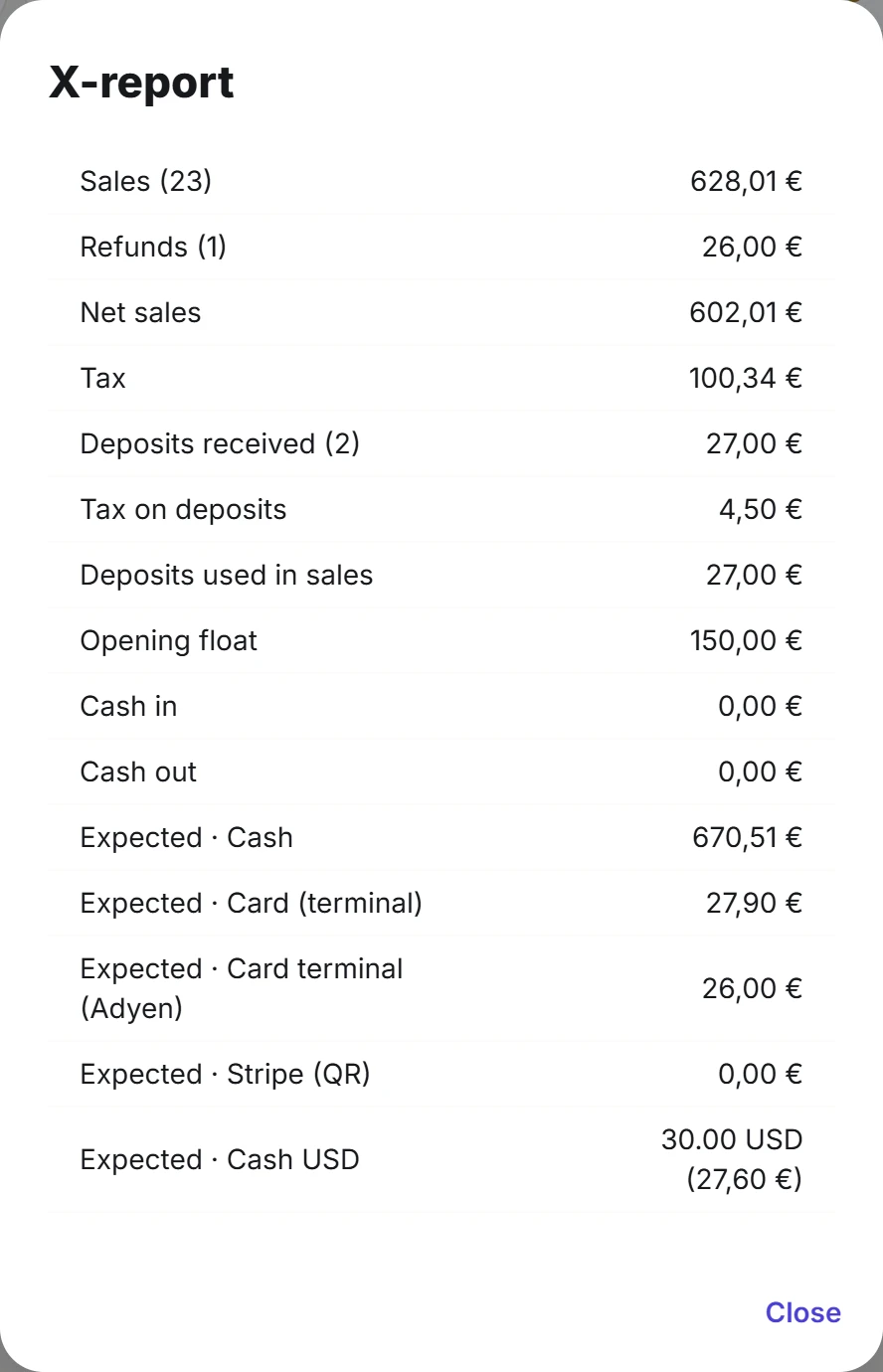
| Line | What it is |
|---|---|
| Sales (n) | Total of the sales, and how many. |
| Refunds (n) | Total of the refunds, and how many. |
| Net sales | Sales minus refunds. |
| Tax | Tax on the sales, less the tax refunded. |
| Opening float | The float counted at opening. |
| Cash in and Cash out | The total of each kind of movement. |
| Expected · Cash | Opening float + cash taken in sales - cash refunded + cash in - cash out. |
| Expected · Card (terminal) and other methods | What each payment method took, less what it refunded. |
When the session took deposits for orders kept for a customer, four more lines show them (Deposits received, Deposits refunded, Tax on deposits, Deposits used in sales). Deposits come from Layaways PRO.
Close the register with the Z report
Close the session at the end of the shift, once the drawer is counted.
- Open the Register menu and choose Close register (Z).
- The dialog asks you to Count each payment type and enter what you find. It has one field per payment method used in the session (Cash, Card (terminal)…). Fill in every field; for a card terminal, type the total of the terminal’s own end-of-day report.
- Click Close register (Z).
The Z-report opens with the same lines as the X report, plus Difference: what you counted minus what was expected, over all methods together. A positive difference means more money than expected, a negative one means less.
Closing a session cannot be undone. In the same step the plugin:
- marks the session closed and stores the expected and counted amounts per method and the difference;
- writes a chained closing with the session’s totals and the register’s running grand totals (sales, refunds and tax since its first session). See Fiscal journal;
- adds the closing to the register’s journal.
The register then shows the opening screen again for the next shift.
The Cash sessions screen
Open Plugixa POS > Cash sessions to see every session of every register, newest first, 25 or 50 per page.
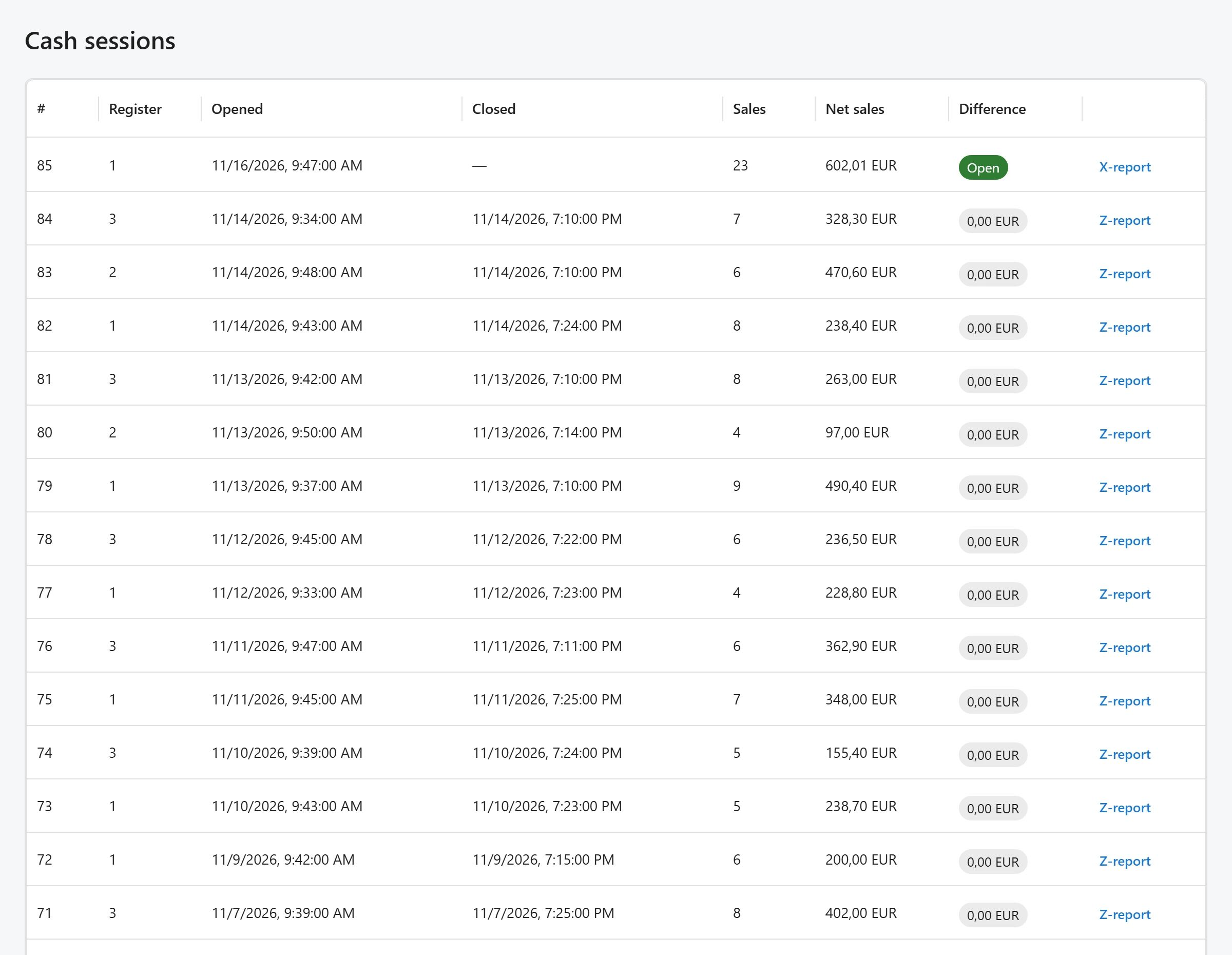
| Column | What it shows |
|---|---|
| # | The session number. |
| Register | The register’s id number (1 for the first register, and so on). |
| Opened and Closed | Date and time. An open session has no closing time. |
| Sales | The number of sales. |
| Net sales | Sales minus refunds. |
| Difference | Open for a session still running; otherwise the Z report difference, highlighted when it is not zero. |
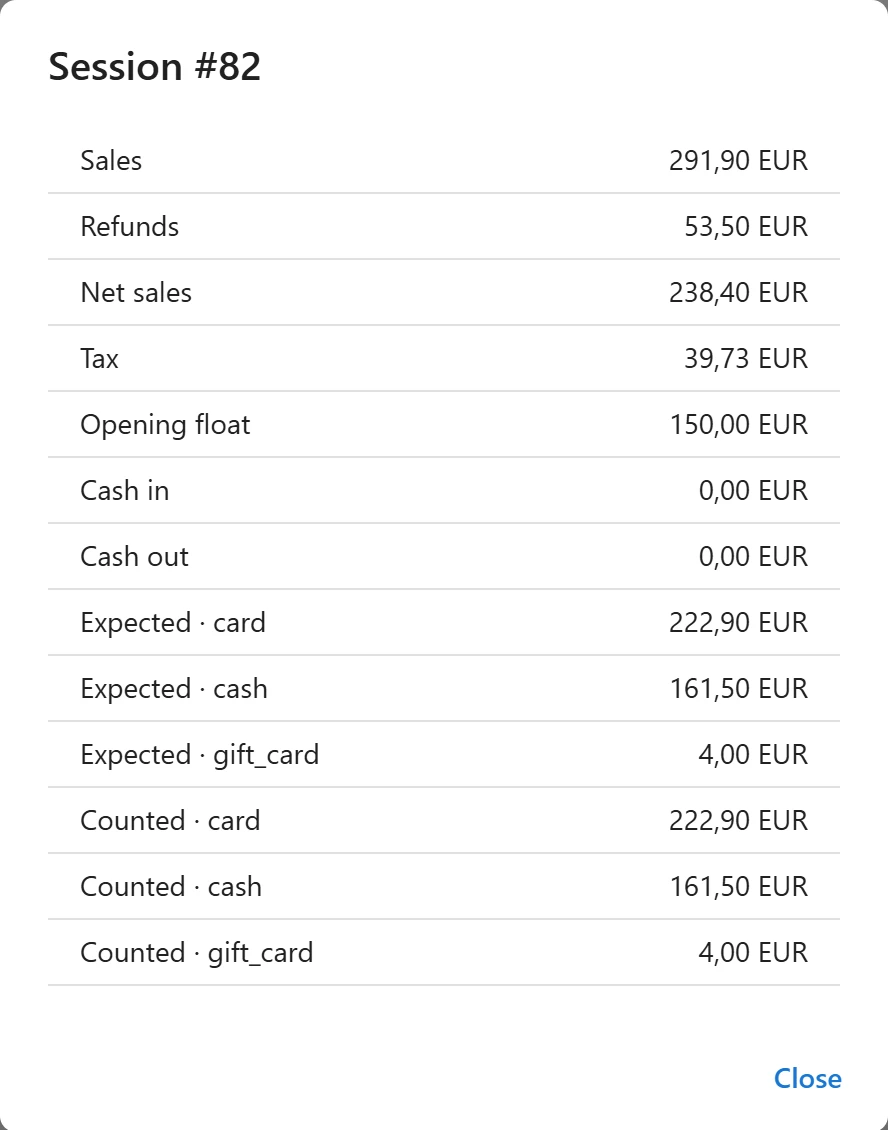
The button at the end of each row opens the session’s X-report (open session) or
Z-report (closed session), with the figures listed above and, for a closed session, a
Counted line per payment method. In this dialog the payment methods show their ids, such as
cash and card.
The back office only reads sessions: opening, cash movements and closing happen at the register. Webhooks for Z reports and cash movements are part of Webhooks PRO. Counting cash in other currencies at closing is Foreign cash PRO.
Things to know
- One register, one open session. Two devices on the same register share it; give each device its own register (see Stores and registers).
- A session has no time limit. It stays open overnight until someone closes it, and the Dashboard lists it under Open registers until then.
- Day, month and fiscal year closings are written automatically, separately from your Z reports. See Fiscal journal.
- With Offline mode PRO, the register refuses to close while sales made offline have not reached the server yet.
Quick Links
Share