

Contents
Settings - Plugixa POS for WooCommerce
Settings holds how the register behaves, what the receipt says, when the fiscal year ends and, with Pro, who issues your invoices. Your store’s name and address are on Stores and registers; prices, taxes, currency and stock stay in WooCommerce.
Open Plugixa POS > Settings. Saving needs the manage settings permission
(plugixa_pos_manage_settings); administrators have it. See
Staff access.
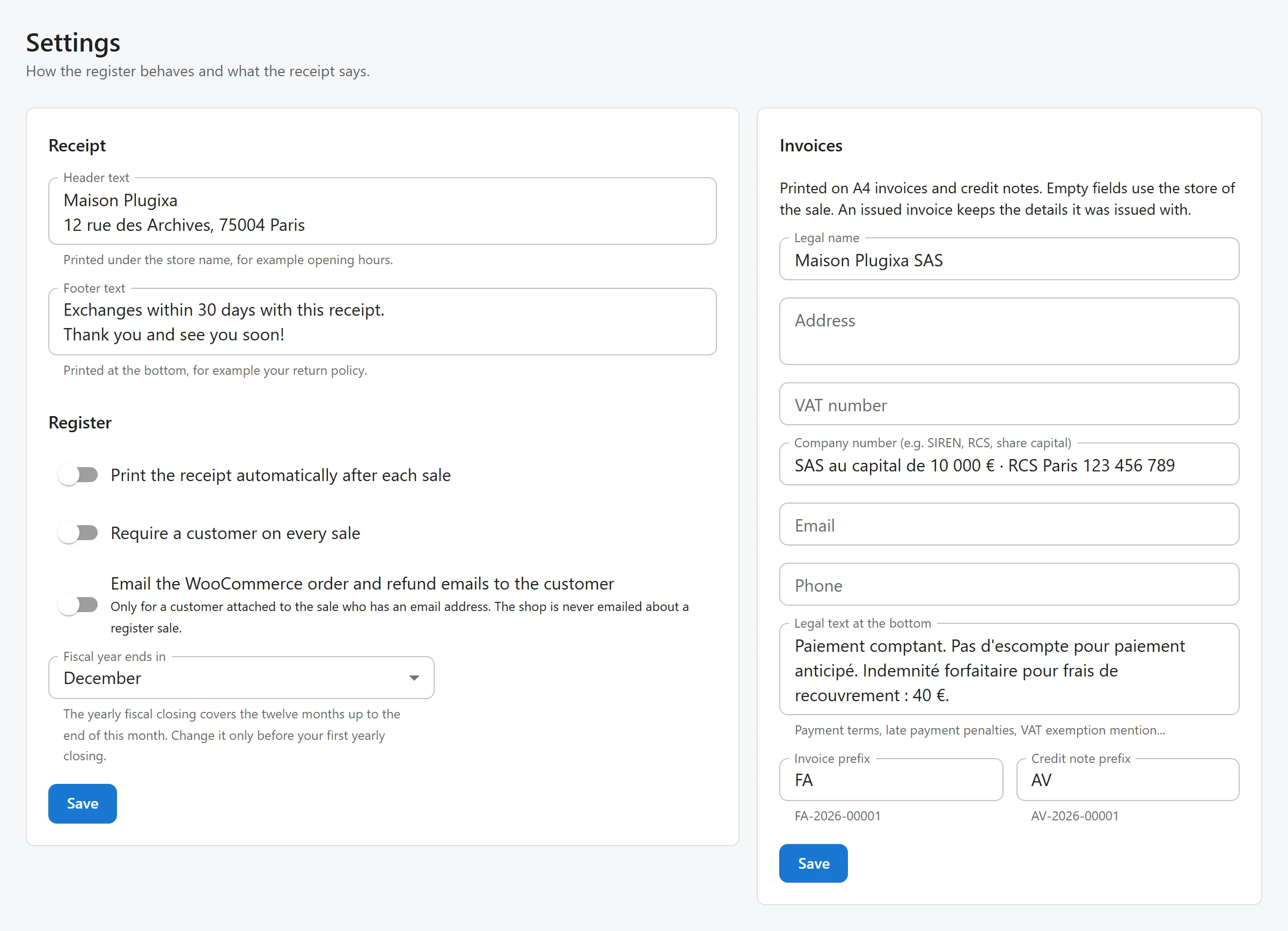
The screen has two cards. Each has its own Save button, and either one saves everything on the screen. After saving you see Saved.
Receipt
| Field | Default | What it does |
|---|---|---|
| Header text | Empty | Printed under the store name, for example your opening hours. Up to 500 characters, several lines allowed. |
| Footer text | Thank you for your visit! |
Printed at the bottom, for example your return policy. Up to 500 characters, several lines allowed. |
The store name, address, phone and tax ID at the top of the receipt come from Stores and registers. See Receipts for the whole receipt. Designing your own receipt is Receipt templates PRO.
Register
| Field | Default | What it does |
|---|---|---|
| Print the receipt automatically after each sale | Off | Prints the receipt as soon as a sale is paid, without the cashier asking. |
| Require a customer on every sale | Off | The register refuses to take payment until a customer is attached, with Choose a customer before paying. |
| Email the WooCommerce order and refund emails to the customer | Off | Lets WooCommerce send its own order and refund emails for register sales. Only a customer attached to the sale who has an email address gets them. The shop is never emailed about a register sale. |
| Fiscal year ends in | December | The last month of your fiscal year. The yearly fiscal closing covers the twelve months up to the end of this month. Change it only before your first yearly closing. |
The emails concerned are WooCommerce’s Processing order, Completed order and Refunded order emails to the customer, each still subject to its own switch in WooCommerce > Settings > Emails. Sending one receipt from the sale complete screen does not need this switch; see Receipts.
How the fiscal year end is used is on Fiscal journal.
Invoices
The Invoices card is part of Pro. These details are printed on A4 invoices and credit notes. Empty fields use the store of the sale. An invoice keeps the details it was issued with: changing them here only affects the next invoices.
| Field | Default | What it does |
|---|---|---|
| Legal name | Empty: the store name | The seller’s name on the invoice. Up to 150 characters. |
| Address | Empty: the store address | Several lines allowed. Up to 400 characters. |
| VAT number | Empty: the store’s tax ID | Up to 60 characters. |
| Company number (e.g. SIREN, RCS, share capital) | Empty | Your registration details, printed under the seller. Up to 120 characters. |
| Empty: the WooCommerce sender address | Up to 120 characters. | |
| Phone | Empty: the store phone | Up to 60 characters. |
| Legal text at the bottom | Empty | Payment terms, late payment penalties, a VAT exemption mention… Up to 1,500 characters. |
| Invoice prefix | INV |
Start of every invoice number. Letters and digits only, up to 8, in capitals. |
| Credit note prefix | CN |
Start of every credit note number. Same rules. |
Under each prefix, the screen shows what a number looks like, for example INV-2026-00001. A
prefix left empty goes back to INV or CN when you save. See
Invoices for the numbering.
Settings that are not on this screen
- Delete Plugixa POS data when the plugin is deleted: off by default and kept off unless you change it through the REST API, because the Settings screen has no switch for it. Only a site administrator can change it. See Privacy and uninstall.
- The register address: the register lives at
/pos. A developer can move it with theplugixa_pos_register_slugfilter; see Hooks.
All settings are stored in one WordPress option, plugixa_pos_settings.
Settings added by Pro
Pro modules PRO keep their own settings in the same option, for example Loyalty, Layaways, Quotes, Staff, Scale and Foreign cash. Each is explained on that feature’s page. Saving this screen in the free plugin keeps them, so they are back when Pro returns. See Free vs Pro.
Quick Links
Share