

Contents
On this page
Quotes - Plugixa POS for WooCommerce
A quote turns the current cart into a numbered A4 document, priced exactly as the sale would be (WooCommerce prices, taxes, the cashier’s discounts and promotions). Nothing is sold and no stock moves. Later, the register loads the quote into the cart and sells it at the quoted prices, as long as the quote is still valid.
Set the numbering and validity
Open Plugixa POS > Quotes (in the Sales group). Under New quotes:
| Field | Default | What it does |
|---|---|---|
| Number prefix | QT | Letters and digits, up to 8. Quotes are numbered prefix, year and a 5-digit count, for example QT-2026-00001. |
| Valid for (days) | 30 | How long a new quote keeps its prices, from 1 to 365 days. The cashier can change it per quote. |
Click Save.
Make a quote at the register
- Build the cart. Choose the customer if you know them: their name and email fill the form.
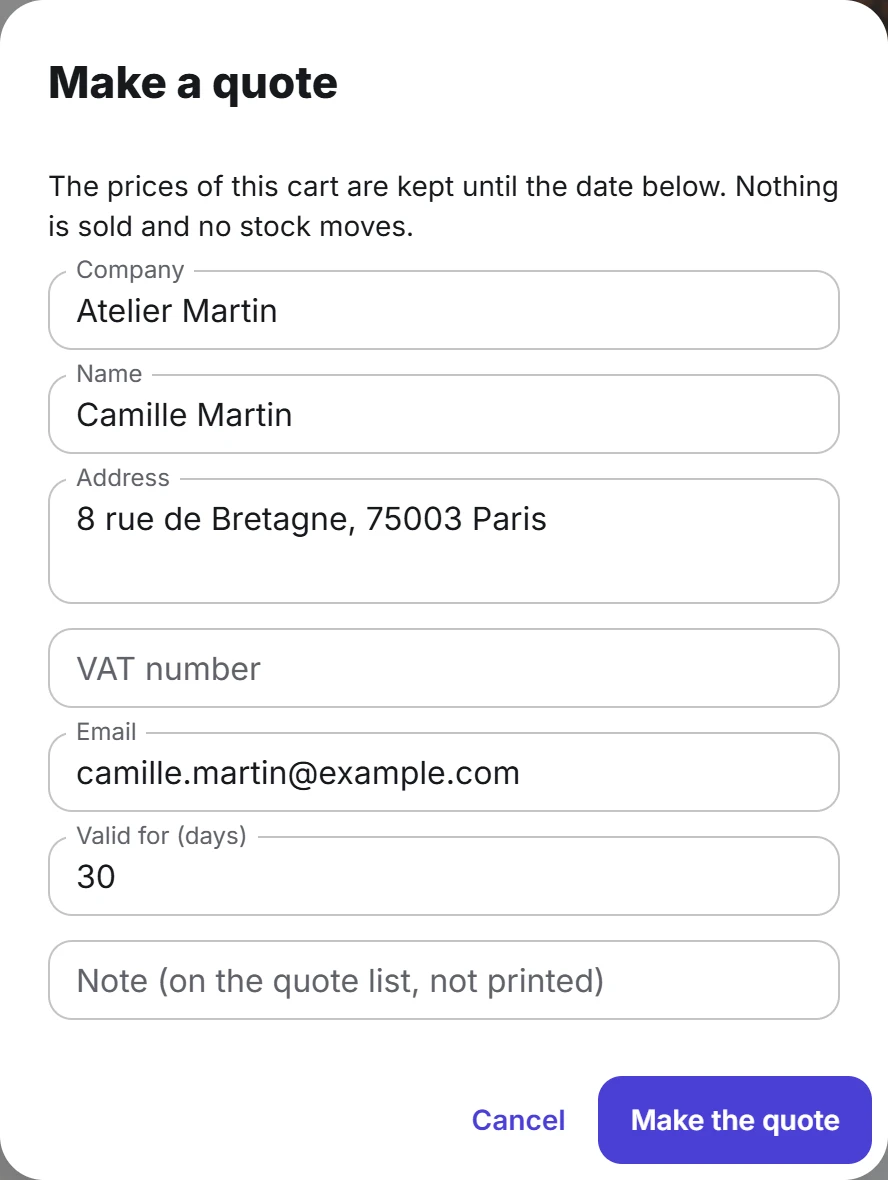
- Tap Quote under the cart total.
- Fill in what the document should show: Company, Name, Address, VAT number, Email. Adjust Valid for (days) if needed. The Note (on the quote list, not printed) is for your team.
- Tap Make the quote.
The PDF opens in a new tab: “Quote saved. The PDF opened in a new tab. Find it again under Quotes to sell it.” Tap Open the PDF to open it again, or Done (empty the cart).
A quote prices each line, so the Quote button is disabled when the sale has a coupon or a discount on the whole sale (“A quote prices each line: remove the coupon or the discount on the whole sale first.”), and when the cart already comes from a quote.
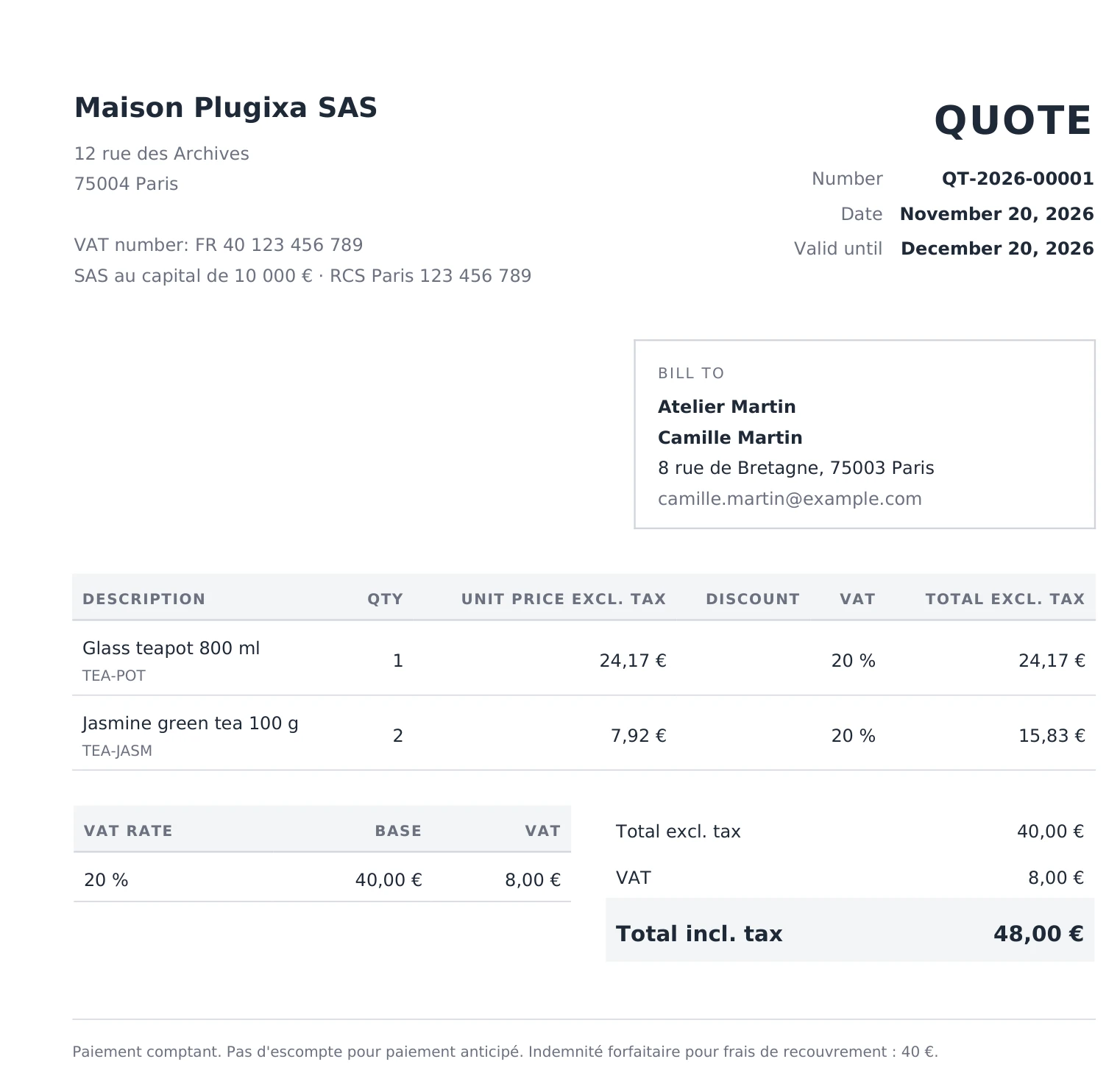
The PDF uses your invoice layout: the built-in one, or yours from the Invoice designer. It is titled Quote and shows the Number, Date and Valid until.
Sell a quote
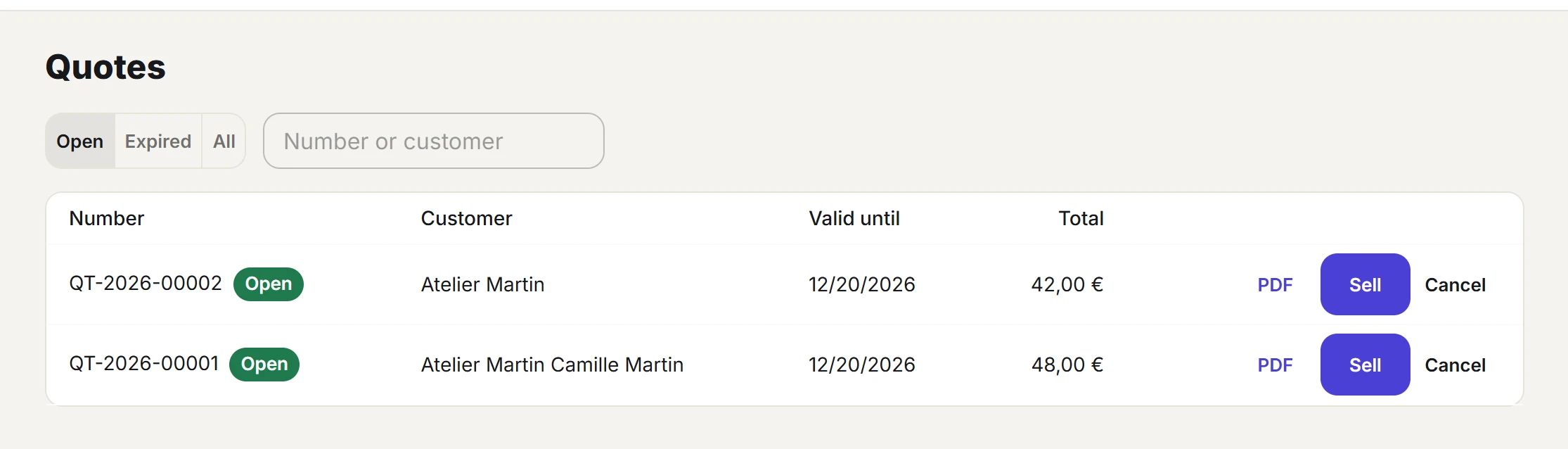
- On the register, open Quotes from the top bar. The list shows Open quotes by default; switch to Expired or All, or search by number or customer.
- Tap Sell on the quote. If the cart is not empty, the register asks to replace it.
- Take the payment as usual.
While the quote is open and valid, each of its lines costs exactly what was quoted, discount included. Promotions leave these lines alone (they are already in the price). You may lower a line’s quantity, but not raise it above the quoted quantity or change the product: “A line no longer matches its quote (product or quantity changed).”
A product that is no longer sold is left out, and the register tells you which: “No longer sold, left out”. You can add other products to the same sale at their normal price.
Once the sale is recorded, the quote becomes Sold and shows its order number. A quote put on layaway becomes Sold at the first deposit.
Expired and cancelled quotes
After its Valid until date, a quote shows as Expired and cannot be sold at its prices: “This quote is no longer valid: remove its lines or make a new quote.” Make a new quote from a fresh cart instead.
To close a quote the customer declined, tap Cancel on it in the register’s Quotes list.
In the back office
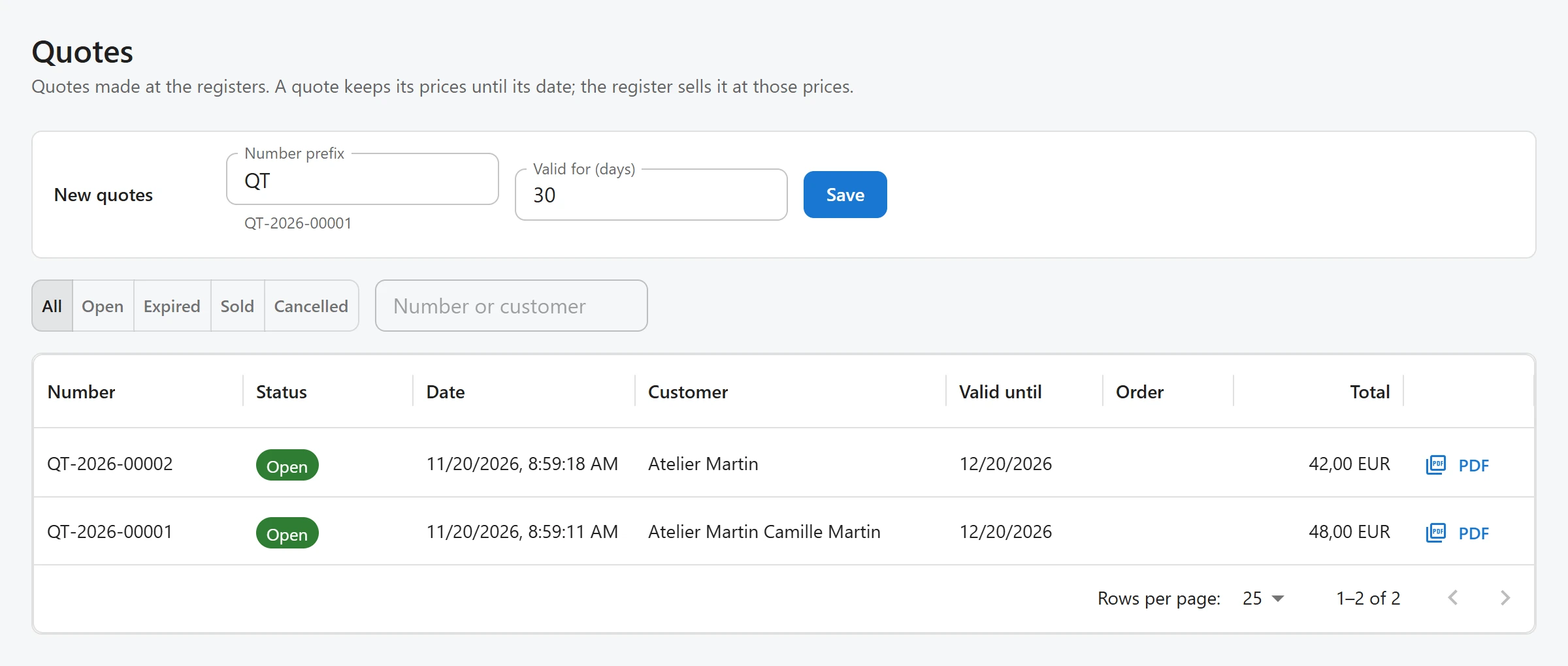
Plugixa POS > Quotes lists the quotes of the registers you may use, with Number, Status, Date, Customer, Valid until, Order and Total. Filter by All, Open, Expired, Sold or Cancelled, and search by number or customer. The PDF button opens the document.
Who can do what
Making, selling and cancelling quotes is part of selling at the register. Each person sees only the quotes made on registers they may use, because a quote holds the customer’s details. See Staff access.
Quick Links
Share