

Contents
On this page
Scale labels - Plugixa POS for WooCommerce
A deli, bakery, butcher or grocery scale prints a barcode label for each pack it weighs. That barcode carries the item’s code and either its price or its weight. With scale labels, the cashier scans the label at the register like any product, and the line comes in at the right price.
Plugixa POS reads labels from EAN-13 barcodes that start with 20 to 29 (the range kept for in-store labels). It does not talk to the scale itself: it reads what the scale printed.
Open Plugixa POS > Scale labels (in the Store group).
How a label reads
A label has 13 digits: two for the prefix, then the item code, then the price or weight, then a check digit. Two examples with a 5-digit item code:
| Label | Prefix | Item | Value | Reads as |
|---|---|---|---|---|
2101234003503 |
21 | 01234 | 00350, 2 decimals | price 3.50 |
2201234003524 |
22 | 01234 | 00352, 3 decimals | weight 0.352 kg |
The last digit is the EAN-13 check digit. A label with a wrong check digit is not read.
Set your label layouts
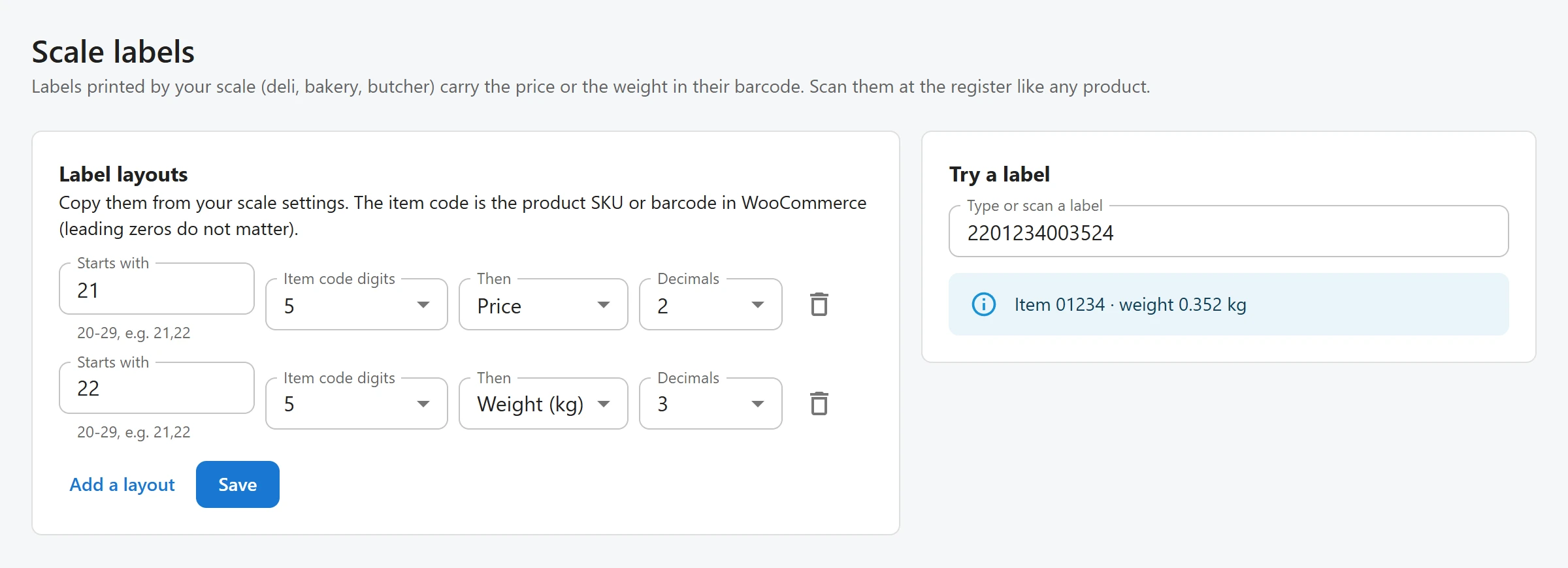
Copy the layout from your scale’s settings. Each layout says how to read the labels that start with a given prefix.
-
Click Add a layout.
-
Fill in the line:
Field Notes Starts with The prefix, from 20 to 29. Several are allowed, separated by commas: 21,22.Item code digits 4, 5 or 6: how many digits after the prefix are the item code. Then Price or Weight (kg): what the remaining digits hold. Decimals 0 to 3. Choosing Price sets 2, choosing Weight (kg) sets 3. -
Click Save.
You can set up to five layouts. The bin icon (Remove this layout) deletes one. With no layout, the screen says “No layout yet: scale labels are not read.”
Link labels to products
“The item code is the product SKU or barcode in WooCommerce (leading zeros do not matter).” The
barcode is the product’s GTIN, UPC, EAN, or ISBN field. For example, item 01234 matches a
product whose SKU is 01234 or 1234. Only digits count: a SKU with letters never matches a
label.
For a weighed item, set the product’s price in WooCommerce to its price per kg.
Try a label
Type or scan a label into Try a label. The box shows how the layouts on screen read it, before you even save:
- “Item 01234 · weight 0.352 kg” or “Item 01234 · price 3.50”
- “A scale label has 13 digits.”
- “The last digit (check digit) is wrong: this is not a valid EAN-13.”
- “No layout below starts with” and the prefix.
At the register
Scan the label in the search box, as for any barcode. See Products and search.
- A price label adds the item at the price printed on it.
- A weight label adds the item at the price per kg times the weight, rounded to the cent the
way a scale does (half up). The line shows the weight, for example
0.352 kg, and the order keeps it as Weight. - Each label is its own line, even for the same product, because each pack has its own price.
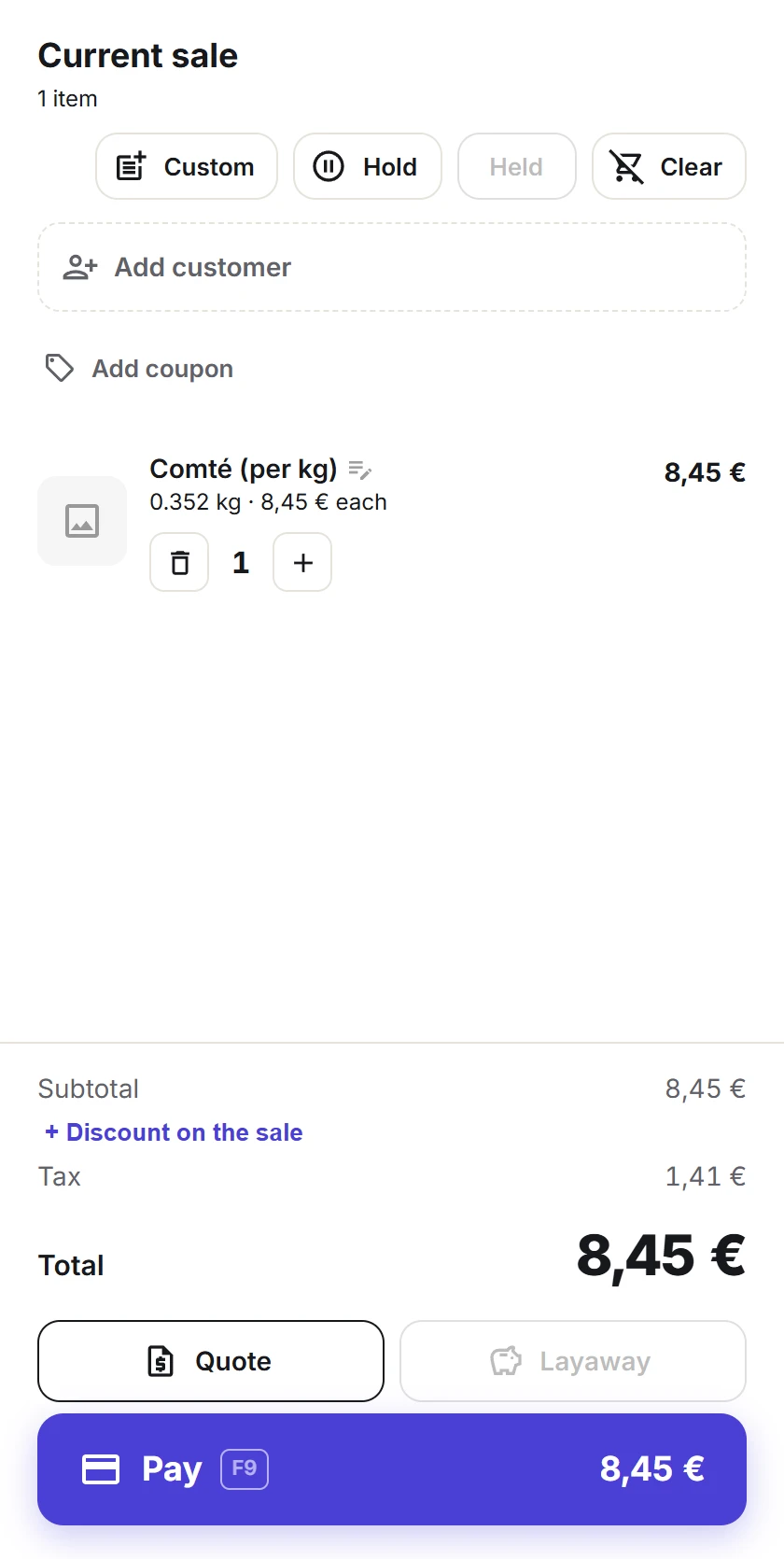
The register’s reading only shows the line. When the sale is recorded, the site reads the label again and sets the price itself. A label it cannot read is refused with “This scale label cannot be read. Check the scale label settings.”, and a label that names another product with “This scale label is for another product.”
Related
Quick Links
Share