

Contents
Refunds - Plugixa POS for WooCommerce
A customer brings back everything they bought today. From the register’s Orders screen you refund the whole sale in two clicks: the items go back into stock, the money is paid back the way it was paid, and the refund is recorded in the register’s cash session and fiscal journal.
The free plugin refunds whole sales. To take back only some items, or swap an item for another, use Returns and exchanges PRO.
Who can refund
Refunding needs the refund right. A cashier without it does not see the Refund button, and the server refuses the refund. See Staff access. With Pro, a cashier without the right can ask a manager to approve the refund with their PIN PRO: see Staff.
The register must have an open cash session, because the money paid back comes out of its drawer. Without one, the refund is refused with Open a cash session before refunding.
Refund a sale
- In the top bar, click Orders. The list shows the sales of the current cash session.
- To find a sale, type its order or ticket number in the search box.
- Click Refund on the sale.
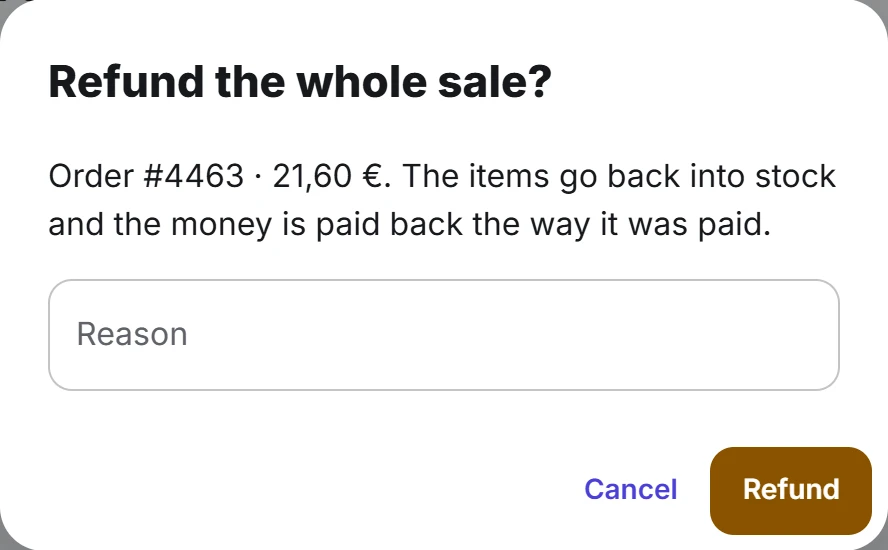
- In Refund the whole sale?, check the order number and total, and type a Reason if you want one.
- Click Refund.
- Pay the money back the way it was paid: cash from the drawer, a card payment on your card terminal.
The row now shows a Refunded badge and the Refund button disappears.
What a refund does
| Where | What happens |
|---|---|
| WooCommerce | A WooCommerce refund for the whole order is created, with your reason (or Refunded at the register when you leave it empty). The order becomes Refunded. |
| Stock | Every item goes back into stock. |
| Payments | Each payment of the sale is paid back by the same method and for the same amount. For cash, the refund comes out of the drawer. |
| Cash session | The refund counts in the session of the register doing it: the X and Z reports show it under Refunds, and the cash paid back lowers the cash expected in the drawer. |
| Fiscal journal | A refund entry, with its own document number, the original ticket number, the reason, the lines, the taxes and the payments, is chained in the journal of the register doing the refund. |
Card money is not sent back through a card network by the free plugin: the payment was taken on a separate terminal, so you refund it there. With Pro card readers, refunds of card payments go back through the reader’s provider PRO: see Stripe Terminal and Adyen Terminal.
With Pro, if the sale was invoiced, refunding it issues a credit note. See Invoices PRO.
When the Refund button is missing
The Refund button only shows on a completed sale that has nothing refunded yet. You also see these messages when a refund cannot be made:
| Message | Why |
|---|---|
| This sale has already been refunded. | The sale was refunded before, for example at another register. |
| This sale was partly refunded; refund the rest from the back office. | Part of the sale was refunded already, for example with a Pro return. The register only refunds whole sales. |
| This order is not a completed sale. | The order is not completed, for example a sale that is only part paid. |
| Open a cash session before refunding. | The register has no open session. Open it first. |
The register’s Orders screen only lists and searches the sales of the current cash session. A sale from an earlier session does not appear there, so it cannot be refunded from the register. See Orders for the sales of earlier sessions.
Quick Links
Share