

Contents
On this page
Boat page and list layouts - Plugixa Boat Rental
From version 7.0.0, you choose how each boat’s page and each list of boats is laid out. A layout only arranges the page: every layout shows the same photos, facts, sections and booking form, so you can switch at any time without losing anything.
The free plugin has one layout of each kind, the Photo mosaic page and the Grid list, plus the paging and search options on this page. Pro adds eight page layouts, nine list layouts and three booking windows PRO.
Where you choose
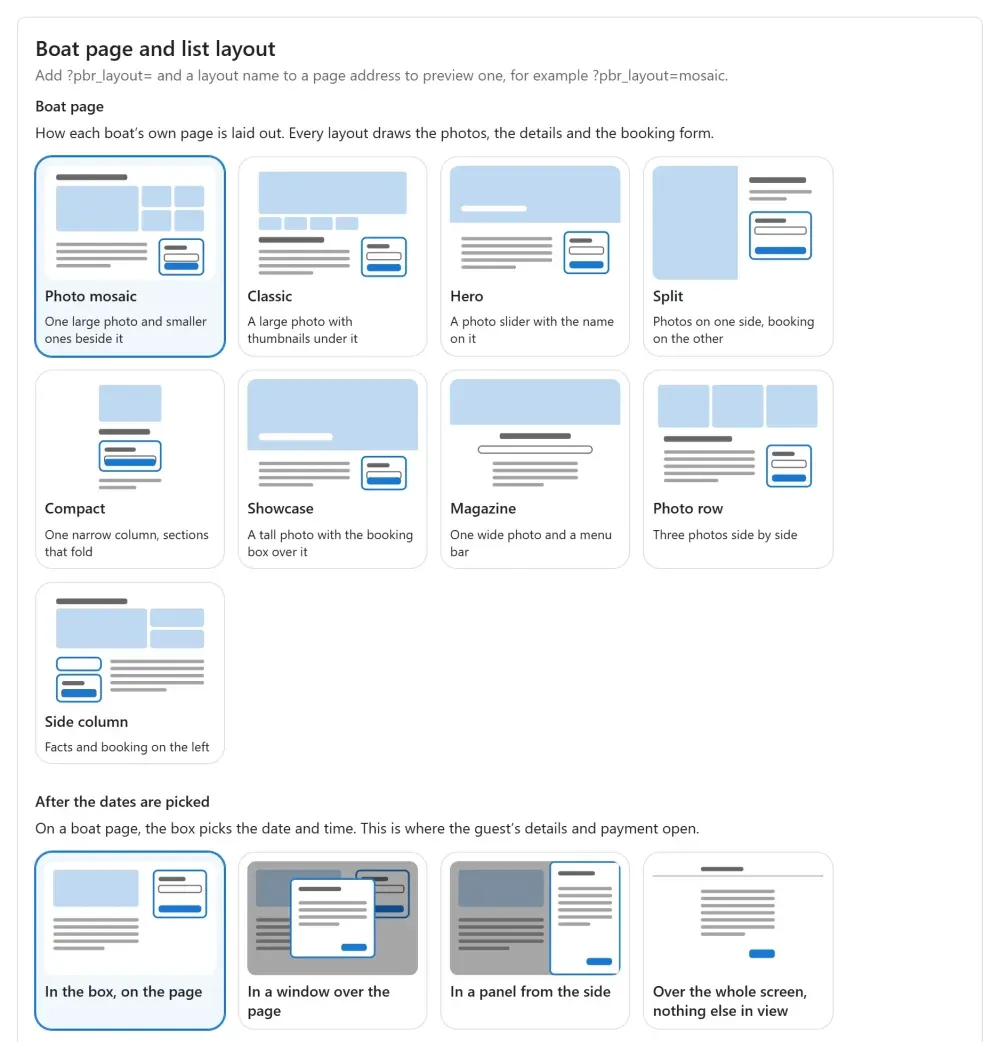
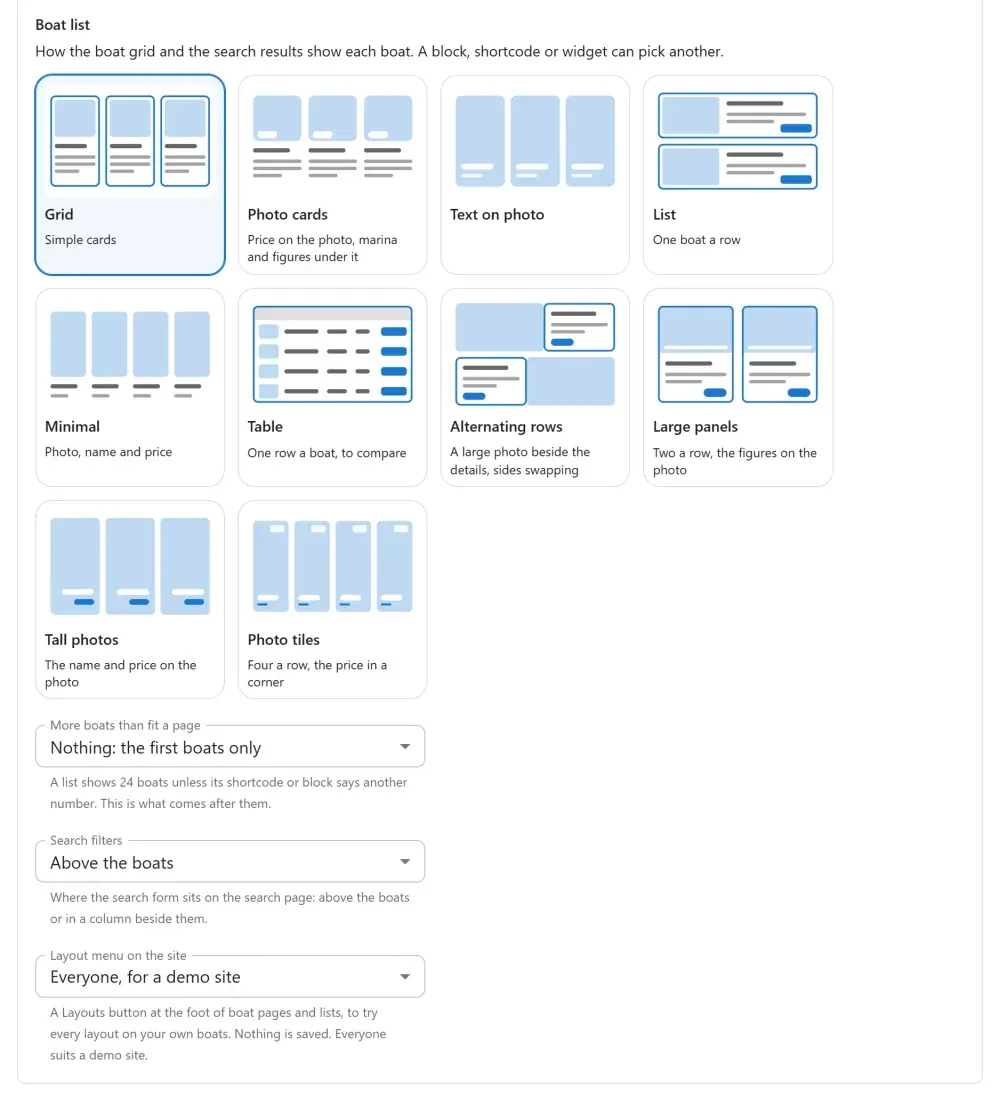
Open Plugixa Boat Rental -> Settings -> General, card Boat page and list layout. Each layout is a drawing you click, not a name in a list. Save the settings and every boat page and list on the site follows.
| Setting | Default | What it does |
|---|---|---|
| Boat page | Photo mosaic | How each boat’s own page is laid out. |
| After the dates are picked PRO | In the box, on the page | Where the guest’s details and payment open on a boat page. |
| Boat list | Grid | How the boat grid and the search results show each boat. |
| More boats than fit a page | Nothing: the first boats only | What comes after the first boats of a list. |
| Search filters | Above the boats | Where the search form sits on the search page. |
| Layout menu on the site PRO | Staff who can change these settings | Who sees the Layouts button on boat pages and lists. |
A choice with only one option is not shown. That is why the free plugin shows More boats than fit a page and Search filters only: it has one page layout, one list layout and one booking mode, so there is nothing to pick for those.
Boat page layouts
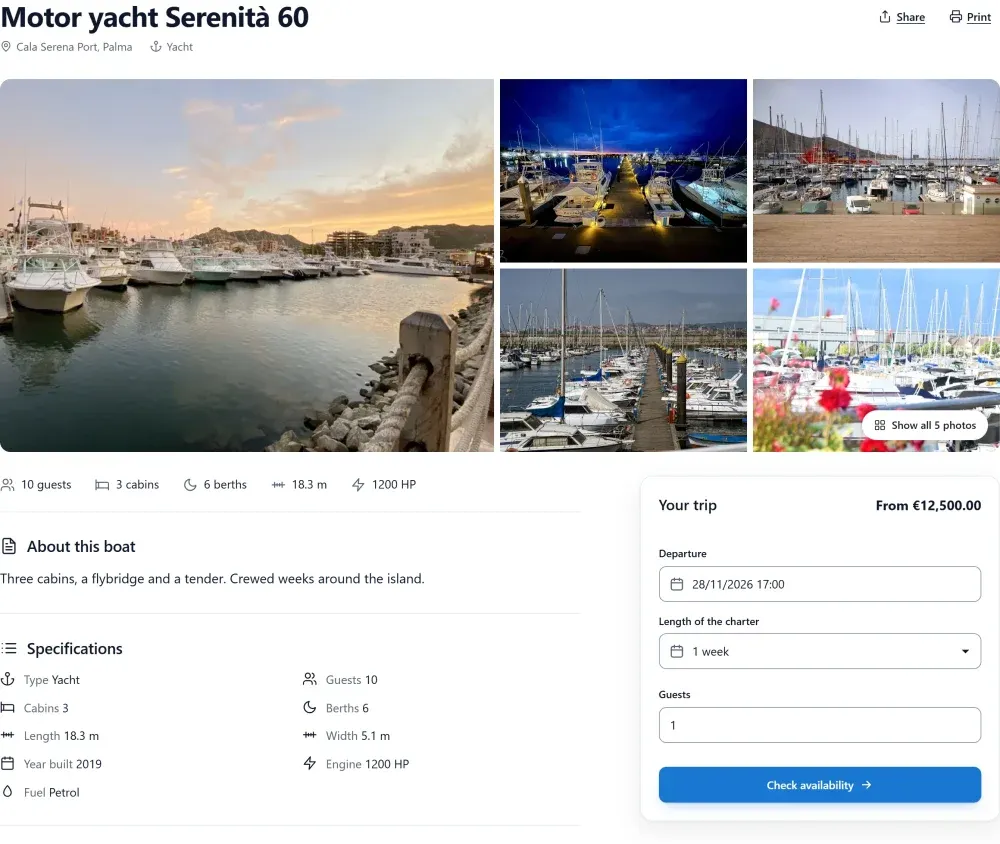
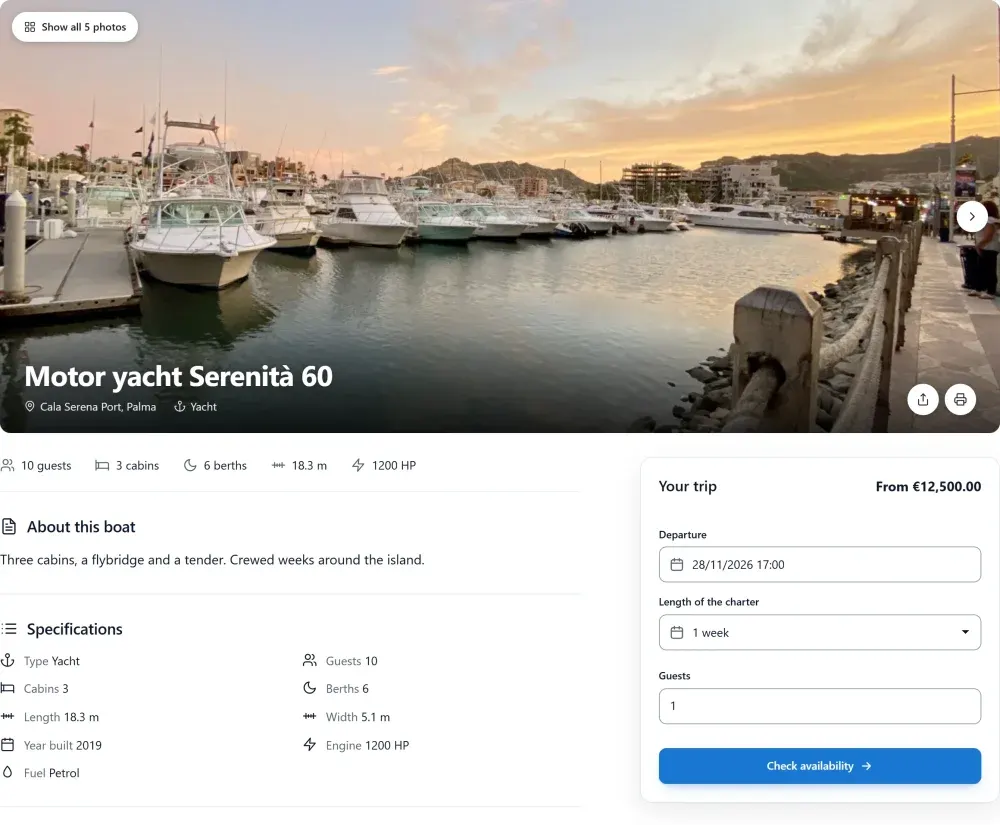
Every page layout shows the boat’s name with its marina and type, the Share and Print buttons, the photos, a line of facts, the sections described in Boat pages, search and the boat grid, and the booking box. What changes is how the photos open the page and where the box sits.
| Layout | What it looks like |
|---|---|
| Photo mosaic | The title, then one large photo with two or four smaller ones beside it. The booking box sits beside the sections. The default, and the free layout. |
| Classic PRO | A large photo with a row of thumbnails under it, then the title. |
| Hero photo PRO | A photo slider across the page with the boat’s name written on it. |
| Split PRO | The photos on one side, the title and the booking box on the other. |
| Compact PRO | One narrow column, with sections that fold open. Suits a site with a narrow content area. |
| Showcase PRO | A tall photo with the name on it and the booking box over its corner. |
| Magazine PRO | One wide photo, the title under it, and a menu bar that jumps to each section. |
| Photo row PRO | Three photos side by side, then the title. |
| Side column PRO | The title and a mosaic, then the facts and the booking box in a column on the left. |
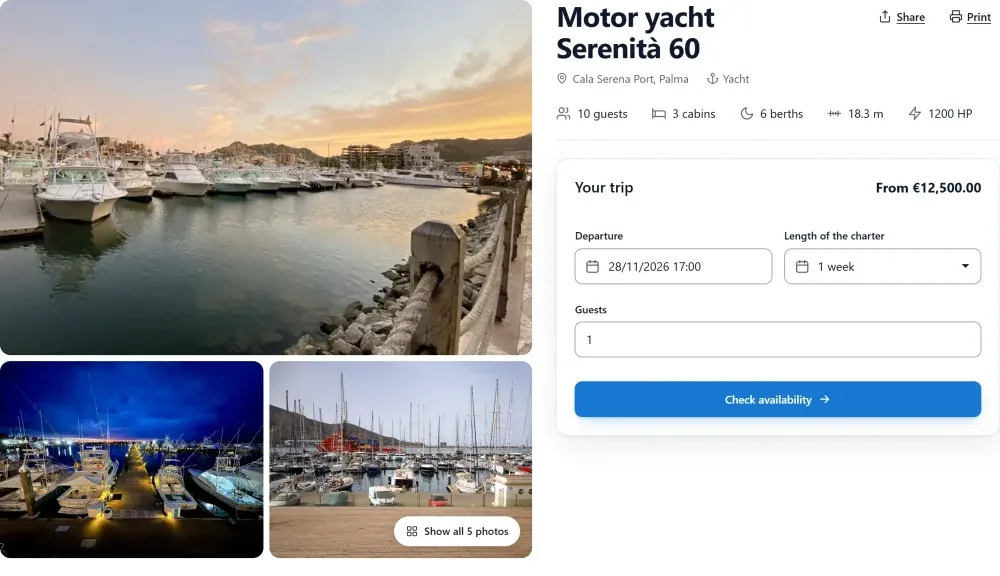
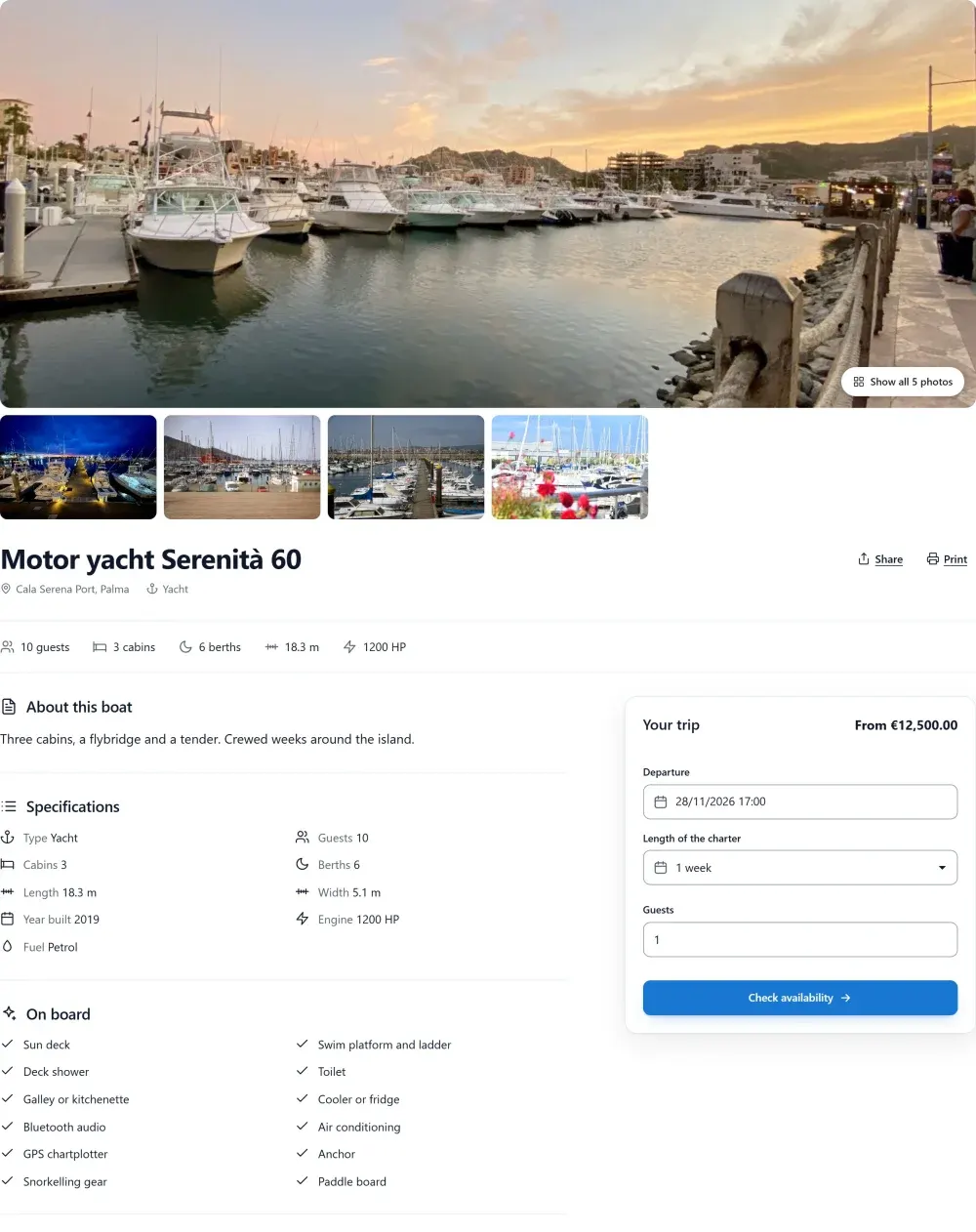
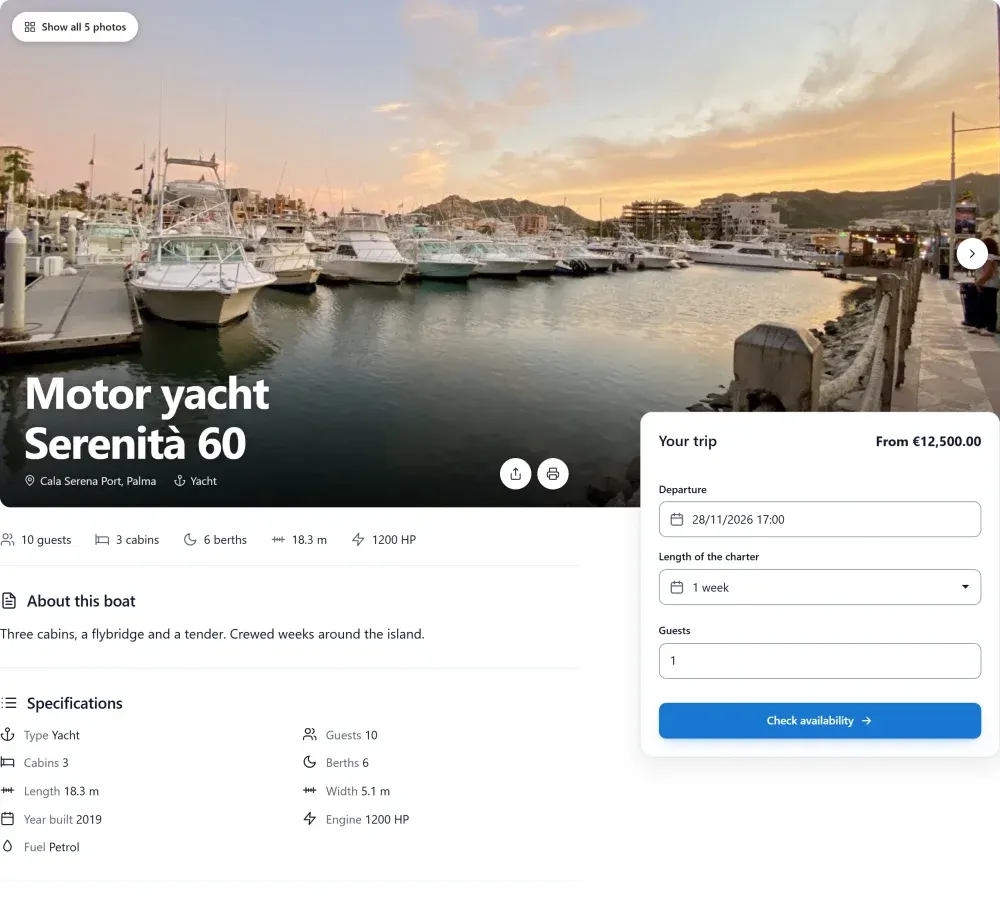
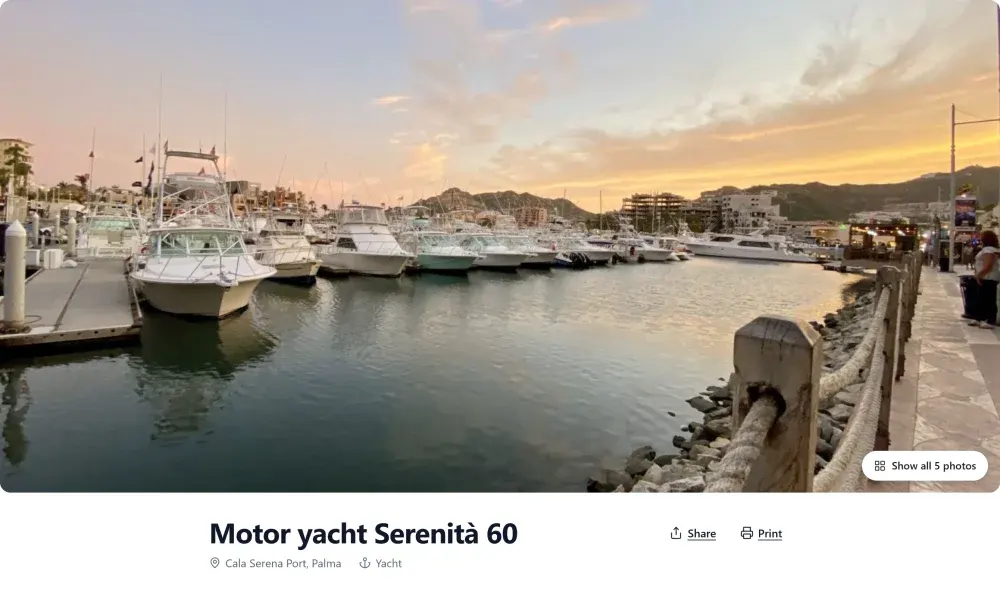
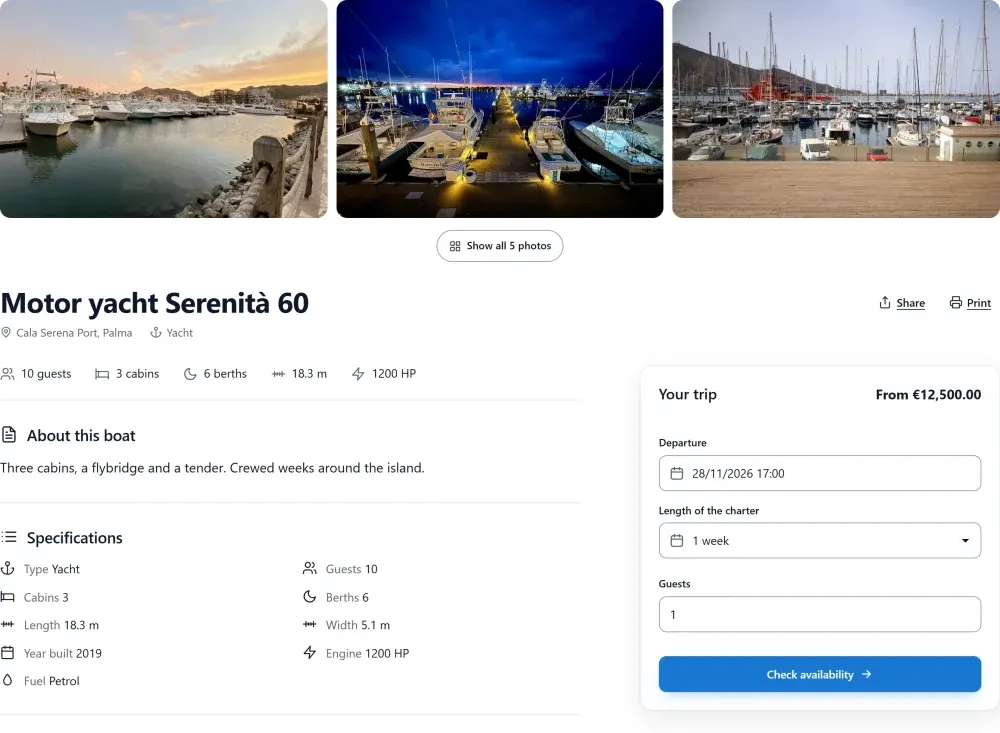
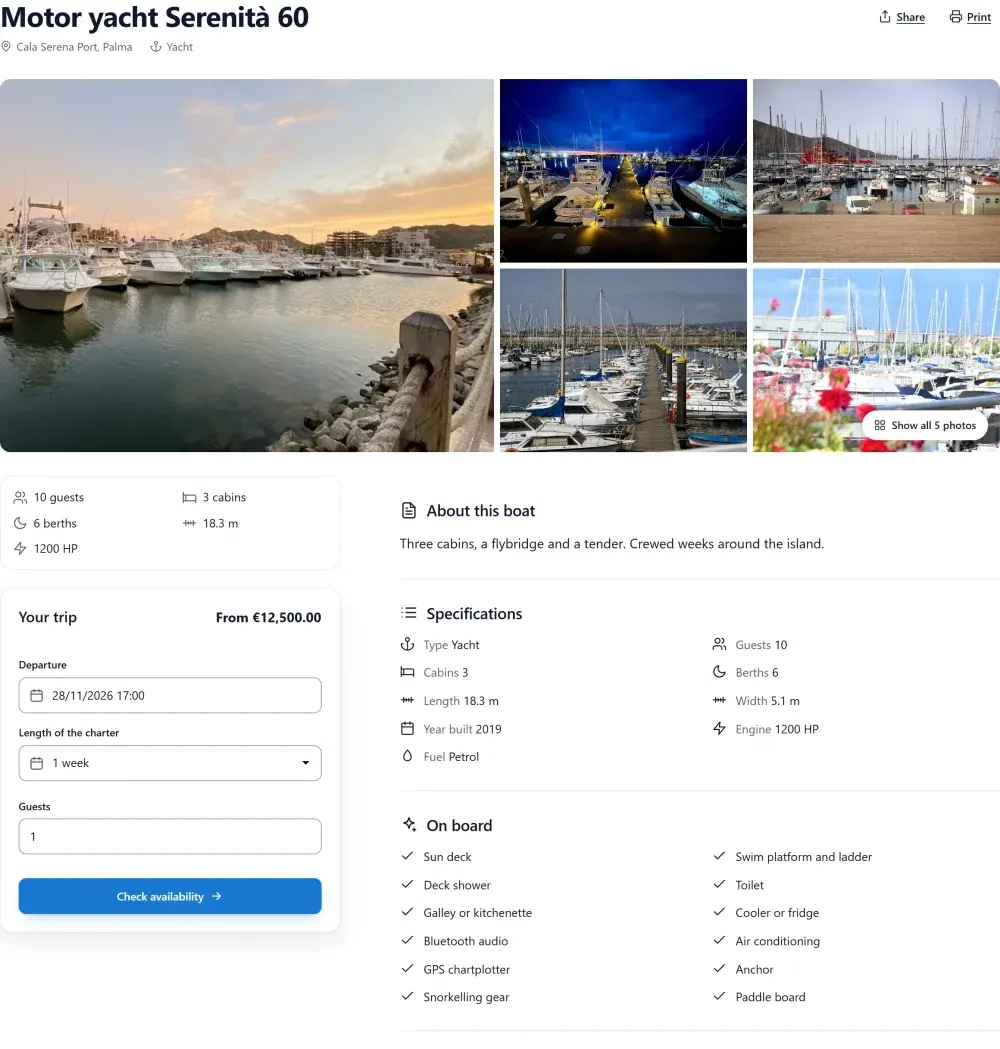
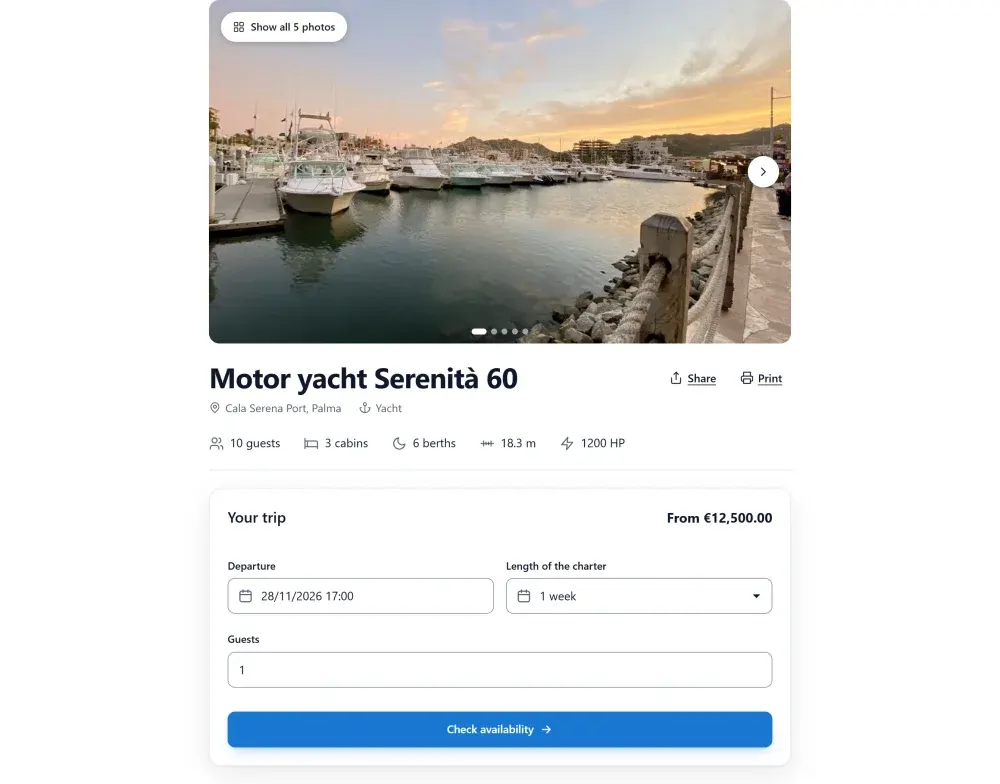
On a phone, every layout becomes one column, and a booking bar with the price and a Book now button stays at the foot of the screen until the booking box comes into view.
The page template
A boat’s page is drawn in the plugin’s own template: your theme’s header, the boat at full width, and your theme’s footer. The theme’s post title, featured image and author line are not shown above the boat.
- With a block theme (WordPress 6.7 or later), the template is listed in Appearance ->
Editor -> Templates as Boat page, and you can edit it there. A theme that has its own
single-pbr_boattemplate keeps it. - With a classic theme, the plugin uses its own
templates/single-boat.php, unless the theme has asingle-pbr_boat.phpfile.
Booking windows PRO
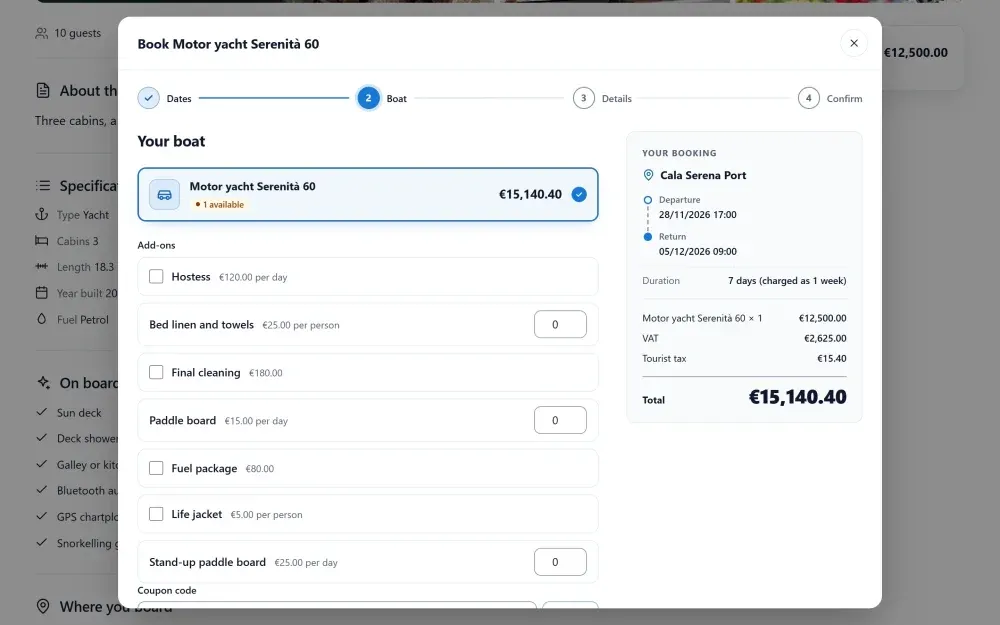
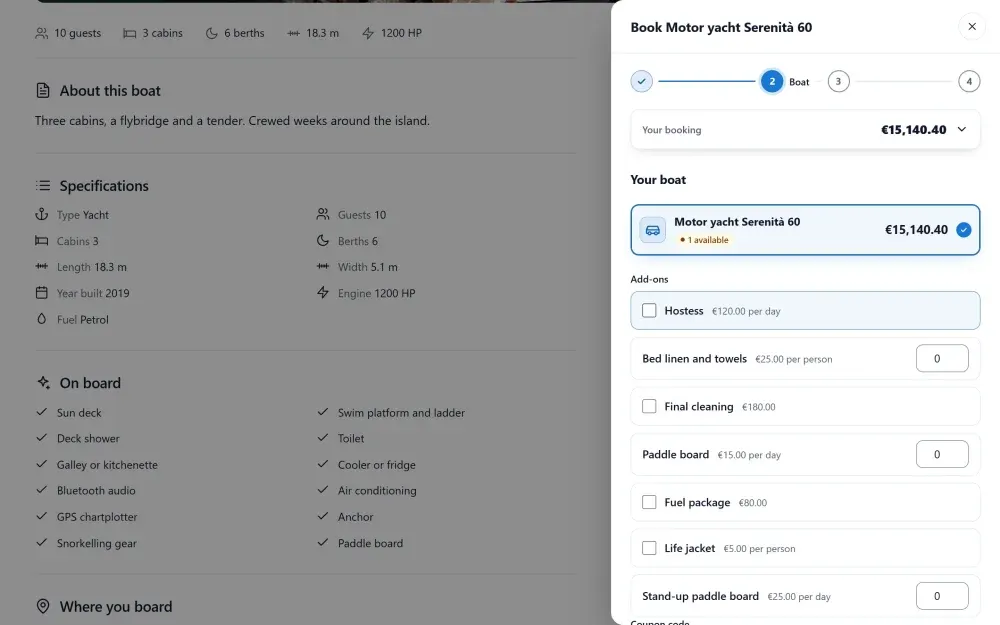
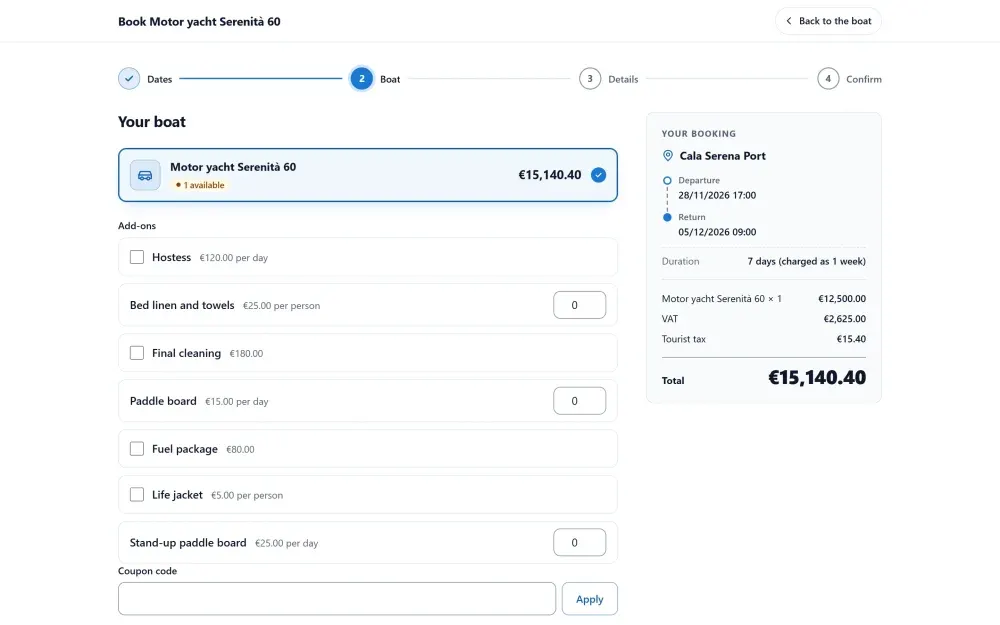
On a boat page, the booking box always starts with the date, the guests and Check availability. The After the dates are picked setting says where the rest of the booking opens once the customer has picked a date:
| Option | What happens |
|---|---|
| In the box, on the page | The form carries on inside the box. The default, and the free behaviour. |
| In a window over the page | A wide window opens with the form on one side and the order on the other. |
| In a panel from the side | A panel slides in from the right, with the order at its top. |
| Over the whole screen, nothing else in view | The form fills the screen, with Back to the boat at the top. |
Closing the window puts the form back in the box, on its first step, with the dates the customer chose. Without JavaScript, the form simply stays in the box.
Boat list layouts
The list layout applies to the boat grid and the search results. A block, a shortcode or an Elementor widget can ask for another one for that list only.
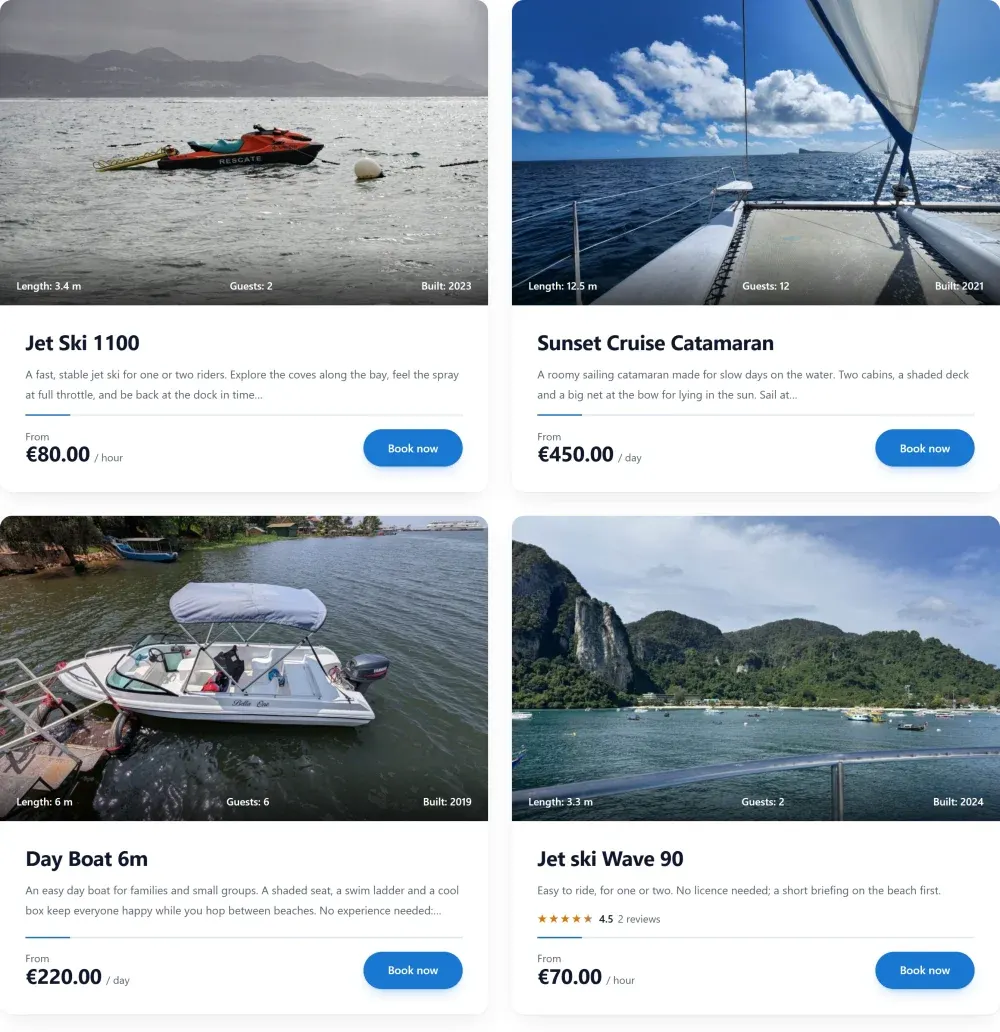
| Layout | What it looks like |
|---|---|
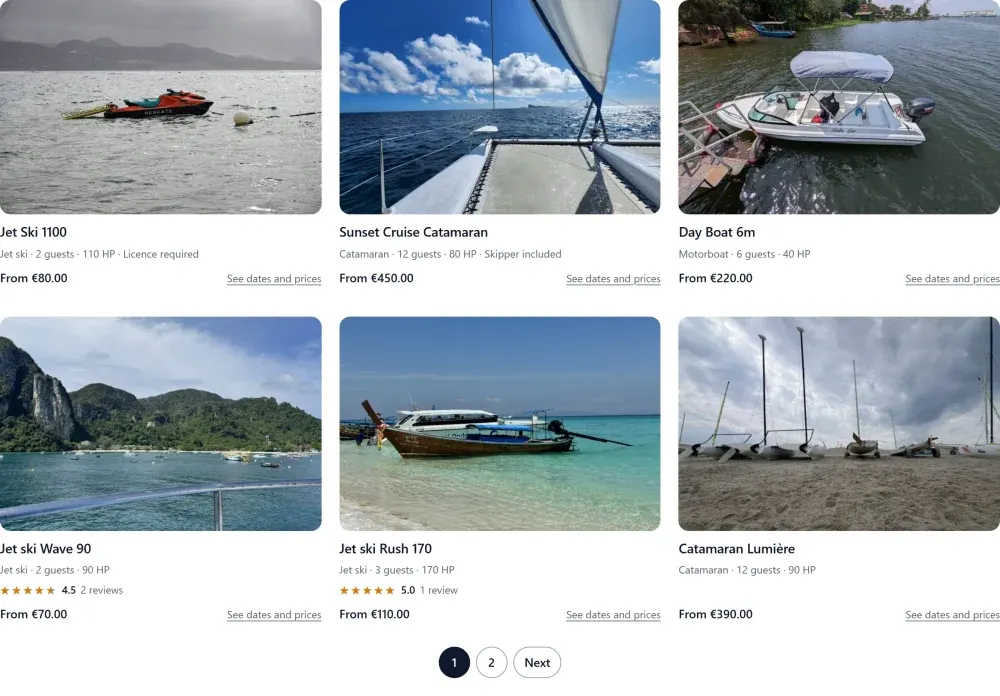
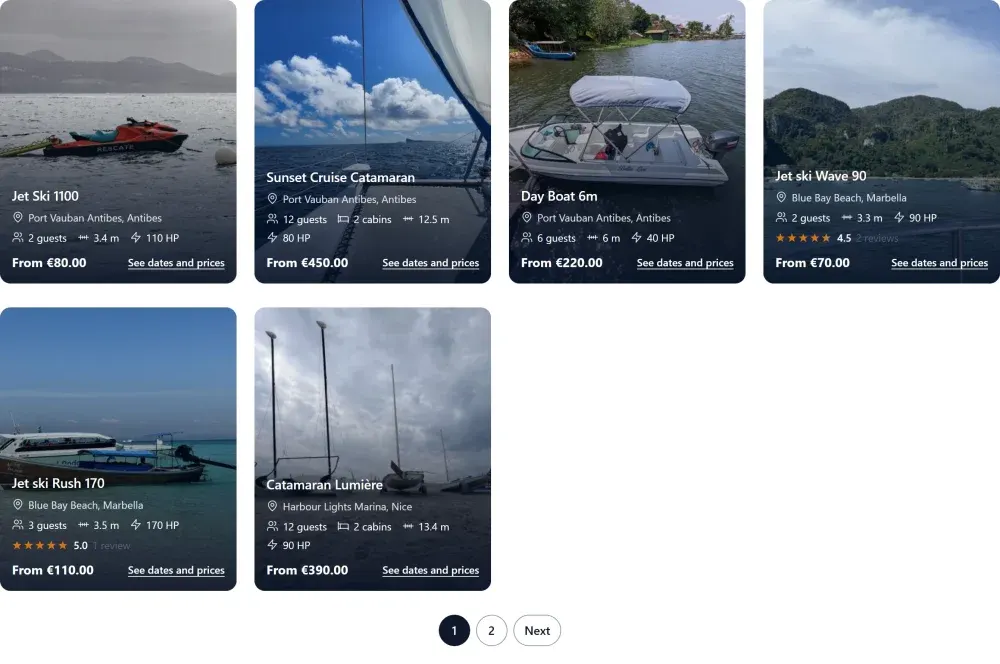
| Grid | Simple cards: the photo, the name, a line of facts, the price and See dates and prices. The default, and the free layout. |
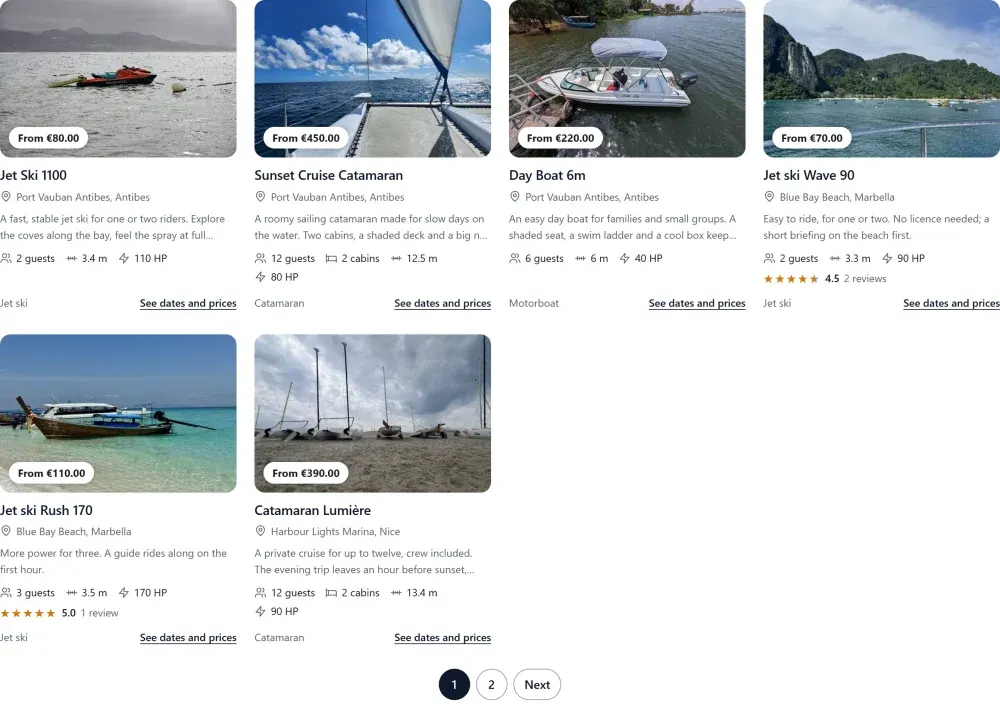
| Photo cards PRO | The price on the photo, the marina, the start of the description and the figures under it. |
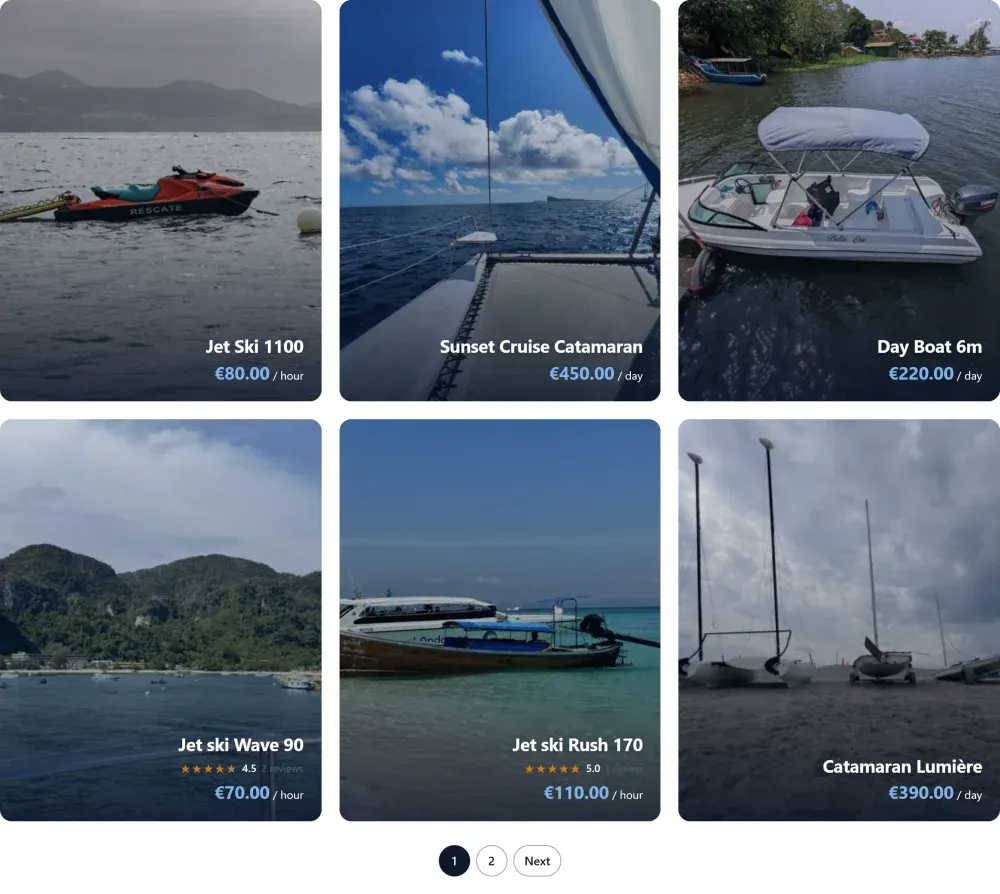
| Text on photo PRO | The name, marina, figures and price written over the foot of the photo. |
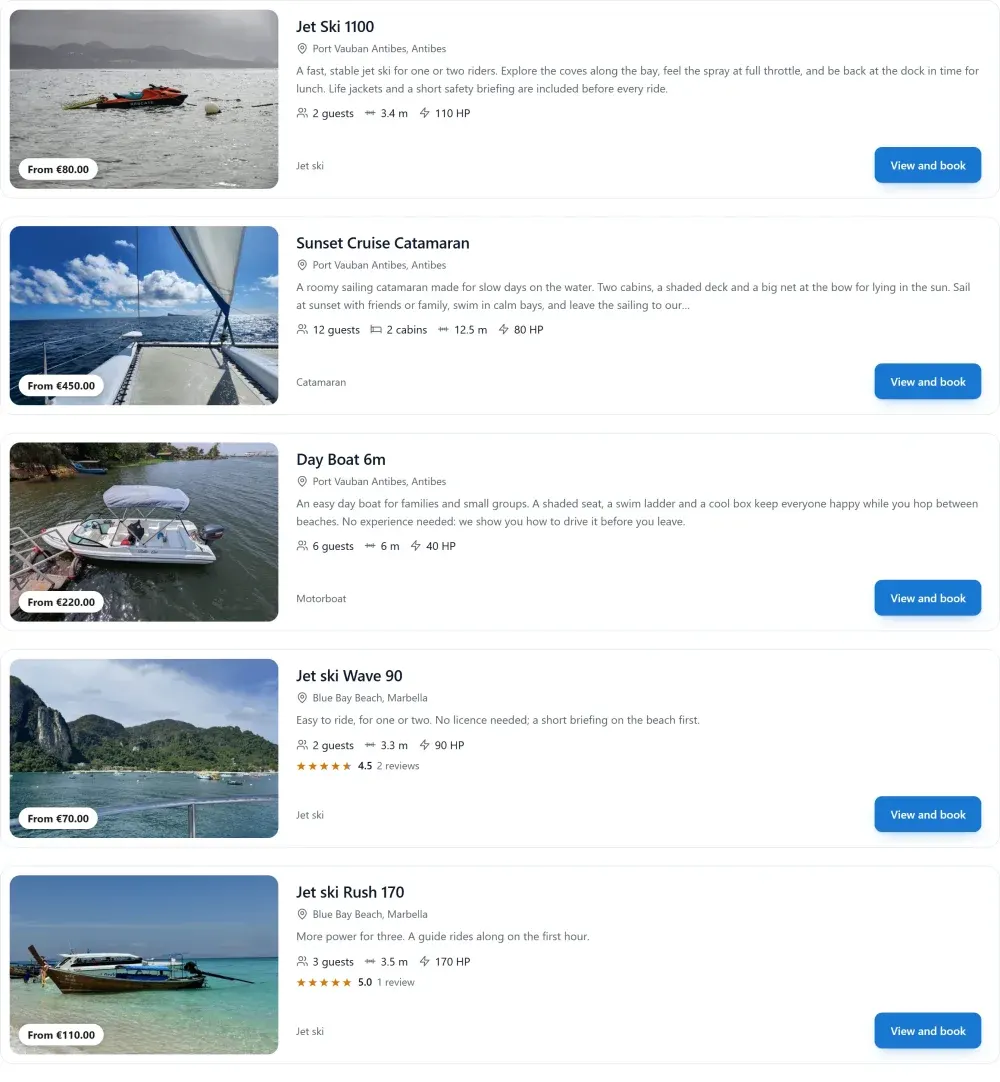
| List PRO | One boat a row: the photo on the left, the details and View and book on the right. |
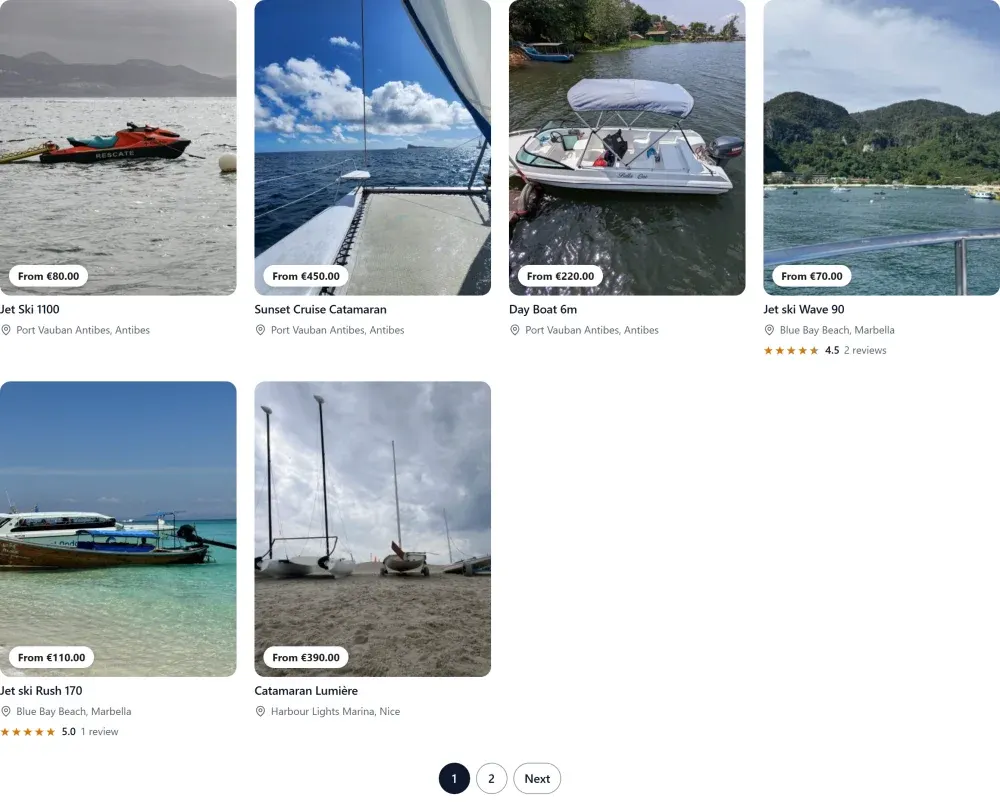
| Minimal PRO | A tall photo, the name and the marina. |
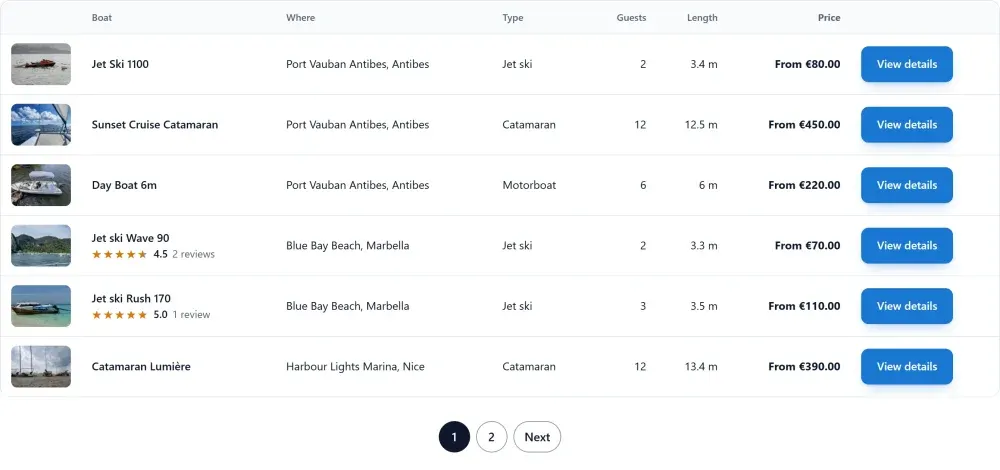
| Table PRO | One row a boat, to compare: boat, where, type, guests, length and price. |
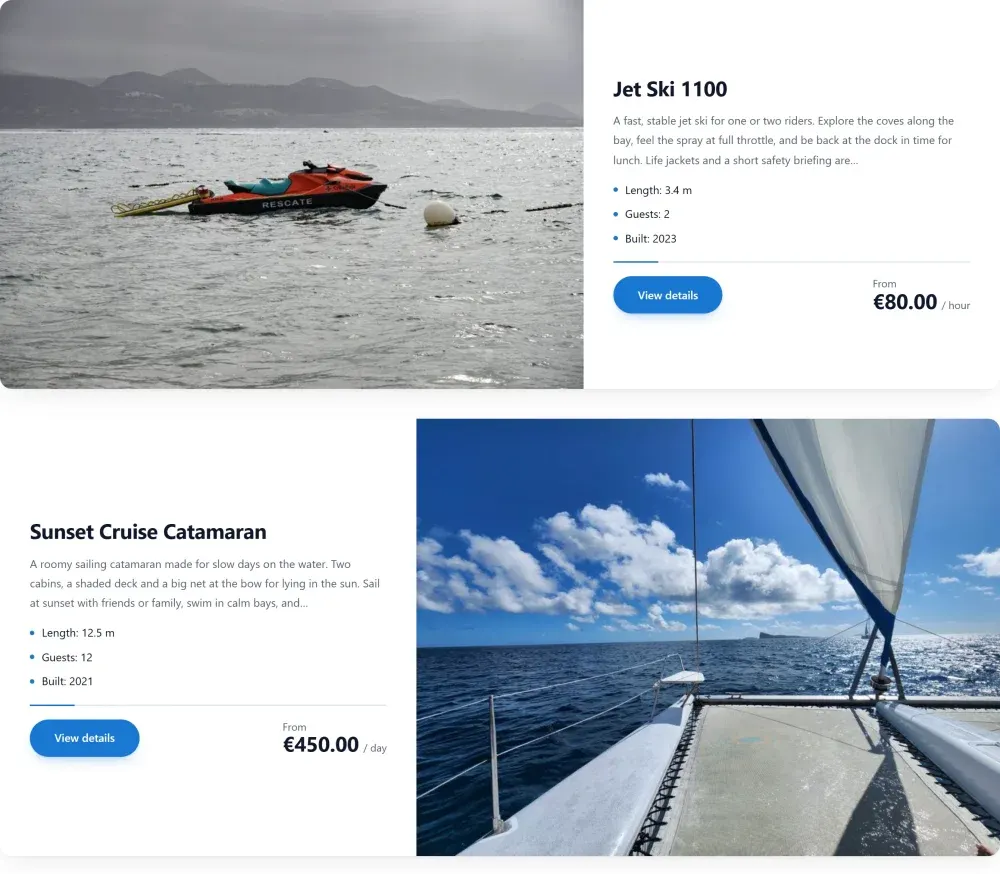
| Alternating rows PRO | A large photo beside the details, the sides swapping each row. |
| Large panels PRO | Two a row, the figures on the photo and Book now under it. |
| Tall photos PRO | The name and the price written on a tall photo. |
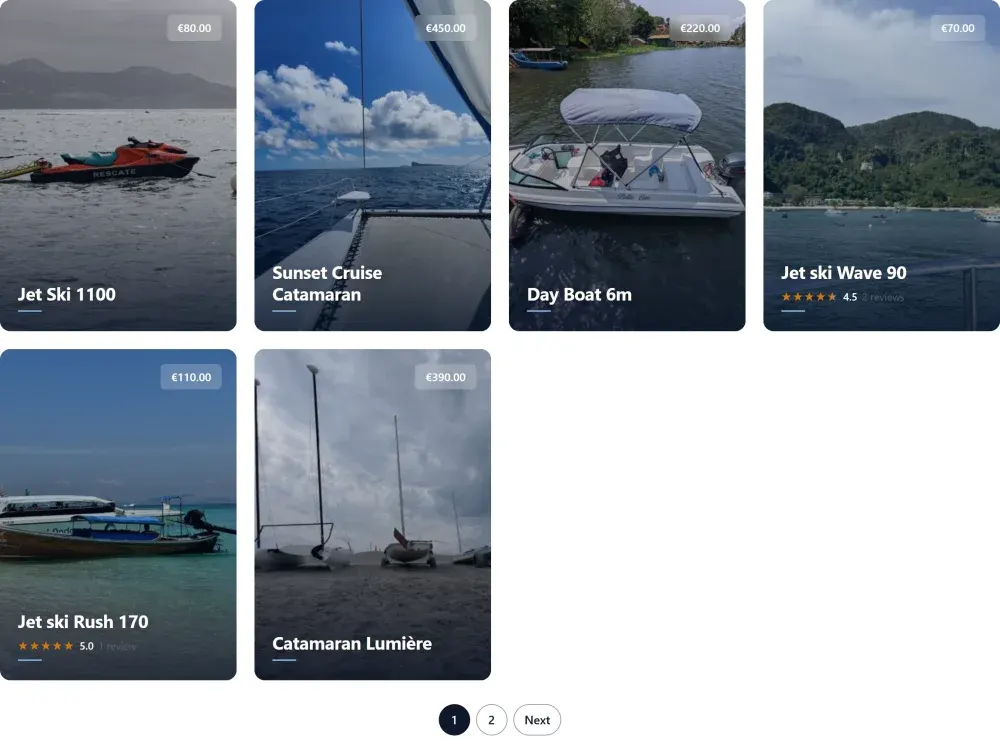
| Photo tiles PRO | Four a row, the price in a corner. |
On the Pro list layouts, the price says what it is for, such as / hour, / day, / week or / person.
Paging long lists
A list shows 24 boats unless its shortcode, block or widget says another number. More boats than fit a page says what comes after them:
| Option | What the visitor gets |
|---|---|
| Nothing: the first boats only | The first boats, and no more. The default. |
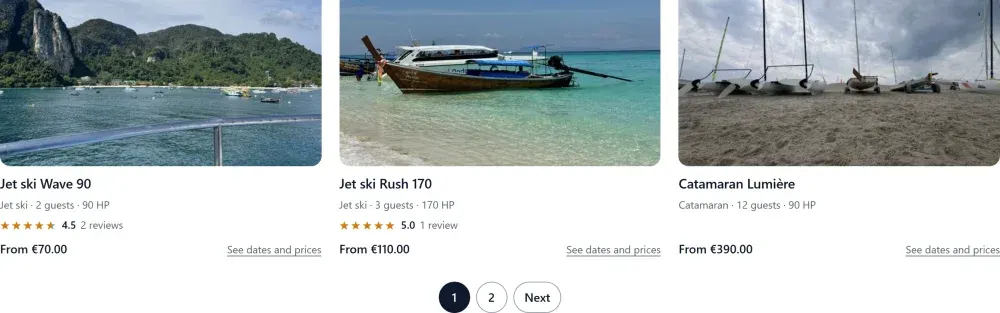
| Numbered pages | Page numbers and Next under the list. The page is in the address, so it can be linked to. |
| A “Show more boats” button | The next boats are added under the list when the button is clicked. |
| More boats as the visitor scrolls | The next boats are added as the visitor reaches the foot of the list. |
Search filters beside the boats
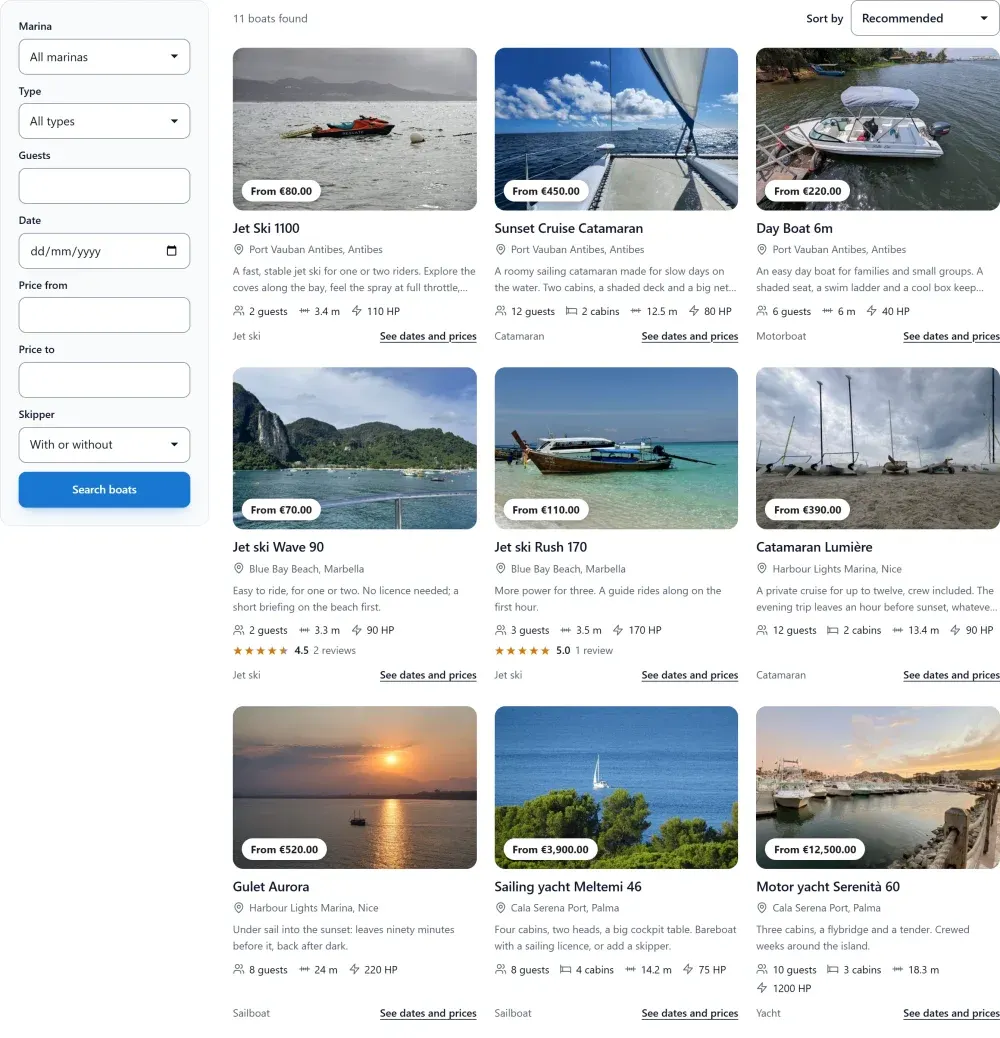
Search filters puts the search form Above the boats or In a column beside the boats. Either way, the results show how many boats were found and a Sort by list: Recommended, Price, lowest first, Price, highest first and Most guests.
Choosing a layout for one page
The site-wide settings are a default. One list or one boat can be drawn another way:
| Where | How |
|---|---|
| Shortcode | layout="..." on [plugixa_boat_rental_boat], [plugixa_boat_rental_boats] and [plugixa_boat_rental_search]; paging="..." on the two lists; filters="side" on the search. |
| Block | Layout in the sidebar of the Boat Grid, Boat Search and Single Boat blocks. |
| Elementor | Layout on the Boat Grid and Single Boat widgets. |
The layout names are the ones in the tables above, written as mosaic, classic, hero,
split, compact, showcase, magazine, gallery (Photo row) and sidebar (Side column)
for pages, and grid, cards, overlay (Text on photo), list, minimal, table,
alternate, panels, portrait (Tall photos) and tiles for lists. For example:
[plugixa_boat_rental_boats layout="table" paging="numbers" limit="12"]
A layout the site does not have, such as a Pro layout after Pro is removed, is drawn as the default (Photo mosaic or Grid). Nothing breaks.
Previewing layouts on your own boats
Add ?pbr_layout= and a layout name to the address of a boat page or a page with a list, for
example /boats/sea-breeze/?pbr_layout=hero. For the booking windows, add ?pbr_booking=
with modal, drawer or focus. Nothing is saved: the preview lasts as long as the address.
The Layouts menu PRO
With Pro, a Layouts button sits at the foot of boat pages and lists. It opens a panel with every page layout, booking window and list layout as a link, so you can try each one in turn. Back to my settings returns to the saved choice.
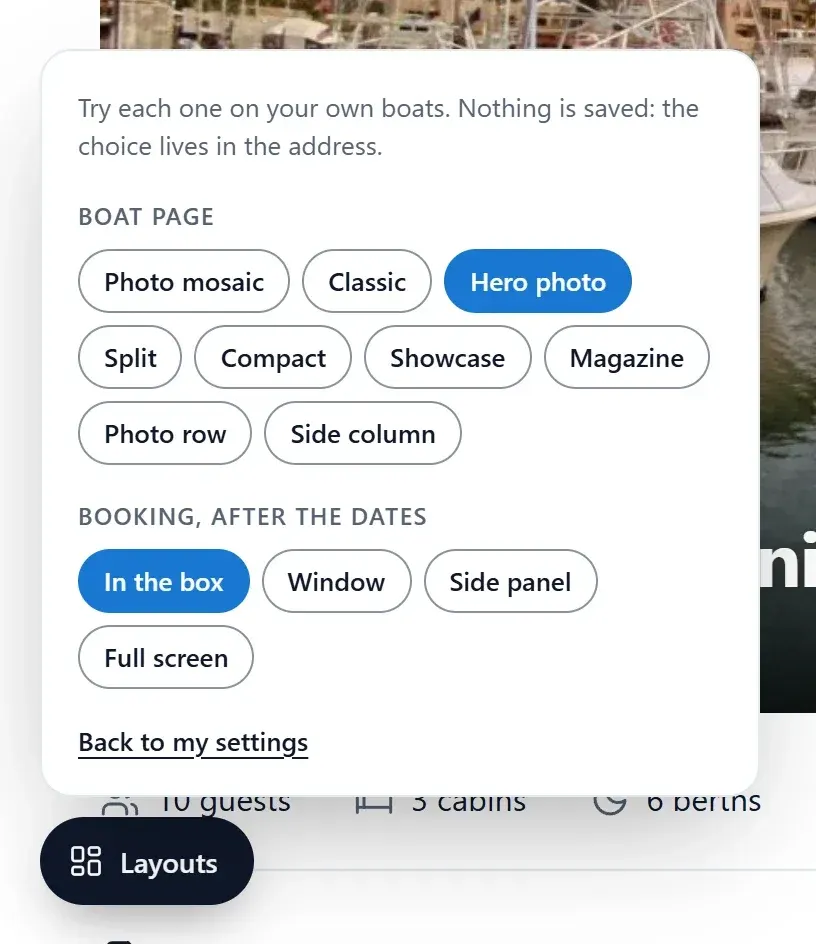
Layout menu on the site says who sees it:
| Option | Who sees the button |
|---|---|
| Staff who can change these settings | You and your team, signed in. Visitors never see it. The default. |
| Everyone, for a demo site | Every visitor. Use it on a demo or showroom site. |
| Nobody | No one. |
For developers
Layouts and booking windows are registered with three filters,
plugixa_boatrental_page_layouts, plugixa_boatrental_list_layouts and
plugixa_boatrental_boat_booking_modes, and the sections of a boat page with
plugixa_boatrental_boat_sections. Whatever is registered is offered everywhere: the
settings, the blocks, the Elementor widgets, the Layouts menu and the previews. See
Hooks.
Quick Links
Share